User manual
FleetPilot Autónomos · VTC and taxi
Every kilometre counts. Your business of one to three cars, whether you drive or your drivers do: what each car and each month leaves you, each platform’s earnings attributed to whoever was driving, the rota, expiry dates, fines and their deadline, your employees’ payroll and working time, expenses and compliance, explained section by section with screenshots of the app.
Getting started
Welcome
What FleetPilot Autónomos is and who it is for, what it does and what it does not, who signs in to your account (you, your payroll agency and your drivers), how your business's month fits together, the idea that ties it all together —every event, to whoever had the car— and how to get the most out of this manual.
FleetPilot Autónomos is the app for the self-employed VTC or taxi operator with up to three cars: the person who holds the VTC licence or the taxi licence in their own name, owns the cars and, often, employs one or more drivers. Its motto sums it up: «Every kilometre counts». It brings together in one place what is usually spread across each platform's dashboard, spreadsheets, emails with the payroll agency and the fines folder:
- your cars: each one with its VTC licence or taxi licence, its MOT (ITV), insurance, outside workshop jobs and claims;
- your drivers, if you have any: their contract, their permits, their working-time record, the shift rota and who has each car at any moment; and you, if you drive;
- the money: each platform's takings attributed to whoever was driving, payroll with the collective agreement's variable pay, expenses, fuel cards and cash;
- control: fines with their deadline to identify the driver, discrepancies between what the platforms, the cards and the shifts say, the compliance of each car and each driver, and reports;
- and two portals: My business, where you see what your business brings in, costs and leaves each month and with each car, and My shift, your drivers' portal on their phone (and yours, if you drive).
A few acronyms that come up from the start: VTC is vehicle hire with driver (the licence for the cars that work with Uber, Bolt, Cabify or FREENOW); the ITV is the Spanish vehicle roadworthiness test, like the MOT; and the owner is you: the person who has the cars and the licence in their name, and the employer of your drivers.
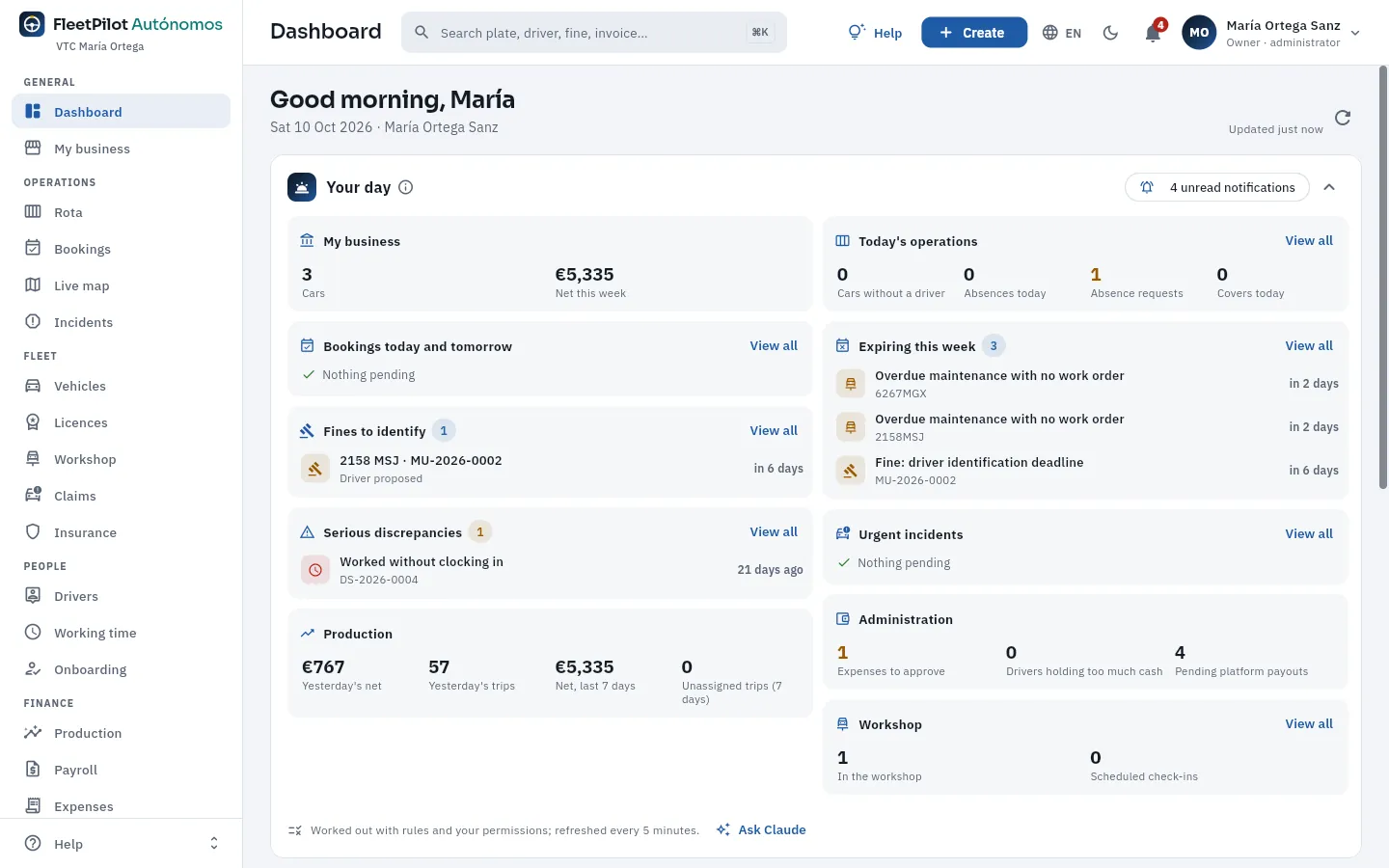 1234567
- 1The sidebar takes you to each section, grouped by area: General (with My business), Operations, Fleet, People, Finance and Control.
- 2The search box finds a number plate, a driver, a fine or an expense from any screen (also with ⌘K or Ctrl+K).
- 3Create adds an assignment, an incident, an expense, a fine, a car… without leaving where you are.
- 4The bell with your notifications: the fine whose driver must be identified, what is about to expire, a holiday request… (see Notifications).
- 5Your user («Owner · administrator»): your profile, language and theme, notifications, the connection with Claude, Users, Settings, the Audit log and signing out.
- 6Your day: what is on your plate today, before anything else (see Dashboard).
- 7The Help menu opens this manual —at the chapter for the screen you are on— and the screen's help.
#Who it is for
FleetPilot Autónomos is designed for three ways of running a small business, and it works the same for all three:
| Your case | How you use it | In the demo |
|---|---|---|
| You run the business and do not drive | Your employed drivers do the shifts; you organise the rota, follow the takings, pay the payroll and see what each car leaves | María Ortega, VTC in Madrid: three cars and five drivers |
| You drive and have an employee or two | You drive one of your cars (usually by day) and a driver does the other shift or the other car | Tomás Rey (VTC, two cars) and Rosa Delgado (taxi: she drives by day and Óscar Fuentes at night) |
| You drive on your own | Your car, your takings, your expenses and your paperwork; no payroll and no clocking in | Khalid Benali, VTC in Málaga |
If you drive, you are the owner-driver: you have your own driver record so that cars can be assigned to you and trips, refuelling and fines attributed to you, but with no contract, payslip or clock-ins, because you are nobody's employee. Everything that changes is in If you drive yourself.
#What it does and what it does not
FleetPilot Autónomos is the same app that fleet managers use, adjusted to a business of one to three cars:
- You are the owner and the administrator. Your business is the only owner in the account, so there is no need to choose it when you add a car, a card or an expense. What a large company spreads across traffic, fleet, human resources and administration, here you do yourself (and the employment side, if you like, your payroll agency).
- A single base. There are no branches: everything you see belongs to your business.
- Up to 3 cars. FleetPilot Autónomos does not allow more than three cars that are not deregistered. To change a car, deregister the old one and then add the new one.
- Outside workshops. You take your cars to outside workshops: in Workshop you record the work orders, the MOT and the damage assessments, with their cost.
- No prices inside. The app does not charge anything or show any prices.
#Who signs in to your account
| Who | What they see | Counts as an office user |
|---|---|---|
| You | Everything: the sections, the amounts and your drivers' data, My business, Users, Settings and the Audit log; if you drive, also My shift | Yes |
| Your payroll agency («Payroll agency» profile) | Only Drivers, Working time and Payroll, to consult and export what they need for payslips and social security | Yes |
| Your drivers | Only My shift, full screen on their phone: their car, their clock-ins, their trips, their expected pay and their signatures | No |
An account has at most 2 office users: you and your payroll agency. «My shift» drivers do not count: you can give all of them access. Users are created in Users; how each one signs in, in Create your account and sign in.
#How the app is organised
The sidebar groups the sections by area, in the order you work: today, the street, the cars, the people, the money and control. Each section is a chapter of this manual with the same name and the same icon.
| Area | Sections | What for |
|---|---|---|
| General | Dashboard · My shift (if you drive) · My business | Today's snapshot; your shift; what your business leaves |
| Operations | Rota · Bookings · Live map · Incidents | Who has each car and when, pre-booked services, where the cars are and what happens on the street |
| Fleet | Vehicles · Licences · Workshop · Claims · Insurance | Each car with its licence, its maintenance, its knocks and its policies |
| People | Drivers · Working time · Onboarding | Contracts, permits, the working-time record and onboarding a new driver from their phone |
| Finance | Production · Payroll · Expenses · Fuel cards · Cash · Invoicing | What comes in and what goes out |
| Control | Fines · Discrepancies · Compliance · Reports | Deadlines, cross-checks, obligations and analysis |
| Administration | Users · Settings · Audit log | Who signs in, your business details and integrations, and the change log. On a computer they are in your user menu; on a phone, at the end of the sections drawer |
#Your business's month
This is how your work fits together over a month. Each step is a section of the app and a chapter of this manual (click any of them to go to it):
- 1Your carsEach car with its MOT and its insurance, assigned to your VTC licence or your taxi licence.
- 2Who drivesYour drivers with their signed contract; or you, as owner-driver.
- 3RotaEach car and shift with its regular driver; days off, covered.
- 4Working timeYour employees clock in from «My shift»; the record cannot be altered.
- 5Attributed tripsTrips from Uber, Bolt, Cabify, FREENOW or the taxi, each one to whoever had the car.
- 6PayrollEach employee's fixed and variable pay, from their own takings.
- 7ExpensesFuel, workshop, insurance and the rest, with their invoice.
- 8Month by monthWhat your business and each car bring in, cost and leave.
#Every event, to whoever had the car
The idea that ties the whole app together is attribution: every trip, every card refuelling, every GPS journey and every fine is assigned to the driver who had the car at that instant. Not to the «usual» driver or to whoever had it at the end of the month, but to the driver at that exact moment, according to the rota:
- the day's cover (whoever did that shift instead of the regular driver) takes precedence over the regular assignment;
- each assignment runs from its start time to its end time, not including it: the minute it ends already belongs to the next one;
- anything that cannot be attributed (a car with nobody assigned, a trip outside any shift) is left unassigned, with its reason, for you to review in Production.
From this come each driver's payslip (with their trips only), the driver proposed for a fine, the cash they must pay in and what each car leaves in My business. That is why it is so important to keep the Rota up to date. If you drive, what is yours is attributed to you like to anyone else.
#The demo accounts
The screenshots in this manual are from the demo, with four fictitious owner-operators, the driver of one of them and her payroll agency. On the demo's sign-in screen, one click on each person signs in with their account (see Create your account and sign in):
| Person | Their business | What you will see |
|---|---|---|
| María Ortega Sanz | VTC in Madrid: Kia Niro EV (2158 MSJ), Tesla Model 3 (3942 NFZ) and Toyota Corolla Touring Sports (6267 MGX), with five employed drivers and a candidate being onboarded. She does not drive | The main account: almost all the screenshots are hers |
| Tomás Rey Molina | VTC in Madrid: two cars (7247 LTY and 7336 MSC). He drives by day and has two employees | The owner-driver, with «My shift» and «My business» |
| Rosa Delgado | Taxi in Madrid (3304 LTH). She drives by day and Óscar Fuentes at night | The taxi, with its own shifts |
| Khalid Benali | VTC in Málaga (9845 MSB). He drives on his own | The owner-operator without employees |
| David Herrero Campos | María's driver (C-0001) | Only «My shift», full screen |
| Pilar Ríos Calvo | María's payroll agency | Only Drivers, Working time and Payroll |
#Where to start
| If you are… | Start with | Then |
|---|---|---|
| The owner-operator who does not drive (María) | Dashboard, My business | Rota, Production, Payroll, Fines |
| The owner-operator who drives (Tomás, Rosa, Khalid) | If you drive yourself, My shift | My business, Expenses, Fines |
| Your payroll agency (Pilar) | Drivers, Payroll | Working time |
| Your driver (David) | My shift | — |
If this is your first time, read Create your account and sign in and The screen and what is common first: that is where you will find what works the same in every section (searching, filtering, opening a record, filling in a form).
#On the computer and on the phone
FleetPilot Autónomos runs in the browser, with nothing to install, and adapts to the size of the screen. On a phone, the sidebar hides in a drawer and lists become cards. Your drivers have My shift, designed for the phone: clocking in, checking the car, seeing what they have earned and signing their documents.
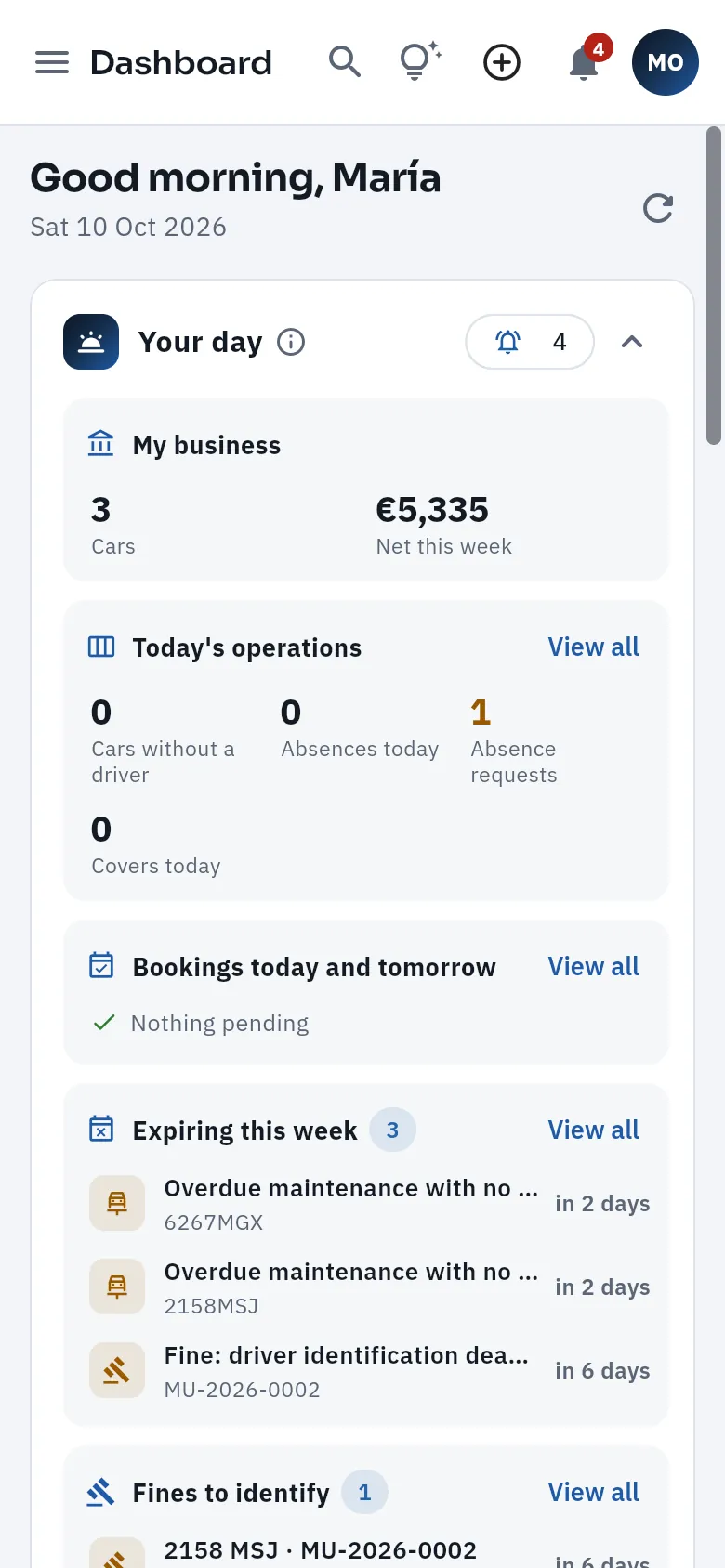 12
12
- 1The menu opens the drawer with the sections.
- 2Your day and, below, the dashboard blocks one after another.
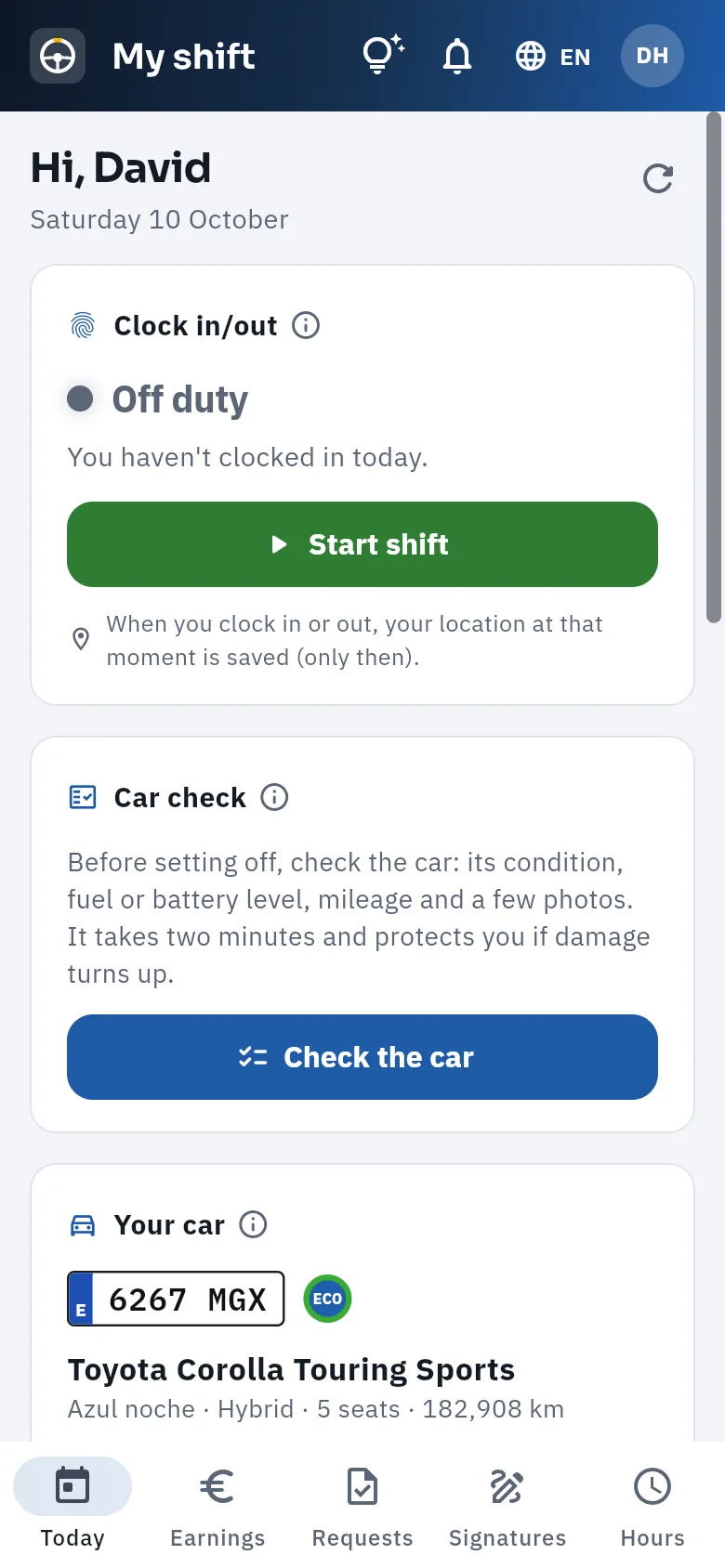 12
12
- 1No sidebar: the driver only has their portal, with help, their notifications, the language and their menu.
- 2Their tabs: today, earnings, requests, signatures and working time (see My shift).
#How to read this manual
- Screenshots with marks. Every screenshot is of the real app. The numbers 1 point to the parts explained below, in the legend. Hover over a mark or its line in the legend and the area is highlighted in the screenshot; tap the screenshot to see it full screen.
- Screen labels. What you see written on a button, a tab or a field appears like this: Create, Save. Keys, like this: ⌘K.
- Steps. Tasks are explained step by step in numbered boxes, with what happens at the end.
- Coloured boxes. Tips in green; important points in amber; regulations (with the rule and its article) with a band on the left; how a figure is calculated, with a worked example; examples with the demo data; and what each person sees (you, your payroll agency, your drivers), with a padlock.
- Acronyms. Those of the trade (VTC, ROTT, ITV, DGT, RC, ZBE, PMR…) are explained the first time they appear in each chapter and are all in the Glossary.
- Search. The search box on the left (or the / key) finds any word in the whole manual.
- Print. Print or save as PDF, bottom left, produces the manual on paper or as a PDF, each chapter on its own page.
#How this manual is organised
After these first steps, each chapter matches a section of the sidebar, in the same order and with the same icon, plus If you drive yourself, next to Drivers. At the end, the appendices: the Claude connector, integrations, regulations and the glossary.
General
DashboardWhat is on your plate todayMy businessWhat each car earns youMy shiftYour drivers, on their phoneOperations
RotaWho drives each shiftBookingsYour booked servicesLive mapYour cars on the mapIncidentsDay-to-day reportsFleet
VehiclesYour cars, up to dateLicencesYour papers to workWorkshopWorkshops, MOT and maintenanceClaimsReports, fault and recoveryInsuranceYour policies, no surprisesPeople
DriversYour team, in orderIf you drive yourselfThe owner at the wheelWorking timeA record nobody can touchOnboardingHiring from the phoneFinance
ProductionEach trip, to whoever was drivingPayrollVariable pay, step by stepExpensesEvery receipt in its placeFuel cardsEach refuel, to whoever refuelledCashCash collected, reconciledInvoicingChained invoices, VeriFactu styleControl
FinesIdentify on time, pay lessDiscrepanciesWhat does not add up, in plain sightCompliancePoint by point, with its ruleReportsFigures for decisionsGetting started
Create your account and sign in
How to create your FleetPilot Autónomos account in three steps and what it sets up for you, how to sign in with your email and password, the demo accounts, your user menu and «My profile» (language and theme), how your payroll agency and your drivers sign in, and how to sign out.
To start using FleetPilot Autónomos you create your account yourself from the sign-in screen, in three steps and with nothing to install. That account is your business: you are its owner and its administrator. Then, if you like, you give access to your payroll agency and your drivers, each with their own user (their email and password):
- you land on the Dashboard, with all the sections, My business and, if you drive, My shift;
- your payroll agency, with the «Payroll agency» profile, lands on Drivers and only sees the employment side (drivers, working time and payroll);
- your drivers go straight into My shift, their portal, and only see what is theirs.
- 1You create your accountYour details, your business and your sign-in, in three steps.
- 2You add your carsWith their VTC licence or taxi licence, their MOT and their insurance.
- 3And your driversWith their contract; or you assign the car to yourself, if you drive.
- 4You give them accessTo your payroll agency and, in «My shift», to your drivers.
#The sign-in screen
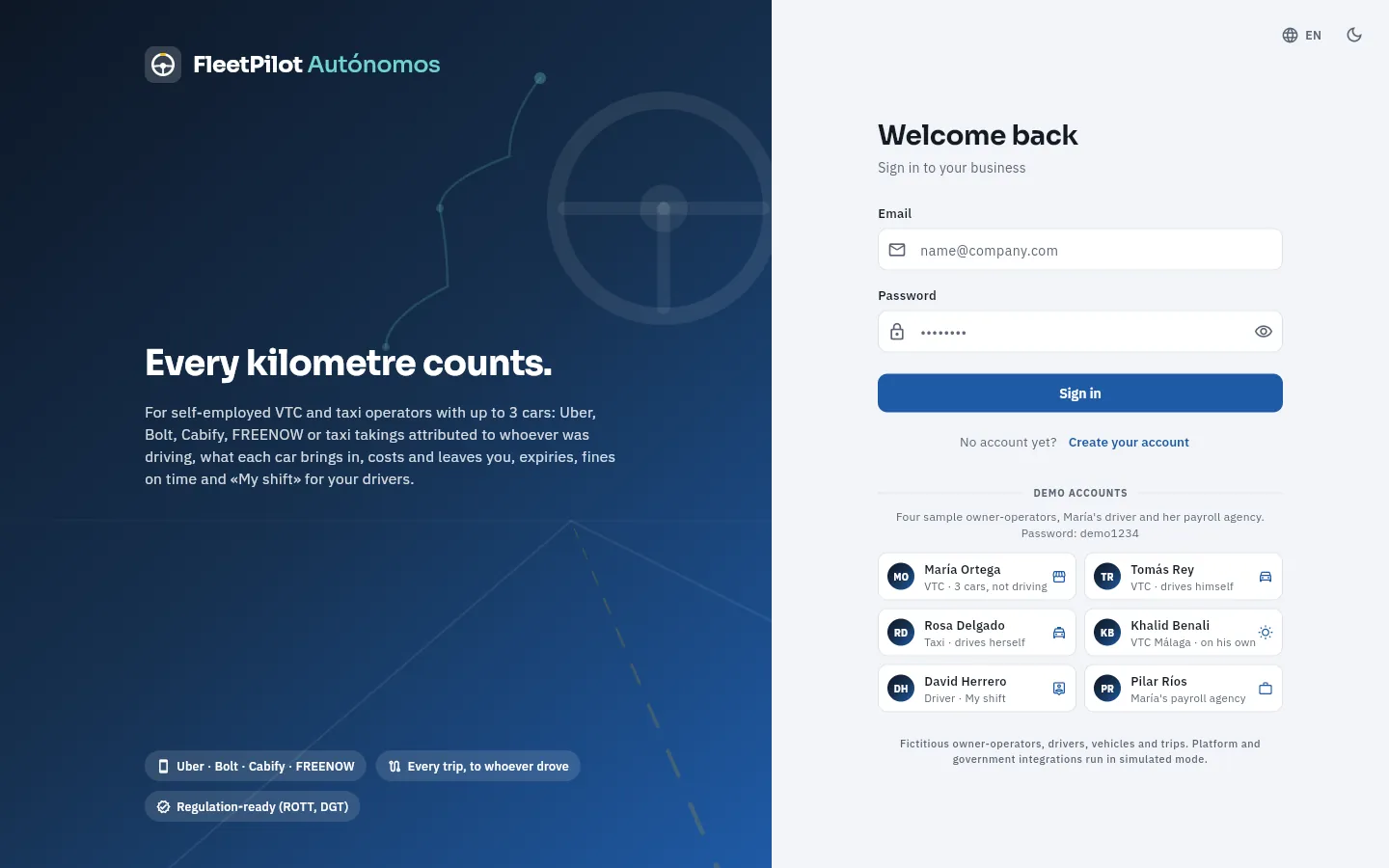 1234567
- 1Email: your account's email (the one you entered when you created it, or the one your administrator gave you).
- 2Password. The eye on the right shows or hides it as you type.
- 3Sign in (or the Enter key in the password field) opens your account.
- 4Create your account: signing up your business in three steps (below).
- 5Demo accounts: in the demo, one click on a person signs in directly with their account.
- 6The app's language (Spanish or English), already from the sign-in screen.
- 7Switches between light and dark mode.
Under the accounts, a notice reminds you that the owner-operators, drivers, vehicles and trips are fictitious and that the integrations run in simulated mode. Clicking the logo opens the FleetPilot Autónomos website. On a phone the presentation on the left disappears: the form remains, with the logo at the top and the accounts below.
#Create your account
Create your account opens the sign-up of your business, in three steps: You, Your business and Your sign-in. You can
also get there with the direct link /acceso?alta=1. No payment is asked for and no price is shown: when you finish, the account is
created and you go straight in.
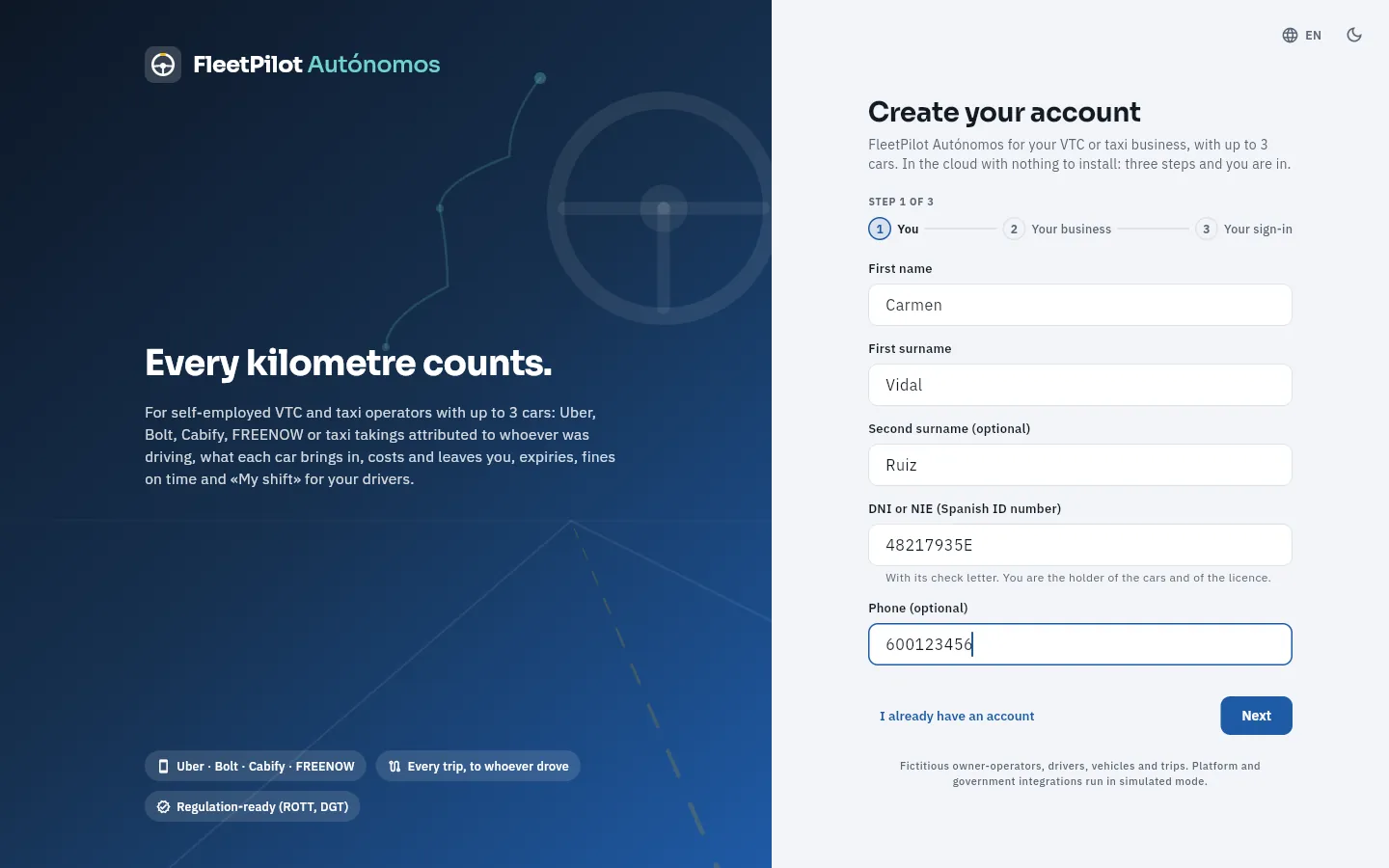 12345
12345
- 1Create your account: FleetPilot Autónomos for your VTC or taxi business, with up to 3 cars.
- 2The three steps: the current one highlighted and the completed ones ticked.
- 3Your first name and surnames (the second one is optional): those of the person who owns the business.
- 4Your DNI or NIE (Spanish ID number), with its check letter: FleetPilot checks that the letter matches. You are the holder of the cars and of the licence.
- 5Next moves on to step 2 if nothing is missing; I already have an account goes back to the sign-in screen.
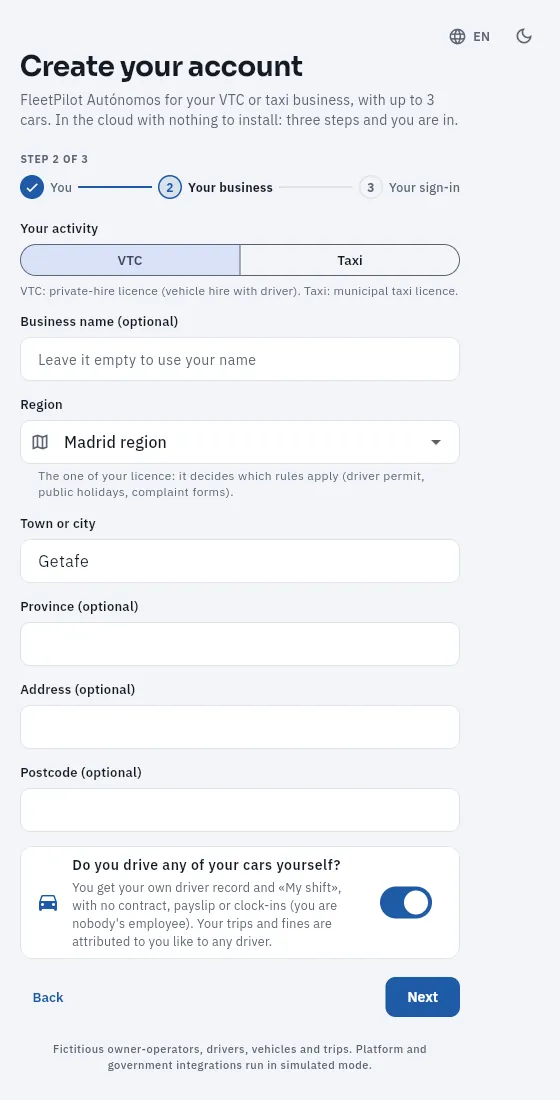 12345
12345
- 1Your activity: VTC (licence for vehicle hire with driver) or taxi (municipal licence).
- 2Your business name, optional: if you leave it empty, your own name is used.
- 3The region of your licence: it decides which rules apply (driver permit, public holidays, complaint forms).
- 4The town or city; the province, address and postcode are optional.
- 5Do you drive? If you tick it, you get your own driver record and «My shift», with no contract, payslip or clock-ins (see If you drive yourself).
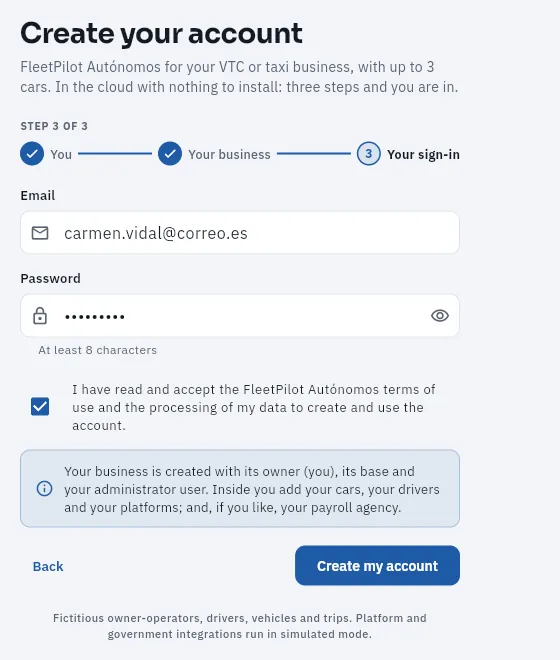 12345
12345
- 1Your email: it will be your user name to sign in.
- 2Your password, at least 8 characters long (the eye shows it).
- 3Accepting the terms of use and the processing of your data to create and use the account.
- 4What gets created: your business with its owner (you), its base and your administrator user.
- 5Create my account creates it and signs you in; Back returns to the previous step without losing what you typed.
On the sign-in screen, click Create your account.
Step You: type your first name, your first surname and your DNI or NIE with its letter (the second surname and the phone are optional). Click Next.
Step Your business: choose VTC or Taxi, the region of your licence and your town or city; if you like, your business name. Tick Do you drive any of your cars yourself? if you drive. Click Next.
Step Your sign-in: your email and a password of at least 8 characters. Tick that you accept the terms.
Click Create my account.
What is set up for you. When the account is created, FleetPilot Autónomos sets up your company details (your name or your business name, your tax ID and your contact details, which appear on your invoices), your base in your town and region, your owner record (you, as an individual), your administrator user and, if you drive, your owner-driver driver record, linked to your user. It also comes with the platforms (Uber, Bolt, Cabify, FREENOW…), the day, night and full shifts (and the taxi ones), the Madrid VTC collective agreement with a model variable pay scheme, public holidays and the legal notices for your drivers. You add the rest: your cars in Vehicles, your drivers in Drivers, your credentials for each platform in Integrations and, if you like, your payroll agency's user in Users.
#Signing in with your account
Type your email in the Email field.
Type your password in Password. To check what you have typed, tap the eye on the right.
Tap Sign in or press Enter.
If the email or the password is wrong, FleetPilot says so under the form: «Invalid email or password» (check both fields; capital letters count in the password). If the message is «Could not reach the server», the problem is the connection, not your details.
#The demo accounts
In the demo, under the form you will find the four sample owner-operators, María's driver and her payroll agency. One click on one of
them signs in straight away; if you would rather type it, the email is the first name followed by @fleetpilot.demo (for example,
tomas@fleetpilot.demo) and the password for all of them is demo1234. You can also sign in with a link: ?demo=maria (or tomas,
rosa, khalid, david, pilar) at the end of the demo's address opens that account without going through the form.
| Person (user) | Access | What they see, in short |
|---|---|---|
María Ortega Sanz (maria) |
Owner · administrator | VTC in Madrid with three cars and five drivers; she does not drive. Everything, with My business |
Tomás Rey Molina (tomas) |
Owner · administrator | VTC with two cars; he drives by day. Everything, with My shift and My business |
Rosa Delgado (rosa) |
Owner · administrator | Taxi in Madrid; she drives by day and an employee at night |
Khalid Benali (khalid) |
Owner · administrator | VTC in Málaga; he drives on his own |
David Herrero Campos (david) |
Driver (María's C-0001) | Only My shift, full screen: his car and shift, clocking in, his takings, his pay, his expenses and his signatures |
Pilar Ríos Calvo (pilar) |
Payroll agency (María's) | Only Drivers, Working time and Payroll, with personal and bank details, to consult and export. She lands on Drivers |
#If you forget your password
The sign-in screen has no link to recover the password. You change your payroll agency's and your drivers' passwords in Users, with Reset on each one's record (at least 8 characters; FleetPilot can generate it): give it to them securely, because the old one stops working immediately. If a user is deactivated, they can no longer sign in, but their name is kept on whatever they signed or recorded.
#Your user menu
At the top right is your user button: your initials, your name and your access («Owner · administrator»). Clicking it opens your menu, with your name and email at the top. To its left, the bell with your notifications (see Notifications).
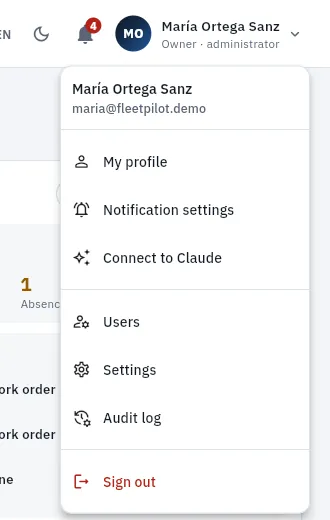 12345
12345
- 1My profile: your details, language and theme.
- 2Notification settings: which notifications reach your bell and which also arrive by email.
- 3Connect to Claude: work with FleetPilot from a chat with Claude, as you and with your permissions (see Connect to Claude).
- 4Your account's administration: Users (your payroll agency and your drivers), Settings (your business details and integrations) and Audit log.
- 5Sign out takes you back to the sign-in screen.
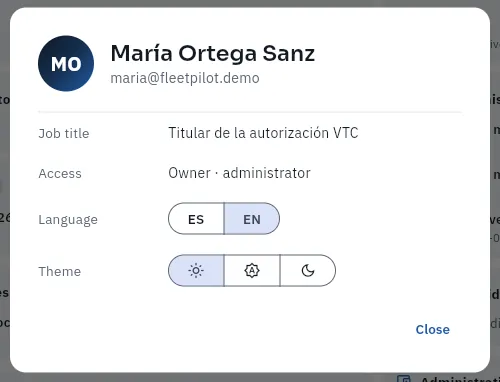 1234
1234
- 1Job title: in your case, holder of the VTC licence or the taxi licence.
- 2Access: «Owner · administrator».
- 3Language: ES (Spanish) or EN (English). It changes the whole app at once.
- 4Theme: light (the sun), «System» (your computer's or phone's) or dark (the moon).
On a computer you also have the language and theme in the top bar, one click away: the globe with the language letters and the moon (in dark mode, the sun). On a phone they do not fit: change them from My profile. They are remembered in this browser; if you sign in from another computer or from your phone, choose them there too. Only the app changes: the data (names, number plates, expense descriptions…) is not translated.
#How your payroll agency and your drivers sign in
You create their users in Users: your payroll agency's with the «Payroll agency» profile, and each driver's from their record in Drivers (or when inviting them to onboard, in Onboarding), linked to that person. Your payroll agency sees the sidebar with only three sections (Drivers, Working time and Payroll). Your drivers have no management sections: FleetPilot opens My shift full screen for them, with no sidebar, as soon as they sign in. At the top, a header with the logo, Help, the notifications bell, the language and their menu (with their notification settings and signing out).
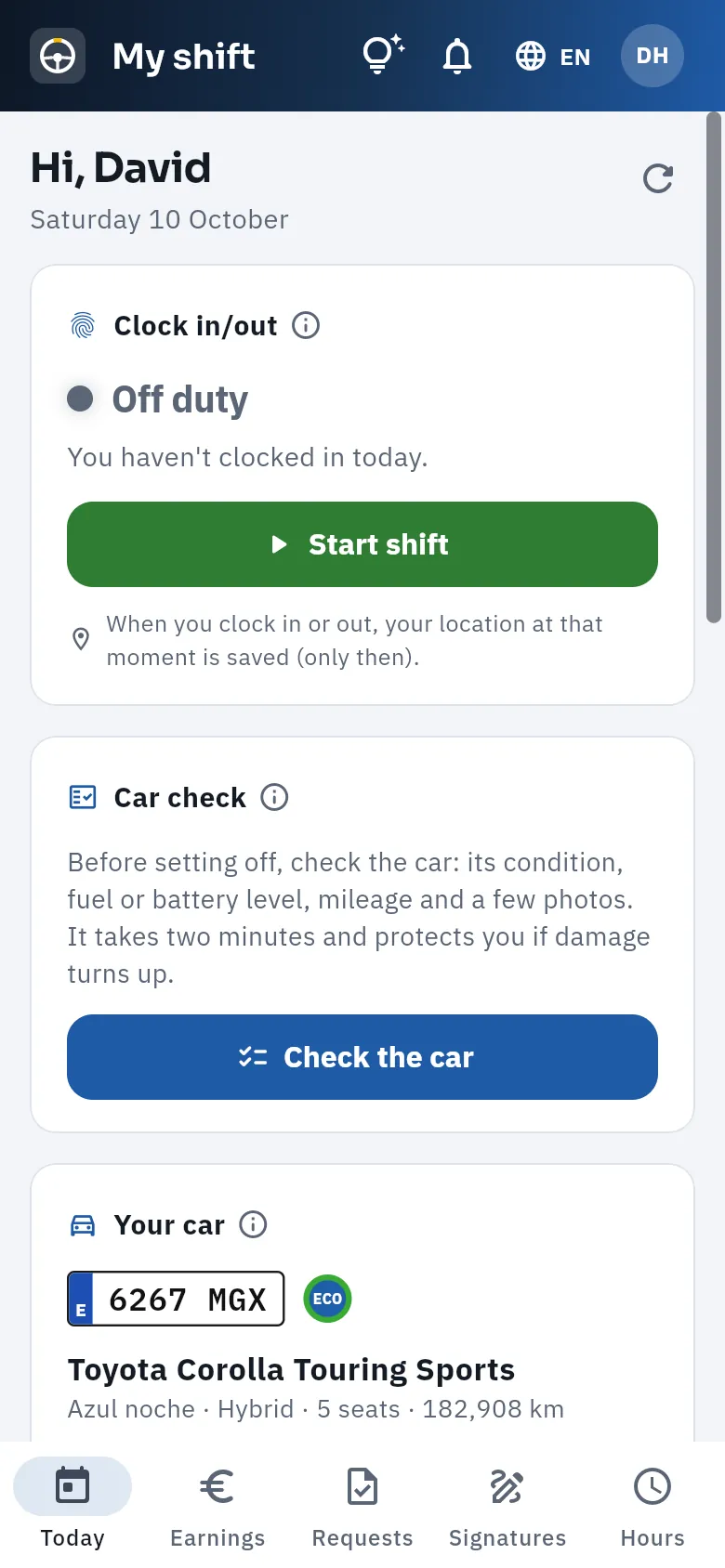 12
12
- 1On the phone, the header keeps only the icons: help, notifications, language and his menu.
- 2The greeting with the date; below, anything pending and clocking in (see My shift).
Your drivers can install the portal on their phone as one more app, with its own icon: from the phone's browser, «Add to Home Screen» (or «Install app»). If you drive, «My shift» does not open full screen: it is in your sidebar, next to the Dashboard and My business (see If you drive yourself).
#Signing out
Click your user button, at the top right (in your drivers' «My shift», their avatar).
Choose Sign out, at the end of the menu.
Getting started
The screen and what is common
The parts of the screen and everything that works the same in every section: the sidebar, the search box, the Create button, notifications, help and this manual, language and theme, lists and their filters, records, forms, the ⓘ and the phone version.
All FleetPilot Autónomos sections share the same structure and the same pieces: the sidebar to move around, the top bar with the search box and the create button, lists that are searched and filtered the same way, records that open on the right and forms with the same buttons. What you learn here works on any screen. The exception is your drivers' My shift, which opens full screen, with no sidebar (see My shift).
#The parts of the screen
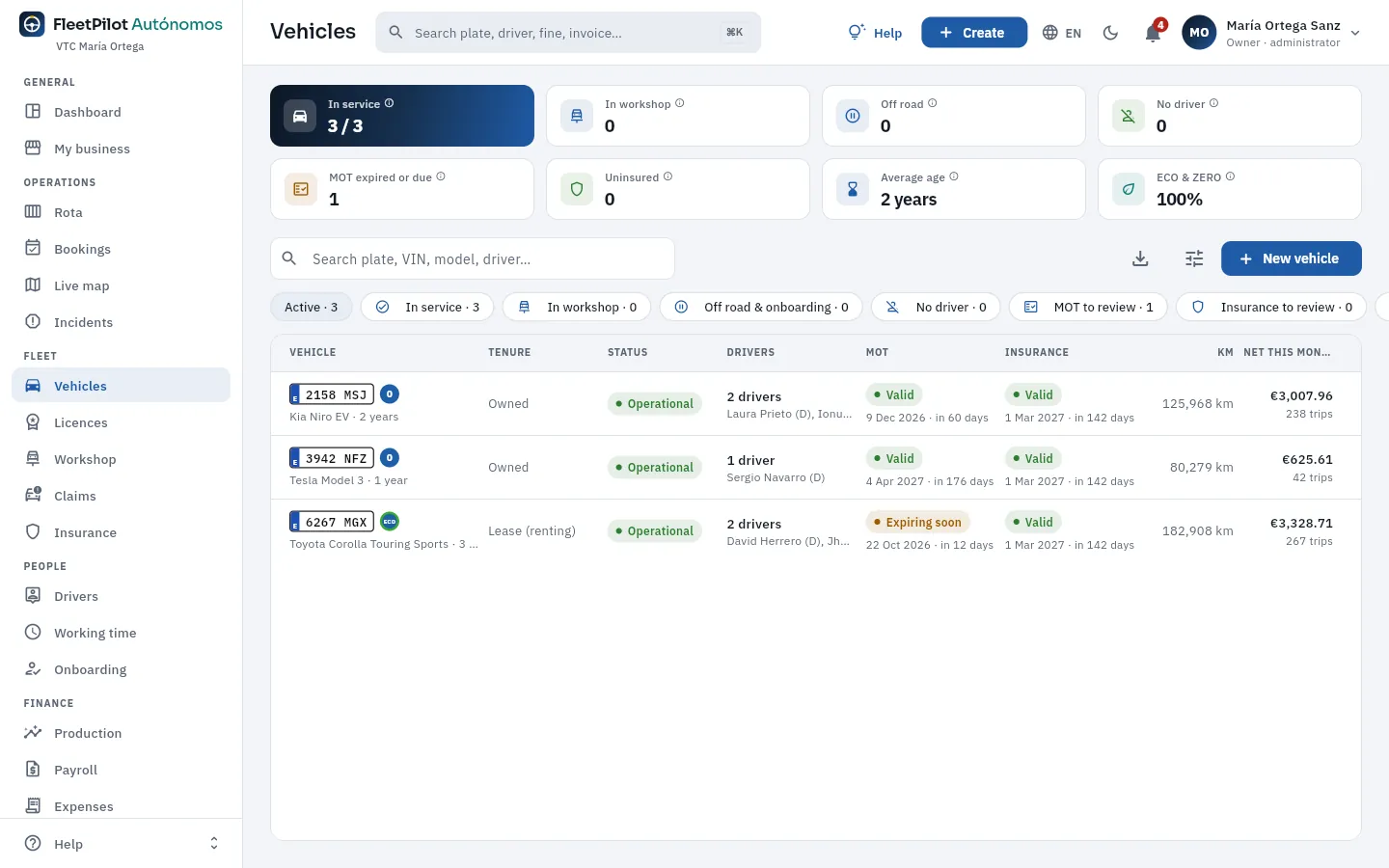 12345678
- 1Sidebar: the sections, grouped by area. The section you are in is highlighted.
- 2The section title and the global search (also with ⌘K on a Mac or Ctrl+K on Windows).
- 3Help for the screen you are on (also with the F1 key).
- 4Create: adds an assignment, an incident, an expense, a fine… from any screen.
- 5The language (the globe: Spanish or English) and the theme (the moon switches to dark mode; in dark mode, the sun switches back to light).
- 6The bell with your notifications; if you have unread ones, a red number on top.
- 7Your user menu, with your name and your access underneath (see Create your account and sign in).
- 8The Help menu, fixed at the foot of the sidebar: this manual and the screen's help.
#The sidebar
The sections are grouped by area, in the order you work:
| Area | Sections |
|---|---|
| General | Dashboard · My shift (only if you drive) · My business |
| Operations | Rota · Bookings · Live map · Incidents |
| Fleet | Vehicles · Licences · Workshop · Claims · Insurance |
| People | Drivers · Working time · Onboarding |
| Finance | Production · Payroll · Expenses · Fuel cards · Cash · Invoicing |
| Control | Fines · Discrepancies · Compliance · Reports |
| Administration | Users · Settings · Audit log (on a computer, in your user menu; on a phone, at the end of the drawer) |
Your payroll agency only has Drivers, Working time and Payroll. If the list does not fit, the bar scrolls; the Help menu always stays at the foot. Under the logo, your business's name. When you change section, the screen you leave goes back to its initial state: if you had searched or filtered something, you will find it unfiltered when you come back. On a tablet or a medium-sized window, the bar narrows and shows only the icons (hover over one to see its name).
#Searching for anything
The global search in the top bar finds, from any screen, your vehicles (by number plate, VIN, make or model), your drivers (by name, code, or their platform phone and email), fines (by number, case number or plate), claims, bookings, invoices, expenses, cards (by their last four digits), licences and documents (by their name or note).
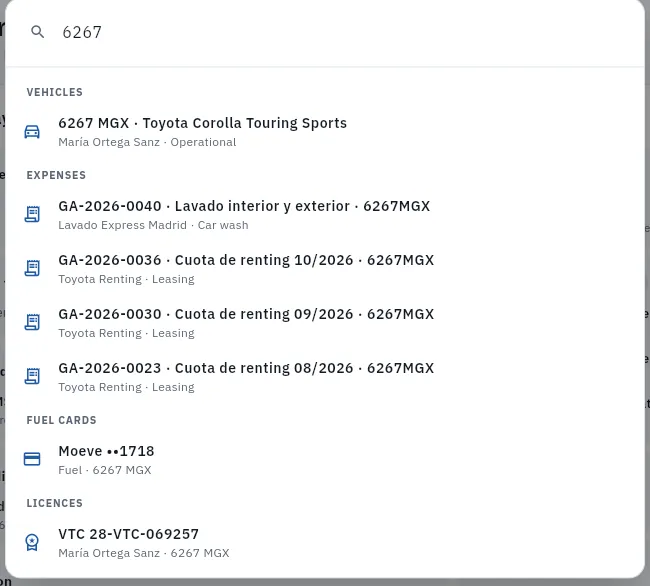 12345
12345
- 1Type at least two letters or digits; results appear as you type. A number plate, with or without a space.
- 2Each result with what identifies it. Click it to go to its section with the record open.
- 3Results come grouped by section: here, the car's expenses (a car wash and the leasing instalments)…
- 4…its fuel card, by its last four digits…
- 5…and its VTC licence, which carries the number plate of the assigned car.
Tap the search box in the top bar, or press ⌘K (Mac) / Ctrl+K (Windows).
Type part of the name, number or code: a number plate («6267»), a driver («Herrero», «C-0001»), a fine («0002»)…
Tap the result you are looking for.
#Creating something new
The Create button in the top bar adds the most common things without leaving where you are: it opens the same form as the «New…» button in its section and, once saved, takes you there. If you cancel the form, nothing is created and you stay where you were.
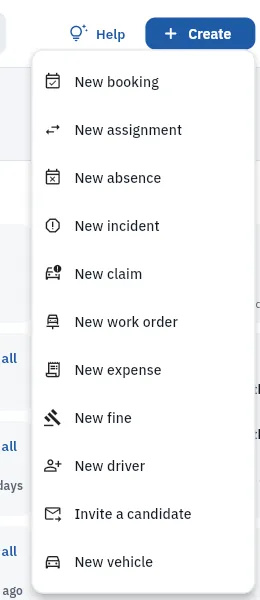 1234
1234
- 1Operations: a booking, a car and shift assignment (Rota) and an absence.
- 2The cars: an incident, a claim and a workshop order.
- 3An expense with its invoice and a received fine.
- 4New records: a driver, an invitation to a candidate and a vehicle.
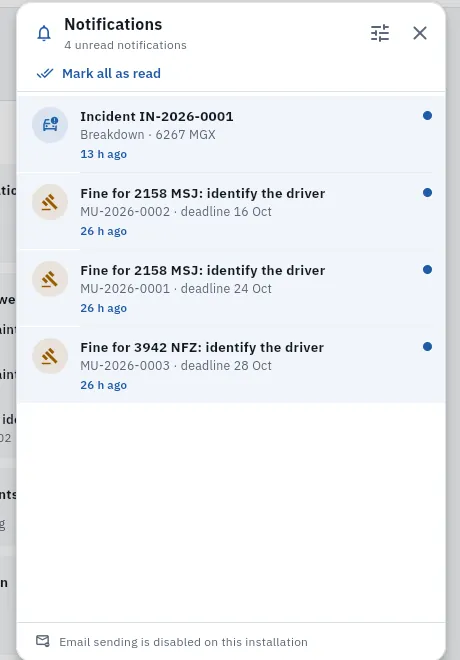 1234
1234
- 1Mark all as read marks them as seen in one go. At the top, how many are unread and the settings.
- 2A new notification (the blue dot): what happened, which record it refers to and how long ago it arrived. Click it to open the record.
- 3The fines received, with the deadline to identify the driver (Fines).
- 4At the foot, whether email is enabled (in the demo, it is not).
#Notifications (the bell)
The bell in the top bar gathers the notifications meant for you: not everything that happens in your business (that is on the Dashboard and in Compliance), but what is yours to deal with:
| Notification | Who gets it |
|---|---|
| Expiry dates and deadlines (MOT, insurance, licence renewals, stickers, taximeters, your drivers' permits and certificates, contracts ending, fine deadlines, cash not paid in) | You; and each driver, those of their own documents |
| Fines received (identify the driver), urgent incidents, serious discrepancies, absence requests and onboardings waiting for your review | You |
| Car assigned, absences approved or rejected, documents to sign, fines charged to them, their expenses approved or rejected, payslip closed | The driver, in My shift |
| Daily summary | You: the same as the Dashboard's «Your day» |
A red number on the bell tells you how many are unread. Click a notification to open its record and it is marked as read. In your user menu, Notification settings lets you choose, for each type, whether you want it In the app (the bell), By email or both; if you turn both off, that notification is not created (what it warns about is still in its section and on the Dashboard). Expiry notifications are created once a day, with the notice period you set in Settings.
#Help: this manual and each screen's help
There are two kinds of help inside FleetPilot Autónomos:
- This manual, which opens from the Help menu at the foot of the sidebar: straight at the chapter for the screen you are on, in your language, or from the cover (User manual).
- The screen's help: the Help button in the top bar (or the F1 key, or Interactive guides in the foot menu) opens a panel on the right that explains in a paragraph what the section is, with the link to its chapter in the manual, and its interactive guides: each guide plays step by step on the screen itself. In «My shift», the button is in the header.
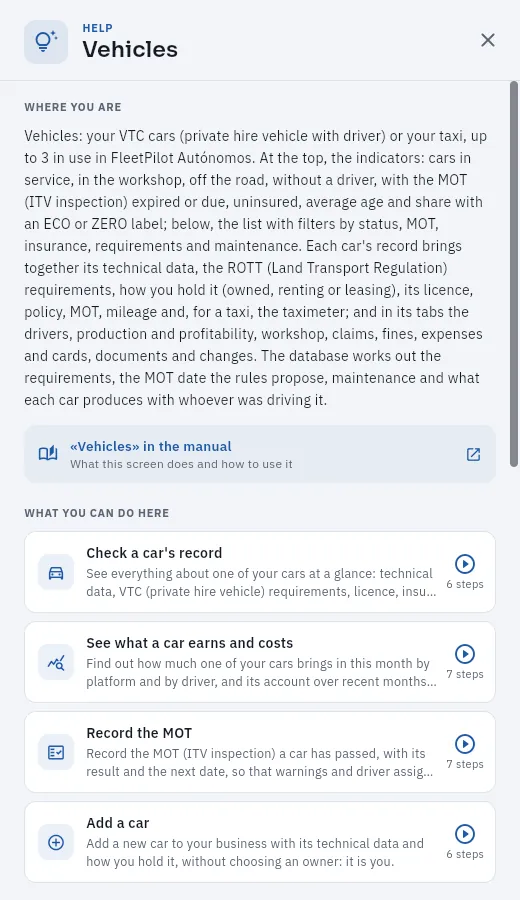 123
123
- 1Where you are: what the section is and what it contains, in one paragraph.
- 2The link to this section's chapter in the manual.
- 3The section's interactive guides, with their steps: ▶ plays each one on the screen itself.
#The ⓘ help for figures and acronyms
Next to many indicators, blocks and acronyms (ITV, CVF, PMR, SOV, DEV…) there is a small ⓘ, «What is this?». Clicking it opens an explanation in three parts: what it shows, how it is calculated (with an example) and how to read it (what to do with the figure or what is left out). It is the quickest way to find out where a number comes from.
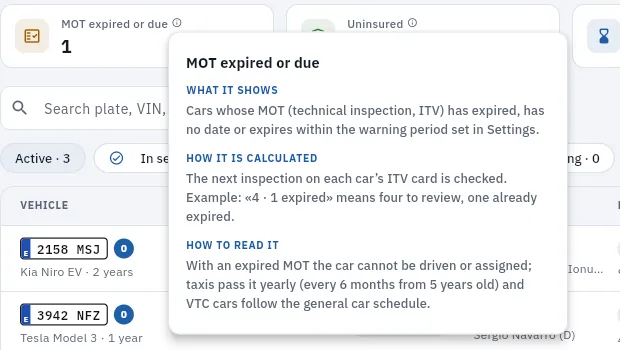 123
123
- 1What the figure shows.
- 2How it is calculated, with an example.
- 3How to read it: what it means and what to do. Tap outside (or Esc) to close it.
#Lists
Almost every section starts with a list: vehicles, drivers, fines, expenses… They all work the same way. This is the Vehicles list.
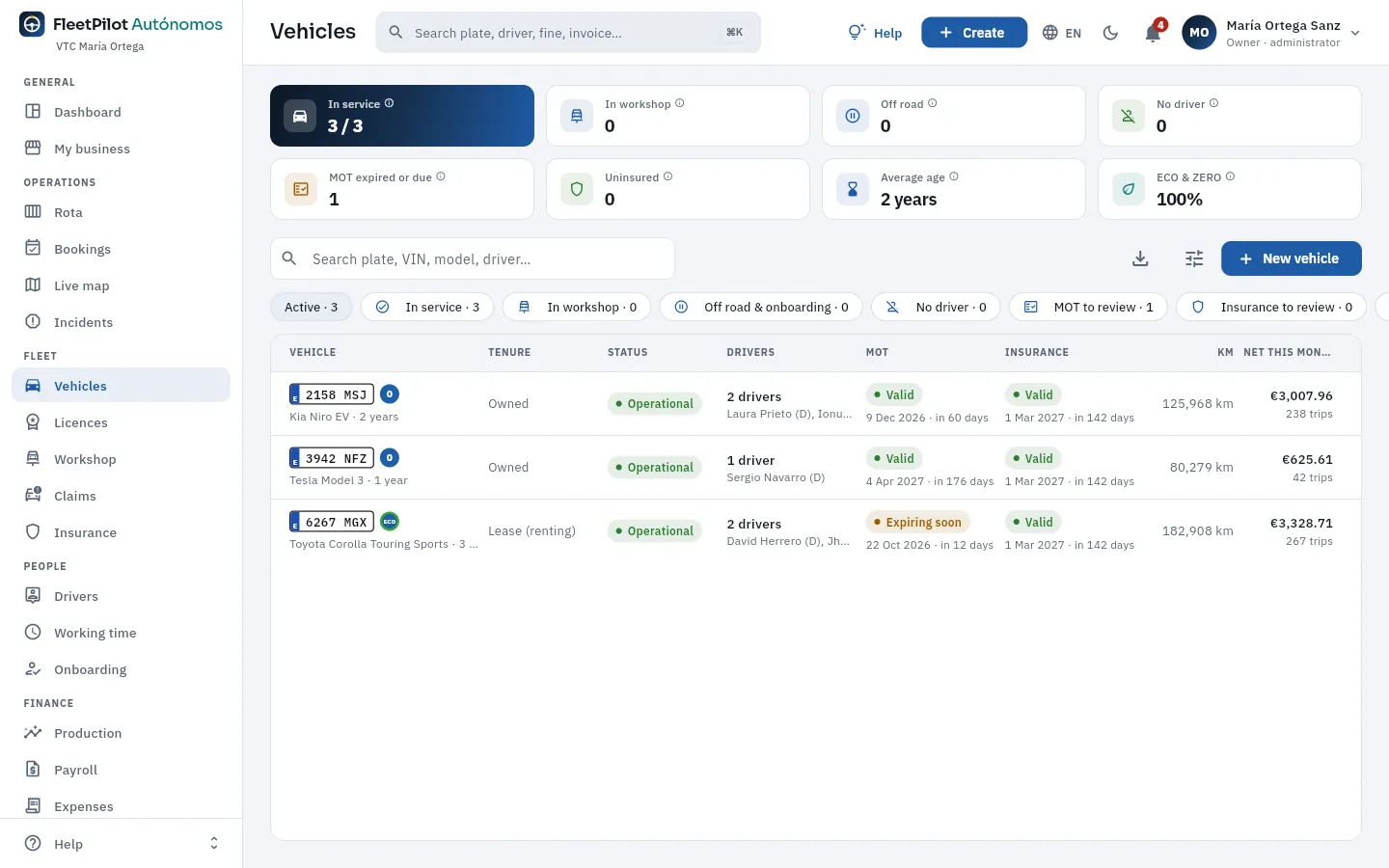 12345678
- 1The section's indicators, each with its ⓘ.
- 2List search box: filters by any word in the columns.
- 3Export CSV: downloads what you see to open it in a spreadsheet.
- 4Some sections have more filters (here, by fuel, service, ownership…).
- 5The button to add a record to the section.
- 6Quick filters with their count. Tap one to see only those rows; the filter row scrolls sideways.
- 7Headers: tap one to sort by that column; again, to reverse the order.
- 8Each row is a record; tap it to open its record.
Choose a quick filter (for example MOT to review). The number next to each filter says how many records it has.
Type one or more words in the list search box: the rows containing all of them are shown, ignoring accents and capitals.
Tap a column header to sort by it; tap again to reverse the order.
Click Export CSV (the download icon) to take those rows to a spreadsheet.
Tap a row to open its record.
#Records
Clicking a record opens its record view in a panel that slides in from the right, without losing the list behind it. They all follow the same pattern: a header with the name and the actions, often a band with the key figures, and tabs with the information grouped. This one is a car's; the detail of each tab is in its section's chapter (Vehicles).
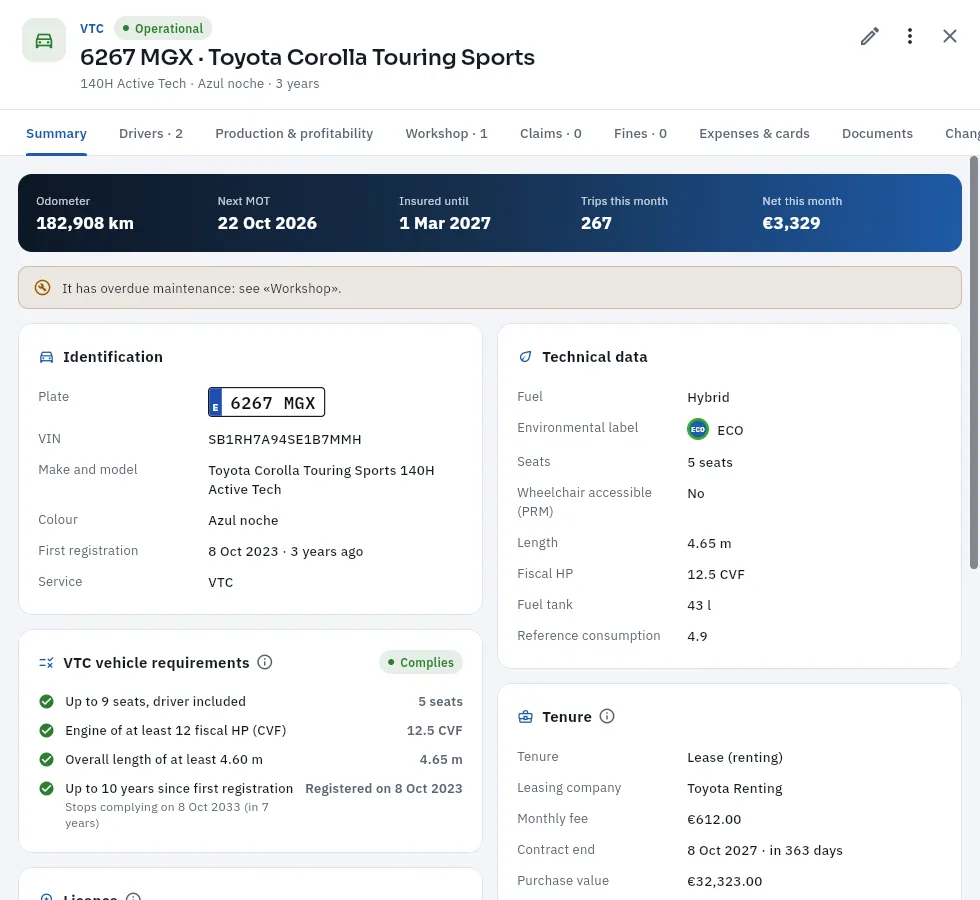 123456
- 1The header: the service (VTC or taxi), the status and the name, and below it what identifies it.
- 2Edit and More options (each record's own actions).
- 3Close the record (also with Esc or by clicking outside it).
- 4Tabs: each groups part of the information; the number says how many records are inside. If they do not fit, they scroll sideways.
- 5The figures band: the essentials at a glance.
- 6A notice of something that needs attention in that record, with where to sort it out.
Almost every record has a Documents tab (a car's registration certificate, the policy, a driver's signed contract, the photos of a claim, an expense's invoice…: Upload documents or drag them onto the window, up to 20 MB per file) and a Changes tab: who created or changed that record, when and which fields, from the app or from Claude. The links in a record (a car's driver, the policy, the licence) open the related record on top; when you close it, you go back to the previous one. If you change something in a record, the list behind it refreshes by itself when you close it.
#Forms
To create or change a record you use a form in a window. They are all filled in and saved the same way, and many check what you type live with the same rules the database will apply, so you know before saving whether it will go through (an example with screenshots, a car's new assignment, in Rota).
Fill in at least the fields with an asterisk (*). If one is missing, on saving it is marked in red with «Required».
Dates are chosen in a calendar and times on a 24-hour clock; lists, by opening them; related records (a driver, a car), with a picker with its own search box. Numbers accept a decimal comma or point.
Look at the checks if the form has them: green is fine, amber warns but lets you save, red stops you.
Tap the save button (Save, or the action's own: Assign, Record…).
#On a phone and a tablet
On a phone (or a narrow window) FleetPilot Autónomos rearranges the screen: the sidebar hides in a drawer, the top bar keeps only icons, indicators and filters scroll sideways, lists turn into cards (one per record) and records and forms take up the whole screen. Language and theme are changed from My profile.
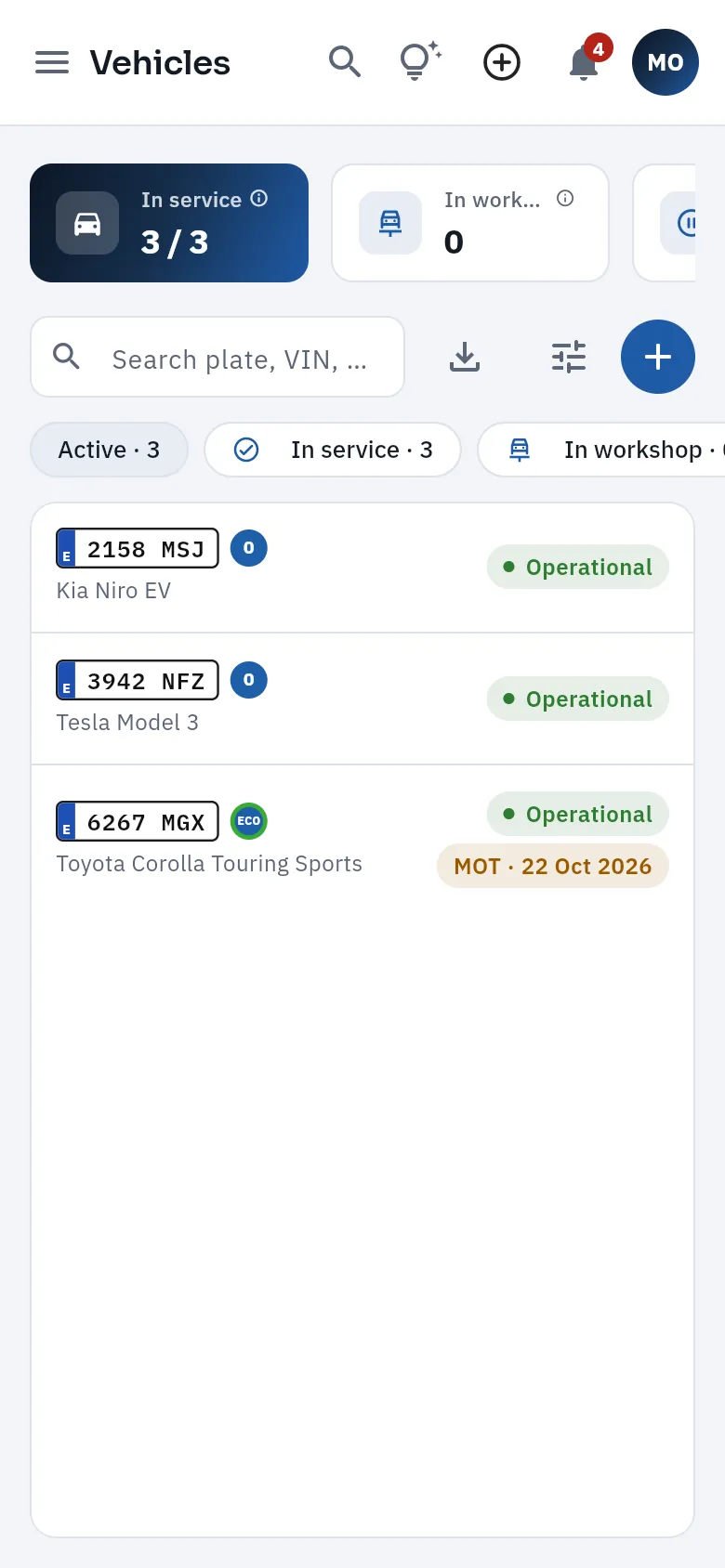 1234
1234
- 1The menu opens the drawer with the sections; at the end, the administration ones.
- 2Search, help, Create, the notifications bell and your menu, as icons.
- 3Indicators and filters scroll sideways.
- 4Each record is a card; tap it to open its record full screen.
Keyboard shortcuts (on a computer):
| Key | What it does |
|---|---|
| ⌘K · Ctrl+K | Opens the global search |
| F1 | Opens the screen's help (also in «My shift») |
| Esc | Closes the open record, a menu or the search |
| Enter | On the sign-in screen, from the password field, signs in |
Direct links. The address accepts ?seccion=multas (each section's key is that of its chapter in this manual: #cuadrante,
#vehiculos…), &lang=es or &lang=en and &tema=dark or &tema=light, handy for saving a bookmark.
General
Dashboard
The first screen when you sign in: «Your day» with what is on your plate today (your business, your shift if you drive, operations, expiry dates, fines, discrepancies, admin, takings and the workshop), your business's indicators and a block per area.
The Dashboard is the front page of FleetPilot Autónomos. Nothing is edited here: it gathers what needs looking at today and takes you, with one click, to the record or section where it is dealt with. It has three parts:
- Your day: the summary of what is on your plate today: your business, your shift if you drive, today's operations, bookings, this week's expiry dates, fines to identify, serious discrepancies, urgent incidents, admin, takings and the workshop. It is the same summary you can get by email every morning and the one Claude gives you if you ask.
- The indicators: six cards with the key figures of the moment (cars in service, net this month, uncovered shifts, drivers working, expired documents and fines to identify).
- The blocks by area: fleet, production, operations, expiry dates and deadlines, drivers, fines, discrepancies, finance and compliance.
The database works it all out with fixed rules (there is no artificial intelligence in the figures) and for your business. It refreshes by itself every 5 minutes; the Refresh button does it straight away.
#Your day
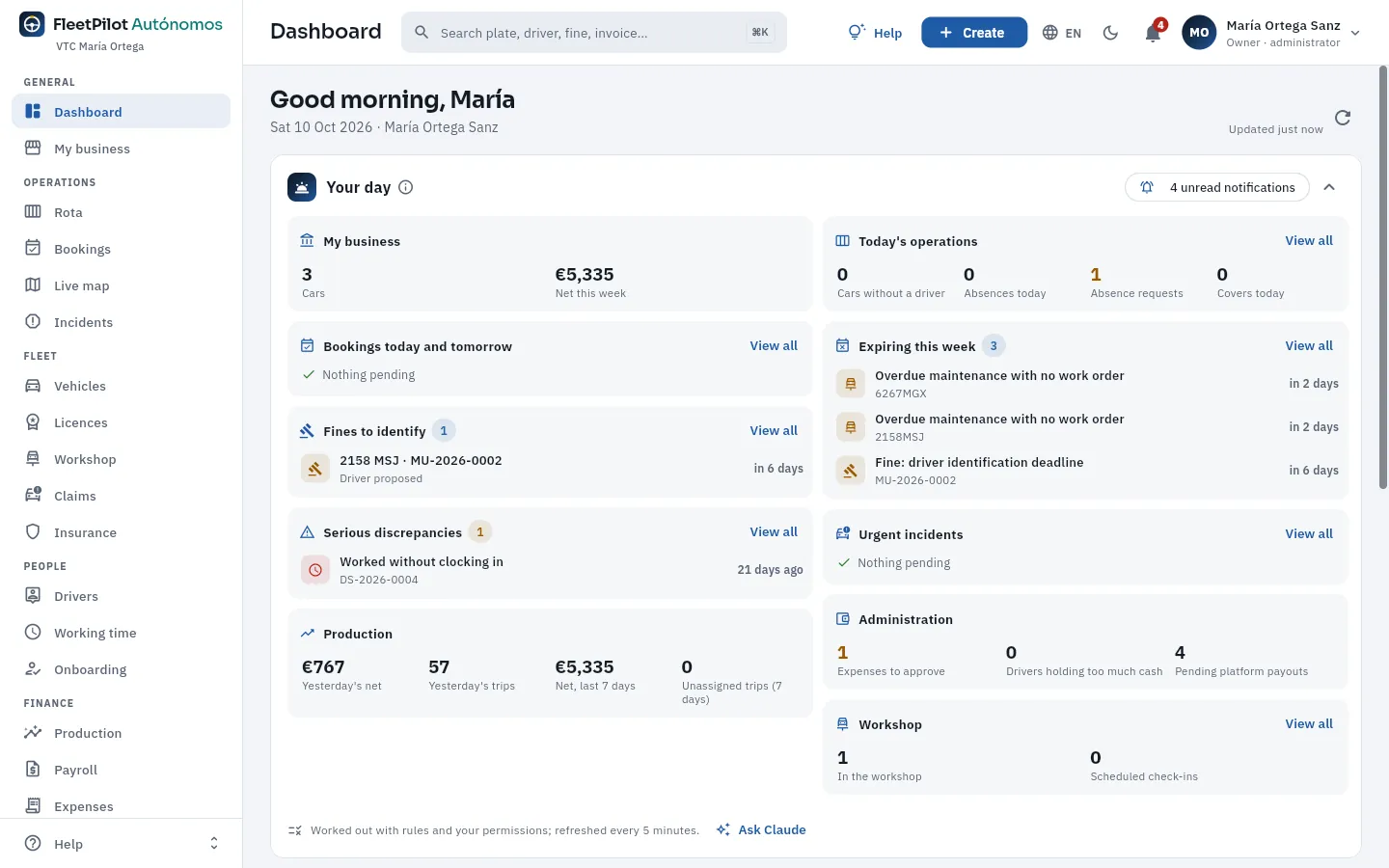 12345678
- 1The greeting with the date and your name. On the right, when it was last updated and the Refresh button.
- 2My business: your cars and this week's net. It takes you to My business.
- 3Today's operations: cars without a driver, today's absences, absence requests to approve and covers. Each figure opens the Rota.
- 4Fines to identify, with the days left of the 20-day deadline (overdue ones in red). See Fines.
- 5Expiring this week: what expires or has expired (MOT, insurance, maintenance, fine deadlines, your drivers' permits…), most urgent first.
- 6Serious discrepancies: the data cross-checks to review now (someone who worked without clocking in, a refuelling outside the shift…). See Discrepancies.
- 7Production: yesterday's and the last 7 days' net and trips, and the trips unassigned to any driver.
- 8Administration (expenses to approve, drivers holding too much cash, pending platform payouts) and Workshop (cars at an outside workshop and expected arrivals).
Each line in «Your day» opens its record (the fine, the discrepancy, the car whose MOT is about to expire…) and each View all takes you to the section with the filter applied. At the top right, if you have unread notifications, a button opens them (the same ones as the bell), and Collapse folds it away if you want to go straight to the indicators: FleetPilot remembers it next time.
If you drive, «Your day» starts with the My shift block: the car and shift you have today, your net and trips from yesterday and any documents you have to sign. It takes you to My shift.
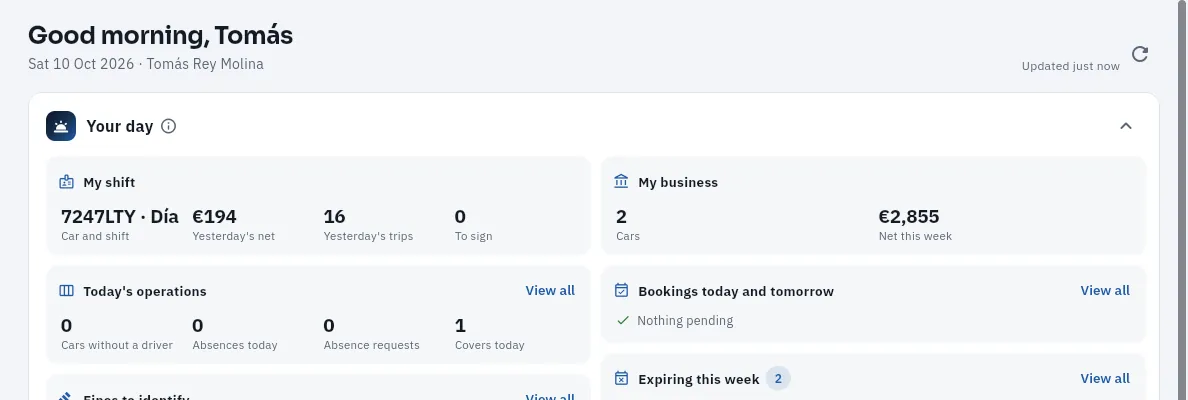 123
123
- 1My shift: his car and shift today, his net and trips from yesterday and anything he has to sign.
- 2My business: his two cars and this week's net for both.
- 3Then, the same as for any owner-operator: today's operations (here, the cover of his car on his day off), fines, expiry dates…
#The indicators
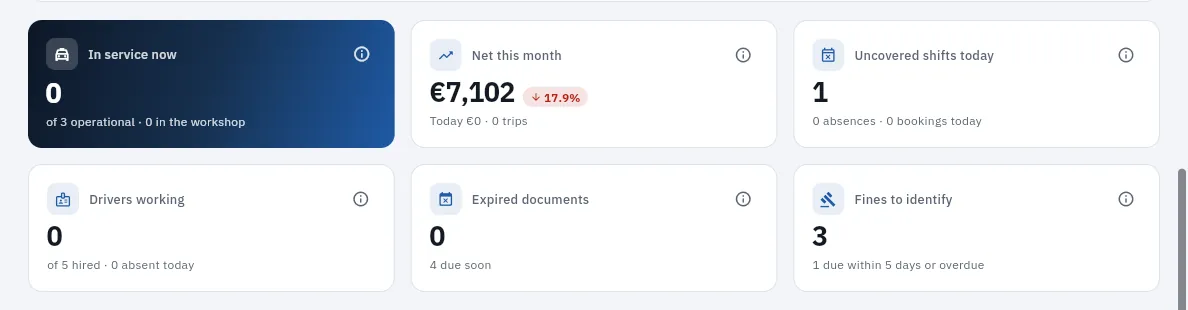 123456
- 1In service now: operational cars whose current driver has clocked in (or come back from a break) in the last 20 hours. Below, how many are operational and how many are at the workshop.
- 2Net this month: what the platforms have paid after their commission, from the 1st to today, with the change compared with the same days of the previous month.
- 3Uncovered shifts today: shifts of your cars with nobody to drive them (a regular driver who is off or absent with no cover, a shift with no one assigned). It is fixed in the Rota.
- 4Drivers working according to their clock-ins, out of those under contract, and how many are absent today.
- 5Expired documents: whatever has expired or stops a car or driver from working (your cars, your licence, your policies, your drivers and your fines); below, what is coming up.
- 6Fines to identify: fines whose driver you have not yet reported to the issuing authority; below, those due within 5 days or already overdue.
Each indicator has its ⓘ (What is this?) with what it shows, where it comes from with an example and how to read it, and you can click it to go to the section that explains it.
#The blocks by area
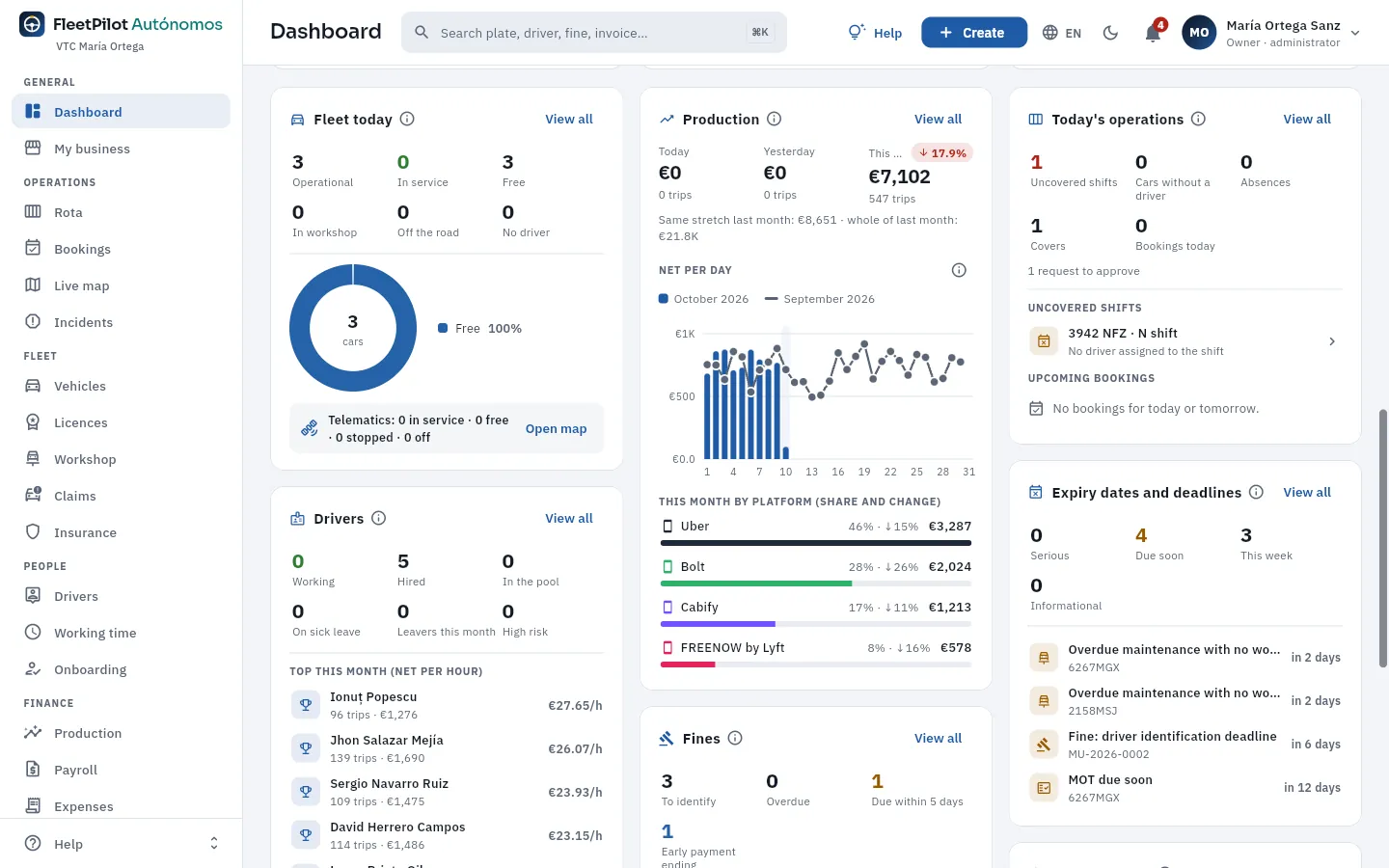 12345
12345
- 1
- 2Production: today, yesterday and the month, the net per day for this month against the previous one and the split by platform (Uber, Bolt, Cabify, FREENOW…).
- 3Today's operations: uncovered shifts, cars without a driver, absences, covers and bookings, with the uncovered shifts one by one.
- 4Drivers: working, hired, in the pool, on sick leave, leavers this month, high risk and the top this month by net per hour.
- 5Expiries and deadlines: serious, upcoming, this week and for information, with the most urgent.
Further down come the blocks for fines (to identify, overdue, due within 5 days, early-payment discount ending and the next deadlines, each with the proposed driver), discrepancies by severity and by type, finance (pending platform payouts, cash to pay in, expenses to approve and invoices to collect) and compliance (the percentage of records without serious faults and a traffic light for your vehicles, your licences and policies and your drivers).
#On the phone
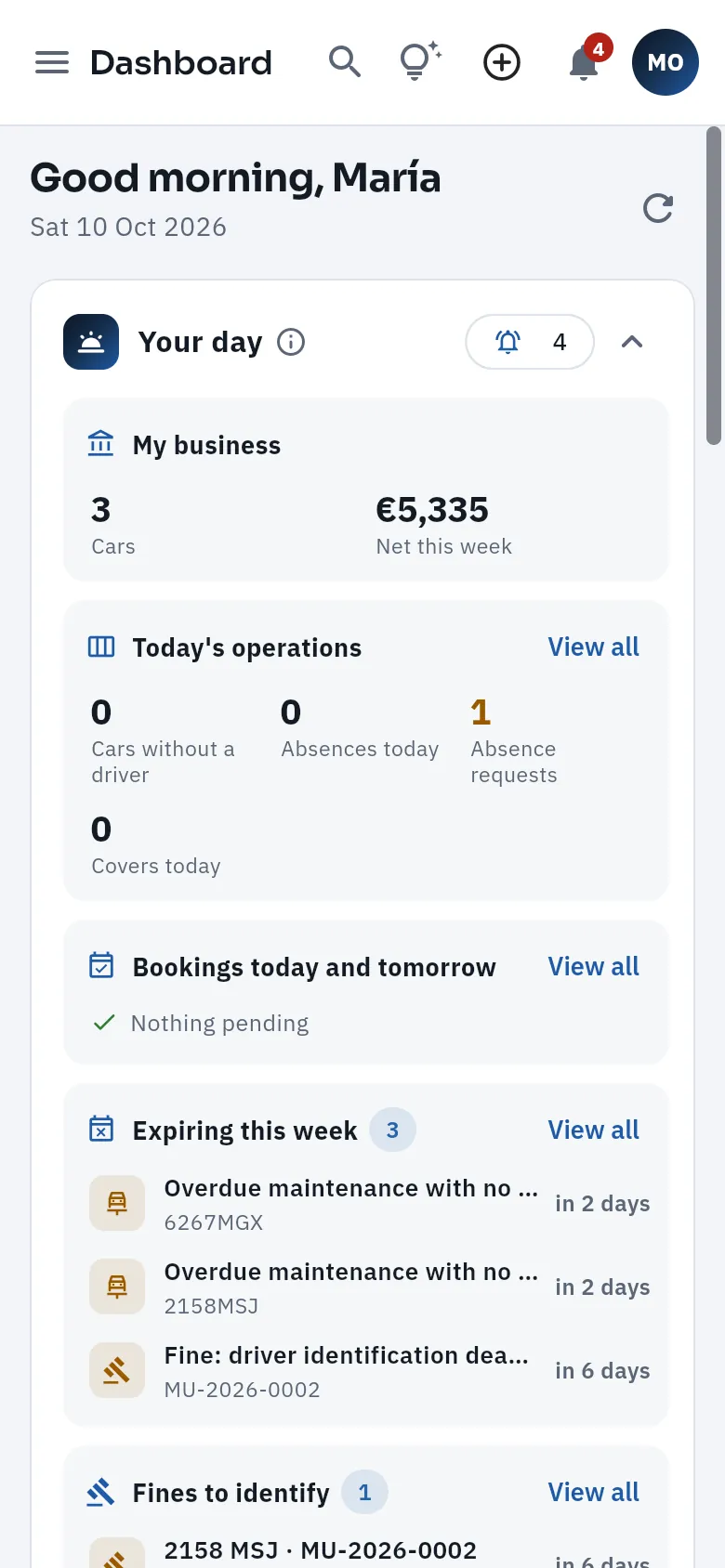 12
12
- 1At the top, the menu (the sidebar opens as a drawer), search, help, Create, notifications and your user.
- 2Your day, with its blocks one under the other; then the indicators and the blocks by area.
On a phone the Dashboard stacks into a single column: first «Your day» and then the indicators and the blocks. It is the quickest way to start the morning away from your desk —or before setting off in the car, if you drive—: look at the uncovered shifts and the fines falling due, and tap through to the record.
On a tablet, the sidebar stays as icons and the blocks go two by two. See The screen and what is common.
Sign in to FleetPilot Autónomos: the Dashboard is the first screen.
Read Your day from top to bottom: what is in red (overdue) first.
Tap a line to open its record and deal with it (a fine: identify the driver; an uncovered shift: a cover in the Rota).
Go back to the Dashboard with Dashboard in the sidebar; tap Refresh to see the corrected figure.
#Tips
- Turn on the «Daily summary» by email in Notification settings (your user menu): you get «Your day» every morning without opening the app.
- Use the figures as shortcuts: clicking «Fines to identify» opens Fines already filtered by deadline.
- If a figure does not add up, open its ⓘ: it explains exactly what it counts and what it leaves out.
- Ask Claude the same thing in your own words («which car is left without a driver on Sunday?»); it answers with your permissions (see Connect to Claude).
General
My business
What your business brings in, costs and leaves: the month's overview, each car with its takings, its margin and its paperwork, your drivers, the accounts for each month and each car («Month by month»), your fleet's compliance, fines and claims, and your documents.
My business is the financial snapshot of your business: what your cars produce, what they cost and what you keep, month by month and car by car, together with anything that may affect how much they can work (an MOT about to expire, a fine with a deadline, an open claim). Nothing is edited here: FleetPilot Autónomos works it out from the platform trips, your drivers' payroll, the fuel cards, the workshop, insurance, leasing and the expenses you have approved.
It has five tabs, on the left: Overview, Vehicles (your cars and your drivers), Month by month (the accounts for each month and each car), Fleet (compliance, fines and claims) and Documents (your licences and your policies).
#Summary
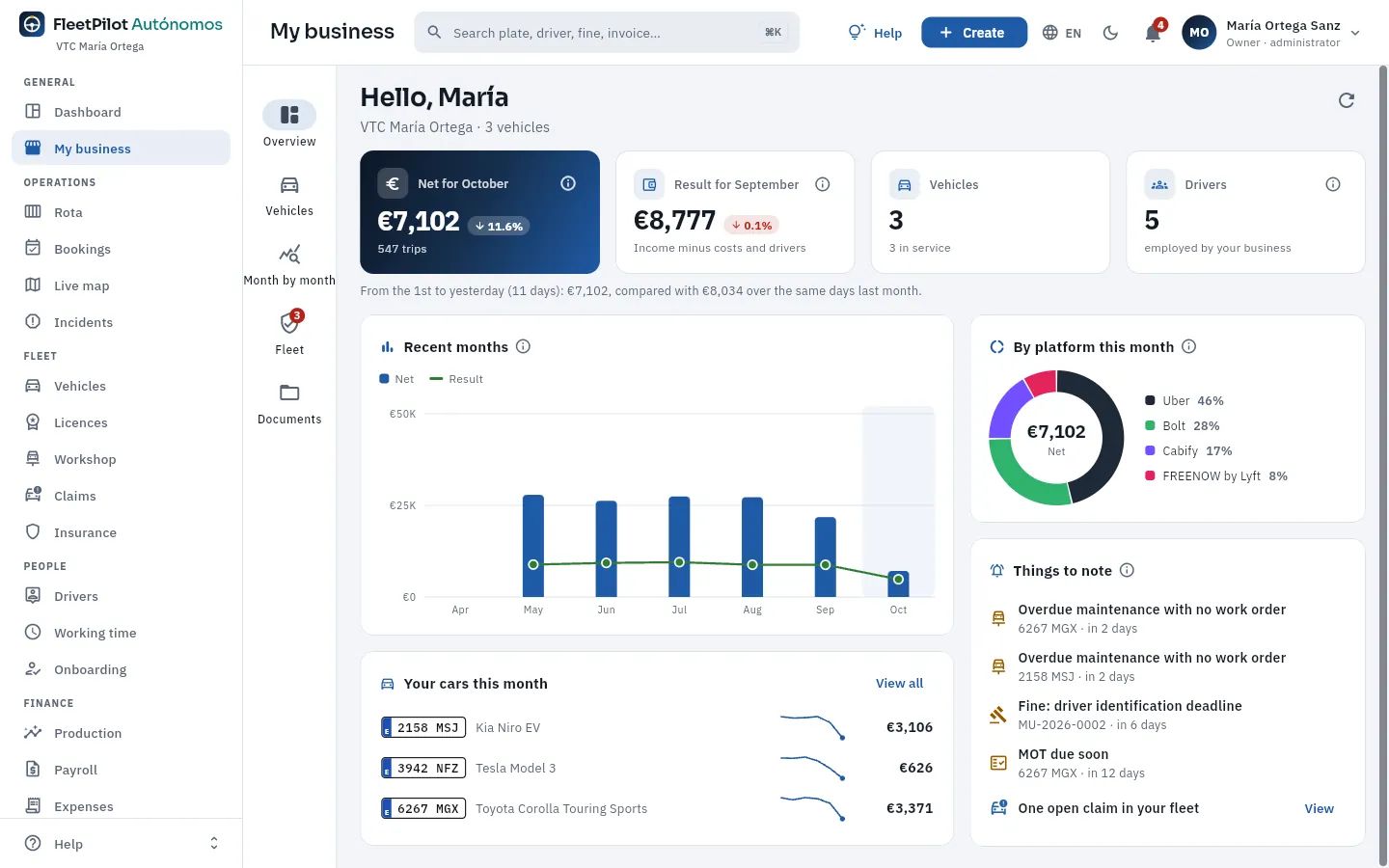 12345678
- 1The five tabs of My business; the red number on Fleet counts what needs attention (fines to identify, open claims).
- 2Your cars' net this month: what the platforms pay after their commission, with the change against the same days of the previous month (the detail is underneath).
- 3Result of the last closed month: income minus costs and drivers, with its change. Click it to see the accounts in Month by month.
- 4Your vehicles (how many in service) and your employed drivers.
- 5Recent months: each month's net (bars) and what your business kept (line). The current month is provisional.
- 6Net by platform this month.
- 7Things to note: what is expiring or needs sorting out in your fleet (maintenance, a fine with a deadline, the MOT falling due, an open claim). Each line takes you to its section.
- 8Your cars this month, with their net and its trend; each one opens its record.
#Vehicles and drivers
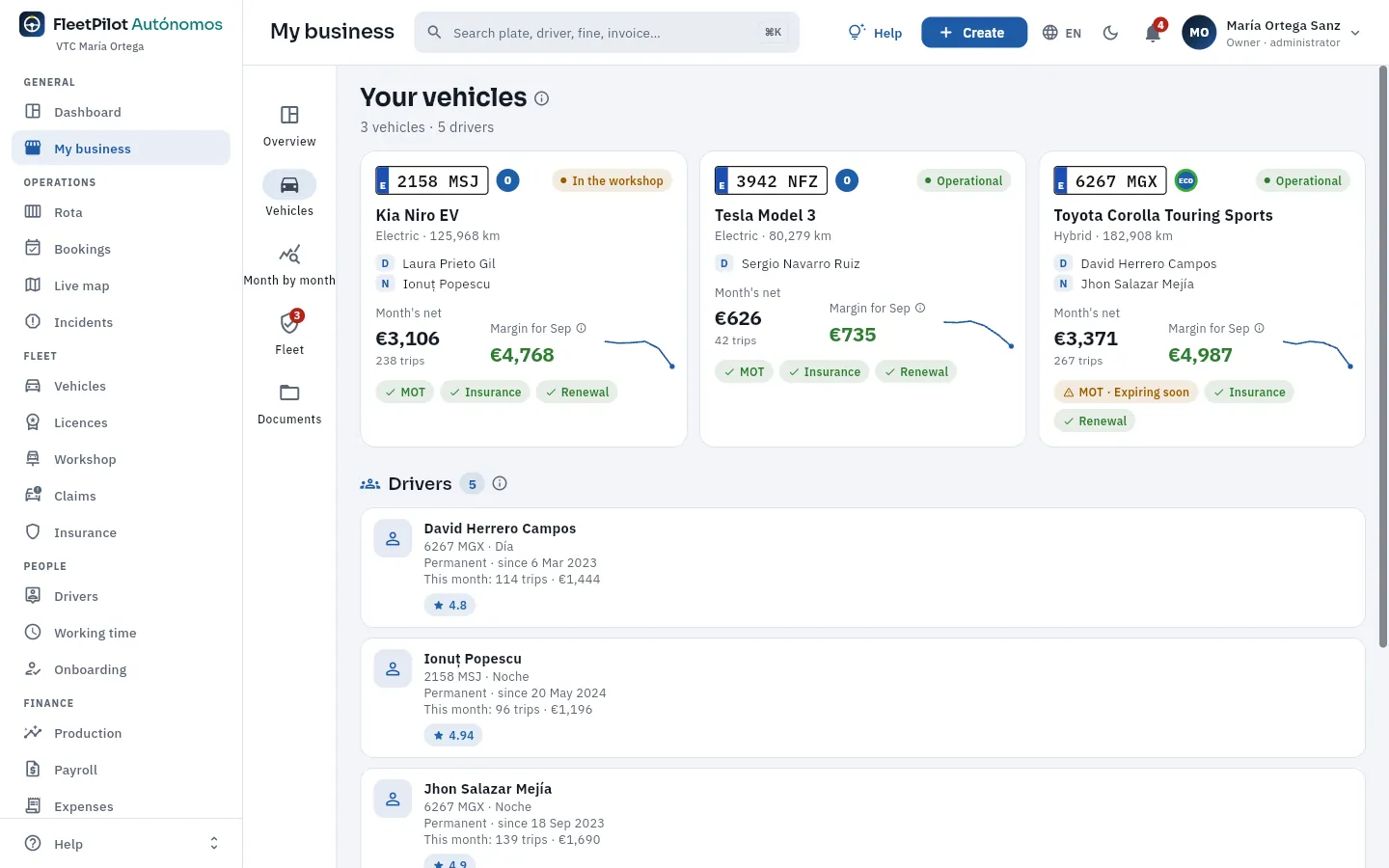 1234
1234
- 1Each car: number plate, environmental sticker, status, model, fuel and km, and its regular drivers (D, day shift; N, night shift).
- 2The net this month with its trips and last month's margin (net minus fuel, workshop and its share of the drivers' cost), with its trend.
- 3Its papers: MOT, insurance and licence endorsement, green if in order and amber if expiring soon.
- 4Your drivers: car and shift, type of contract and length of service, what they have made this month and their rating on the platforms.
Each car opens its record with its last six months (income, costs and margin), its takings by platform and by driver, its workshop jobs, its claims and its fines. Each driver opens their record in Drivers.
#Month by month
Month by month is your business's account for each month: what your cars have brought in minus what they have cost. There is nothing to prepare: FleetPilot Autónomos works it out from what is already in the app. By default it opens on the last closed month; with the arrows you move to earlier months or to the current month (provisional).
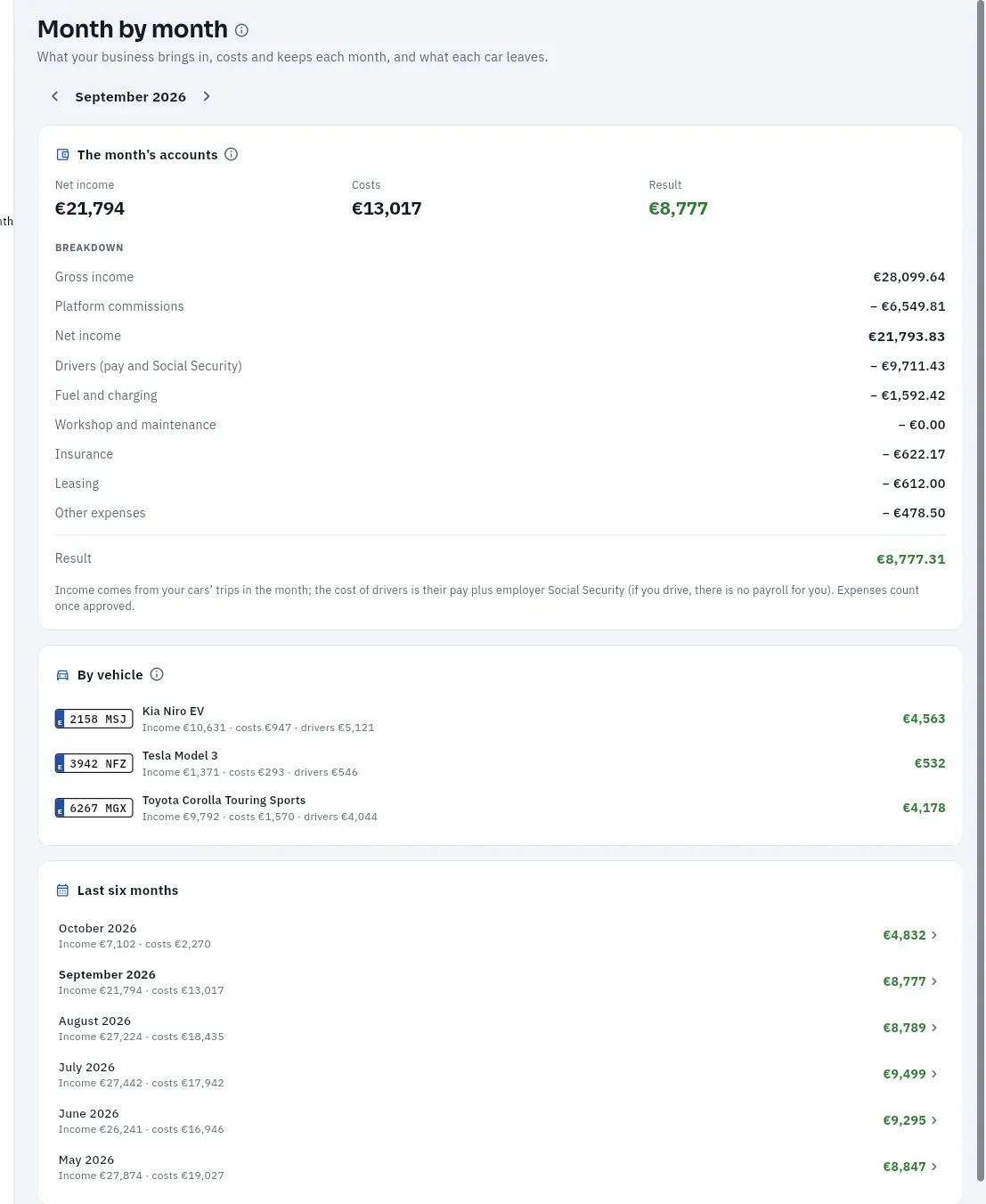 123456
- 1The month: the arrows go to the previous or next one.
- 2Net income, costs and result for the month.
- 3The breakdown: gross income, platform commissions, net income, drivers (pay and Social Security), fuel and charging, workshop, insurance, leasing and other expenses.
- 4The result and where each line comes from (if you drive, there is no payroll for you; expenses count once approved).
- 5By vehicle: what each car left, with its income, its costs and its share of the drivers' cost.
- 6Last six months: income, costs and result for each; click a month to see its accounts.
#If you drive yourself
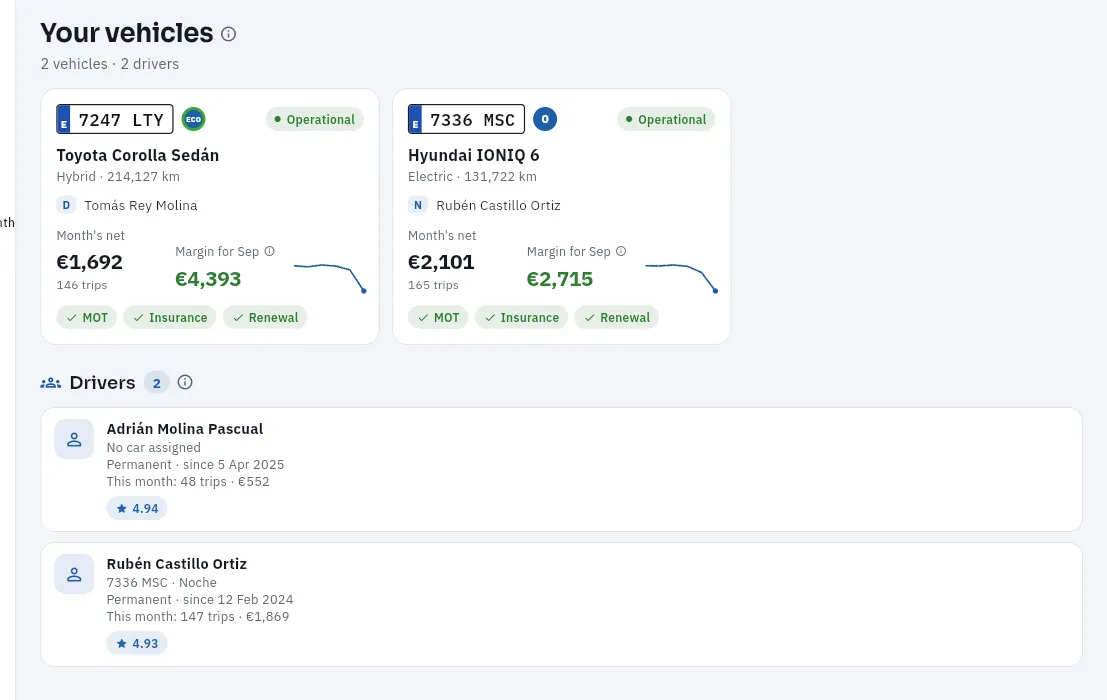 123
123
- 1In his car, himself as the regular day driver: his trips count in the car's net like anyone else's.
- 2The other car, with his night employee.
- 3Drivers: only his employees; he does not appear here because he has no contract or payslip.
#Fleet: compliance, fines and claims
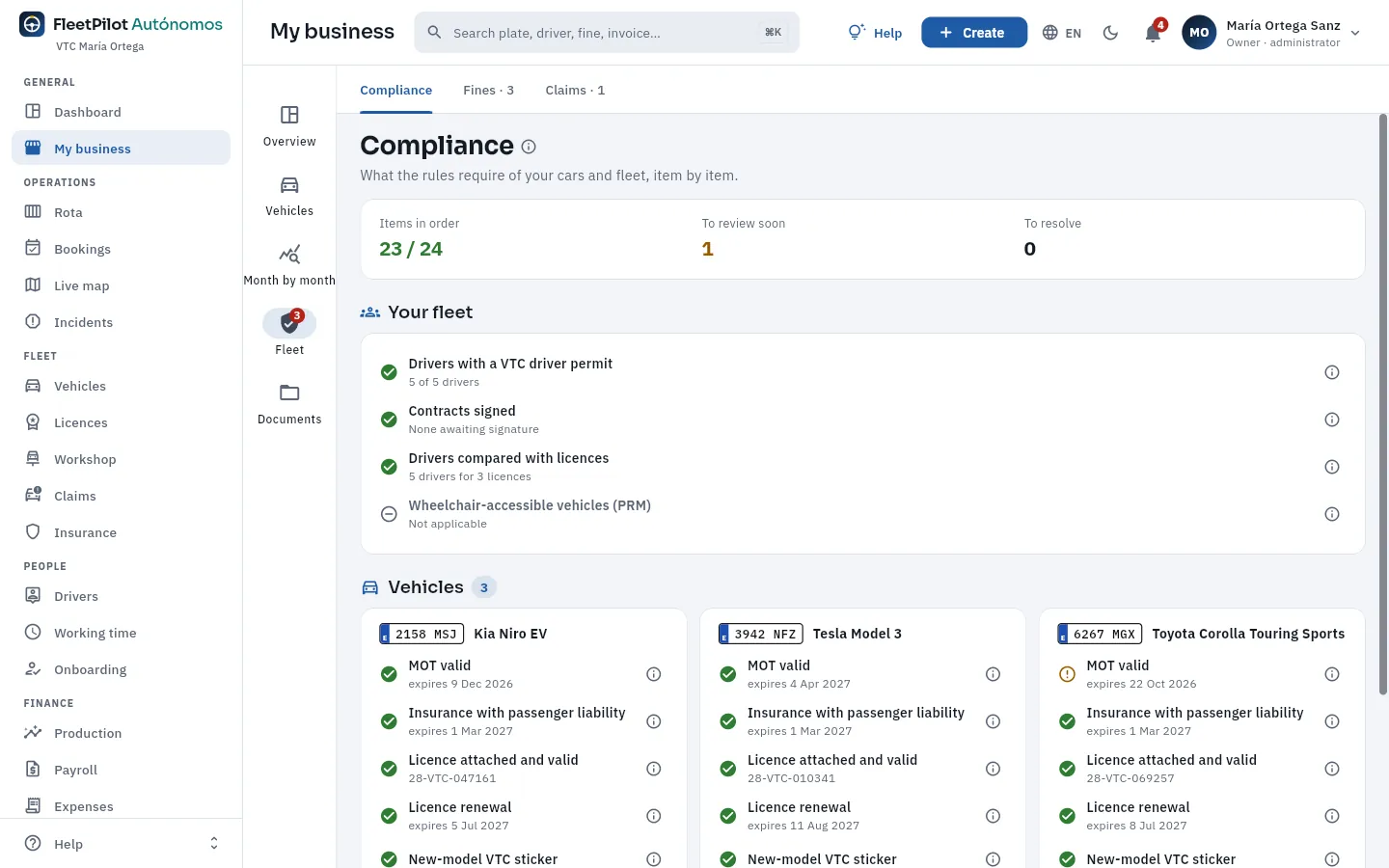 1234
1234
- 1Compliance, Fines and Claims for your cars, with how many there are.
- 2Points in order, to review soon and to resolve.
- 3Your fleet: drivers with a VTC driver permit, signed contracts, drivers against licences and adapted vehicles (PMR, for people with reduced mobility).
- 4Each vehicle: MOT, insurance with passenger liability cover, licence and its renewal, sticker… each item with its ⓘ and the rule that requires it.
Fines lists those for your cars, with the identified driver, the deadline to identify them and who pays (your business or the driver it is passed on to); they are handled in Fines. Claims lists your cars' claims with fault, status with the insurer, cost and the days the car was off the road (Claims). The excess and any repair the insurance does not cover are a car cost and count in «Month by month».
Documents holds your VTC licences or your taxi licence (with renewal and sticker), the policies covering your cars (with their cover, excess and each car's premium) and the documents on your records, to view or download them.
Open My business and look at the last month's Result in the overview.
Click Month by month: review the breakdown and what each car left.
If a cost does not add up, look for it in its section: payroll in Payroll, fuel in Fuel cards, the workshop in Workshop, the rest in Expenses (is one still waiting for approval?).
Compare with earlier months in Last six months.
#Tips
- Approve expenses every week: until you do, they are not in the accounts and the month looks better than it is.
- Compare each car's margin in Vehicles: a car with a lot of workshop time or few trips stands out straight away.
- Check «Things to note» every day: an MOT or a policy that expires takes the car off the road.
General
My shift
Your drivers' portal, designed for the phone: clocking in and out, checking the car, seeing what they have earned and this month's simulated pay, their cash, their expenses, incidents, accident reports and holidays, and signing their documents. And what changes when the person driving is you.
My shift is what one of your drivers sees when signing in to FleetPilot Autónomos: a full-screen app, with no sidebar, built to be used from the phone at the start and end of the shift. Everything in it is theirs: their car, their clock-ins, their trips, their pay, their fines. The database filters it by the person linked to their user, so a driver never sees anyone else's data or anything of your business.
It has five tabs at the bottom: Today (clocking in, checking the car, the car and the permits), Earnings (takings, this month's pay, cash and closed payslips), Requests (expenses, incidents, accident reports and holidays), Signatures (documents to sign on screen) and Hours (their working-time record). At the top, help, notifications, language and their menu. On a computer it looks the same, with the tabs on the left.
If you drive, you also have «My shift», in your sidebar, but a shorter one: no clocking in, no signatures, no working time and no payslip (see What changes if you drive).
#Today: clocking in and checking the car
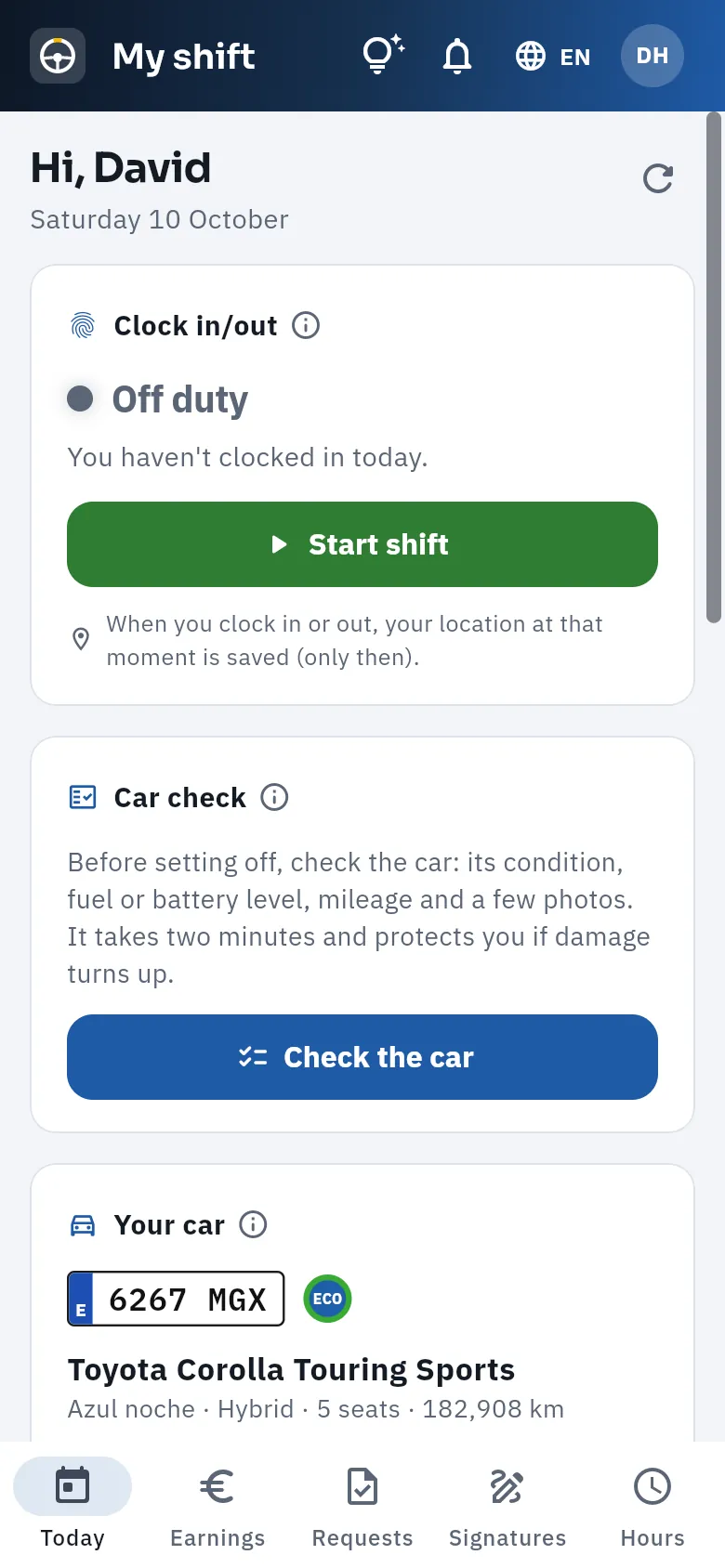 12345
12345
- 1The greeting with the date; if he has anything pending (documents to sign, a fine to respond to, cash to pay in), it shows just below.
- 2Clock in/out: the state of his working day (off, working or on a break) and the button that applies now: Start shift, Take a break, Back to work or End shift.
- 3Car check before setting off: Check the car.
- 4Your car: which car he has today (or whether he is covering someone else's, or is off), with its shift and its paperwork. Further down, his takings and his permits.
- 5The tabs, with a red number where something is pending.
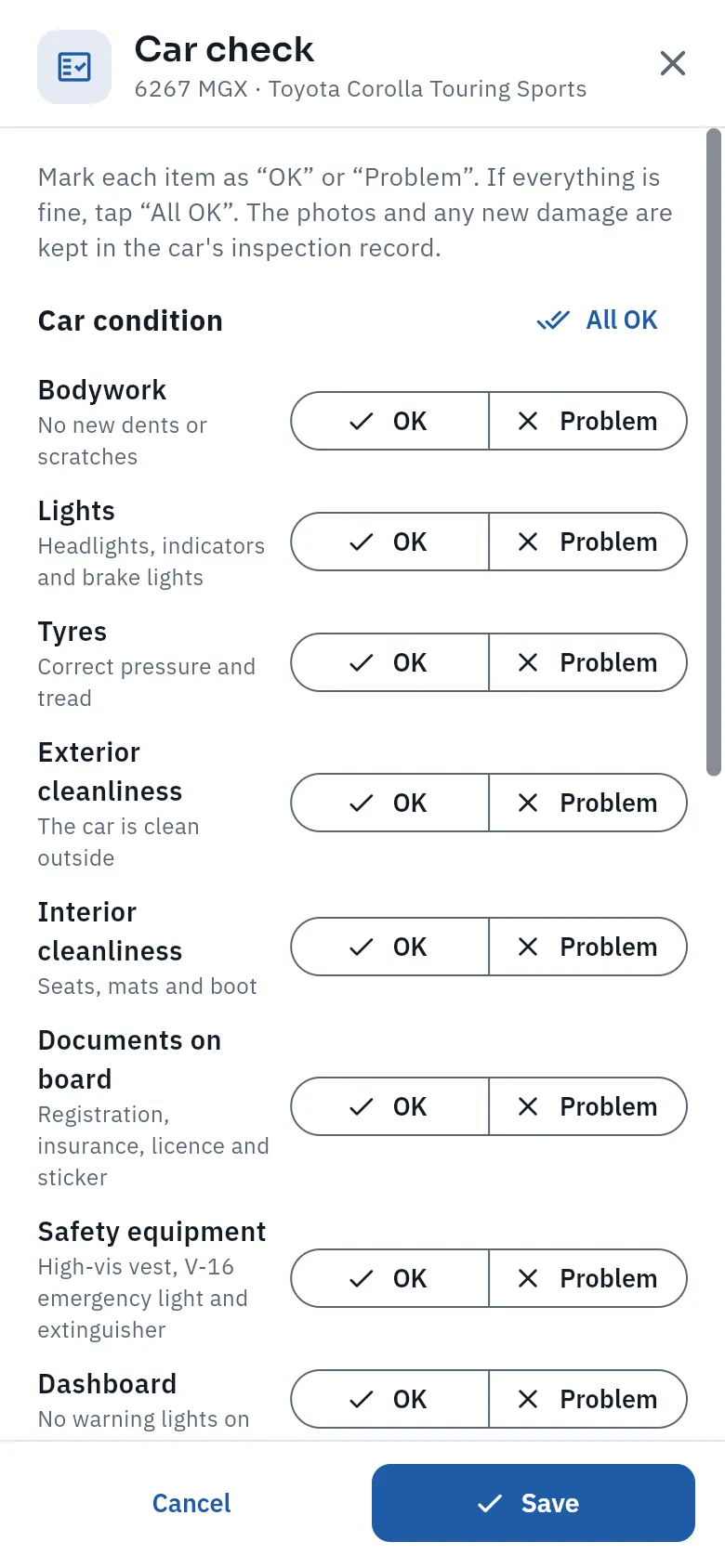 123
123
- 1All OK marks every point at once.
- 2Each item: bodywork, lights, tyres, cleanliness, documents on board, safety equipment (vest, V-16 beacon, extinguisher) and dashboard.
- 3The fuel or battery level; further down, the km and the photos.
The car check takes two minutes and protects the driver: the photos and any new damage go into the car's damage assessment (see Workshop), with the date and who had it. FleetPilot does not allow fewer km than the last ones recorded.
On reaching the car, they open My shift and tap Start shift. If they accepted the geolocation notice, where they are at that moment is saved (only then).
To eat or rest, Take a break; when you are back, Back to work.
When you finish, End shift and confirm.
#Earnings and this month's payslip
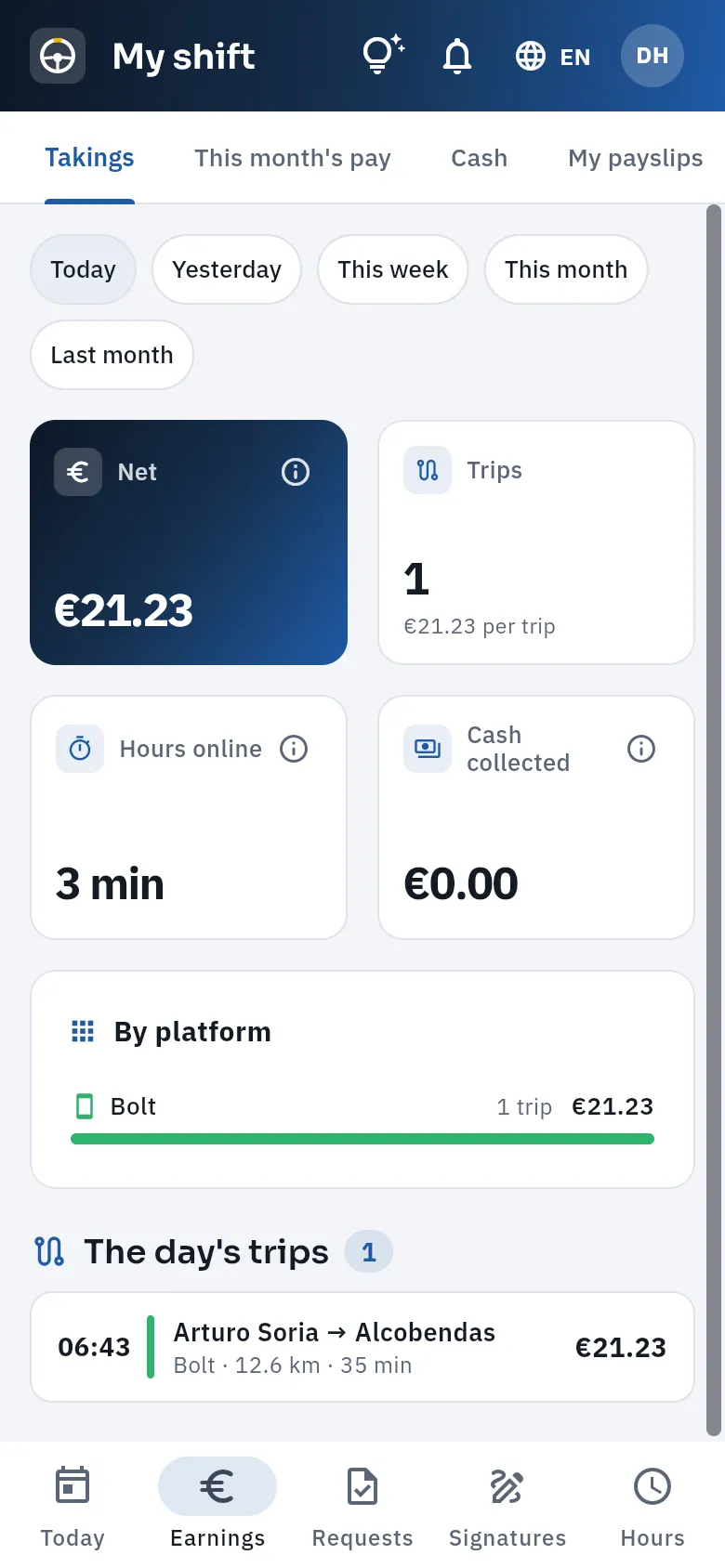 1234
1234
- 1Takings, This month's pay, Cash and My payslips (the closed ones, with their PDF).
- 2The period: today, yesterday, this week, this month or last month.
- 3Net, trips, hours online on the platforms and cash collected.
- 4The split by platform and the day's trips one by one.
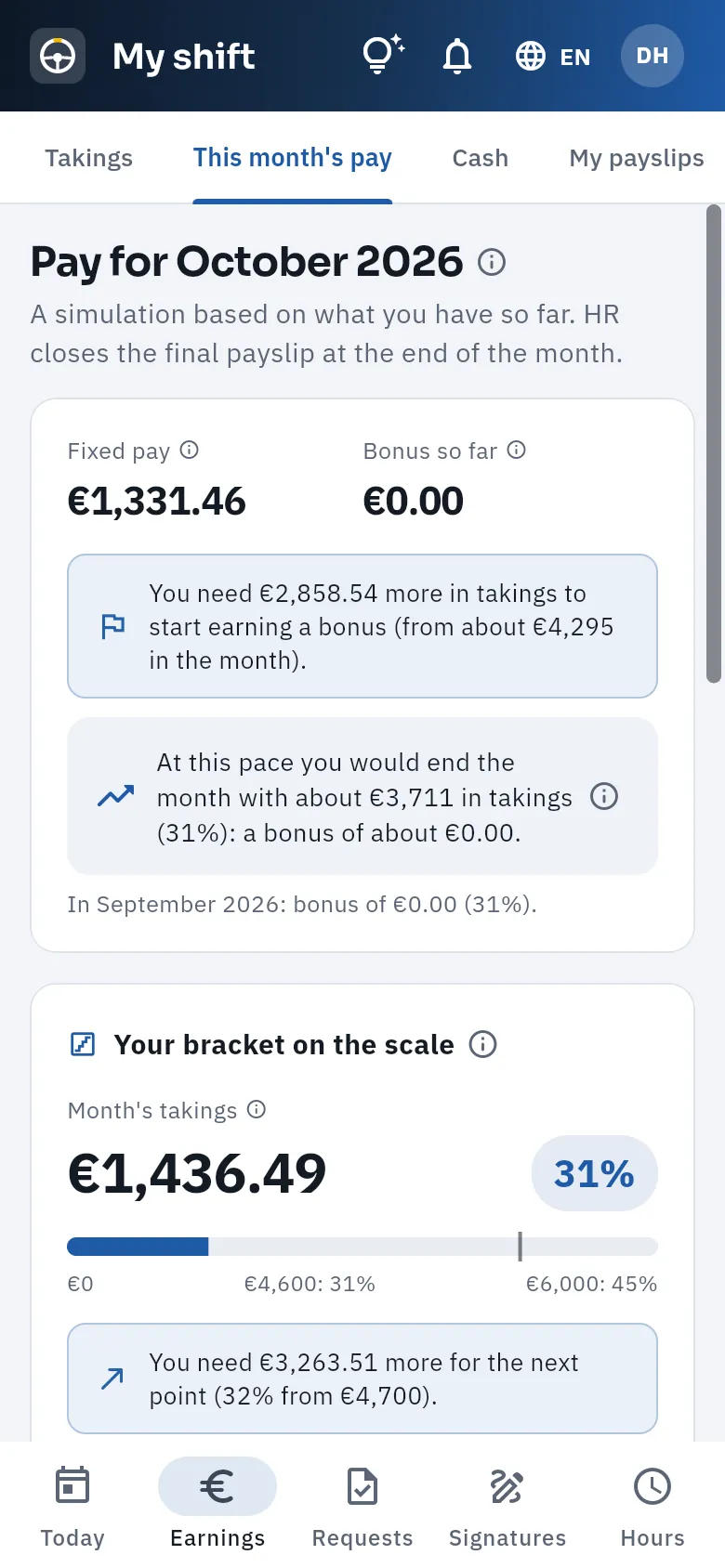 123
123
- 1A simulation: the final payslip is closed at the end of the month.
- 2The fixed pay, the bonus so far, how much more billing he needs to start earning variable pay and the projection for the month at this rate.
- 3Your band on the scale: the month's turnover, the percentage that applies and what is left for the next one.
Further down, the simulated payslip breaks down billing by platform, the commission according to the scale bracket, the fixed pay, the base salary and the collective agreement's allowances, and the allowed fuel and km. It is the same calculation you (or your payroll agency) do in Payroll, with the trips the database attributes to him: those of the car while he had it.
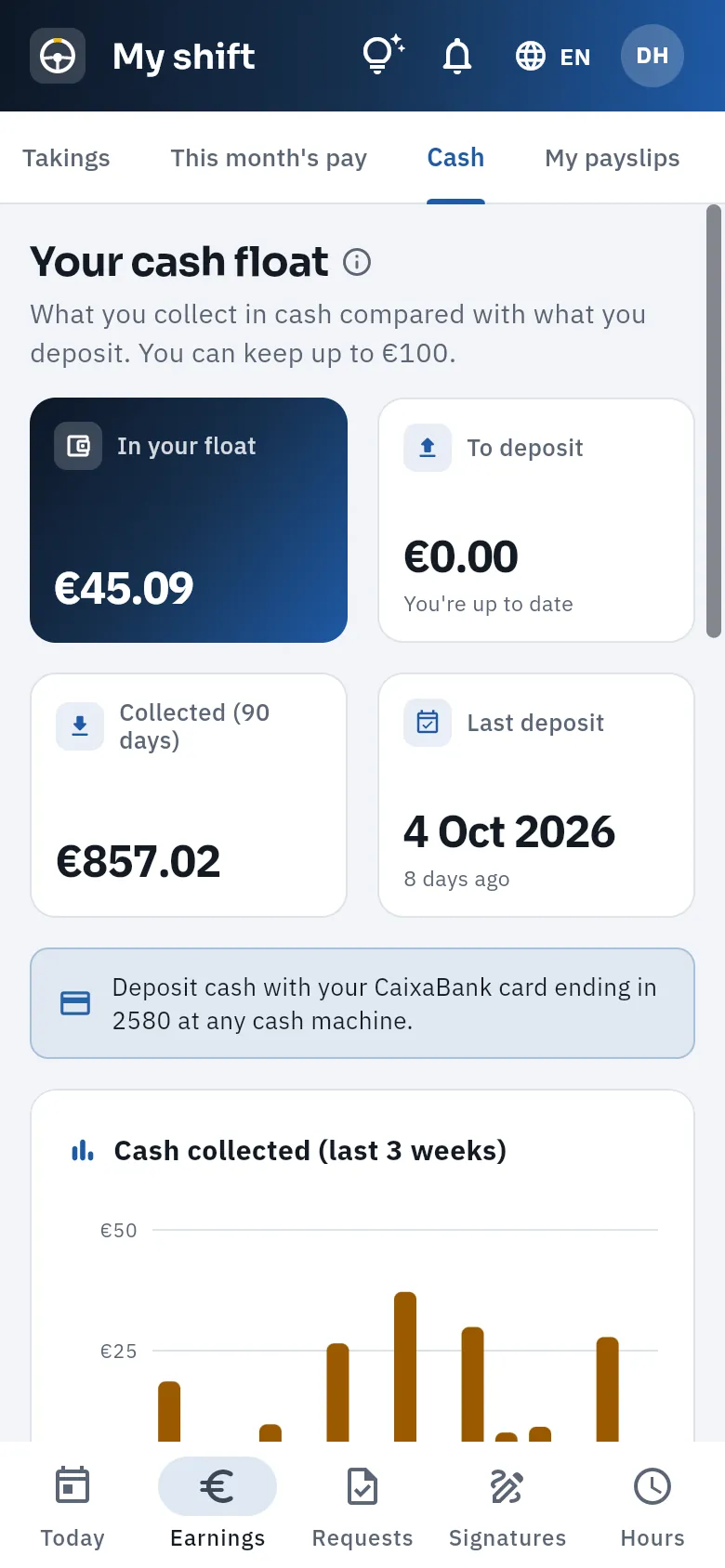 1234
1234
- 1The most he can keep before paying it in.
- 2In your float and To deposit; cash collected in 90 days and the last deposit.
- 3How to pay it in: with his deposit card at a cash machine (you reconcile it by its last four digits). See Cash.
- 4Cash collected over the last few weeks and, below, his deposits.
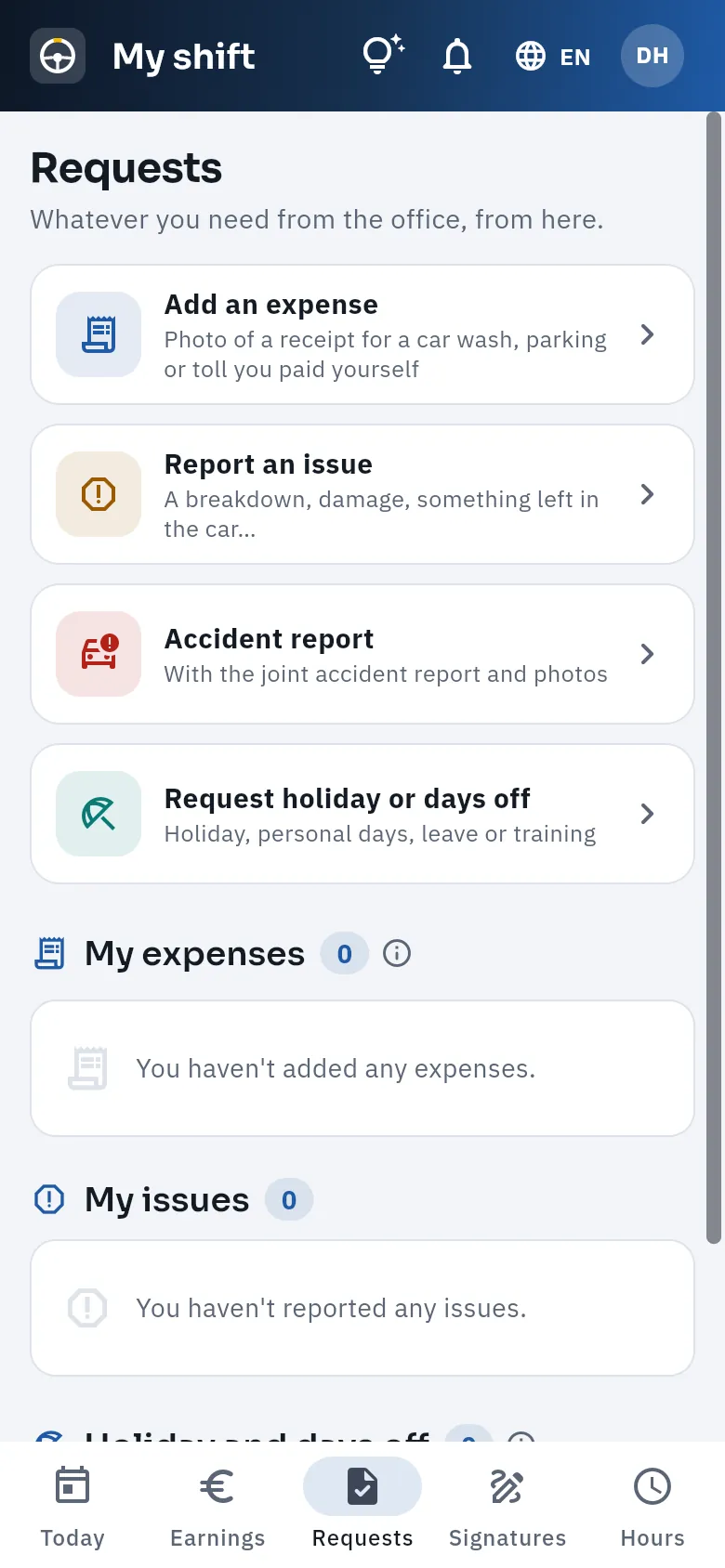 1234
1234
- 1Add an expense: the photo of the receipt, what was paid, the amount and the date. You approve it in Expenses.
- 2
- 3Request holiday or days off: you approve or reject them in the Rota.
- 4His expenses, his incidents and his holidays and days off, each with its status; and, if he has any, his fines, with Respond.
In Requests, tap Add an expense.
Take the photo of the receipt (so that the amount, date and business can be read).
Choose what was paid (fuel, charging, tolls, parking, car wash, maintenance, uniforms or other), type the amount, the date and the business.
Tap Send.
#Signatures and working time
Signatures holds the documents the driver has to sign and all their documentation: the assignment declaration for their car, the handover of a card (fuel or cash deposit card), the receipt for cash, work annexes and instructions, legal notices (data protection, geolocation, vehicle use rules…) and debt acknowledgements. They are signed with a finger on the screen, after ticking «I've read the document and I agree»; the signature stores the moment and the text's fingerprint: the proof of exactly what was signed. If a document is not right, Reject sends it back with a reason, which you see on their record.
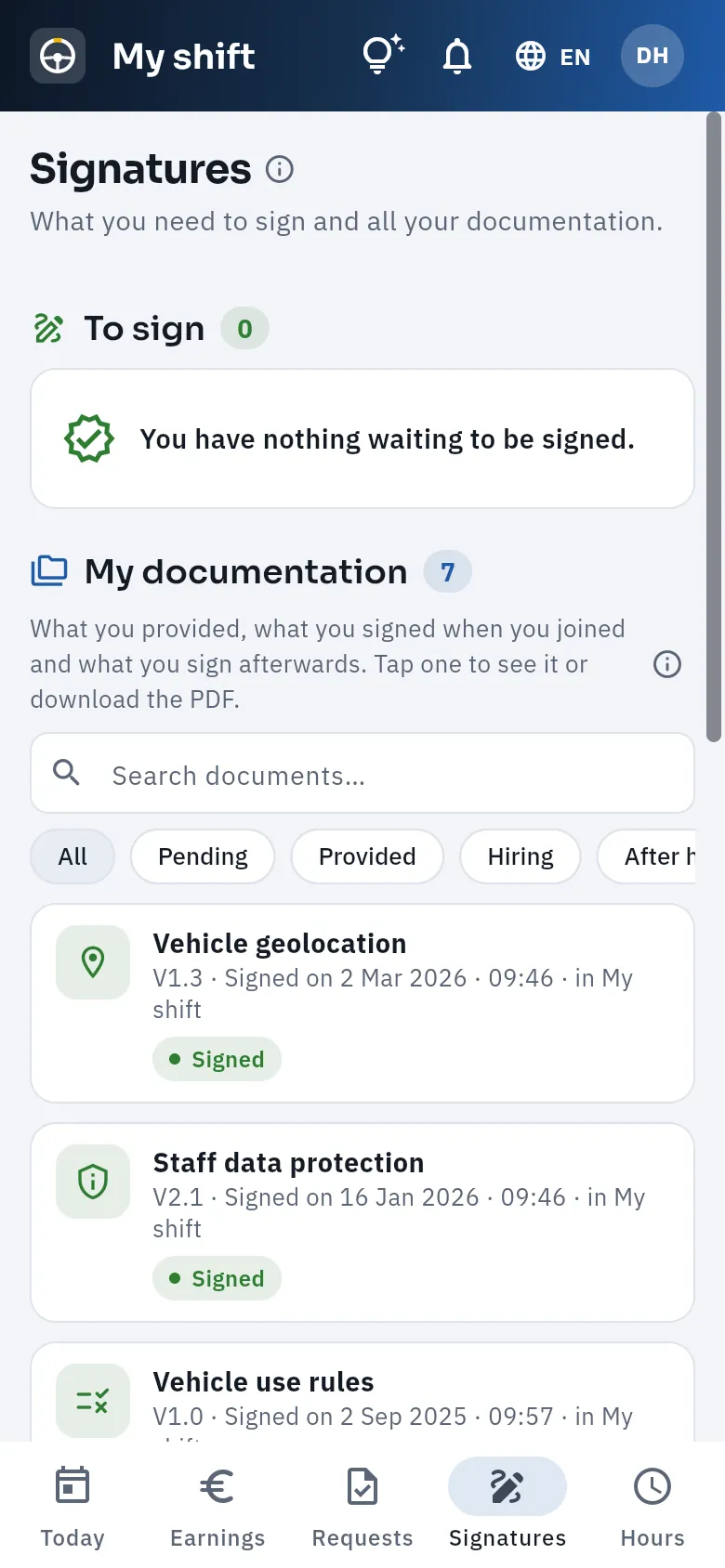 123
123
- 1To sign: what is waiting for his signature, with Read and sign (David has signed everything).
- 2My documentation, with the search box and the filters: pending, provided, on joining, after joining and legal notices.
- 3Each document with its version, when and where it was signed and its status; a tap opens it with its text, signature and PDF.
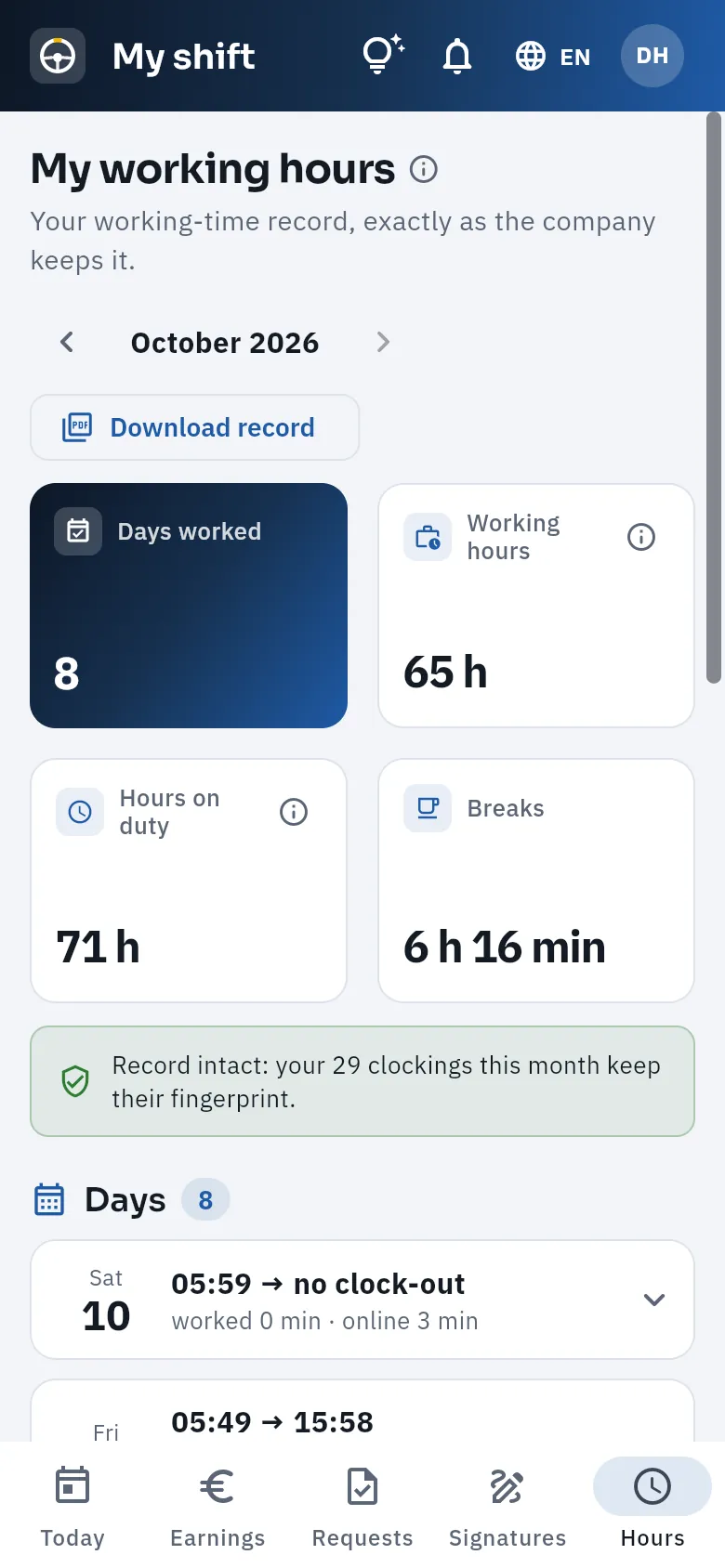 12345
12345
- 1The month (previous ones with the arrows).
- 2Download record: his record for the month as a PDF, the same one you would show the Labour Inspectorate.
- 3Days worked, working hours, attendance hours and breaks for the month.
- 4Record intact: his clock-ins for the month keep their fingerprint.
- 5Each day, with its start, its end, the work, the breaks and the time logged in to the platforms.
#What changes if you drive
If you drive, you are the owner-driver: your driver record is linked to your user and you have My shift in the sidebar, next to the Dashboard and My business (not full screen: you keep all your sections). But since you are nobody's employee, it is a shorter «My shift», with three tabs: Today, Earnings (your takings) and Requests.
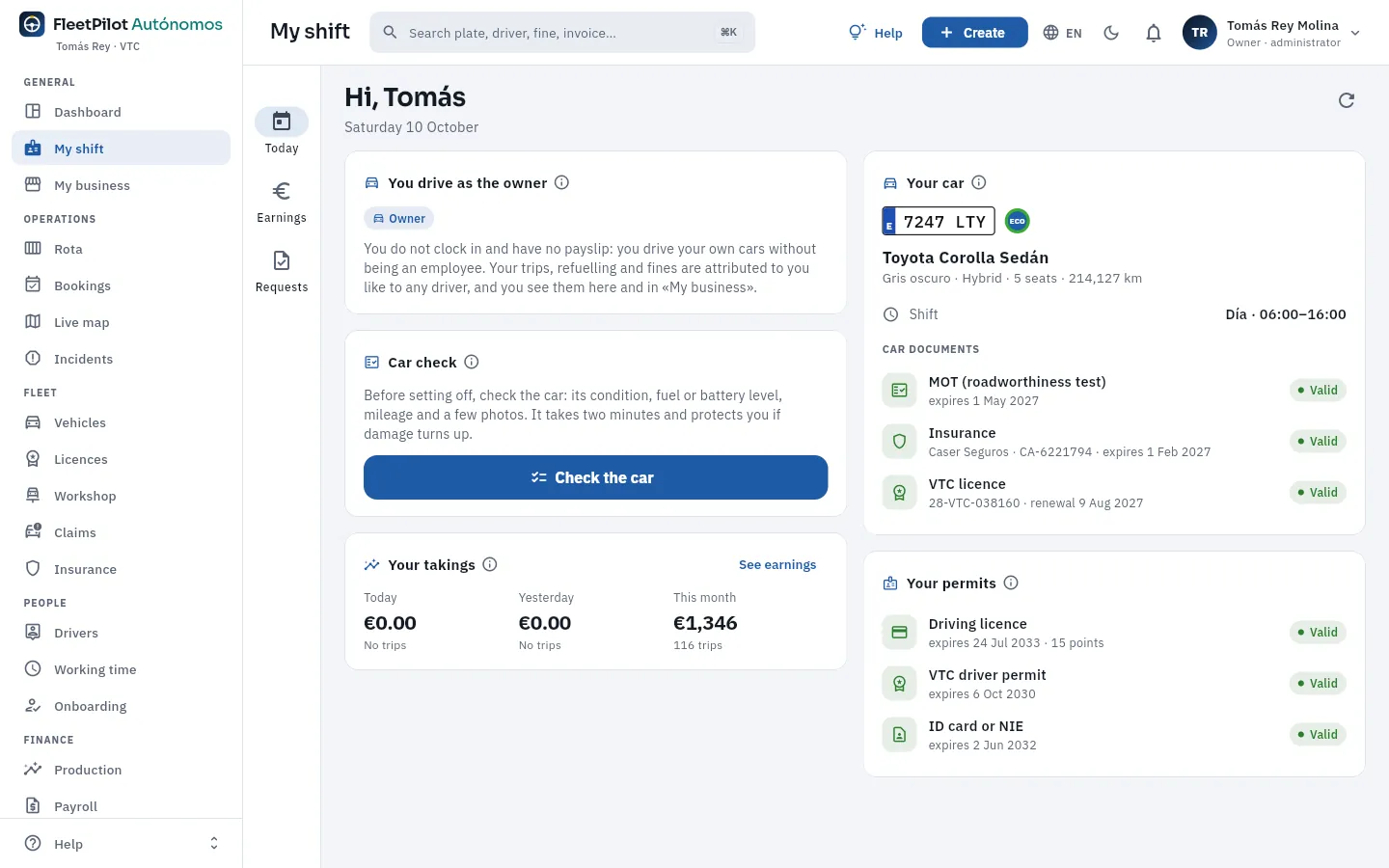 123456
- 1Only three tabs: Today, Earnings and Requests.
- 2You drive as the owner: you do not clock in or get a payslip; your trips, refuelling and fines are attributed to you like to any driver.
- 3The car check, just like your drivers: it protects you if damage turns up.
- 4Your takings: your net for today, yesterday and the month; See earnings takes you to your takings.
- 5Your car and your shift, with its MOT, its insurance and its licence.
- 6Your permits: your driving licence with its points, your VTC driver permit and your DNI or NIE, with their expiry dates.
| Your employed driver | You, if you drive | |
|---|---|---|
| Clocking in and working-time record | Yes: it is compulsory | No: you are not an employee |
| Simulated pay and payslips | Yes | No: what you keep is the result in My business |
| Signatures (contract, annexes, legal notices, assignment declaration) | Yes | No |
| Cash | Their float, paid in with their card | No: the cash you collect belongs to your business |
| Car check, takings, expenses, incidents and accident reports | Yes | Yes |
The reasons, and everything else that changes, in If you drive yourself.
#Tips
- Ask your drivers to always clock in from their phone, when getting into and out of the car: the record is the proof of their hours.
- Have them check the car and take the photos at the start: if damage turns up, you can see who had it before.
- Have them upload receipts the same day, with a sharp photo: it saves you chasing invoices at the end of the month.
- The simulated payslip halfway through the month tells them how much they need for the next bracket: a good conversation to have at the start of a shift.
Operations
Rota
Who drives each of your cars on each shift: the assignments of a regular driver to a car and shift (with their days off), your drivers' absences, one-day covers and shift templates. This is where it is decided to whom each trip, each refuelling and each fine is attributed.
The rota is how your cars are shared out among the people who drive them. Each car goes out on one or two shifts a day and each shift is done by one driver (or by you, if you drive). FleetPilot Autónomos organises it in four pieces:
- Shifts: the time templates. They come ready-made: D (day, 06:00 to 16:00), N (night, 16:00 to 02:00), C (full, 08:00 to 18:00) and, for taxis, TD and TN. A double-shift car has a day driver and a night driver; a single-shift car, just one.
- Assignments: the regular driver of a car on a shift from a given date, with the days they are off each week (usually two in a row) and the assignment declaration the driver signs. They are kept with their history: each change closes the previous one.
- Absences: holidays, IT (temporary incapacity, sick leave), paid leave, personal days, unauthorised absences, suspensions and training. The driver requests them from My shift or you record them, and they are approved here.
- Covers: a one-day change. When the regular driver is off or absent, another driver takes the car for that shift: a colleague who is not working that day, a relief driver (a driver with no regular car who covers days off and absences) or you. A cover with no driver leaves the car off the road for that shift.
What matters is what comes after: every event is attributed to whoever had the car at that instant. An Uber trip, a card refuelling, a GPS journey or a fine is charged to the driver of that day's cover or, if there is none, to the assignment's driver. That is why the rota feeds each driver's takings (Production), their variable pay (Payroll), the identification of the driver of a fine (Fines), the cross-checks in Discrepancies and what each car leaves in My business.
- 1ShiftThe template: time slot and days it runs.
- 2AssignmentRegular driver of a car on a shift, with their days off.
- 3Day off or absenceThe regular driver does not work that day: a gap is left.
- 4CoverAnother driver takes the car that day.
- 5AttributionTrips, refuels and fines, to whoever was driving.
#The week's rota
When you open Rota you see the current week: each row is a car on a shift and each column, a day. In each cell, who drives. At a glance you can see the covered shifts, the covers and the gaps (shifts nobody is doing).
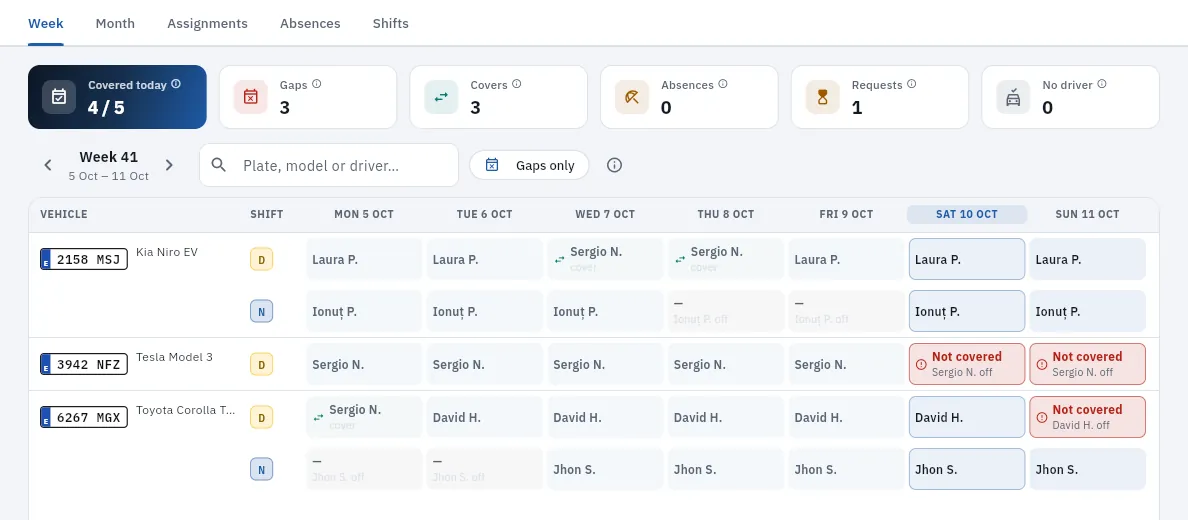 123456789
- 1The five views: Week, Month, Assignments, Absences and Shifts.
- 2Covered today: of today's shifts, how many have a driver (the regular one or the cover).
- 3Gaps: shifts from today onwards this week with no driver. Tapping it turns on Gaps only.
- 4The week's Covers, Absences that leave shifts to cover, absence Requests to approve and cars Without a driver on any shift.
- 5The week: the arrows move to the previous or next one.
- 6The search box and Gaps only, which leaves only the cars with some shift to cover. The ⓘ next to it explains the colours.
- 7A cover (teal, with arrows): Sergio N. drives the Kia on Wednesday, the regular driver Laura P.'s day off.
- 8A past day left uncovered («—», dimmed): the car did not go out. The past can no longer be changed.
- 9A gap (red): today Sergio N., the Tesla's regular driver, is off and nobody covers him.
| In the cell | What it means |
|---|---|
| Name (grey-blue) | The regular driver: works that day according to their assignment. If it is you, with Owner underneath |
| Name · cover (teal, with arrows) | A cover: another driver takes the car that day. It overrides the assignment |
| Not covered · off (red) | The regular driver is off that day and nobody covers |
| Not covered · Holidays, Sick leave… (red) | The regular driver has an approved absence and nobody covers |
| No driver (red) | The car has no regular driver on that shift |
| Off road (grey) | A cover with no driver: the car does not go out that shift |
| In workshop (amber) | The car is at the workshop or off the road |
| — · off (dimmed) | A past day left uncovered: the car did not go out |
| ⏳ (hourglass) | The regular driver has requested an absence for that day, not yet approved: they still count in the rota |
Today's column is highlighted. Each car takes as many rows as it has shifts that week.
#Covering a gap
Tap any cell from today onwards and the action sheet for that car, shift and day opens: Cover this day (or Change the driver for this day on a cell with a driver), View the assignment, View the regular driver and View the car; depending on the cell, also Change or remove the cover, Assign a regular driver or View the absence. On a past day there are no actions to change anything: what happened is already attributed.
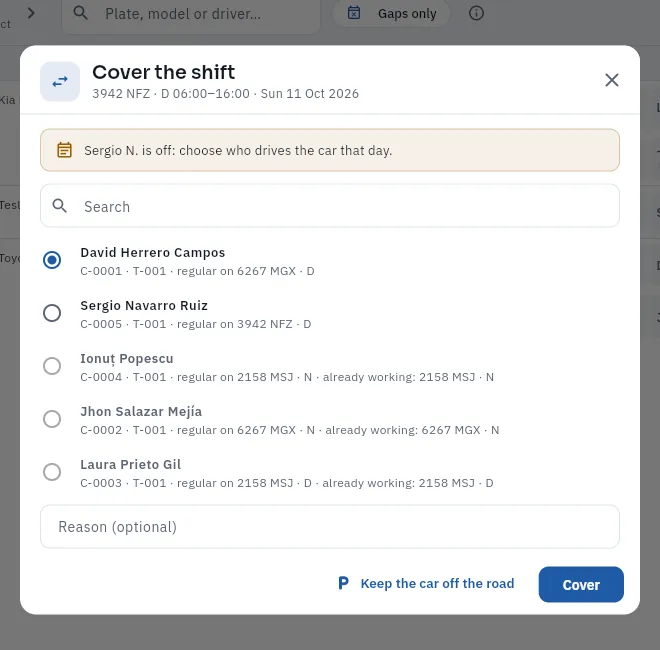 1234567
- 1What is being covered and why: the car, the shift, the day and that the regular driver is off (or absent, or the car has no regular driver).
- 2To search by name, code or number plate among your hired drivers.
- 3Those who can: here, David, regular day driver of the Toyota, who is off on Sunday; and the regular driver himself, if he wants to work his day off.
- 4Those already working that day appear at the end, greyed out, and cannot be chosen («already working: …»).
- 5Reason; if left empty, FleetPilot records «Regular driver's day off» or «Regular driver's absence».
- 6Keep the car off the road: the car does not go out that shift.
- 7Cover saves the cover (not tapped in the screenshot).
In the Week tab, tap the Gaps indicator (or tick Gaps only) to keep only the cars to cover.
Tap the day's red cell and choose Cover this day.
Choose a driver from the shift's band (a day driver for a day shift) who does not already have another shift that day: a relief driver, a regular driver who is off that day or you, if you drive.
If you like, type the reason and click Cover.
To undo a cover, tap the cell and choose Change or remove the cover: the same dialog shows Remove the cover, which gives the shift back to the regular driver (or leaves it as a gap if they have the day off).
#The month at a glance
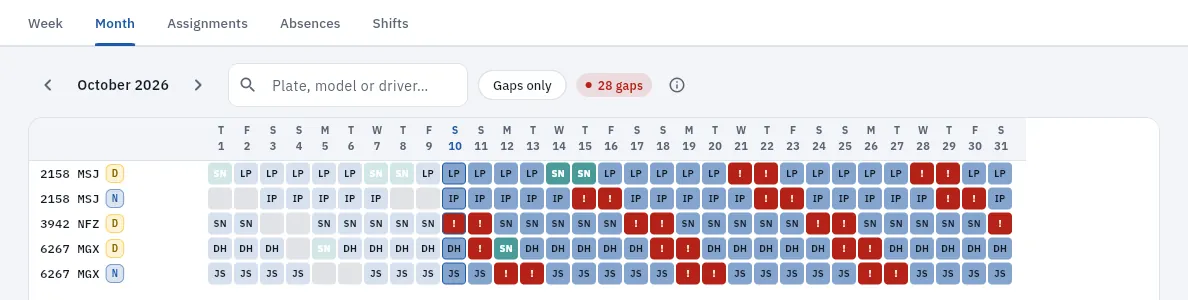 12345
12345
- 1The month: the arrows go to the previous or next one.
- 2The search box and Gaps only, as in the week.
- 3The month's gaps, from today onwards.
- 4Today, framed. Each square carries the initials of whoever drives: blue for the regular, dark teal for a cover.
- 5A gap (a red «!»). Hover over it to see the detail or tap the box for its actions.
The month is for planning: where uncovered days off pile up, which weeks have approved holidays and which cars are left without a driver. Covers are usually set a few days ahead, which is why the coming weeks show «!» until you cover them.
#Assignments
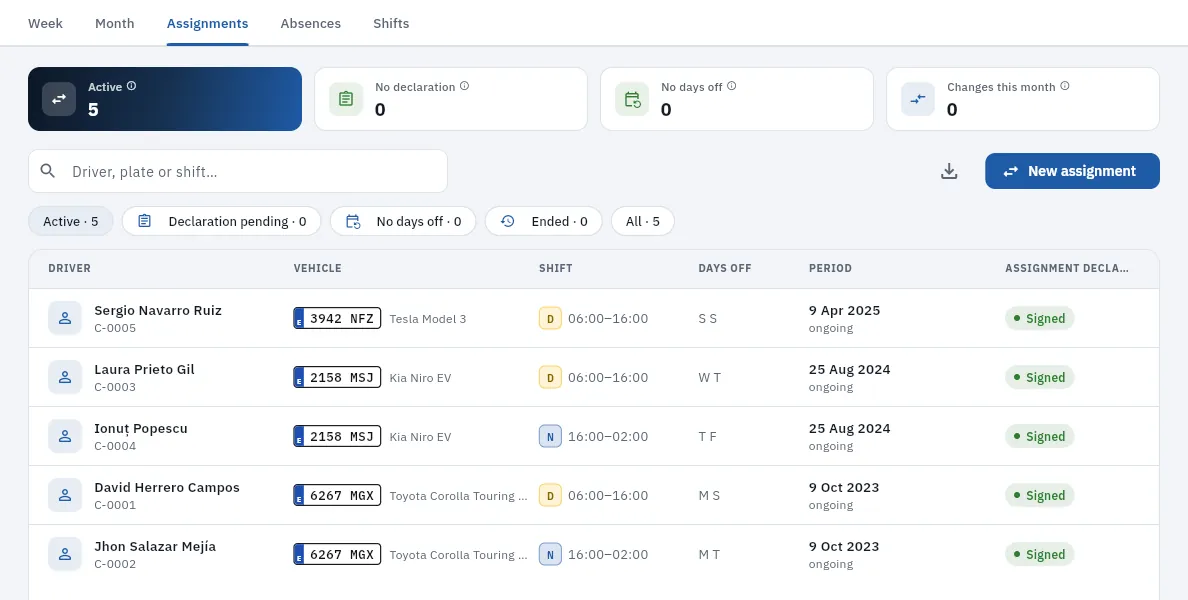 1234567
- 1Active: assignments in force right now. A double-shift car has two.
- 2No declaration (the driver has not signed the assignment declaration) and No days off (the rota counts all seven days and does not show their gaps).
- 3Changes this month: assignments that started this month (new hires, car or shift changes, handovers).
- 4The filters: Active, Declaration pending, No days off, Ended (the history) and All.
- 5Days off and period: the days off each week, since when and, if it has ended, until when and why.
- 6Declaration: signed or pending (only for active ones).
- 7New assignment: a regular driver for a car and shift.
Each row is an assignment: the driver, the vehicle, the shift with its time band, the days off (M, T, W, T, F, S, S) and the period. Assignments are never deleted: when a driver changes car or leaves, theirs is closed with a date and time and stays under Ended. That way you can always find out who had a car on any day in the past. Tapping a row opens its record, with Summary, Next days (the next 14, cell by cell, to cover or change each one) and Documents (the PDF of the signed declaration); under More options, Change days off and End the assignment.
The assignment declaration is the document in which the driver declares that they are the usual driver of that car on their shift from that date, except for days off, absences or covers, and that they answer for any offences they commit. They sign it in «My shift» or on your screen with Sign. If a fine arrives for that car during their shift, identifying them leaves no doubt (see Fines).
#Assigning a regular driver
New assignment (in the Assignments tab, in the Create button in the top bar or, from a «No driver» cell in the week, with Assign a regular driver) opens the assignment dialog. While you choose, FleetPilot checks the rules and shows you the result before saving: that the driver is hired and has a current contract (signed), that the car belongs to your business, that it is available, the MOT and insurance in force, the driver's licences and permits (they warn, they do not block), what is going to be closed (their current assignment and the car's on that shift) and whether they have an approved absence in progress. Green is fine, amber warns, blue informs and red blocks.
Check in Drivers that the driver has their contract signed.
Tap New assignment and choose the driver, the vehicle and the shift.
Check the From date and time (the handover's) and tick the days off each week.
Read the checks: if anything is red, sort it out first (contract, MOT, insurance…).
Tap Assign.
Ask the driver to sign the declaration in «My shift» (or open it and click Sign for them to sign on your screen).
#Assigning yourself a car if you drive
If you drive, you assign yourself your car just as you would any driver: choose your name under Driver. The checks let you through even though you have no contract, because you are the car's owner: under Current contract and The car belongs to their employer you appear yourself. There is no assignment declaration to sign. If you change car or shift, the new assignment closes the previous one and relieves whoever had that car and shift, as with anyone.
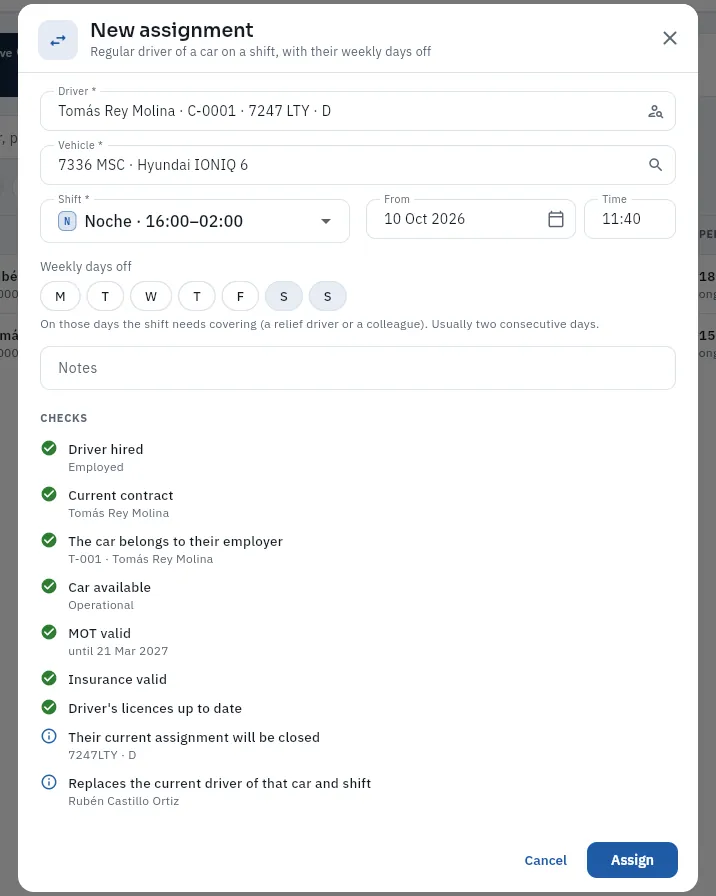 123456
- 1Driver (himself) and vehicle, searching by name or number plate.
- 2The shift and from when (date and time): today, at the current time; never a past date.
- 3Weekly days off (FleetPilot suggests those of his current assignment).
- 4Current contract and the car belongs to their employer: for the owner-driver, himself as the owner.
- 5What will happen on saving: his current assignment (the 7247 LTY by day) is closed and he relieves the night employee of the 7336 MSC.
- 6Assign (not clicked in the screenshot).
#Absences
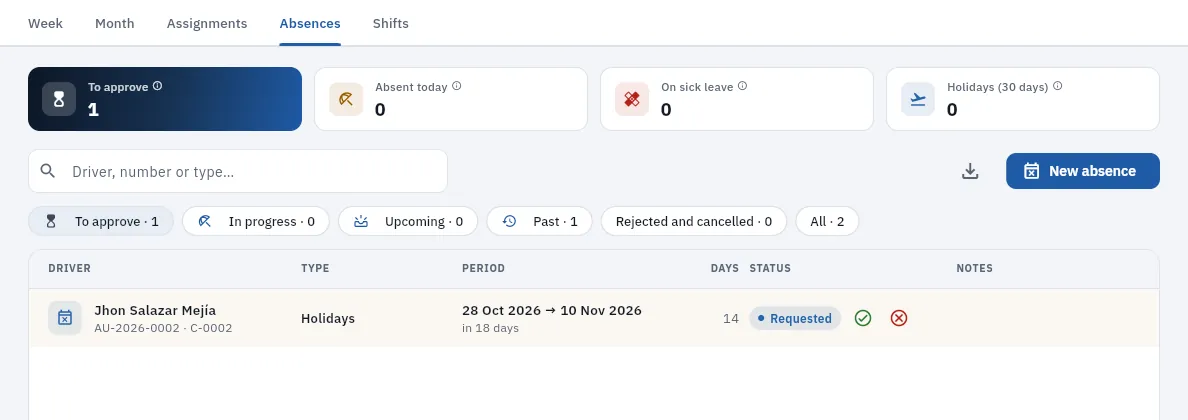 123456
- 1To approve: requests waiting for your answer. A request does not leave a gap until it is approved.
- 2Absent today, on sick leave today and approved holidays starting in the next 30 days, to plan who covers.
- 3The filters: To approve, In progress, Upcoming, Past, Rejected and cancelled and All.
- 4A request: driver, number (AU-…), type, period, calendar days and status.
- 5Approve and Reject from the row itself.
- 6New absence: record an absence for a driver (sick leave, a paid leave).
When you approve, the driver gets a notification and from then on their shifts on those days show in the rota as gaps («Not covered · Holidays»…) until you cover them; in the absence's record, Affected shifts shows them one by one so you can cover them. When you reject (with confirmation), they are notified too. An approved absence can be cancelled from its record: the driver counts again on those days. Sick leave that reaches you some other way you record yourself with New absence, ticking Record it as approved; the reason for sick leave is health data: do not write the diagnosis.
#Shift templates
The Shifts tab lists the templates with their time band, their hours, the days they run and how many active assignments each one has. They are created with New shift and changed by tapping their row: code (D, N, C, TD…), name, start and end time (if the end is earlier than the start, the shift ends the next day), days it runs, colour, order and whether it is active. A shift that crosses midnight belongs to the day it starts: a trip at 01:30 on Sunday belongs to Saturday's night shift (and to Saturday's cover, if there is one). If a template exceeds the maximum daily working time in Settings, it warns you.
#Tips
- Start the day with Gaps only: each gap today is a car that does not go out.
- Always record covers, even if it is a verbal swap between colleagues: otherwise, the trips, the fuel card and the fines of that day are charged to the regular driver.
- Set the days off in every assignment. Without them the rota counts all seven days and does not show you the gaps.
- To move a driver to another car, use New assignment: it closes the previous one at the same instant and leaves no overlaps or gaps in the attribution.
- Approve holidays in good time and look at Holidays (30 days) to plan who covers.
Operations
Bookings
The services you are booked for directly, without a platform: a client's airport transfer, the hotel or company that always calls you. The pick-up, the car and the driver, its report to the VTC services register before it starts, and its invoice.
As well as Uber, Bolt, Cabify or FREENOW trips, many owner-operators have their own clients: a neighbour who asks you for an airport transfer every week, a hotel that calls you for its guests, a company that hires a car by the hour. Bookings is where you note those services down: the client, the pick-up and the destination, the date and time, the flight (to follow its delay), the passengers, the vehicle requirement (standard, premium, people carrier, PMR-adapted —for people with reduced mobility—, electric…) and the agreed price before VAT. Then you give it a car and driver (you, if you drive, or one of your employees), report it to the Ministry's register before it starts if it is a VTC (vehicle for hire with driver) and, once done, you invoice it from Billing.
It has three tabs: Bookings (the list), Calendar (the week) and Clients (their records and terms). The demo does not have any yet: the screenshots show the empty list and the forms open, unsaved.
#The list of bookings
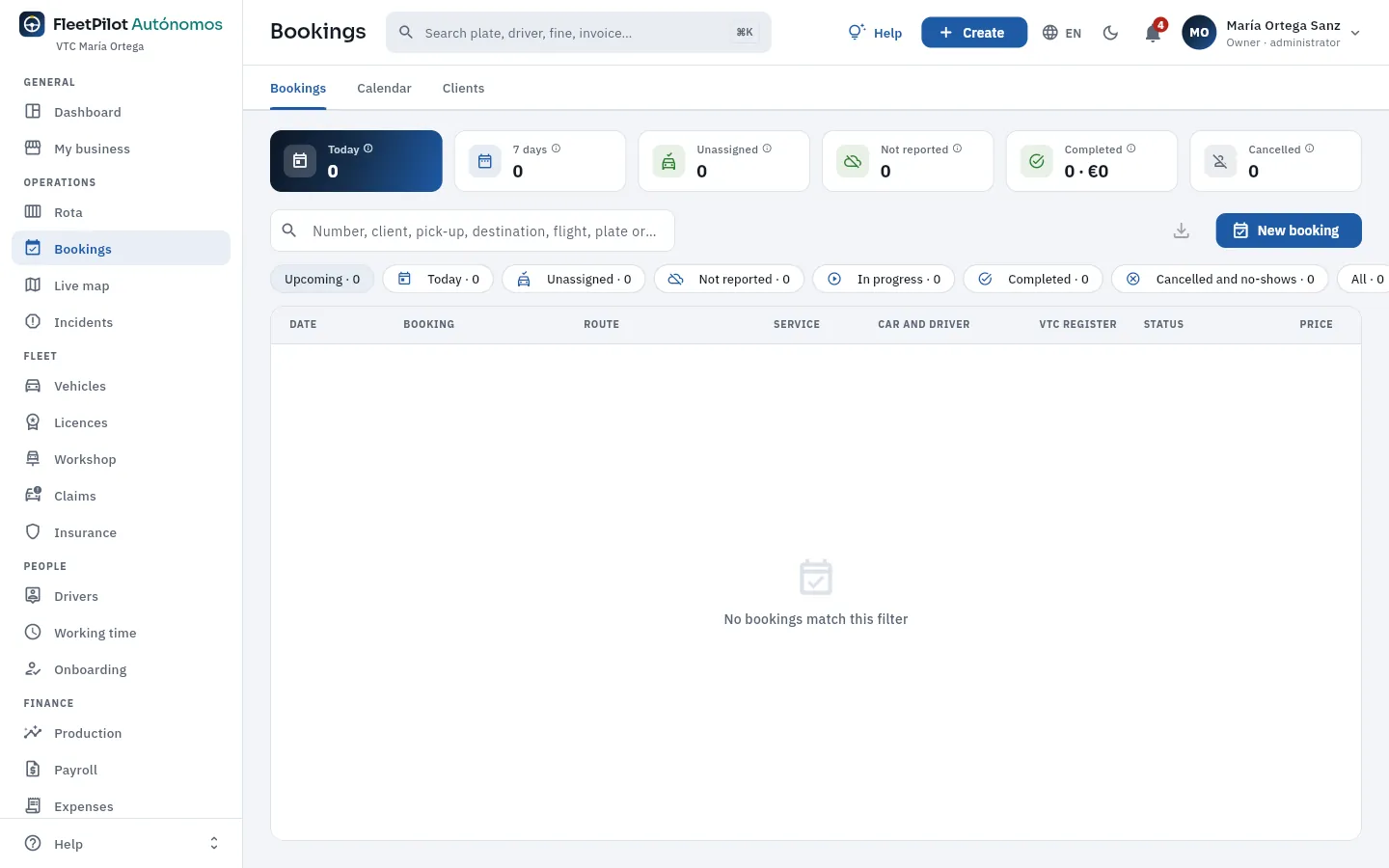 1234567
- 1The three tabs: Bookings, Calendar (the week, each booking on its day) and Clients.
- 2Today and 7 days: bookings with a pick-up today and over the next week.
- 3Unassigned: no car or driver yet and a pick-up within the next 48 hours.
- 4Not reported: with a car, but not yet reported to the VTC services register. Starting a service without reporting it is a very serious offence.
- 5Completed this month with their amount before VAT, and those cancelled or where the client did not show up.
- 6The filters by status: upcoming, today, unassigned, not reported, in progress, completed and cancelled.
- 7New booking (also from Create, at the top).
| Status | What it means |
|---|---|
| Pending | Noted down, with no car or driver. |
| Assigned | With a car and driver; if it is a VTC, it must be reported before the pick-up time. |
| In progress | The service has started. |
| Completed | Done: ready to invoice the client. |
| Cancelled · Client no-show | It did not happen. A cancellation already reported is cancelled in the register. |
#A new booking
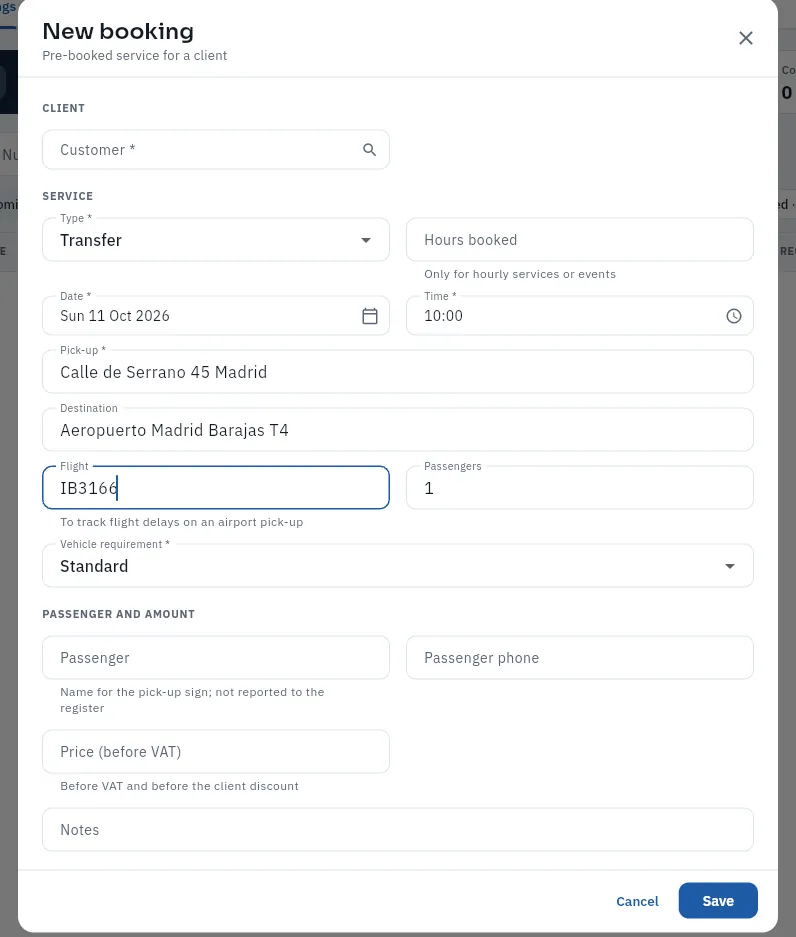 12345678
- 1The client: searched by name or code. If they are new, add them first in Clients.
- 2The type (transfer, by the hour, event…) and, if it is by the hour, the hours booked.
- 3The pick-up date and time.
- 4Pick-up and destination.
- 5The flight, to follow its delay if you pick up at the airport, and the passengers.
- 6The vehicle requirement: it decides which cars are proposed when you assign it.
- 7The passenger (the name for the pick-up sign: it is not reported to the register) and their phone.
- 8The price before VAT; the client's discount is applied on the invoice.
If the client is new, go to Clients → New client and save their name, their tax ID (NIF) and their terms.
Tap New booking, choose the client and enter the date, time, pick-up, destination and flight. Tap Save.
In the booking's record, under Car and driver, tap Assign: FleetPilot Autónomos proposes the cars that meet the requirement, have their MOT (ITV) and insurance in order and a driver on shift at that time.
If the car is a VTC, in the VTC register tab tap the button to report the service before the pick-up.
#Notifying the VTC service register
Every VTC service (vehicle for hire with driver) is reported electronically to the Ministry of Transport's register before it starts: who provides it and their tax ID, the intermediary, the place and date of the contract, the start place and time, the end date and the number plate. No passenger data. The VTC register tab of each booking shows the reports made, with their reference, and the buttons to report the booking, a change (if you change the car or the time), the start or the cancellation. In the demo the reporting is simulated with the shape of the official web service (see Integrations). A taxi has no such reporting.
#Your clients
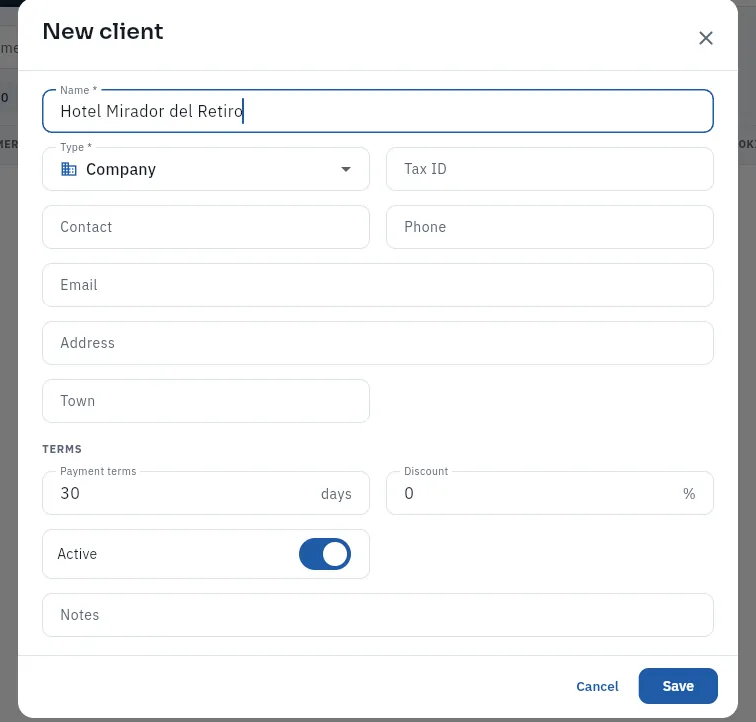 1234
1234
- 1The name and the type (company or individual), with their tax ID for the invoice.
- 2The contact person, the phone, the email and the address.
- 3The terms: the payment terms of their invoices and the discount you give them.
- 4Active: an inactive client no longer appears when you create bookings.
The Clients tab shows each client with their payment terms, their discount, their bookings over the last 30 days, the amount invoiced in 12 months and what is pending collection, with filters for those who owe money or have overdue invoices.
#Tips
- Assign in good time: the «Unassigned» indicator only looks at the next 48 hours.
- Report as soon as you assign: if you later change the car or the time, report the change.
- Enter the flight on airport pick-ups: if it is delayed, you see it without calling anyone.
Operations
Live map
Where each of your cars is according to its telematics unit, who is driving it right now and its route for the day; and the platform trips of any period with who was driving.
If your cars carry a telematics unit (a GPS that sends the position, the speed and whether the engine is on), the Live map plots them on the map in the colour of their status and, next to it, the list of your cars with who is driving it now: whoever has the day's cover or, if there is none, the assignment whose shift includes that time (the same attribution rule used throughout the app: each event belongs to whoever had the car at that moment).
In the demo the telematics is simulated with the shape of a real provider's API (see Integrations). The Live map has two tabs:
- Fleet: the picture right now. Where each car is, who is driving it and, when you tap it, its route for the day.
- Trips: the trips of all platforms (Uber, Bolt, Cabify, FREENOW, taxi and your bookings) over a period, with who was driving and, if the car has telematics, the route it followed.
#Your cars on the map
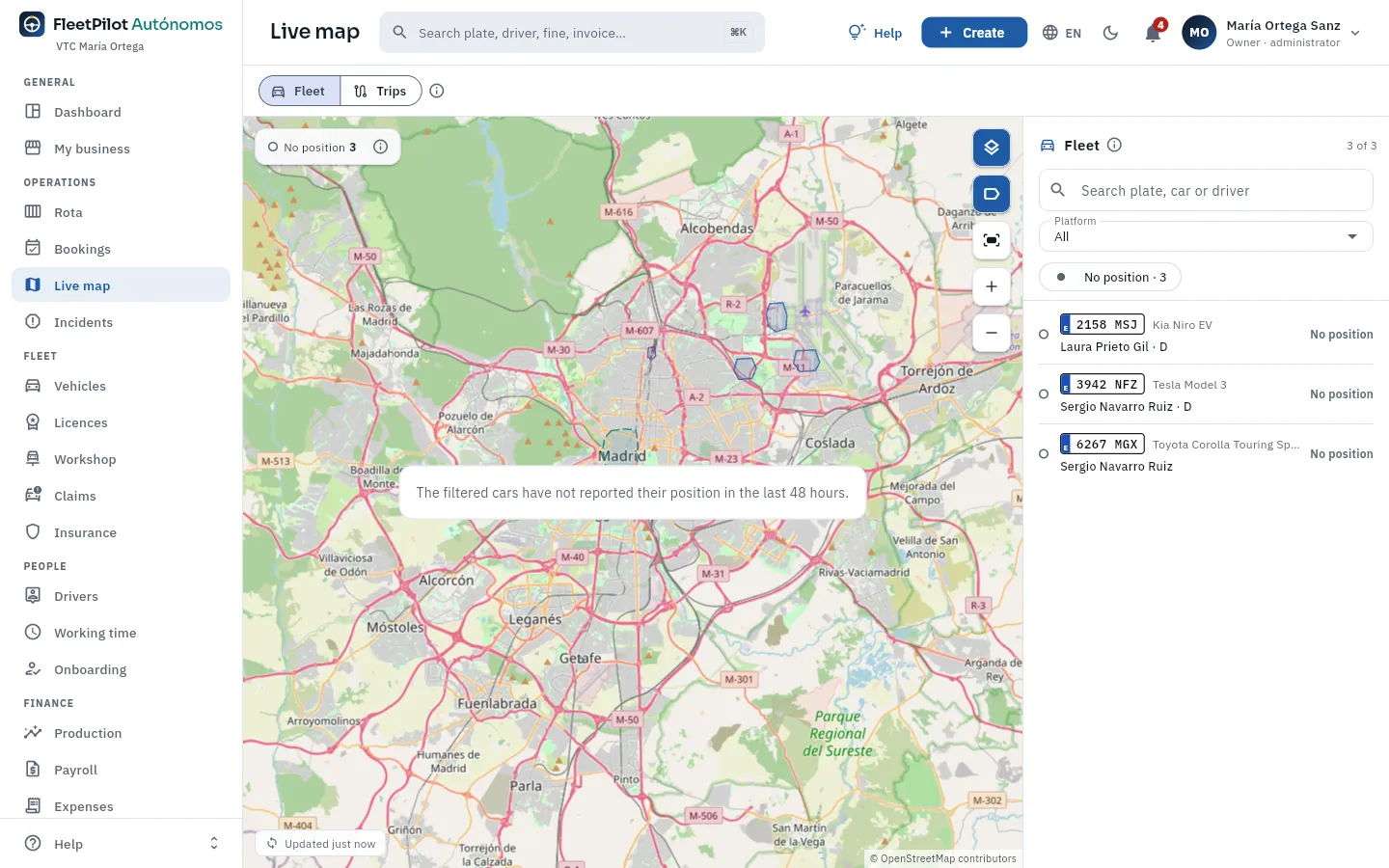 123456
- 1The two tabs: Fleet (right now) and Trips (a period's trips).
- 2The count by status: on a trip (with a passenger or on the way to pick one up), free, idle (engine on, not moving), switched off or with no position.
- 3The controls: points of interest (airports, stations, the ZBE —low-emission zone—), number plates and names on the map, zoom in and zoom out.
- 4The list's search box and the platform filter.
- 5The statuses as filters: tap one to see only those cars.
- 6Each car: number plate, model, who is driving it now with their shift, status and how long ago its last position arrived. Tap it to see its route.
#A car's route for the day
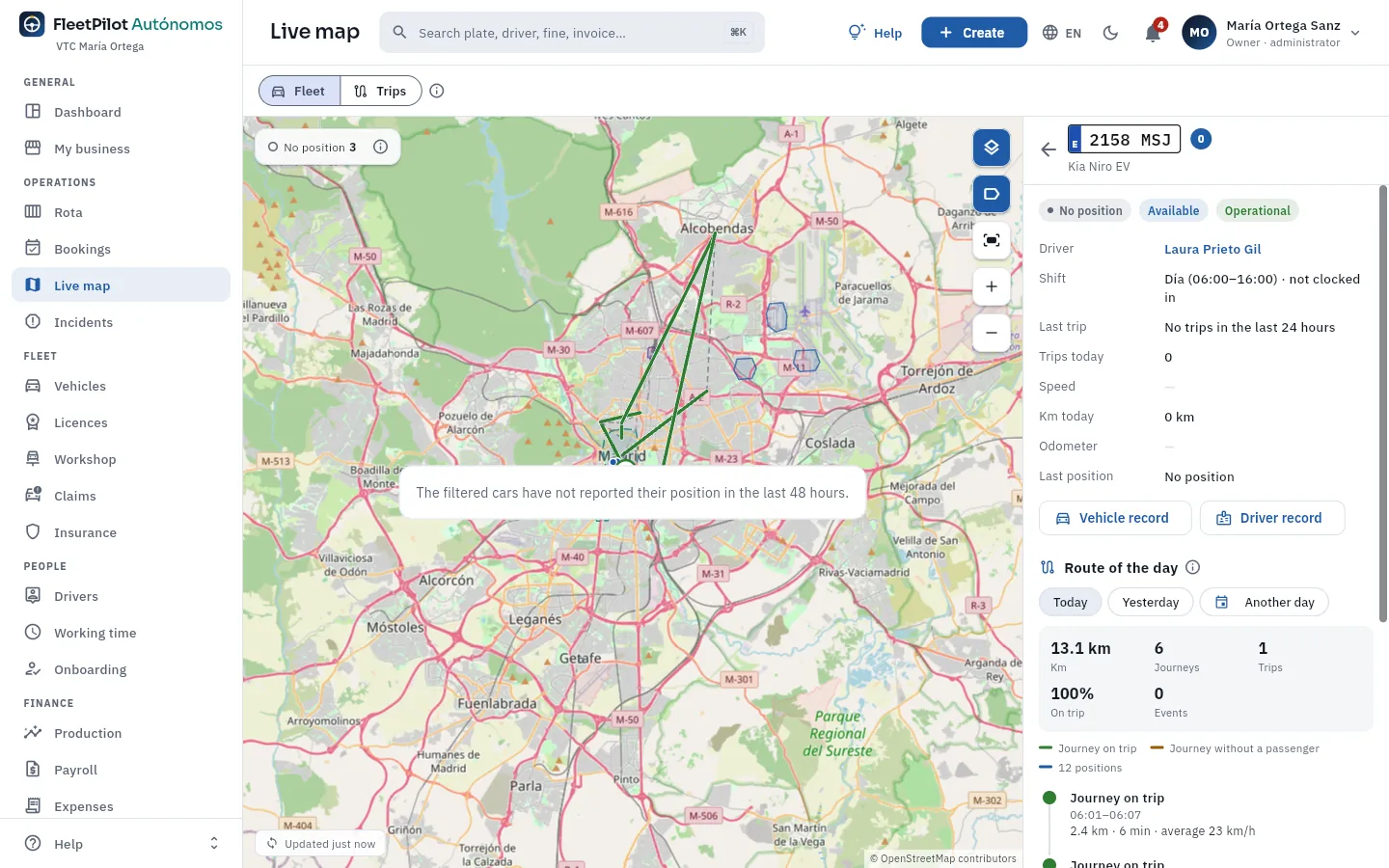 1234
1234
- 1The car with its number plate, and the arrow to go back to the list.
- 2Its status, the driver right now and their shift, the last trip, today's trips and km, the speed and the last position.
- 3Shortcuts to the vehicle record and the driver record.
- 4Route of the day: today, yesterday or another day, with the km, the journeys, the trips and the share with a passenger.
On the map, journeys on a trip (green: they match a trip on some platform) and without a passenger (amber: kilometres with nobody on board). Below the card, the day's list: each trip with its time, its route and its amount, and each telematics journey. Kilometres without a passenger are the ones that later appear in Discrepancies if they exceed the threshold.
Open the Live map and tap the car in the list (or type the number plate or the driver in the search box).
On its card, look at the route of the day; with Yesterday or Another day, another day's.
If something does not add up (many km without a passenger), open the vehicle's or the driver's record.
#Trips: the trips and who was driving
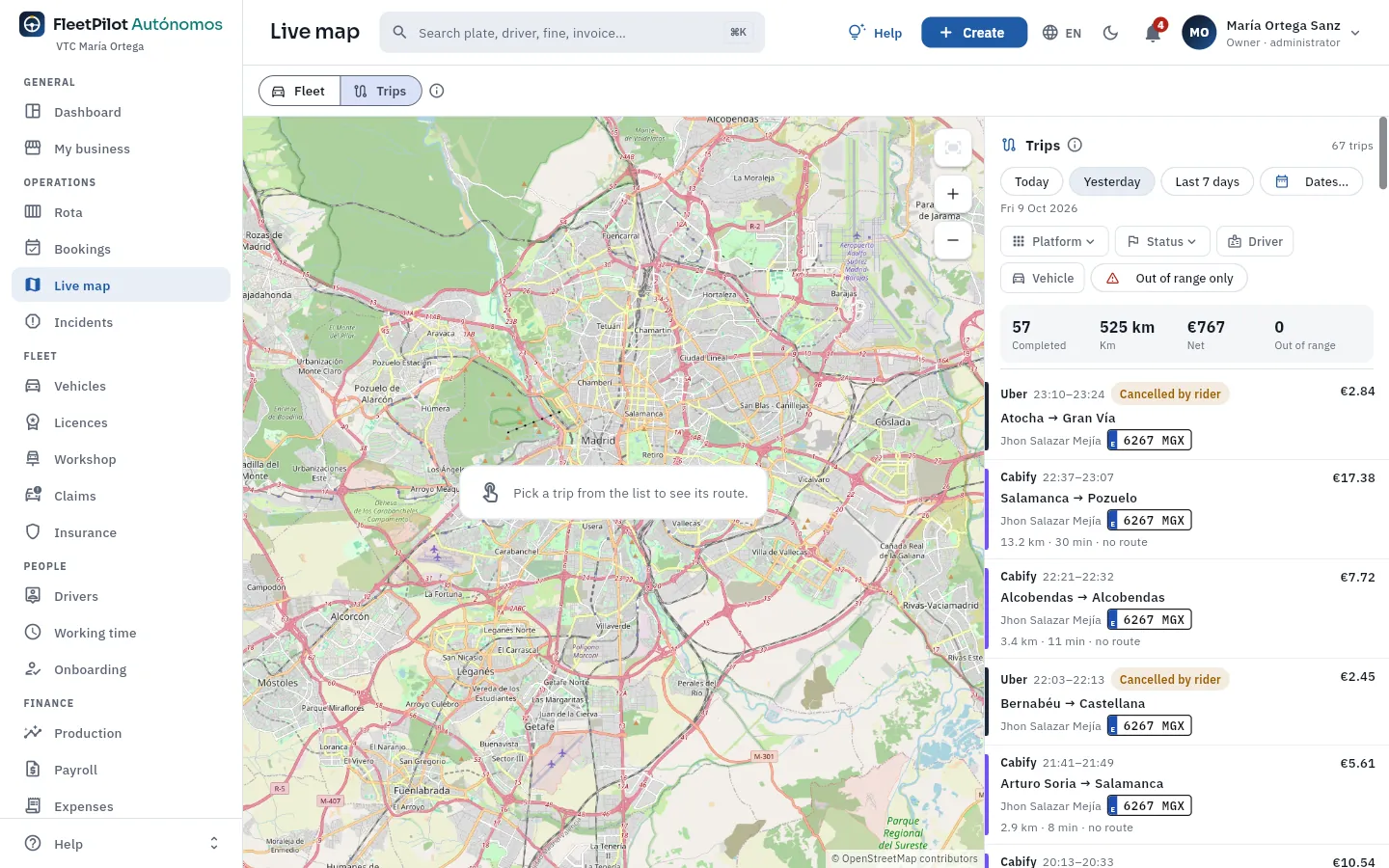 1234
1234
- 1The period: today, yesterday, the last 7 days or a date range (up to three months).
- 2The filters: platform, status (completed, cancelled…), a driver or a car.
- 3The figures for what is filtered: completed trips, km and net.
- 4Each trip: platform, pick-up and drop-off time, origin → destination, driver, number plate, km and minutes, and amount. Tap it to see it on the map.
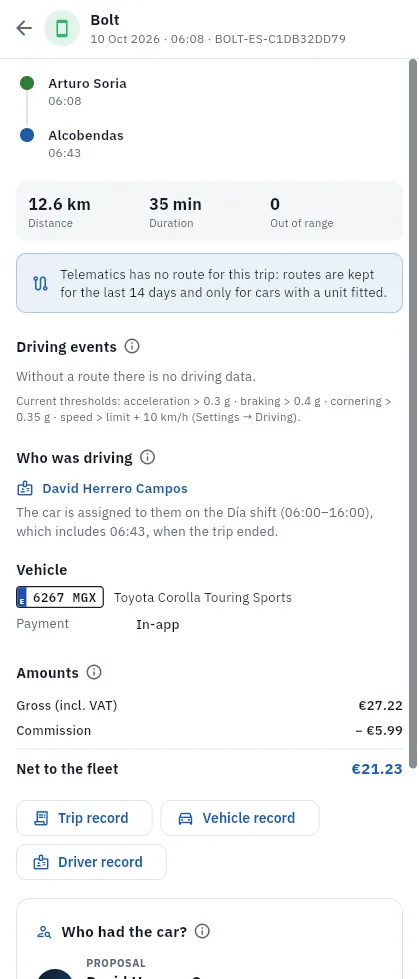 1234
1234
- 1The pick-up and drop-off with their time, the distance and the duration.
- 2Who was driving (tap it to open their record) and why the trip is attributed to them: here, because they had the car assigned on their shift.
- 3The car (tap it to open its record) and the payment method.
- 4The amounts: the gross including VAT, the platform's commission and the net you keep.
If the car has telematics and the trip is from the last 14 days, the map also draws the route the car followed, coloured by speed, with a chart of the speed against the road's limit and the driving events (harsh acceleration, harsh braking, sharp turns and speeding). It helps you deal with a passenger's complaint or explain kilometres that do not add up. From Production, each trip's record takes you to this tab with See route on the map.
#Tips
- Filter by «Free» to see which car can take an urgent booking.
- Check the km without a passenger of the car with the most amber: they usually explain a discrepancy.
- Use Trips when a passenger or a platform complains: you see where the car went and who was driving it.
Operations
Incidents
Breakdowns, damage, client complaints, lost property, cleaning and accidents with your cars: who had the car, how they are resolved and how they are passed on to the workshop or to a claim.
An incident is anything that happens to a car or a service and needs dealing with: a breakdown (it will not start, a warning light on), damage to the vehicle (a loose mirror), a client complaint (late arrival, bad route), an item left behind by a passenger, cleaning or an accident. Your drivers open them from My shift (with photos) and you open them here. Each has a priority (low, medium, high or urgent) and a status (open, in progress, resolved or dismissed), and FleetPilot Autónomos tells you who had the car at that time. Breakdowns and damage go to the Workshop as an order; accidents, to Claims.
#The list of incidents
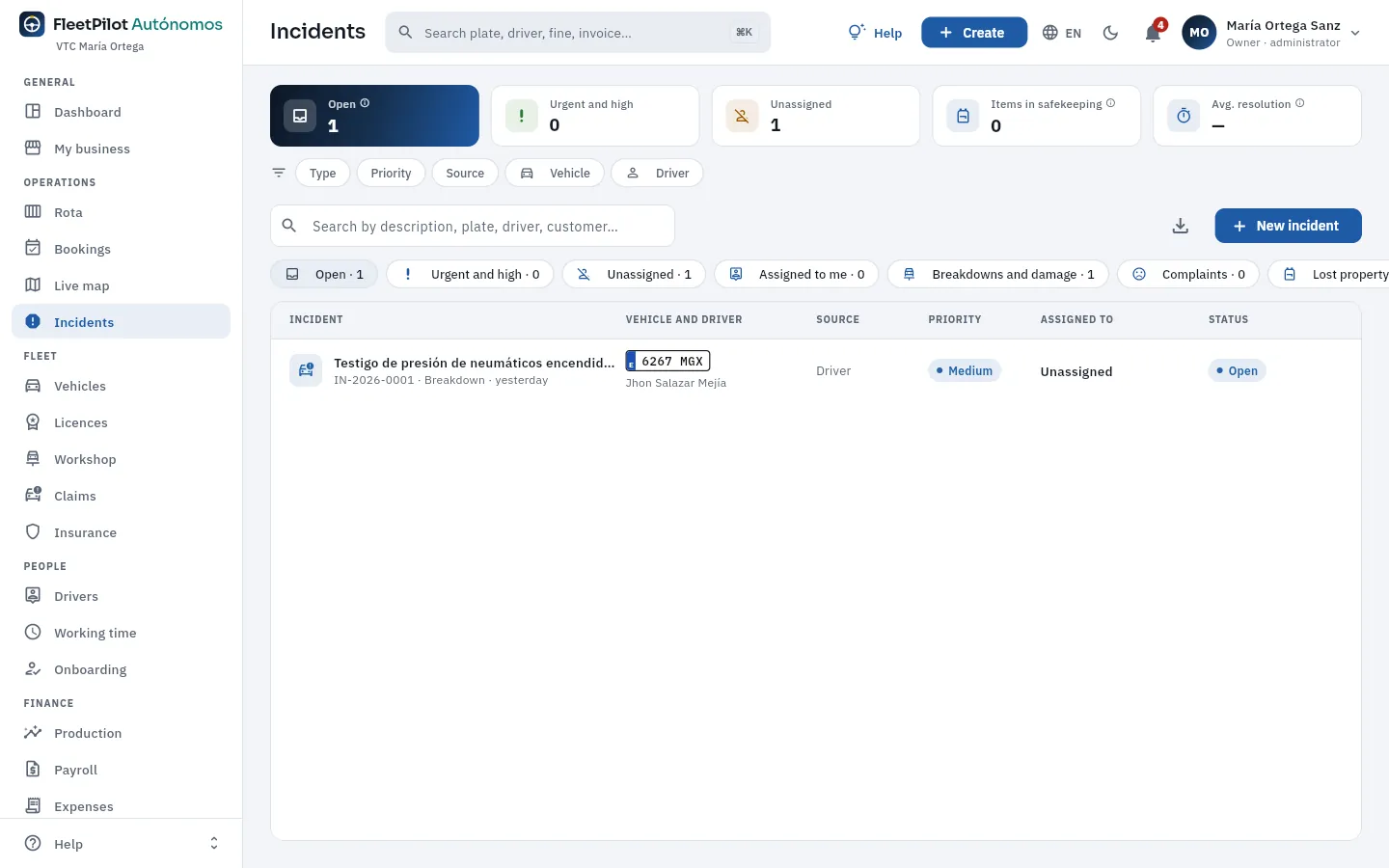 123456
- 1Open: those not closed (open or in progress). Next to it, the urgent and high ones and the unassigned ones.
- 2Items in safekeeping: left behind by passengers and not yet returned. Next to it, the average time you take to resolve them.
- 3Filters by type, priority, origin (driver, office, client, platform), vehicle and driver.
- 4The views with their count: open, urgent and high, unassigned, assigned to me, breakdowns and damage, complaints, lost items, resolved and discarded.
- 5Each incident: the description, the number, the type and how long ago; then the car and the driver, the origin, the priority, who it is assigned to and the status.
- 6New incident (also from Create, at the top).
#The record and what you do with it
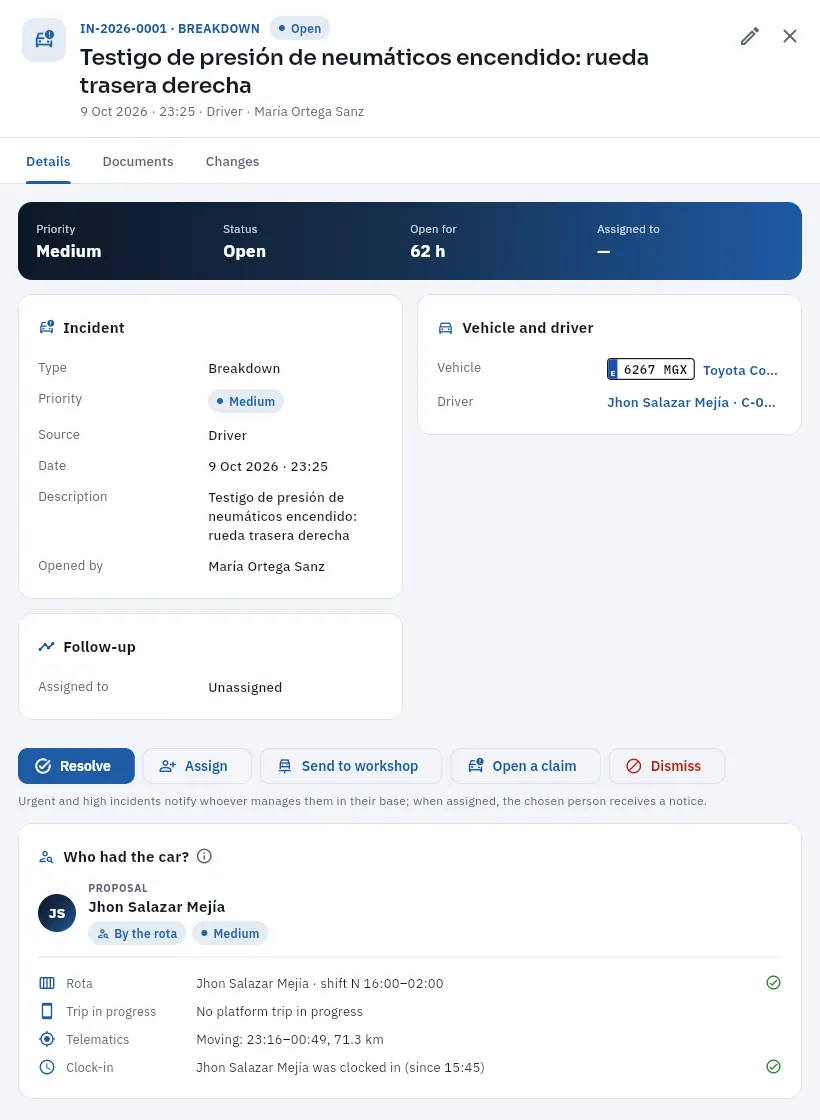 12345
12345
- 1Number, type and status, the description, when, the origin and who opened it.
- 2Priority, status, how long it has been open and who it is assigned to.
- 3The vehicle and the driver who had it: tap them to open their records.
- 4Resolve (with what was done), Assign to someone, Send to workshop (creates the order), Open a claim or Dismiss.
- 5Who had the car?: the proposed person and why (here, from the rota), checked against the trip in progress, the telematics and the clock-ins.
Depending on the type, the record has its own block: for a complaint, who complains, their contact, the platform or the trip, the reason and the reply to the client; for a lost item, what it is, where you keep it and, when it is returned, to whom, how (in person, via the driver, by courier or through the platform) and when. A resolved incident can be reopened.
Open the incident (view Breakdowns and damage).
Tap Send to workshop: a work order is opened for that car with the incident's description; choose the workshop and the date.
The incident stays in progress and linked to the order; when the workshop finishes, resolve it.
#Opening an incident
With New incident you first choose the type (breakdown, damage to the vehicle, client complaint, lost item, cleaning, accident or other) and then fill in the rest:
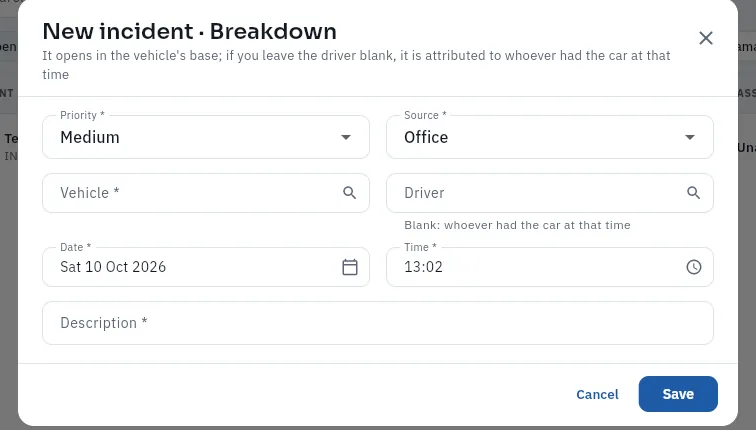 12345
12345
- 1Priority and origin: who reports it (you from the office, a driver, a client or a platform).
- 2The vehicle: one of your cars.
- 3The driver: if you leave it empty, FleetPilot Autónomos fills in whoever had the car at that time.
- 4Date and time when it happened.
- 5The description: what is wrong, with the detail the workshop will need.
#Tips
- Send breakdowns to the workshop the same day: a car that is not repaired is lost production.
- Always reply to complaints and record it: if the client calls again, the reply is in the record.
- Record the handover of lost property: who it was returned to and when.
Fleet
Vehicles
Your cars (up to three): each with its status, its VTC licence or taxi licence, its insurance, its MOT, its mileage, whether it meets the vehicle requirements, and what it earns, costs and leaves you each month.
Vehicles is the list of your cars: the VTC cars (vehicles for hire with driver, the ones that work with Uber, Bolt, Cabify, FREENOW or with your bookings) or your taxi. FleetPilot Autónomos handles up to three cars that are not retired; they are all yours, so the owner is never asked for. For each car it keeps:
- Its identification: number plate, VIN (17 characters), make, model, version, colour, first registration and service (VTC or taxi).
- Its technical data: fuel, the DGT environmental label (Dirección General de Tráfico, the Spanish traffic authority: ZERO, ECO, C, B or no label), seats, whether it is adapted for PMR (people with reduced mobility), length, fiscal horsepower in CVF, tank, battery and reference consumption.
- Whether it meets the vehicle requirements that the ROTT (Regulation of the Land Transport Act) sets for a VTC, or the taxi's maximum age.
- The tenure: owned, renting or leasing, with the company, the monthly fee and the end of the contract.
- The VTC licence or taxi licence it is assigned to (see Licences) and the policy that covers it (see Insurance).
- The MOT (ITV, Spain's roadworthiness test): the last one, its result and the next; on a taxi, also the taximeter.
- The mileage, which arrives automatically from the telematics (the car's GPS) or is entered by hand.
- What it does each month: trips, income, costs and margin, with the drivers who have driven it.
- 1OnboardingJust created: it does not have a driver yet.
- 2In serviceWith its first assignment in the Rota it becomes in service automatically.
- 3In workshopWhen a workshop order checks in; it returns to in service when the order is completed.
- 4Off roadIt cannot work for some other reason (failed MOT, paperwork…).
- 5RetiredFinal: closes its assignments, cards, policy and licence, and frees a slot for another car.
#The list of your cars
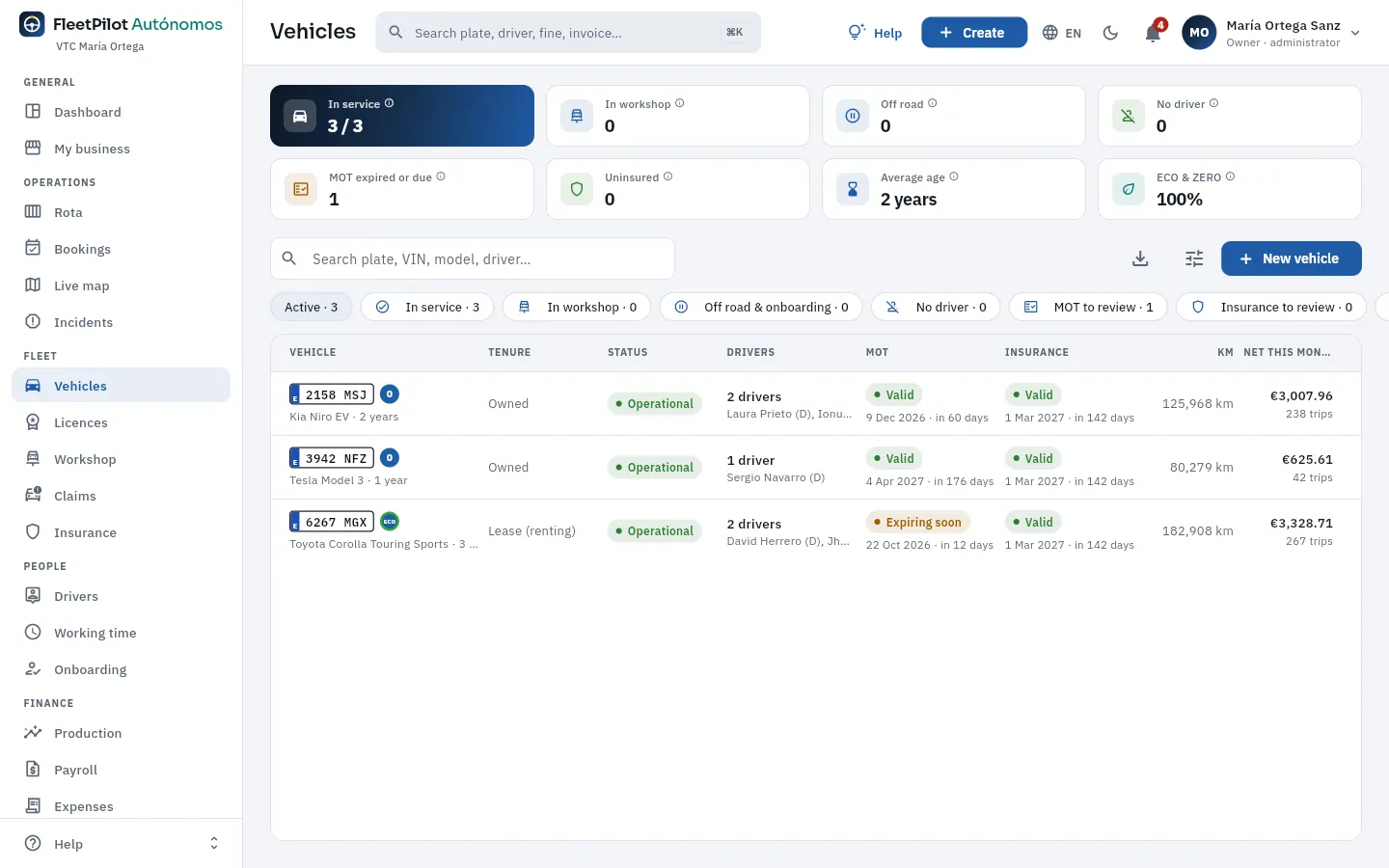 12345678
- 1In service: the cars that can work against those that are not retired. Next to it, In workshop, Off the road and No driver (operational with nobody assigned: lost production). Tap any indicator to filter.
- 2MOT expired or due: with the MOT expired, without a date or expiring within the expiry warning period. Next to it, Uninsured, the average age and the ECO & ZERO share.
- 3The search box: number plate (with or without a space), VIN, make, model, licence, policy or driver.
- 4The filters with their count: active, in service, in workshop, off the road, no driver, MOT to review, insurance to review, requirements, maintenance and, when you scroll sideways, the retired ones.
- 5The drivers who drive it, with their shift: D, day; N, night.
- 6The MOT and the insurance: the status (valid, expiring soon, expired), the date and how long is left. The 6267 MGX has its MOT on 22 October.
- 7The car's net this month and its trips.
- 8New vehicle adds a car. To its left, Filters (fuel and label) and Export CSV.
The row of a car with an expired MOT or no insurance appears in light red: it should not be on the road, and FleetPilot Autónomos will not let you assign it to any driver. Tap a column header to sort by it.
#A car's record
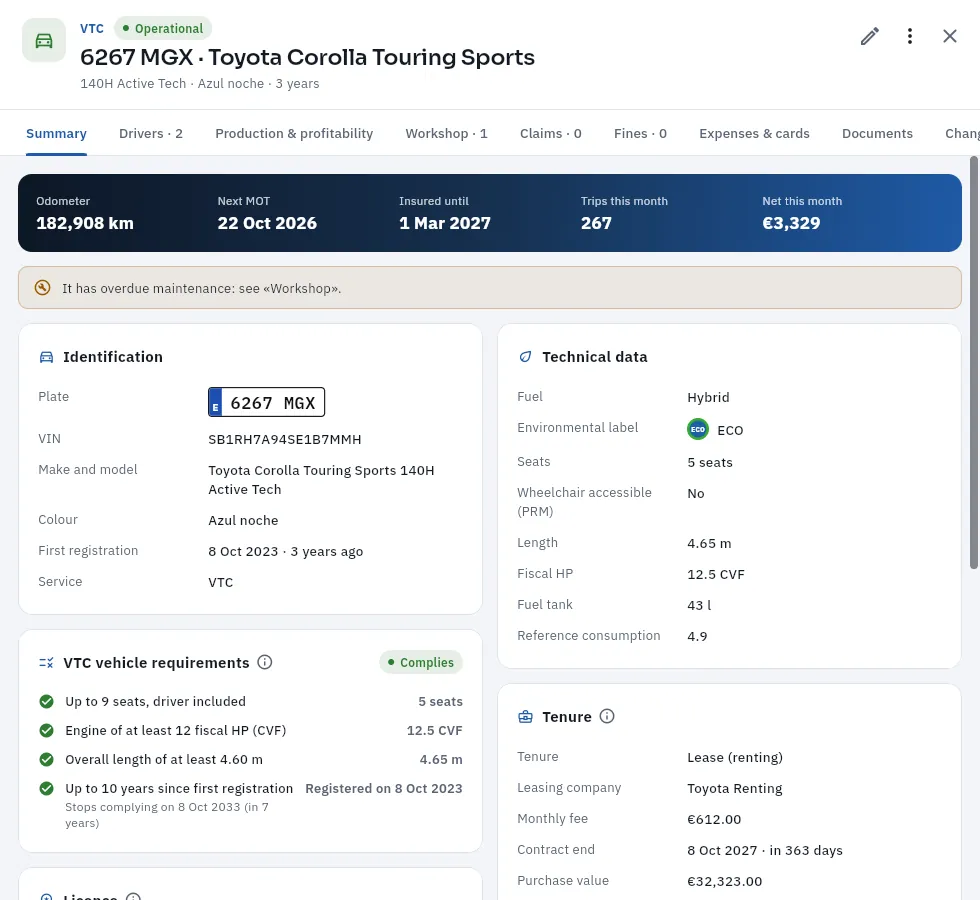 12345678
- 1The service and the car's status; the number plate, the make and the model; and below, the version, the colour and its age.
- 2The pencil edits the car; More options changes the status, records the MOT and opens a work order, an inspection or a claim.
- 3The tabs: Summary, Drivers, Production & profitability, Workshop, Claims, Fines, Expenses & cards, Documents and Changes.
- 4The key figures: mileage, next MOT, insured until, trips this month and net this month.
- 5The warnings: here, an overdue maintenance according to the Workshop plans. It also warns if the car is off the road, uninsured, has an expired MOT or no licence.
- 6Identification: number plate, VIN, make and model, colour, first registration (with its age) and service.
- 7VTC vehicle requirements: seats, power, length and age, each with the car's figure. This one complies until 8-10-2033.
- 8Tenure: renting with Toyota Renting, the monthly fee, the end of the contract (FleetPilot Autónomos warns you 60 days before) and the purchase value.
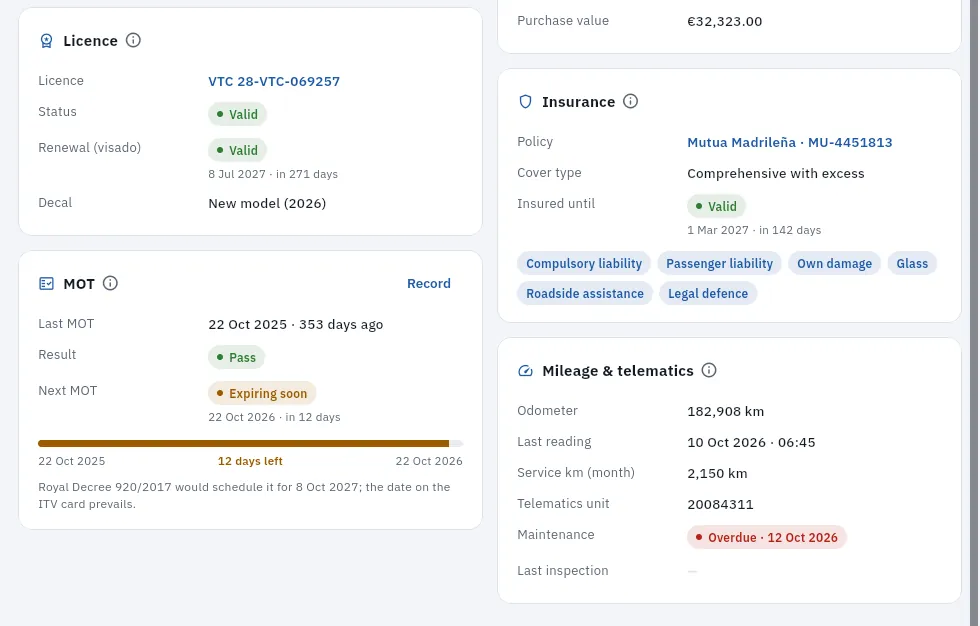 12345
12345
- 1Licence: the VTC licence it is assigned to (tap it to open it), its status, the renewal (visado) and the decal.
- 2MOT: the last one (pass) and the next one, which is expiring soon. The bar runs from one MOT to the next; below, the date RD 920/2017 would propose, although the date on the MOT card prevails.
- 3Record enters the new MOT on the day the car passes it.
- 4Insurance: the policy covering it today, the type, the expiry and the cover. If passenger liability is missing, a red warning appears.
- 5Mileage & telematics: the km and their last reading, the km in service this month, the GPS unit and the next maintenance (here, overdue).
The Drivers tab shows who has the car assigned (with their shift and since when) and the covers for the next few days; Workshop, its maintenance and its orders; Claims and Fines, each attributed to whoever had the car; Expenses & cards, its fuel or charging cards, refuelling and expenses; Documents, the technical data sheet, the registration certificate, the MOT card or the renting contract.
A taxi has the same record with three differences: the only requirement is the maximum age (10 years in Madrid), the licence is a municipal taxi licence and there is one more card, the taximeter, with its annual verification.
#What each car leaves you
The Production & profitability tab answers two questions: what the car has done this month and how much it leaves you. To see the account of your whole business, with your drivers' payroll, go to My business.
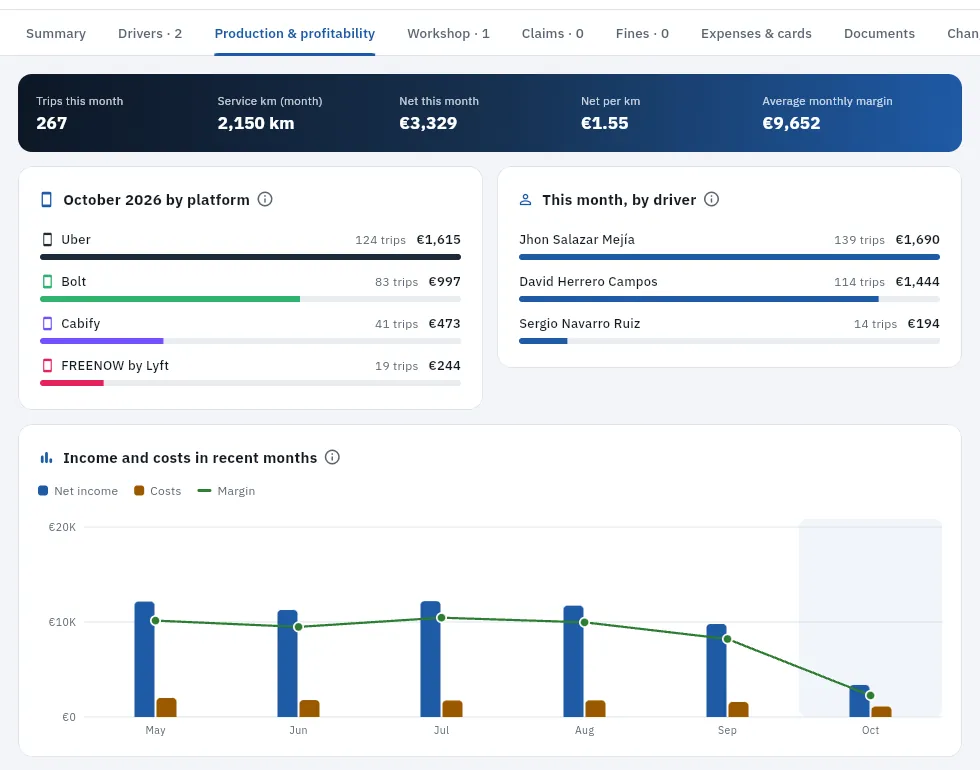 1234
1234
- 1The month's figures: trips, km in service, net, net per km and the average monthly margin of closed months.
- 2By platform: what the car has done this month on Uber, Bolt, Cabify and FREENOW (trips and net).
- 3By driver: who has earned with the car, including whoever covered it on some day.
- 4Income and costs in recent months: the net (blue), the costs (amber) and the margin line. The current month, highlighted, is only part way through.
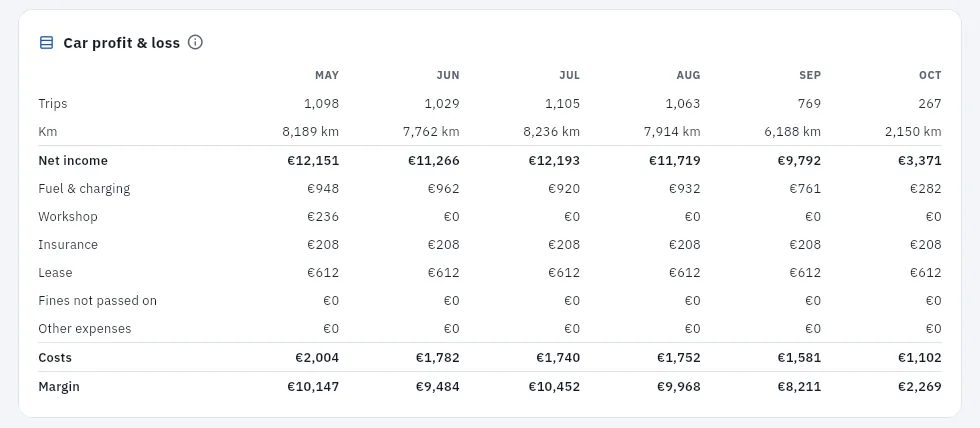 1234
1234
- 1Car profit & loss: one column per month.
- 2Net income: what the platforms have paid for the car's trips, with their incentives.
- 3The costs: fuel and charging on its cards, finished workshop jobs (without what an insurer pays), the monthly insurance premium, the renting fee, the fines your drivers do not pay and other expenses.
- 4Margin: income − costs. It is what the car brings in before paying its drivers.
#The actions in More options
 123456
- 1Change status: in service, in workshop, off road or retired, with the reason.
- 2Record MOT: the inspection, its result and the next one.
- 3Update mileage: an odometer reading (telematics sets it automatically).
- 4New workshop order with the car already filled in (see Workshop).
- 5New inspection: photos of the car when you hand it over, when it comes back or after a knock.
- 6New claim: an accident report (see Claims).
On a taxi there is also Verify taximeter. A retired car no longer has any actions.
Open the car's record and tap Record on the MOT card (or More options → Record MOT).
Check the Inspection date (it cannot be in the future) and choose the Result: pass, minor defects or fail.
Check the Next MOT: FleetPilot Autónomos proposes it with the frequency set by RD 920/2017; if the MOT card says otherwise, enter the card's date.
If you have it, enter the odometer reading and tap Record MOT. Attach the card or the report in Documents.
On the record, tap More options → Change status.
Choose the New status and write the Reason (required to take it off the road or retire it, for example «Sold» or «End of renting»).
If it is a retirement, enter the Retirement date and read the warning: retirement cannot be undone.
Tap Change status.
#Adding a car
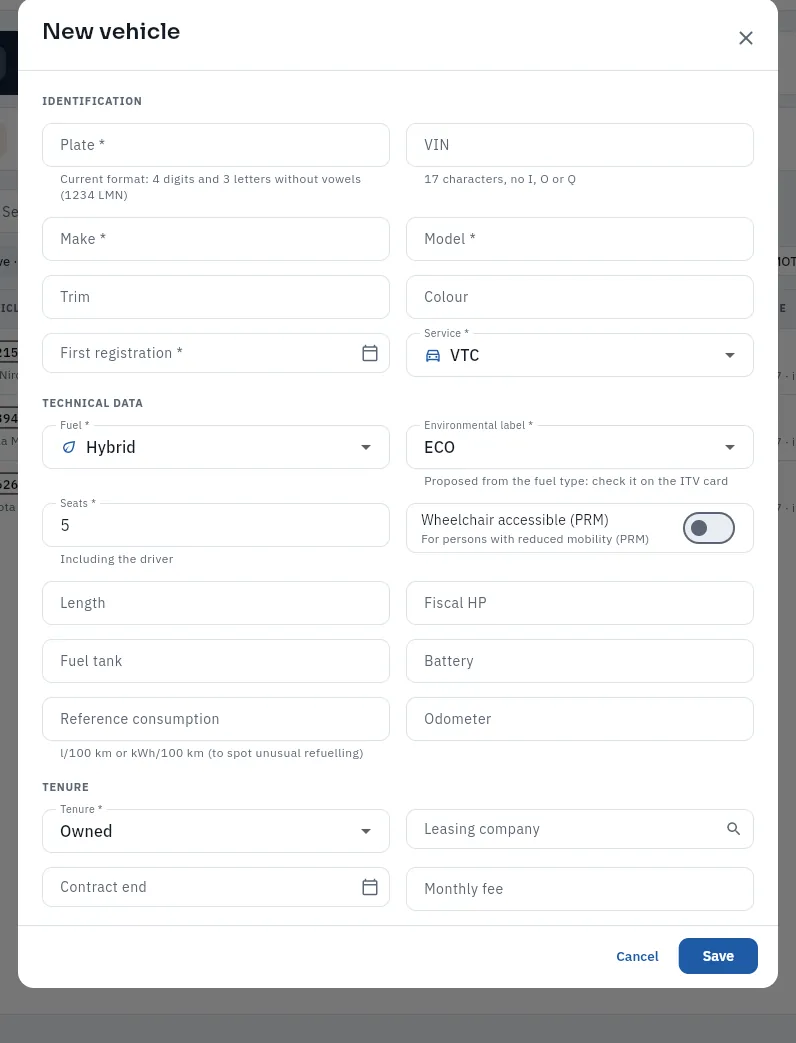 1234567
- 1Plate: the current format, 4 digits and 3 letters without vowels (1234 LMN), with or without a space.
- 2VIN: 17 characters, without I, O or Q. Plate and VIN cannot be repeated.
- 3First registration: it gives the car's age, the maximum age and the MOT frequency.
- 4Service: VTC or taxi. It changes the requirements checked and the MOT proposed.
- 5Fuel: when you choose it, the environmental label is proposed (electric, ZERO; hybrid, LPG or gas, ECO; the rest, C). Check it on the MOT card.
- 6Length (in mm) and Fiscal HP (in CVF): without them the VTC requirements cannot be checked.
- 7Tenure: owned, renting or leasing; with renting or leasing, the company, the end of the contract and the fee.
In Vehicles, tap New vehicle.
Enter the Plate, the VIN, the Make, the Model and the First registration, and choose the Service.
Under Technical data, choose the Fuel, check the Environmental label and fill in Seats, Length and Fiscal HP from the technical data sheet.
Under Tenure, choose whether it is yours, on renting or on leasing. If it has a telematics unit (or, on a taxi, the taximeter), enter its number under Devices. Tap Save.
#What FleetPilot Autónomos checks
#Tips
- Fill in the fiscal horsepower and the length of each VTC from the technical data sheet: without them you cannot tell whether it complies.
- Use work orders instead of changing the status by hand: the car goes in and out of the workshop by itself and the days off the road and the cost are recorded.
- Record the MOT on the same day, with the card's date, and attach the report in Documents.
- Look at each car's account before renewing a renting contract: the margin over recent months tells you whether it pays off.
Fleet
Licences
Your VTC licences or your taxi licence: the assigned car and its history, the scope, the renewal (visado), the decal and the status, with the regulatory checks FleetPilot Autónomos does for you.
To work, each car needs its licence:
- The VTC licence (vehicle hire with driver), granted by the regional government (in Madrid, 28-VTC-…; in Málaga, 29-VTC-…). It is tied to you, its owner, and to an assigned vehicle, which it must always have.
- The taxi licence, municipal (in Madrid, LIC-MAD-…), with its town or joint service area.
For each one FleetPilot Autónomos keeps the assigned car and the history of those it has had, the scope (region and town), the grant date, the renewal (visado: the two-yearly check that you still meet the requirements), the decal the car carries in Madrid and the status: valid, pending, suspended or cancelled. The Checks view goes through what the regulations require with your data and tells you what does not comply or needs watching.
#The licence list
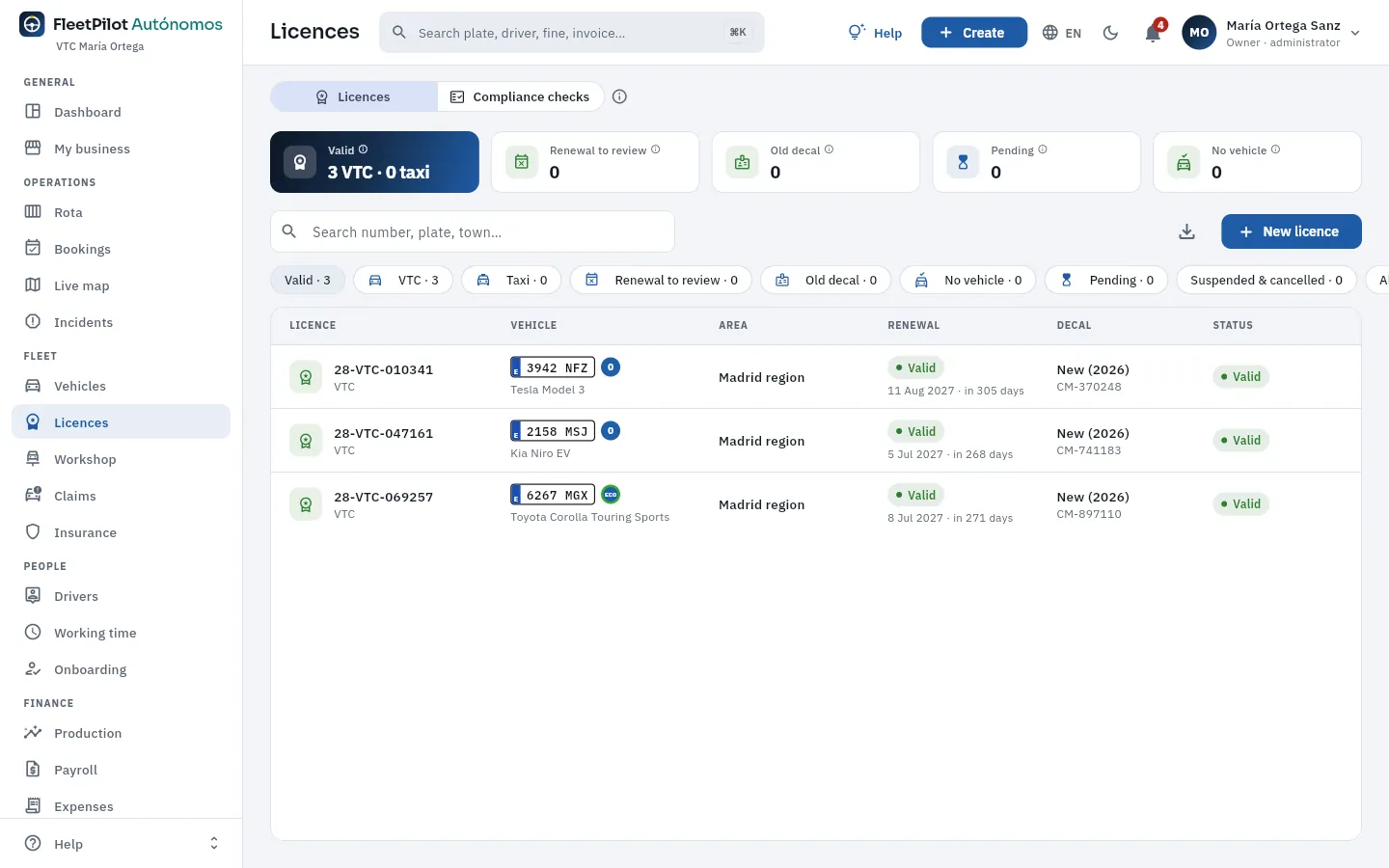 1234567
- 1The two views: Licences (the list) and Checks (the regulations).
- 2Valid, by type: VTC licences and taxi licences.
- 3Renewal to review: expired or expiring soon. Next to it, the old decal (in Madrid it stops being valid on 3-11-2026), those pending and those with no vehicle.
- 4The search box: by number, number plate, town or decal serial number.
- 5The filters: valid, VTC, taxi, renewal to review, old decal, no vehicle, pending, suspended and cancelled, and all.
- 6The car assigned to each one, with its environmental label; then the scope, the renewal, the decal and the status.
- 7New licence adds a VTC licence or a taxi licence.
| Status | What it means |
|---|---|
| Valid | Granted and in use: the assigned car can work. |
| Pending | Applied for and not yet granted: the car may already be assigned, but it cannot work until it is granted. |
| Suspended | Without effect for a time (for example, for failing the renewal); recording the renewal makes it valid again. |
| Cancelled | Extinguished or transferred: it no longer accepts vehicle changes or renewals. |
#A licence's record
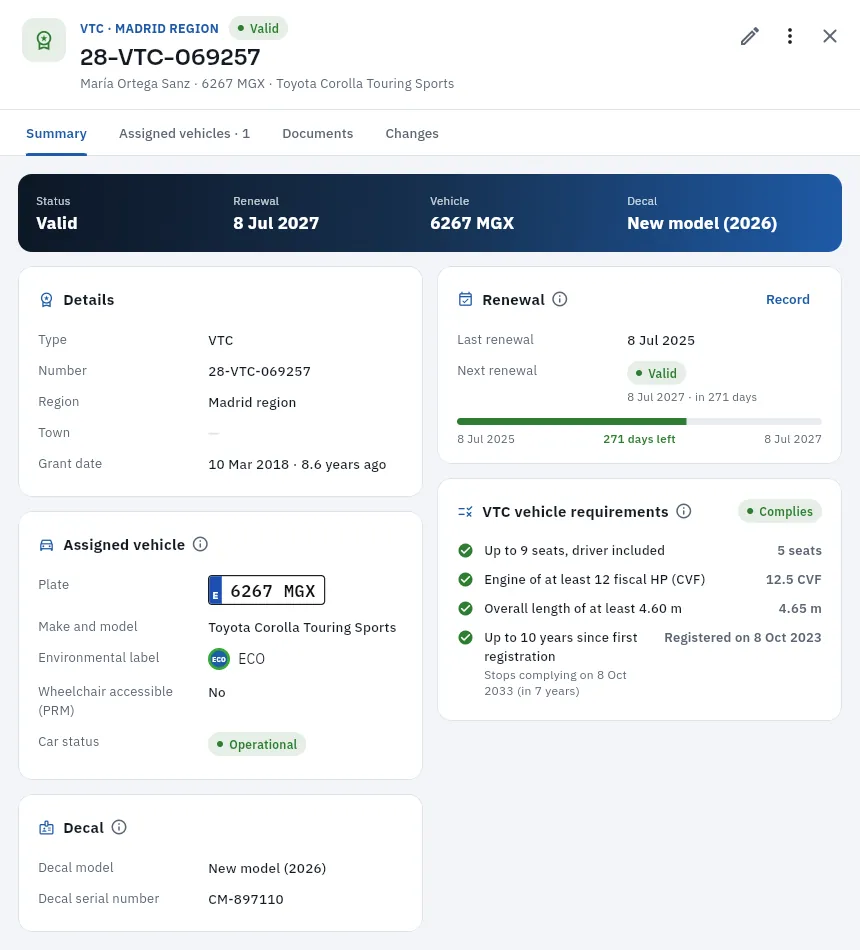 12345678
- 1Type and region, status, number, owner (you) and assigned car.
- 2The pencil edits the licence; More options changes or removes the vehicle and records the renewal (on a taxi licence, it also verifies the taximeter).
- 3The tabs: Summary, Assigned vehicles (the history of the cars it has had), Documents and Changes.
- 4Details: type, number, region, town and grant date.
- 5Renewal: the last and the next, with a bar showing what is left. Record enters the new renewal.
- 6Assigned vehicle: number plate (tap it to open the car), model, label, PRM and the car's status.
- 7VTC vehicle requirements: whether the assigned car complies, and until when.
- 8Decal: the model (the new two-colour one from 2026) and its serial number.
#Recording the renewal
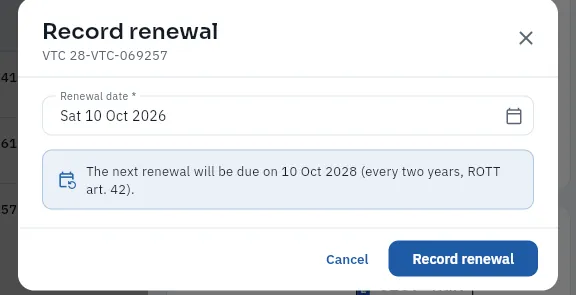 123
123
- 1Renewal date: the date of the decision; it cannot be in the future.
- 2The next renewal: FleetPilot Autónomos sets it 2 years after the date.
- 3Record renewal (not tapped in the screenshot).
If the assigned car does not meet the VTC requirements, the dialog warns you: the renewal will check them. Recording the renewal of a suspended licence makes it valid again.
Add the new car in Vehicles as a VTC (if you already have three, first retire the one it replaces).
Open the licence and tap More options → Change the vehicle.
Under New assigned vehicle, search for the car: only your cars of the same service appear.
Enter the Date of the change (up to 60 days ahead) and the Reason (replacement due to age, total loss, sale…) and tap Change the vehicle.
Attach the new transport card in Documents when you have it.
Remove the vehicle leaves the licence without a car (if you sell it or it is a total loss before you have the replacement). From that day the 2-month period to assign another one starts: the list, the record and the checks say how many days are left, and meanwhile the licence cannot work. Retiring the car in Vehicles also unassigns it.
#A taxi licence
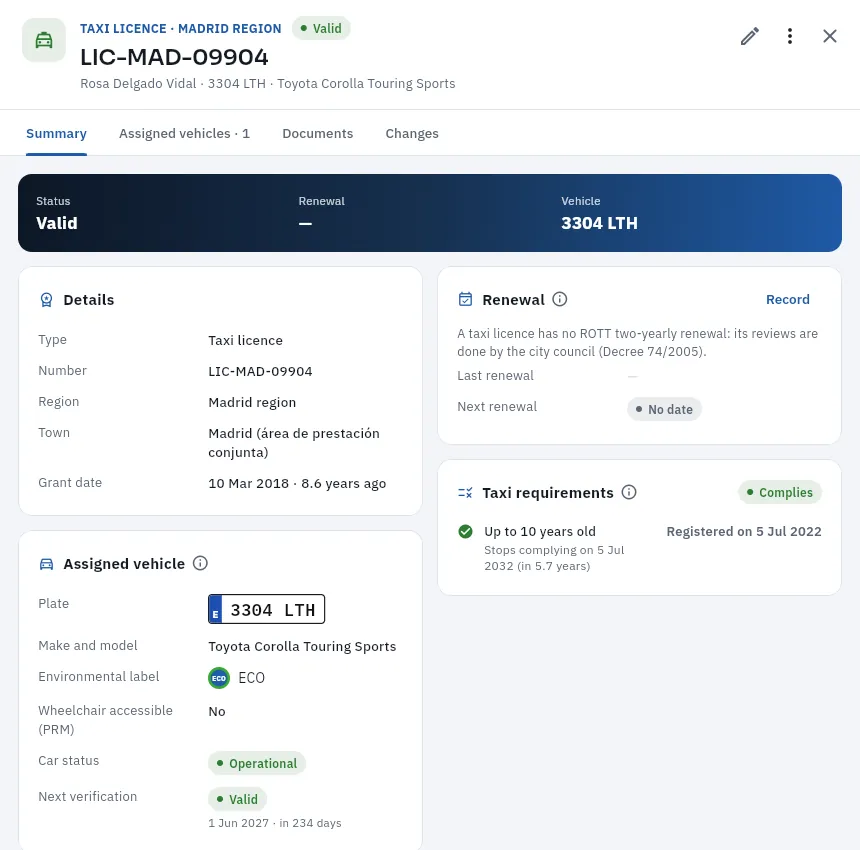 12345
12345
- 1A taxi licence of the Community of Madrid, valid, with its owner and its taxi.
- 2The municipality: for taxis, the municipality or the joint service area (here, Madrid's).
- 3No two-yearly renewal: taxi licences are reviewed by the city council.
- 4Taxi requirements: up to 10 years old; this one stops being valid in July 2032.
- 5The assigned taxi and the next taximeter verification. It is verified from More options → Verify taximeter.
#The regulatory checks
The Checks view is the list worth going through every so often. Each card is a rule, with the regulation that requires it, its status (red: does not comply; amber: to review; green: complies) and the cases to deal with, which open from their row.
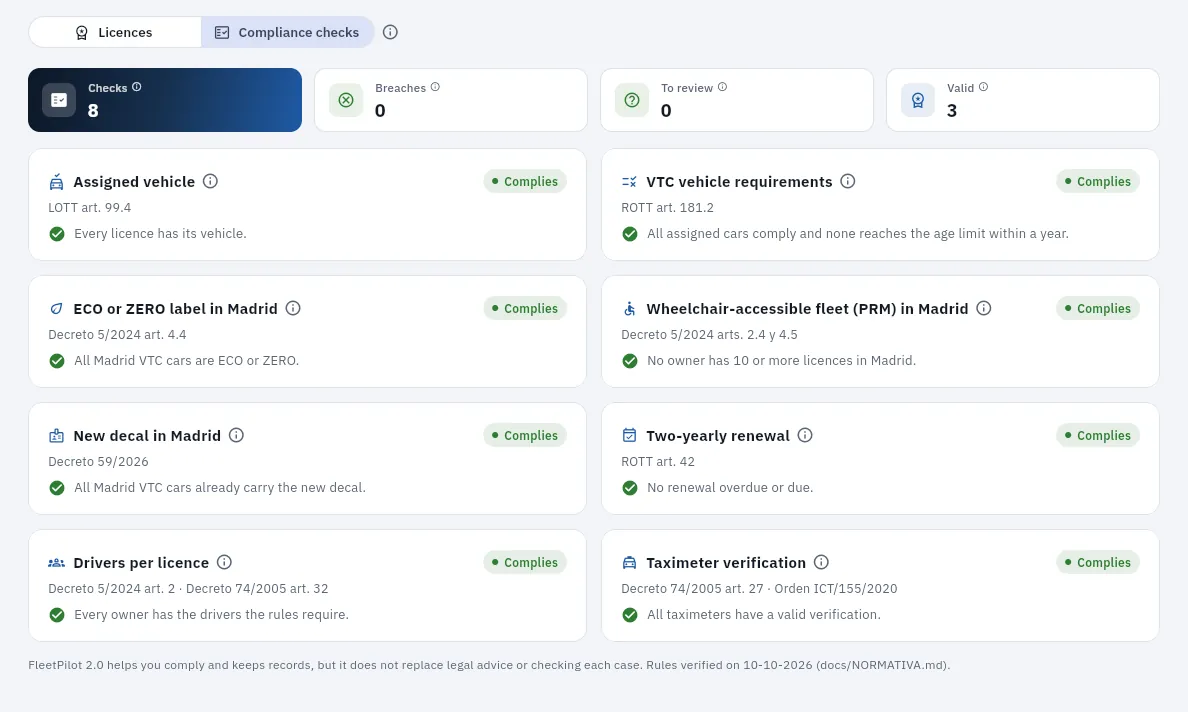 123456
- 1Breaches: the red cases across all checks. To review: the amber ones, which comply today but need watching.
- 2Assigned vehicle (LOTT art. 99.4): licences with no car, with the days left of the 2 months.
- 3VTC vehicle requirements (ROTT art. 181.2): the cars that do not comply or that reach the age limit within a year.
- 4ECO or ZERO label in Madrid and new decal.
- 5Drivers per licence: in Madrid, drivers for at least 75 % of the VTC licences; you count if you drive.
- 6Two-yearly renewal (ROTT art. 42) and, below, the taximeter verification.
#Creating a licence
With New licence you choose the Type (VTC or taxi licence) and enter the Number of the decision; then the Assigned vehicle (one of your cars of the same service: if you do not have it yet, it is assigned later), the Region and the Town, the Grant date and the Status («Pending» until it is granted), the Last renewal (FleetPilot Autónomos proposes the next one 2 years later) and, for VTC licences, the Decal model and its serial number. The owner is not asked for: it is you.
#What FleetPilot Autónomos checks
#Tips
- Go through the Checks once a month: today's amber is next month's red.
- Look for the replacement in good time: a car reaching 10 years appears in the checks with a year's notice. The new one must meet the ROTT and, in Madrid, be ECO or ZERO.
- Attach the decision and each renewal in Documents: they are the first thing an inspection asks for.
Fleet
Workshop
What is done to your cars at outside workshops and at the MOT: the orders with their status, their days off the road and their cost; the maintenance due by km and by time; and the inspections with photos when a car is handed over or returned.
Workshop is where you organise what is done to your cars outside: at your usual garage, at the dealer or at the MOT (ITV) station. It has four views:
- Orders: each job on a car —maintenance, breakdown, tyres, bodywork and paint, MOT, cleaning…— with its workshop, its dates, the days off the road and its cost (labour and parts).
- Maintenance: what is due on each car according to the maintenance plans, by kilometres and by time, with the estimated date and whether it already has its order.
- Inspections: checking the car with 12 guided photos when you hand it over to a driver, when it comes back or after a knock. An AI (artificial intelligence; simulated in the demo) analysis compares it with the previous one and marks the new damage, which you review.
- Plans: the maintenance rules («Service every 15,000 km or 12 months»…) and which cars they apply to.
Every day in the workshop is a day without production: that is why FleetPilot Autónomos counts the days off the road and warns you about maintenance before it is overdue.
- 1ScheduledBy hand, from a plan, an incident, a claim or the MOT.
- 2In workshopOn check-in, the car becomes «In workshop» and the days off road start counting.
- 3DoneWith the work done and the cost; the car goes back to operational.
- 4In serviceThe cost goes into the car's account.
#Orders on the board
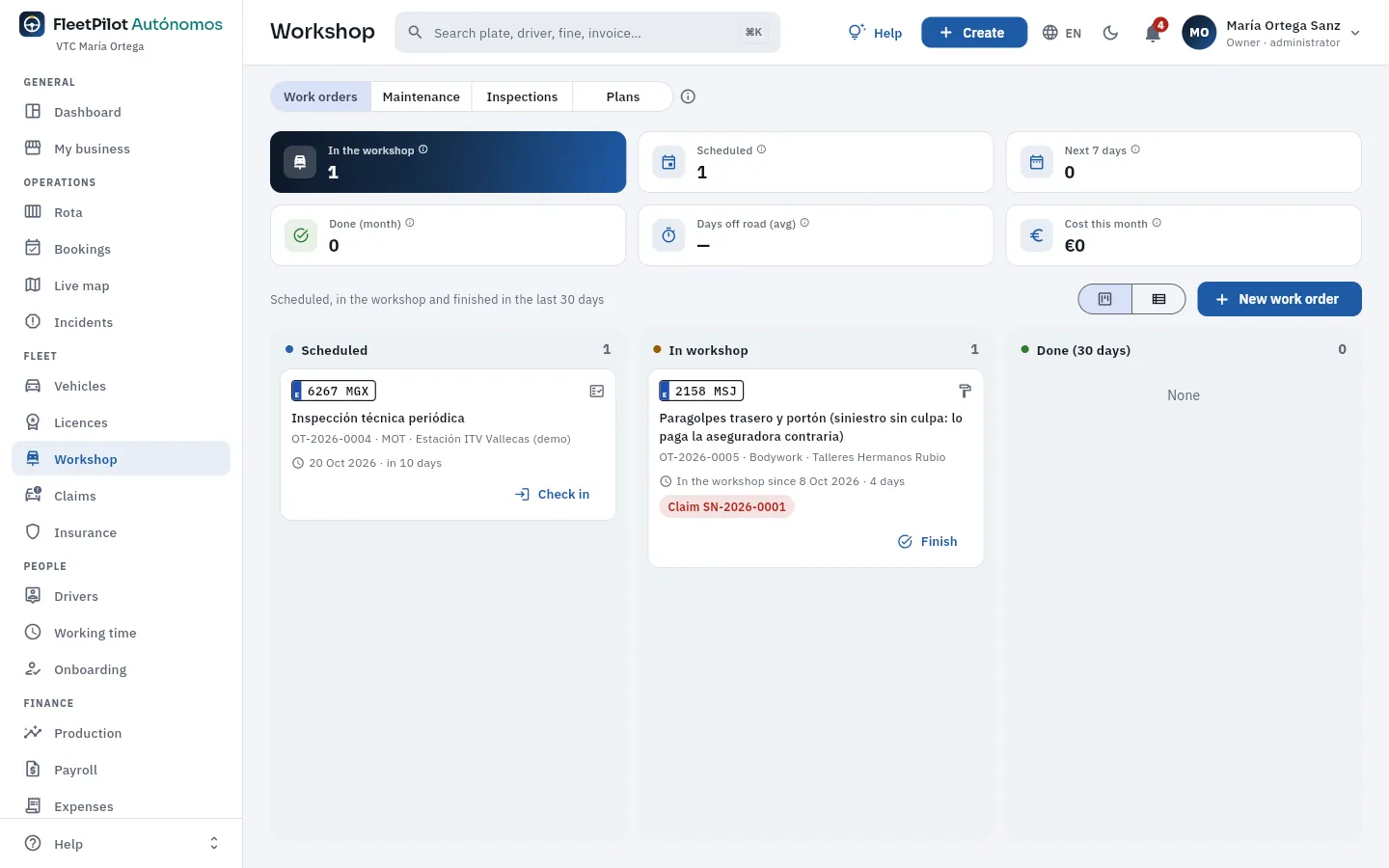 1234567
- 1The views: Orders, Maintenance, Inspections and Plans.
- 2In the workshop: orders that have gone in and not come out. Next to it, the scheduled ones and those for the next 7 days.
- 3Done (month), Days off road (avg) of those finished this month and the cost this month.
- 4Switch between the board (by status) and the list (with filters, search and export).
- 5A scheduled order: the MOT of the 6267 MGX on 20 October. Check in records the entry on the day you take it.
- 6An order in the workshop: the repair from claim SN-2026-0001, since 8 October. Finish records the exit with the work done and the cost.
- 7New work order.
The third column is the orders finished in the last 30 days. A scheduled order whose date has passed has an amber border: it is usually a car that never made it to the workshop (change the date or cancel it).
#A work order's record
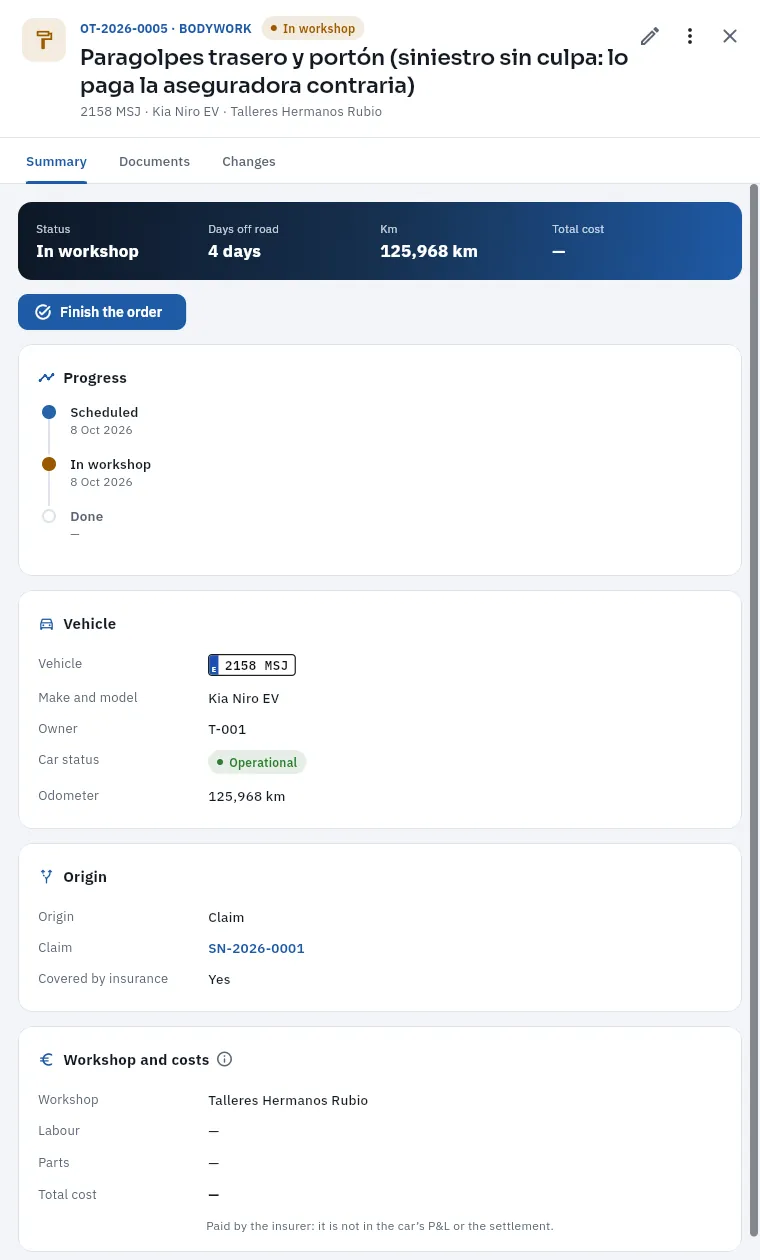 12345678
- 1Number and job type, status, description, car and workshop.
- 2The pencil edits the order; More options moves it forward or cancels it with a reason.
- 3The key figures: status, days off the road, km and total cost.
- 4The next step button: here, Finish the order.
- 5Progress: scheduled, in the workshop and done, with their dates.
- 6Vehicle: the number plate (tap it to open the car), the model, its status and its km.
- 7Origin: where the order comes from (here, claim SN-2026-0001) and whether it is covered by insurance.
- 8Workshop and costs: the workshop, the labour, the parts and the total. What an insurer pays does not go into the car's account.
Open the order (on the board, the car's card under In workshop) and tap Finish the order (or Finish on the card).
Check the Check-out date and enter the Odometer reading.
Describe the Work done and enter the Labour and Parts from the workshop's invoice.
Tick Covered by insurance if an insurer pays for it (the repair of a claim where the other party was at fault, for example).
Tap Finish the order and attach the invoice in Documents.
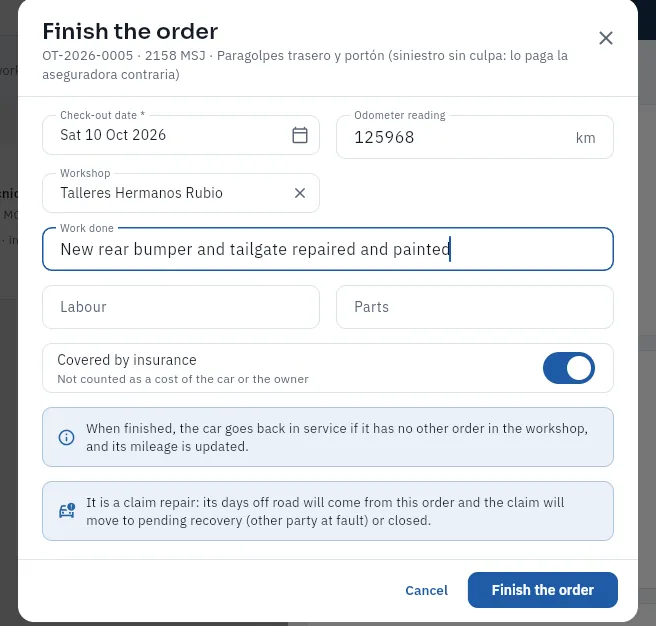 1234567
- 1Check-out date: it cannot be before the entry. The days off the road run from one to the other.
- 2The mileage at check-out: if it is higher than the car's, it is updated.
- 3Work done: what the invoice says.
- 4Labour and Parts: the order's total is the sum of the two.
- 5Covered by insurance: then it does not count as a cost of the car.
- 6It is the repair of a claim: its days off the road come from this order and the claim moves to pending recovery.
- 7Finish the order (not tapped in the screenshot).
Tap New work order on the board, or on the car's record More options → New work order (the car is already filled in).
Choose the Vehicle, the Job type and the Origin, and write the Description (for example, «Noise in the front suspension»).
Choose the Workshop (from your suppliers) and the Planned date; if you have the reading, the km.
Tap Save.
An order is also created by itself: when you tap Schedule on a maintenance item, or send an incident (Incidents) or a claim (Claims) to the workshop. The MOT works the same way: an MOT order with the station and the date; when you record the MOT on the car's record (Vehicles) it closes by itself.
#Upcoming maintenance
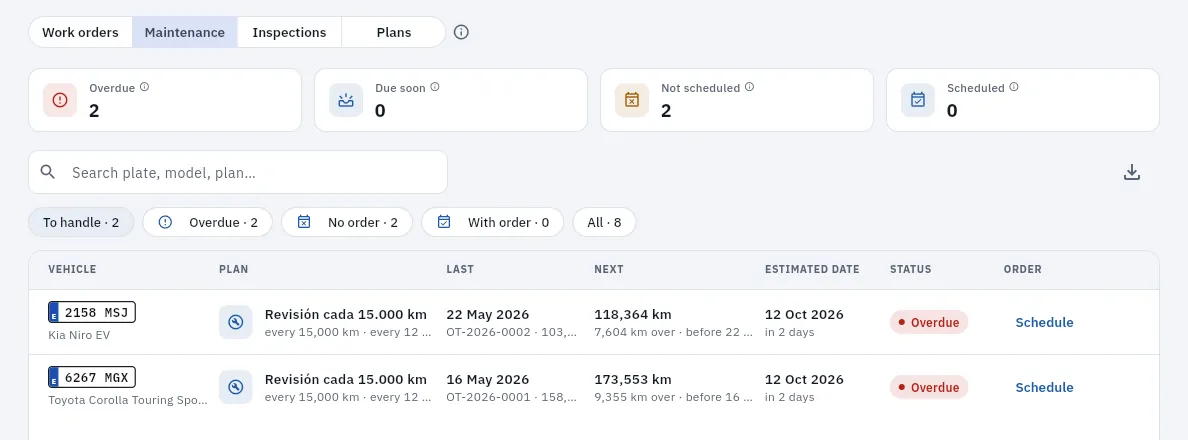 12345
12345
- 1Overdue: past the km or the date. Next to it, those due soon (1,500 km or 30 days or less to go).
- 2Not scheduled: overdue or due-soon items that do not have an order yet. Next to it, those that already have one.
- 3The filters: To handle (the starting one), Overdue, No order, With order and All.
- 4The last one (the date and its order) and the next: at what km it is due and how far it is past or how much is left.
- 5Schedule: creates the order at the workshop and on the date you choose, with the plan, the km and the description already filled in.
The Plans view has the default maintenance rules (the service every 15,000 km or 12 months, the tyres…) and which cars they apply to: all of them or only those of a make, a model or a fuel. With New plan you add your own (for example, the manufacturer's service for your electric car).
#Inspections
An inspection is a snapshot of the car's condition at a given moment: when you hand it over to a driver, when it comes back, after a knock or periodically. It takes 12 guided photos, one per area. FleetPilot Autónomos compares each inspection with the previous one of the same car: damage that was not there before is new and belongs to whoever had the car between the two. The AI proposes and you decide: until you review it, damage is not used to open a claim or to ask anything of a driver. The demo does not have any yet.
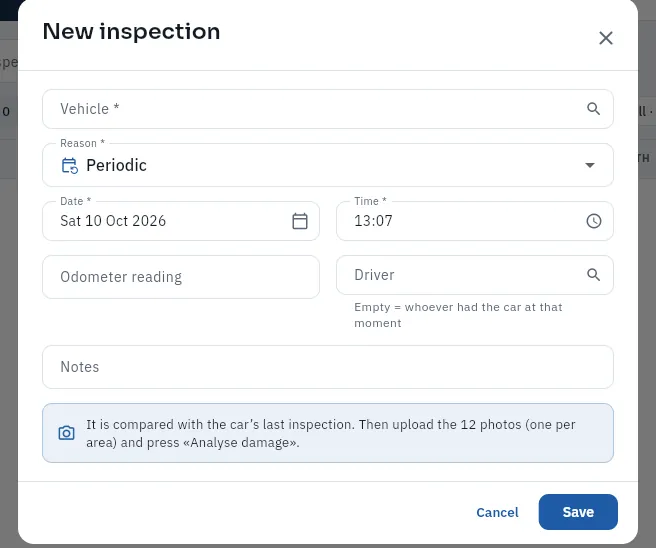 12345
12345
- 1Vehicle: the car you hand over, receive or check.
- 2Reason: handover to driver, return, after an incident or periodic.
- 3Date and time: they cannot be in the future; they tell who had the car.
- 4Driver: if you leave it empty, whoever had the car at that moment according to the rota.
- 5The reminder: it is compared with the car's last inspection; then the 12 photos are uploaded and analysed.
In the Inspections view tap New inspection (or, on the car's record, More options → New inspection).
Choose the Vehicle and the Reason, check the date and time and tap Save.
Under Photos & areas, tap each area and upload its photo (12 in all). Then tap Analyse damage.
Review the damage the AI proposes and, if there is any new damage, open the claim from the inspection.
#What FleetPilot Autónomos checks
#Tips
- Schedule maintenance from the Maintenance view, with the No order filter: the order already comes with the plan and the km.
- Enter the costs when you finish, with the invoice in front of you, and tick Covered by insurance when it applies: otherwise the cost will fall on the car's account.
- Do an inspection every time a car changes hands: without the handover and the return you cannot know who caused damage.
Fleet
Claims
Your cars' knocks and accidents from start to finish —report, fault, third parties, assessment, repair, excess, recovery and days off the road—, with the driver who had the car and, if needed, the debt acknowledgement.
A claim is any damage to one of your cars: a collision with another vehicle, a rear-end, a scrape while parking, a broken window, vandalism or theft. Claims keeps each one with its number (SN-2026-…) and follows it until it is closed:
- What happened: car, date and time, place, type, severity and description.
- Fault (yours —your car's—, the other party's, shared or undetermined) and third parties: the other vehicle's number plate and insurer and whether the joint accident report or DAA (declaración amistosa de accidente) was signed.
- The driver: FleetPilot Autónomos works out by itself who had the car at that moment (the day's rota cover or the assignment of their shift), just as with trips or fines. If it was you, your name appears.
- Dealing with the insurer: the policy, the claim file the company opens, the assessment, the repair order, the excess (the part of the damage you pay with a «comprehensive with excess» policy), the recovery (what the other party's insurer pays when it was their fault), the days off the road and the loss of use (the lost production claimed for those days).
- Personal injuries, if anyone was hurt: it is health data and is kept separately.
The same section holds the debt acknowledgements or RD: the document in which an employed driver acknowledges that they owe you an amount (their share of a claim with gross negligence, damage to the car, an advance…) and agrees to have it deducted from their payslip in 1 to 12 instalments. They sign it in My shift; without their signature nothing is deducted. And the Loss record view sums up the claims by driver, car, type and policy.
- 1ReportYou add it or the driver sends it from My shift, with the photos and the DAA.
- 2InspectionPhotos of the damage; the insurer opens its file.
- 3RepairA work order linked to the claim, which counts the days off the road.
- 4RecoveryWhen the other party was at fault, the recovery from their insurer and the loss of use.
- 5ClosingIt is closed with its outcome.
#The list of claims
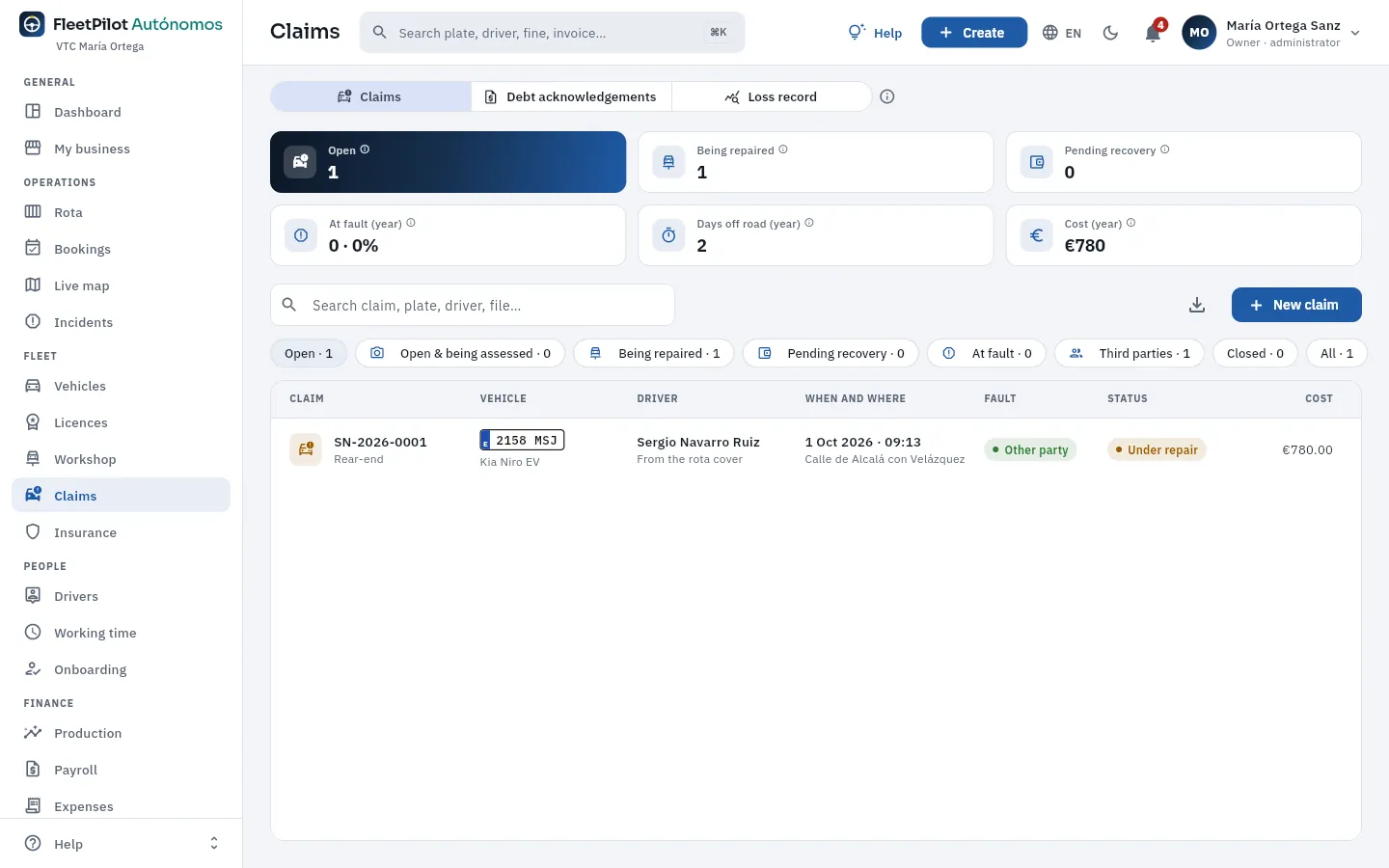 1234567
- 1The three views: Claims, Debt acknowledgements and Loss record.
- 2Open: those not closed. Next to it, those being repaired and those pending recovery.
- 3At fault (year): those where you were at fault or fault was shared over the last 12 months and their share of the total. Next to it, the days off the road in the year.
- 4Cost (year): the gross cost of the claims over 12 months (the final cost or, if there is none yet, the estimate).
- 5The filters with their count: by status, at fault, third parties involved, closed and all.
- 6The driver who had the car and where that comes from: here, from the rota cover (that day they were covering another driver's shift).
- 7New claim opens a blank report.
#A claim's record
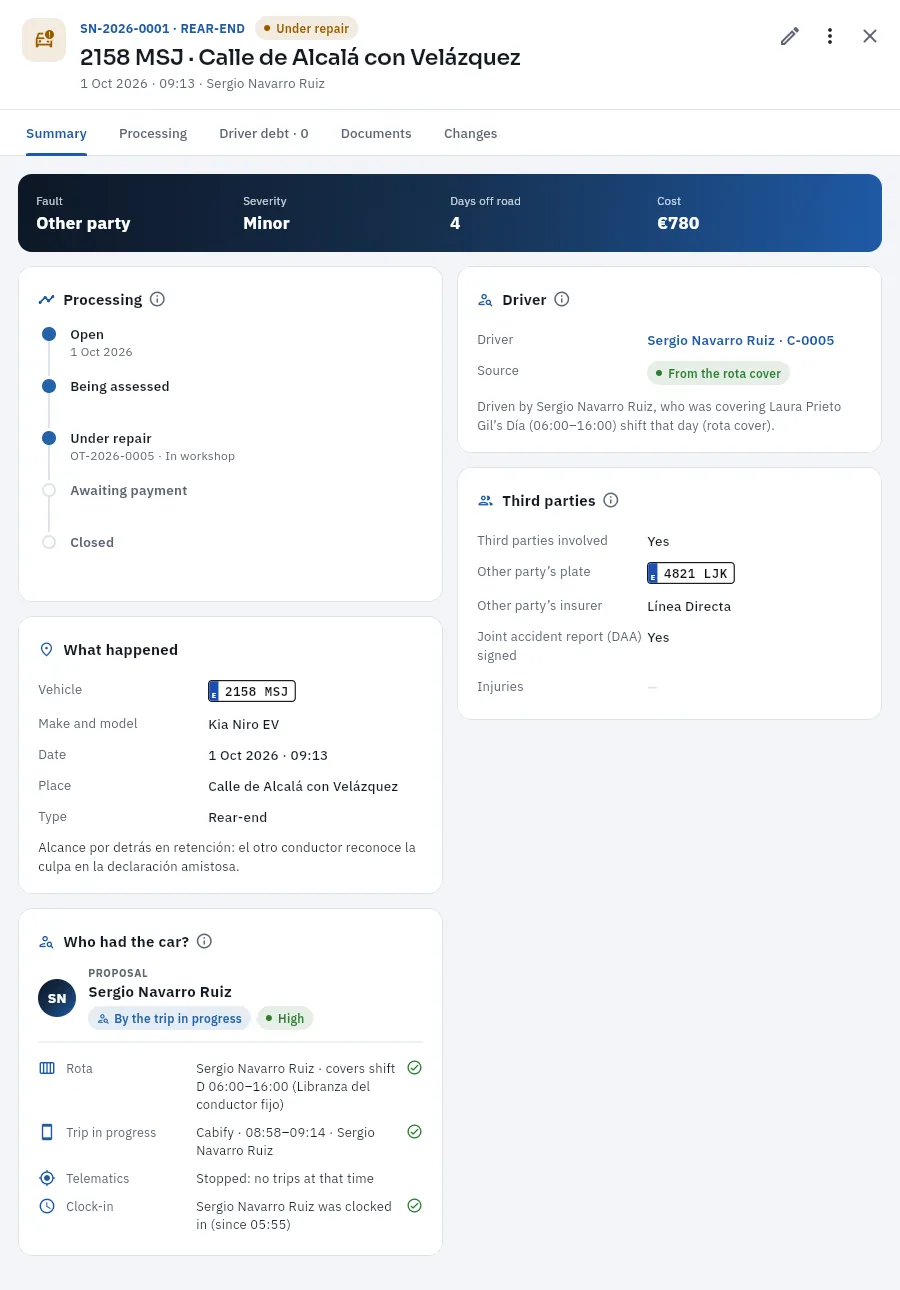 12345678
- 1Number and type, the status, the number plate and the place; below, the date, the time and the driver.
- 2The pencil opens the report; More options changes the status, opens the repair, does the inspection or prepares an RD.
- 3The tabs: Summary, Processing, Driver debt (this claim's RDs), Documents and Changes.
- 4The key figures: fault, severity, days off the road and cost.
- 5Processing: which step it is at; being repaired, with work order OT-2026-0005.
- 6Driver: who had the car, where that comes from and the explanation: Sergio was covering Laura's day off on the day shift.
- 7Third parties: the other party's number plate and insurer and whether the DAA was signed. Without them there is no recovery.
- 8Who had the car?: all the sources at the time of the knock —the rota, the trip in progress (a Cabify from 08:58 to 09:14), the telematics and the clock-ins—.
If you choose another driver by hand, the record remembers whom the rota pointed to. If it could not be attributed (nobody had the car or there were several possibilities), choose them yourself. The Documents tab keeps the joint report, the photos, the assessor's report and the workshop's invoice.
#Processing and costs
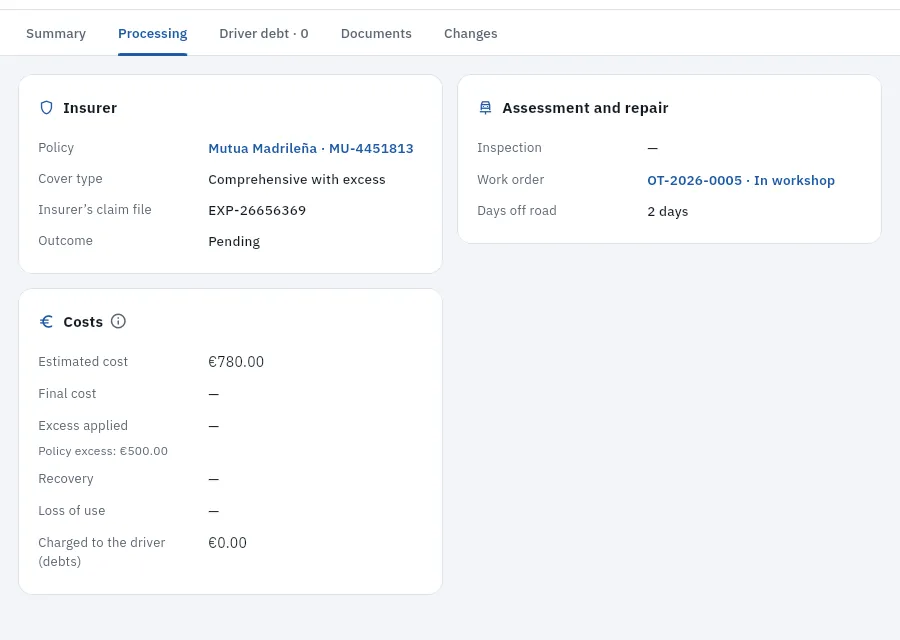 123
123
- 1Insurer: the policy (the car's valid one that day), its cover type, the company's claim file and the outcome.
- 2The inspection and the work order, linked: tap them to open them in Workshop.
- 3Costs: estimated and final cost, excess applied (with the policy's as a reference), recovery and loss of use.
The cost of a claim is the gross cost of the damage, without deducting excesses or recoveries. What it really costs you depends on fault: when the other party was at fault, almost everything comes back with the recovery; when you were, the policy pays for the repair minus the excess. When the repair order is finished at the workshop, the claim moves by itself: if the other party was at fault it goes to Pending recovery; with any other fault, to Closed. In both cases it adds the days the car spent in the workshop.
Tap the Pending recovery filter and open the claim.
Tap the pencil and, under Insurance and costs, enter the Recovery the other party's insurer has paid and the Loss of use claimed. Tap Save.
In More options, tap Change status, choose Closed and the Outcome «Favourable».
Tap Save and upload the payment letter to Documents.
#Adding a claim
Many reports come from the driver: from My shift they send the accident report with the description, the photos and the DAA, and FleetPilot Autónomos opens the claim on the car they were driving, with its policy, and a high-priority (urgent if anyone is injured) incident so that you find out at once. If someone tells you by phone, or you had the knock yourself, add it with New claim.
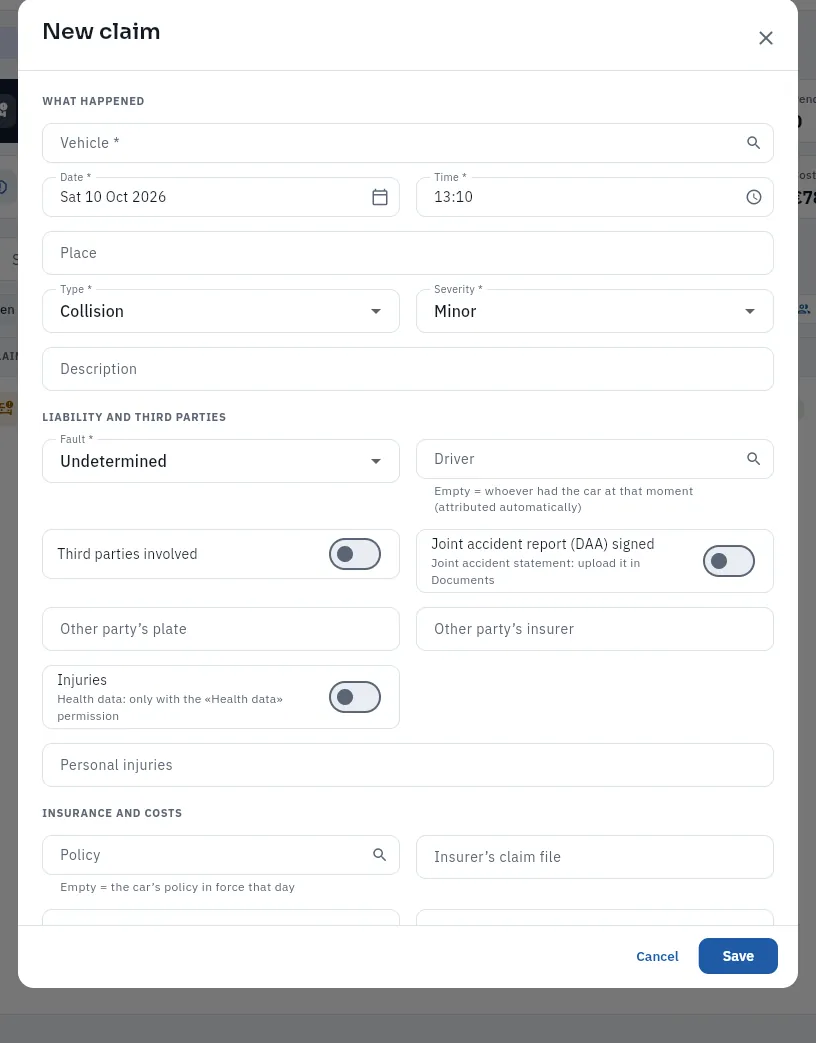 1234567
- 1The vehicle.
- 2Date and time of the event: they cannot be in the future. They are used to look up the driver.
- 3Fault: leave it as «Undetermined» until it is known.
- 4Driver: leave it empty and it is attributed automatically to whoever had the car.
- 5Third parties involved and Joint accident report (DAA) signed. The scanned DAA goes in the Documents tab.
- 6Policy: empty = the car's valid one that day. Below, the insurer's claim file.
- 7Someone is injured and Personal injuries: health data, kept separately. Further down, the excess applied (if you were at fault, the policy's is proposed) and the costs.
In Claims, tap New claim.
Choose the Vehicle and enter the Date and Time; write the Place, the Type, the Severity and a short Description.
Tick the Fault if it is already known and leave the Driver empty.
If another vehicle was involved, turn on Third parties involved and enter the Other party’s plate and their Insurer; if you signed the joint report, turn on Joint accident report (DAA) signed.
Tap Save and, in the record that opens, check who had the car. Upload the DAA and the photos to Documents.
#Debt acknowledgements
If an employed driver was at fault for some damage and agrees to pay part of it (for example, the excess), from More options → New debt acknowledgement you prepare an RD with the amount, the reason and the instalments (from 1 to 12). The driver reads it and signs it in My shift; from then on, each instalment is deducted from their payslip (Payroll). Without their signature nothing is deducted, and never more than can legally be withheld. The RDs of all your drivers are in the Debt acknowledgements view. If you drive yourself, there is no RD: you already pay for the damage.
#What FleetPilot Autónomos checks
#Tips
- Always ask for the joint report and the other party's number plate and insurer: without them there is no recovery.
- Enter the recovery and the loss of use as soon as they arrive: it is what you get back for the days the car could not work.
- Upload the photos the same day: the insurer will ask for them.
Fleet
Insurance
Your cars' policies with their covers, their premium, their expiry and their renewal, the cars each one covers and the loss ratio the insurer will look at when renewing.
Every car on the road must be insured. Insurance holds your policies: individual (one car) or fleet (a single contract for several cars, usual with two or three). For each one FleetPilot Autónomos keeps the insurer, the broker, the policyholder, the cover type (third party, extended third party, comprehensive with or without excess), the covers, the premium and how it is paid, the excess, the start and expiry dates and the cars it covers, with the history of additions and removals. A car is on only one policy at a time.
The covers that matter for a VTC or a taxi are compulsory liability (the civil liability of compulsory motor insurance: damage to third parties) and passenger liability (damage to your passengers), required by the transport regulation. SOV (seguro obligatorio de viajeros, compulsory passenger insurance) is only required for vehicles with 9 seats or more.
#The list of policies
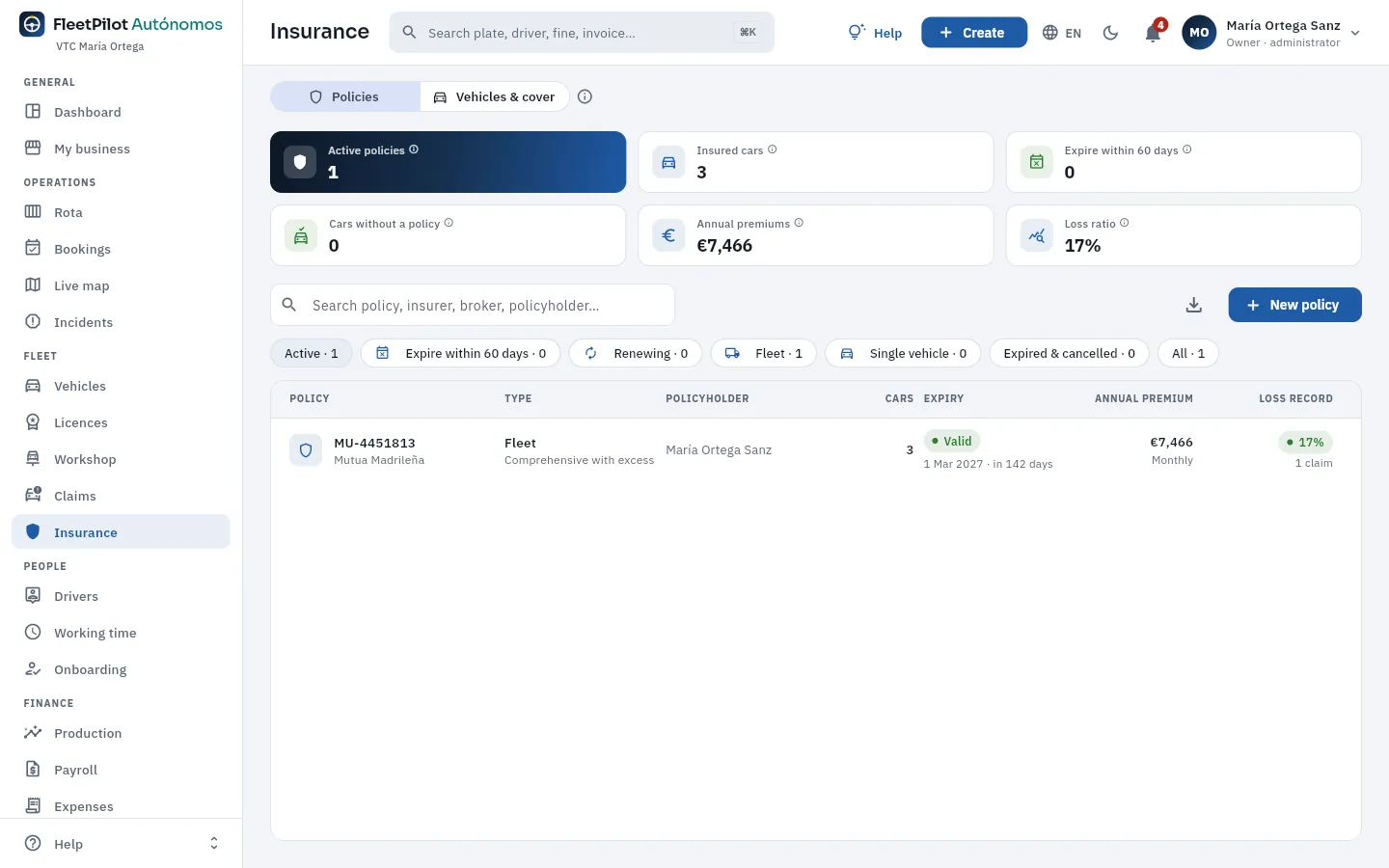 1234567
- 1Two views: Policies and Vehicles & cover (each car with its policy and what it covers).
- 2Active policies and the insured cars they add up to.
- 3Expiring within 60 days: they need renewing in time.
- 4Cars without a policy: those not on any policy today. A car without insurance cannot be on the road or be assigned.
- 5Annual premiums and loss ratio: the cost of claims against the earned premium.
- 6The filters: in force, expiring within 60 days, being renewed, fleet, individual, expired and cancelled.
- 7New policy.
#A policy's record
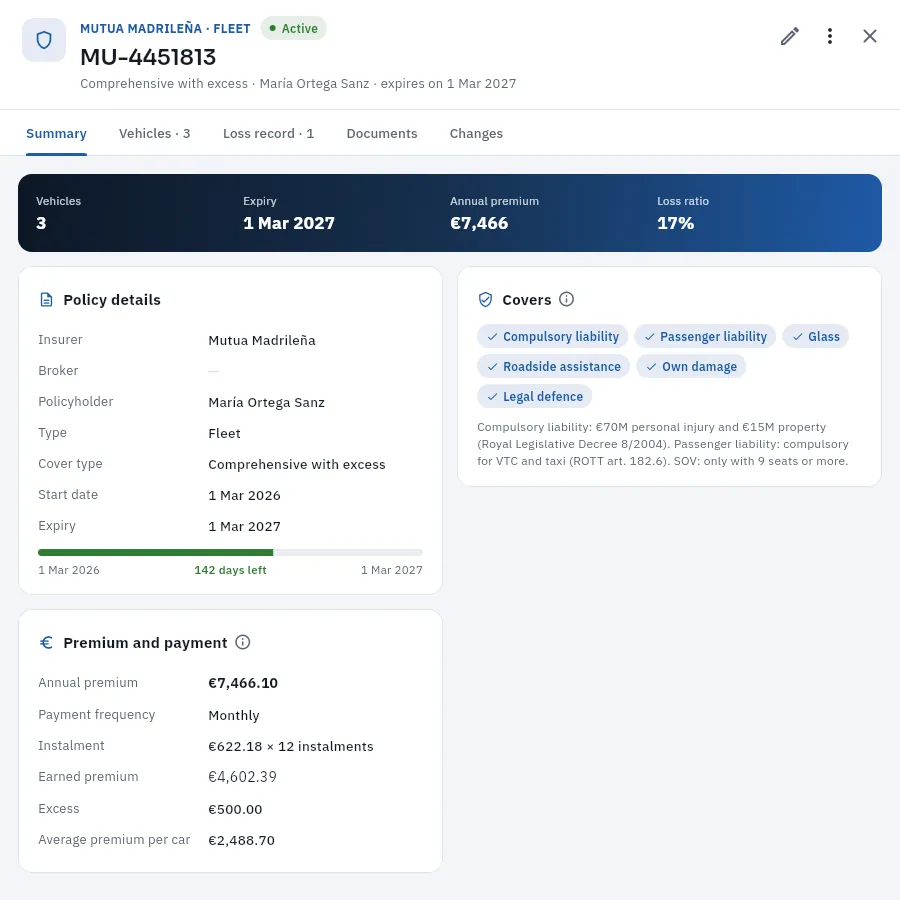 1234567
- 1Insurer and type, status, number, cover type, policyholder and expiry.
- 2More options: Add car and Renew.
- 3The tabs: Summary, Vehicles (the cars covered and since when), Loss record (the claims of its cars), Documents and Changes.
- 4Cars, expiry, annual premium and loss ratio.
- 5Policy details: insurer, broker, policyholder, type, cover type and the bar of its policy year.
- 6Cover: compulsory liability, passenger liability, glass, roadside assistance, own damage, legal defence…
- 7Premium and payment: annual premium, payment method, earned premium, excess and average premium per car.
#Renewing a policy or changing its cars
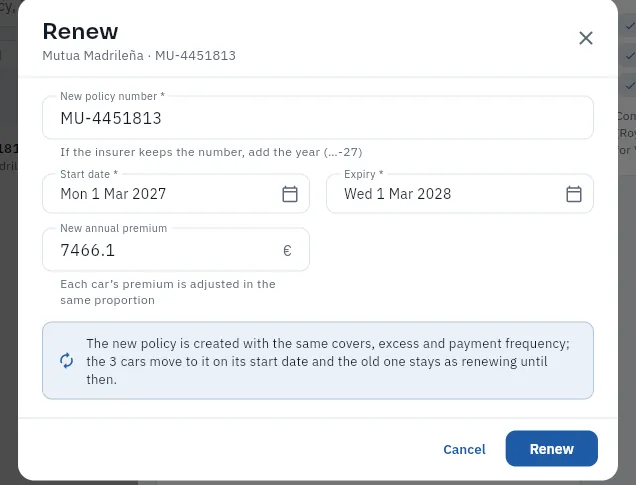 1234
1234
- 1The new policy's number (if the insurer keeps the number, add the year).
- 2The start date and expiry of the new policy year.
- 3The new premium (each car's is adjusted in the same proportion).
- 4What will happen: the new policy comes with the same covers, excess and payment method; your cars move to it on the start date and the old one stays renewing until that day.
Open the policy in Insurance and tap More options → Add car (or go to the Vehicles tab).
Choose the car and the start date (within the policy's period).
If the car was on another policy, FleetPilot Autónomos closes that line on the same day.
#Tips
- Renew with a month to spare: the warning appears 60 days before expiry.
- Look at the loss ratio before negotiating: it is what the insurer will look at.
- Keep the policy and the receipts in Documents: you may be asked for them in an inspection.
People
Drivers
Your employed drivers with their licences and permits and their expiry dates, their contract, their car and shift, their production and their documentation; hiring and leaving in a single operation; and you, if you drive, as the owner.
Drivers holds your team: the hired drivers (the regulars of a car and a shift, and the relief drivers, who cover days off and absences), the candidates in the pool, those onboarding (see Onboarding), the suspended ones and those who have left. You are their employer: you register them with Social Security and pay their wages (with your payroll agency, if you have one).
For each one FleetPilot Autónomos keeps their licences and permits with their expiry —the DNI or NIE (Spanish ID or foreigner's ID number), the B licence with its seniority and points, the VTC driver permit (compulsory in Madrid since 2-10-2026) or the taxi's municipal permit, the sexual offences certificate (only its date: it is criminal-record data) and occupational risk prevention training—, their contract, their car and shift, their contact details, their personal and bank details (IBAN and NAF, the Social Security affiliation number), their platform accounts, their production, their working time, their payslips and their documents.
If you drive, you also appear on the list, as Owner: you have your own driver record so that cars can be assigned to you and trips and fines attributed to you, but without a contract, payslip or time recording, because you are not an employee. It is explained in If you drive.
#The list of drivers
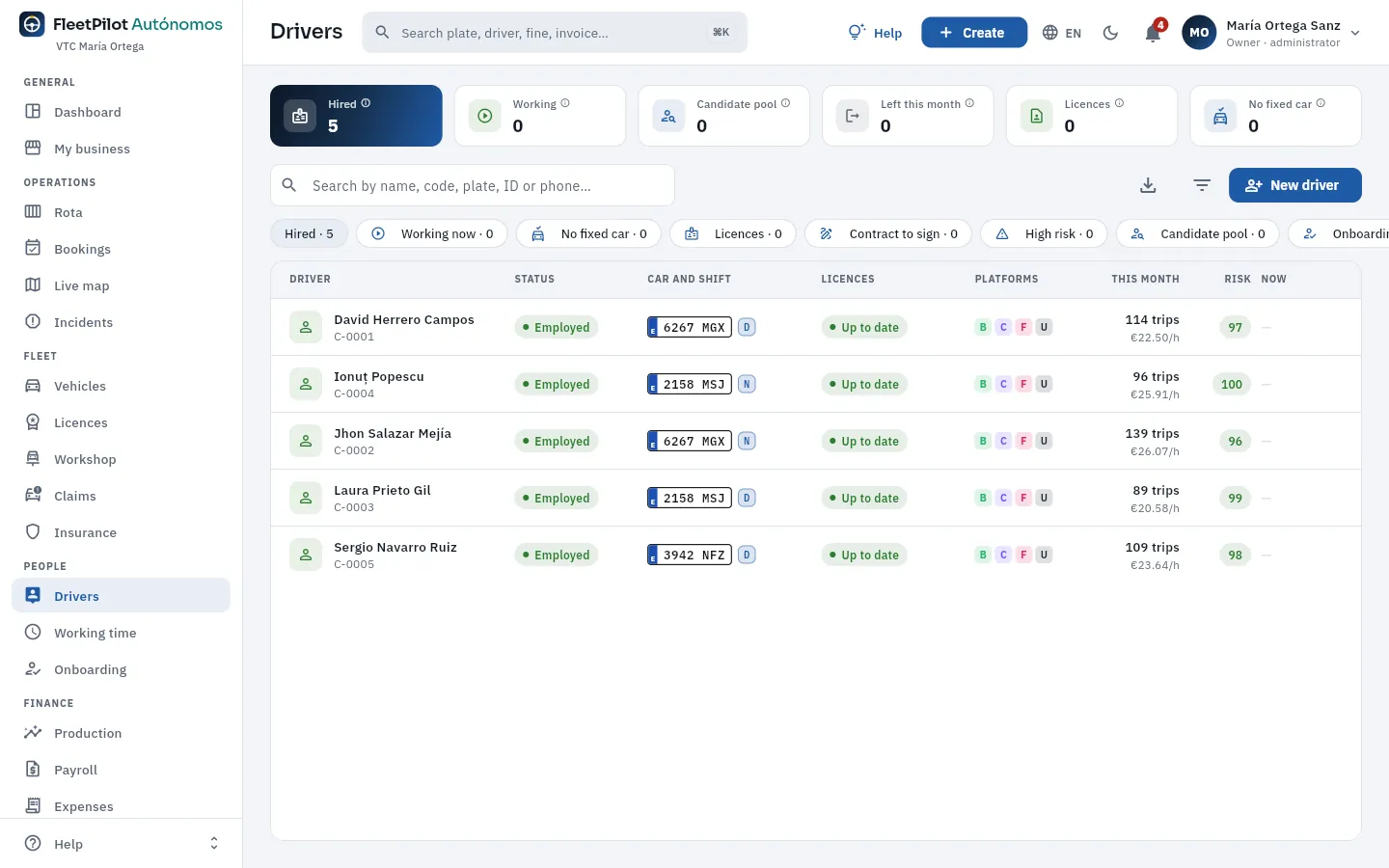 12345678
- 1Hired and how many are working right now (according to their clock-ins).
- 2Candidates in the pool and leavers this month.
- 3Licences expired or expiring soon: they cannot drive until renewed.
- 4No fixed car: relief drivers and new hires, with no car or shift.
- 5The search box: name, code, number plate, ID or phone.
- 6The filters: hired, working now, no fixed car, licences, contract to sign, high risk, in the pool and, scrolling sideways, onboarding, suspended and left.
- 7The car and shift (D, day; N, night) and the status of their licences. Then their platforms, what they have done this month, their risk and whether they are working now.
- 8New driver: goes into the pool (also from Create).
If you drive, you see yourself on the same list with the Owner label and «No employment contract». This is how it looks for Tomás Rey, who drives one of his two cars by day:
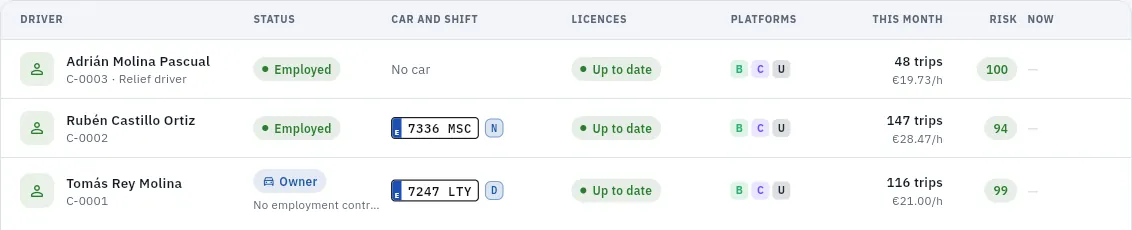 1234
1234
- 1Owner: Tomás drives his own cars; he has no employment contract. See If you drive.
- 2He is assigned a car and a shift like anyone else: here, the 7247 LTY by day.
- 3His production this month: platform trips are attributed to him when he has the car.
- 4A relief driver: hired, with no fixed car; covers the others' days off.
#The driver's record
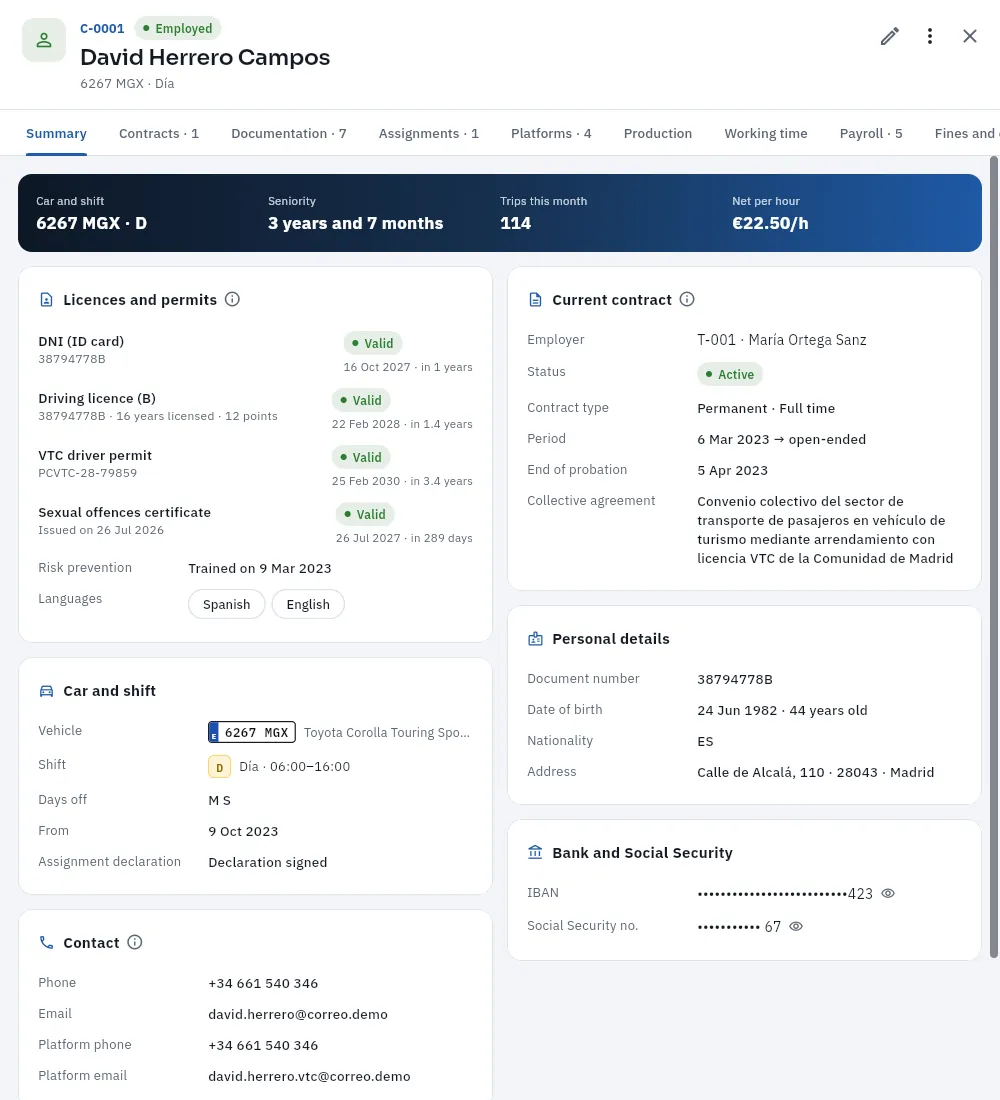 12345678
- 1Code, status, name, car and shift.
- 2More options: assign a car, record an absence, suspend or process leaving.
- 3The tabs: Summary, Contracts, Documentation, Assignments, Platforms, Production, Working time, Payroll, Fines and claims, Cash, Risk, Documents and Changes.
- 4Car and shift, seniority, trips this month and net per hour.
- 5Licences and permits: ID, B licence (seniority and points), VTC driver permit and sexual offences certificate, each with its expiry; risk prevention training and languages.
- 6Current contract: employer (you), status, type and working hours, period, end of the probation period and collective agreement.
- 7Car and shift: the vehicle, the shift with its hours, the day off, since when and the signed assignment declaration.
- 8Personal data and Bank and Social Security: the IBAN and the NAF, hidden; the eye shows them (and it is logged).
#Documentation
The Documentation tab gathers everything about the driver: what they provided (ID, driving licence, VTC permit, sexual offences certificate…, with its expiry and who validated it), what they signed when hired (the contract and its annexes), what they sign afterwards, with each event (the assignment declaration for each car, the handover of each card, cash receipts, debt acknowledgements, leaving) and the legal notices (geolocation, data protection…). Each document shows its status, who signed it and when, and how (in My shift, on the office screen or on paper).
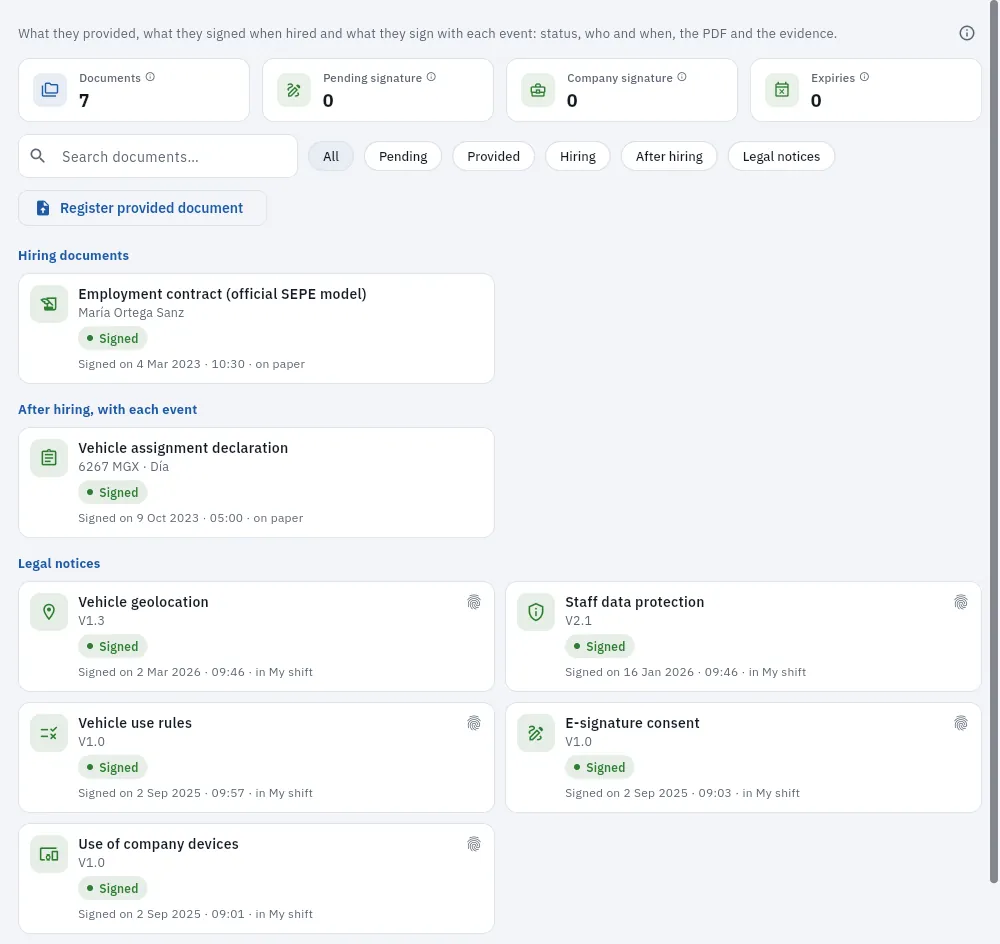 123456
- 1The figures: documents, pending signature (by the driver), company signature (what you still have to sign) and expiries. One click filters.
- 2The search box and the filters: pending, provided, hiring, after hiring and legal notices.
- 3Register provided document: a renewed ID, licence or certificate.
- 4The contract, on the official SEPE (Spanish public employment service) model, signed on paper in 2023.
- 5The assignment declaration for the 6267 MGX: the regular driver for the purposes of fines.
- 6The legal notices, each with its version, signed in My shift.
#Hiring, changes and leaving
FleetPilot Autónomos does each action in one go, with its checks:
| Action | What it does |
|---|---|
| New driver | Goes into the pool, with no contract. Before hiring, the ID, the B licence and the VTC driver permit are checked. |
| Invite to onboard | For someone in the pool: opens their onboarding (their details and documents from their phone, your validation, the SEPE contract and the signature). |
| Hire | Creates the contract with you as the employer (pending their signature in My shift) and makes them hired. |
| Assign car | Only with a contract in force, with the car operational, with MOT and insurance, and without overlapping another assignment; it closes the previous one (Rota). |
| Record absence | Holidays, sick leave, leave of absence…: the rota no longer counts on them those days. |
| Suspend | Nothing can be assigned to them until they are reactivated. |
| Process leaving | In a single operation it closes their assignments, their cards, their platform accounts and their contract, and deactivates their My shift user. |
| Rehire | A driver who has left goes back to «hired». |
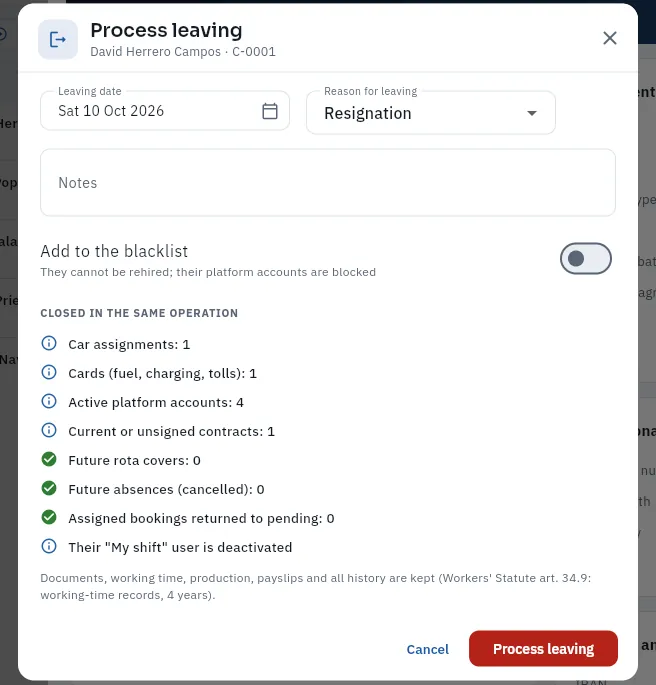 12345
12345
- 1The leaving date and the reason (voluntary, end of contract, dismissal…).
- 2Add to the blacklist: they cannot be hired again (with its reason, required).
- 3What is closed at the same time: their assignment, their card, their platform accounts, their contract, their future covers and absences, and their My shift user.
- 4What is kept: the documents, the working time, the production, the payslips and the whole history.
- 5Process leaving (not tapped in the screenshot).
In Drivers, tap New driver and fill in their identity, their contact details (including the phone they use on the platforms, to match their trips), their bank and NAF and their licences. Tap Save: they go into the pool.
If you want them to upload their details and documents from their phone and sign the contract themselves, on their record tap Invite to onboard and continue in Onboarding.
If you already have everything, on their record tap Hire: the type of contract, the working hours, the start date and the probation period.
Create their My shift user so they can clock in and sign, and assign them a car and shift on the Rota.
#Tips
- Look at the «Licences» indicator every week: what is expiring soon, so you can ask for the renewal in time.
- Create the My shift user when you hire: without it, the driver cannot clock in or sign.
- Use leaving in one go: closing the contract, the cards and the platforms by hand leaves loose ends.
People
If you drive yourself
The owner-driver: what it is, why you have no contract, payslip, working time or cash float, how you appear on your record, in the drivers list, in the rota and in «My shift», how trips, refuelling and fines are attributed to you, and what happens in Compliance.
With one or two cars, the usual thing is that you drive: on your own, or you by day and an employee at night. In FleetPilot Autónomos you are then the owner-driver: you have a driver record linked to your business (you are its owner) and to your user. Thanks to it, cars, covers and cards are assigned to you in the rota, and your trips, refuelling, journeys and fines are attributed to you like to any driver: that way each car's takings, the discrepancies and the identification of a fine come out right.
But you are nobody's employee: you work for yourself. That is why your record has no employment contract, payslip or variable pay, employment paperwork, working-time record or cash float. You can see it in the demo with Tomás Rey (he drives his Toyota by day and has an employee at night), Rosa Delgado (her taxi by day) and Khalid Benali (on his own).
- 1You create your accountYou tick «Do you drive any of your cars yourself?».
- 2Your driver recordLinked to your business and your user, with no contract.
- 3You assign yourself the carIn the rota, your shift and your days off.
- 4What is yours, in your nameTrips, refuelling, journeys and fines.
- 5What you keepNo payslip: your business's result.
#Your record and the drivers list
Your owner-driver record is created automatically when you create your account, if you tick Do you drive any of your cars yourself? (see Create your account and sign in), with your name, your DNI or NIE and your user linked. It is in Drivers, like your employees' records, with the Owner label. Complete it with your driving licence, your VTC driver permit (or taxi permit) and your sexual offences certificate, with their expiry dates: FleetPilot will warn you before they expire.
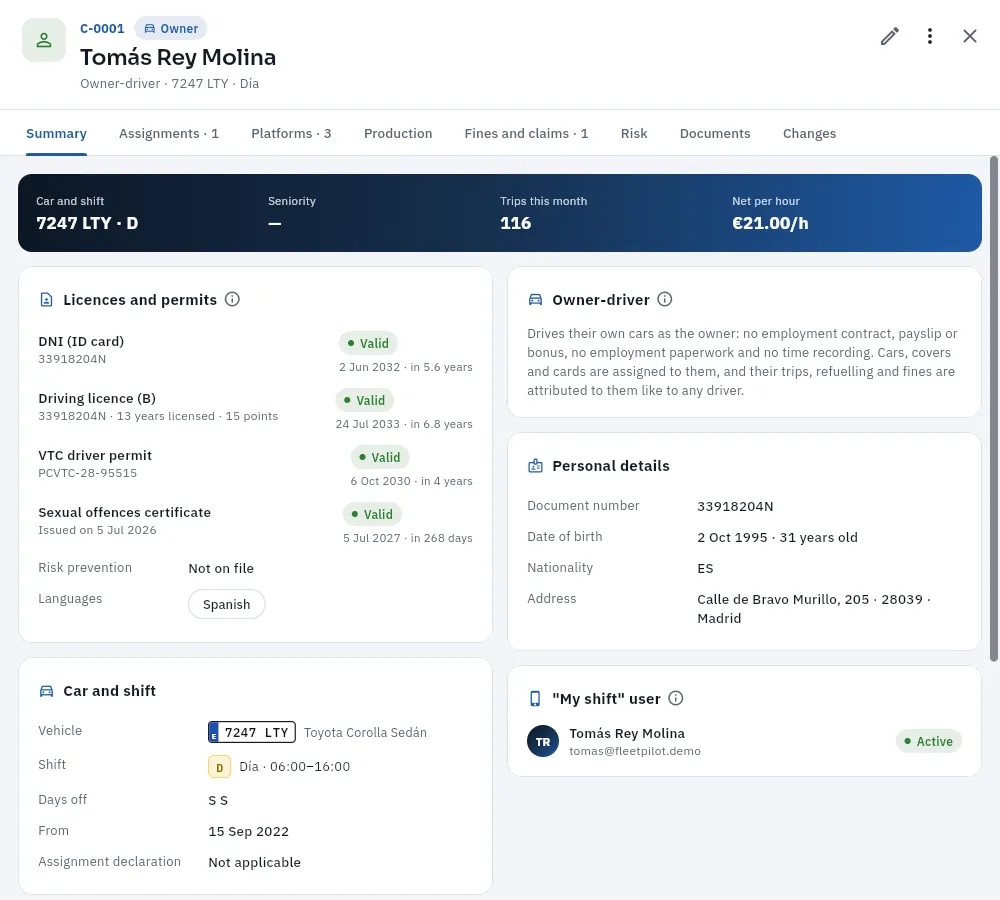 123456
- 1His code (C-0001), the Owner label and, below, «Owner-driver» with his car and shift.
- 2The tabs: assignments, platforms, production, fines and claims, risk, documents and changes. There are no contracts, working time or payslips.
- 3His licences and permits: DNI, driving licence with its points, VTC driver permit and sexual offences certificate, with their expiry dates.
- 4Owner-driver: no employment contract, payslip or variable pay, no employment paperwork and no working-time record, but with cars, covers and cards.
- 5Car and shift: his car, his shift, his days off (Saturday and Sunday) and since when; the assignment declaration does not apply.
- 6His user: the same one he signs in with as administrator, which therefore also has «My shift».
In the Drivers list you appear with your employees, with the Owner label and, in the status, «No employment contract». You count among the hired drivers (that is, among your business's active drivers), but not on the employment side: you do not appear in Working time, Payroll or the Cash float.
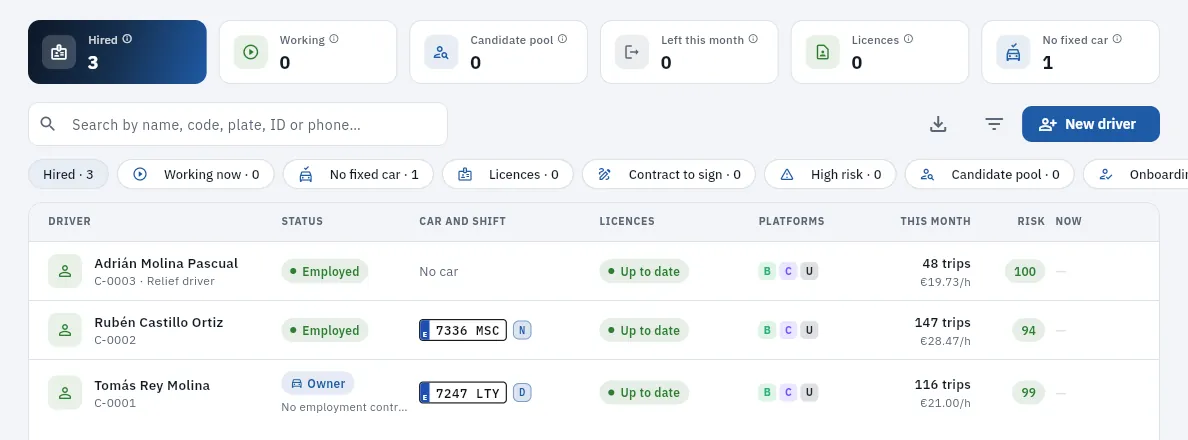 1234
1234
- 1Hired: all three, including him.
- 2His row: «Owner-driver», with his car and shift, his licences and what he has made this month.
- 3In the status, Owner and «No employment contract».
- 4An employee: hired, with his contract, his working time and his payslip.
#In the rota
In the Rota you are one more driver: you assign yourself your car and shift, with your days off, from New assignment, and the checks let you through because the car belongs to your business (the «contract in force» that is checked is, in your case, you as the owner). In the cells you appear with Owner under your name. When you are off, an employee or a relief driver can cover the car for you that day, and whatever they do is attributed to them.
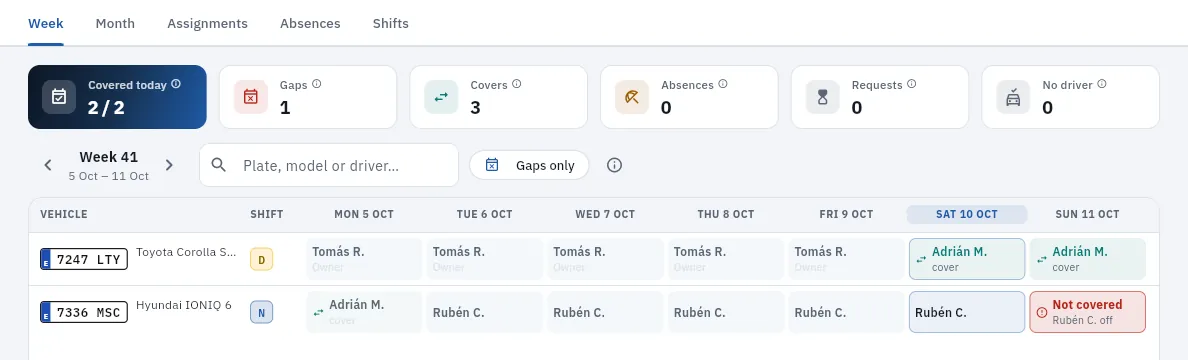 1234
1234
- 1His days: «Tomás R.» with Owner underneath.
- 2On Saturday and Sunday he is off and Adrián Molina, the relief driver, covers him: those days are Adrián's.
- 3The other car, at night, with his employee.
- 4A gap: on Sunday Rubén is off and nobody covers him.
How to assign yourself a car, step by step and with the checks, in Rota.
#In «My shift»
With your owner-driver record you have My shift in the sidebar, next to the Dashboard and My business: your car and shift today, the car check before setting off, your takings (today, yesterday and this month, by platform and trip by trip) and Requests (add an expense, report an issue, file an accident report). What you do not have is clocking in, signatures, working time or a payslip. See My shift. On the Dashboard, «Your day» starts with your My shift block.
#Trips, refuelling and fines
Everything that happens with a car is attributed to whoever had it at that instant according to the rota (the day's cover takes precedence over the assignment). If it was you, it is yours:
- Trips: your Uber, Bolt, Cabify, FREENOW or taxi trips are attributed to you and count in your car's takings and in My business. They do not generate variable pay: you have no payslip.
- Refuelling and charging: fuel or charging cards can be assigned to you like to anyone (Fuel cards); what you refuel with them is attributed to you and is a car cost.
- Journeys: the car's GPS journeys too. As you do not clock in, your kilometres count as within your working day: a discrepancy is only raised if the car covers more than 100 km without a service in a day (ROTT, art. 182.1), and never «worked without clocking in».
- Fines: you are proposed as the driver, with the same evidence as an employee (the trip in progress, the rota).
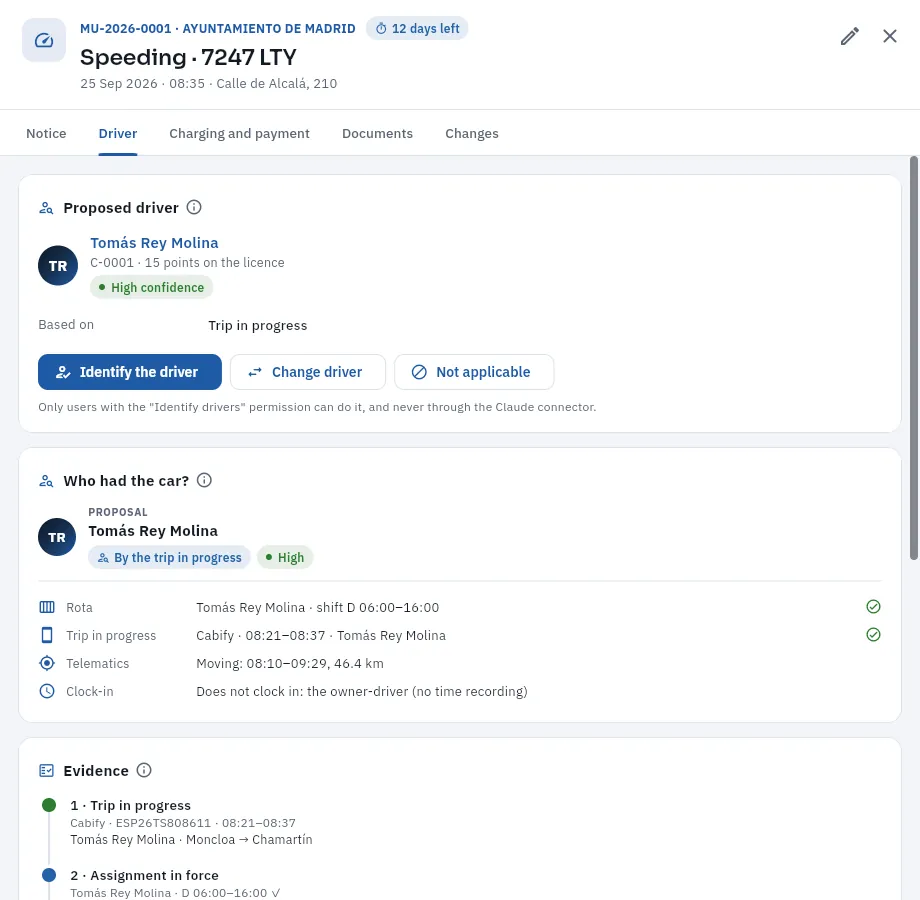 12345
12345
- 1The fine: number, issuing authority, offence, car, date, time and place, and the days left to identify the driver.
- 2Proposed driver: Tomás, with his licence and points, and the confidence of the proposal (high).
- 3Identify the driver, Change driver or Not applicable.
- 4Who had the car?: the proposal from the trip in progress, confirmed by the rota.
- 5The evidence: the Cabify trip from 8:21 to 8:37 in that car, in his name.
If the fine is proposed to you, you were driving: you identify yourself as the driver, just as you would identify one of your employees, within 20 calendar days of the notification (Traffic Act, arts. 11 and 93.1). It is not passed on to anyone: in Charging and payment, «Your business pays», and its amount goes into the month's accounts. The detail of fines is in Fines.
#In Compliance
In Compliance, your record is checked like any driver's in what applies to you —the driving licence and its points, the VTC or taxi driver permit and the sexual offences certificate— and the employment items show Not applicable: contract in force, working-time record and legal notices accepted. They do not lower your score.
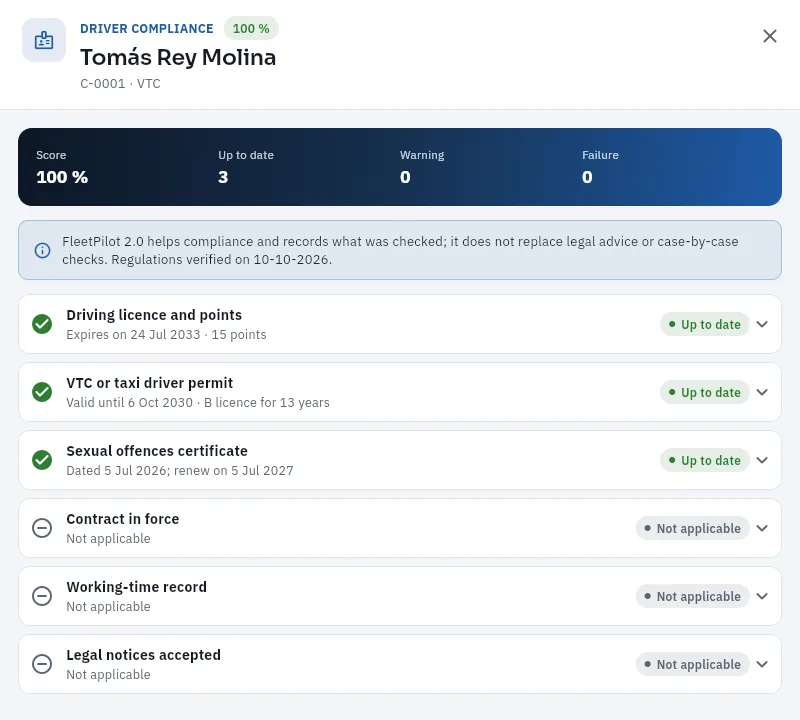 123
123
- 1The driver compliance, with his score.
- 2What he needs in order to drive: driving licence and points, VTC driver permit and sexual offences certificate, up to date.
- 3Contract in force, working-time record and legal notices accepted: «Not applicable», because he is not an employee.
#What you do not have
| Your employees | You | |
|---|---|---|
| Employment contract and annexes | Yes, signed in «My shift» | No |
| Payslip with fixed and variable pay | Yes, every month | No: yours is the result in My business |
| Working-time record (clocking in) | Yes, compulsory | No |
| Employment paperwork (legal notices, risk prevention, tax form 145…) | Yes | No |
| Assignment declaration for the car | Yes, signed | Not applicable |
| Cash float | Yes: they hand it to your business | No: the cash you collect already belongs to your business |
| Bank details for the payslip | Yes | No |
| Cars, covers, cards, licences and permits, takings, fines, claims | Yes | Yes |
If anyone tried, FleetPilot Autónomos would not allow it and would say why: «This driver is the owner: they drive without an employment contract», «The owner-driver does not clock in: time recording is for employees».
When creating your account, tick Do you drive any of your cars yourself?.
Add your car in Vehicles, with its licence, its MOT and its insurance.
Open your record in Drivers and complete your licences and permits (driving licence, VTC or taxi driver permit, sexual offences certificate).
In the Platforms tab of your record, add your Uber, Bolt, Cabify or FREENOW accounts so that your trips are attributed to you.
In the Rota, assign yourself your car and shift, with your days off.
People
Working time
The working-time register of your employed drivers, which cannot be deleted or changed: their clock-ins, the hours of work and of presence against the hours logged in to the platforms, the rests, the corrections with their reason and the export for the Labour Inspectorate.
Your employed drivers clock in from My shift: start, break, resume and finish. Each clock-in goes into the working-time register with the time, the origin (the driver's app or the office), the car and, if the driver accepted the geolocation notice, the place. The register cannot be altered: a clock-in cannot be changed or deleted. If there is a mistake or a missed clock-in, you enter a new clock-in that voids the previous one, with its reason; the original stays there. Each clock-in also keeps a fingerprint of its content linked to the previous one (a chain of fingerprints): if anyone changed a clock-in behind the application's back, the chain would break and the verification would say so.
From the clock-ins, FleetPilot Autónomos works out each working day: the presence (from start to finish), the breaks, the effective work (presence minus breaks), the rest since the previous working day and the hours logged in to the platforms. It has five tabs: Monthly register, By driver, Calendar, Anomalies and Integrity.
#The monthly register
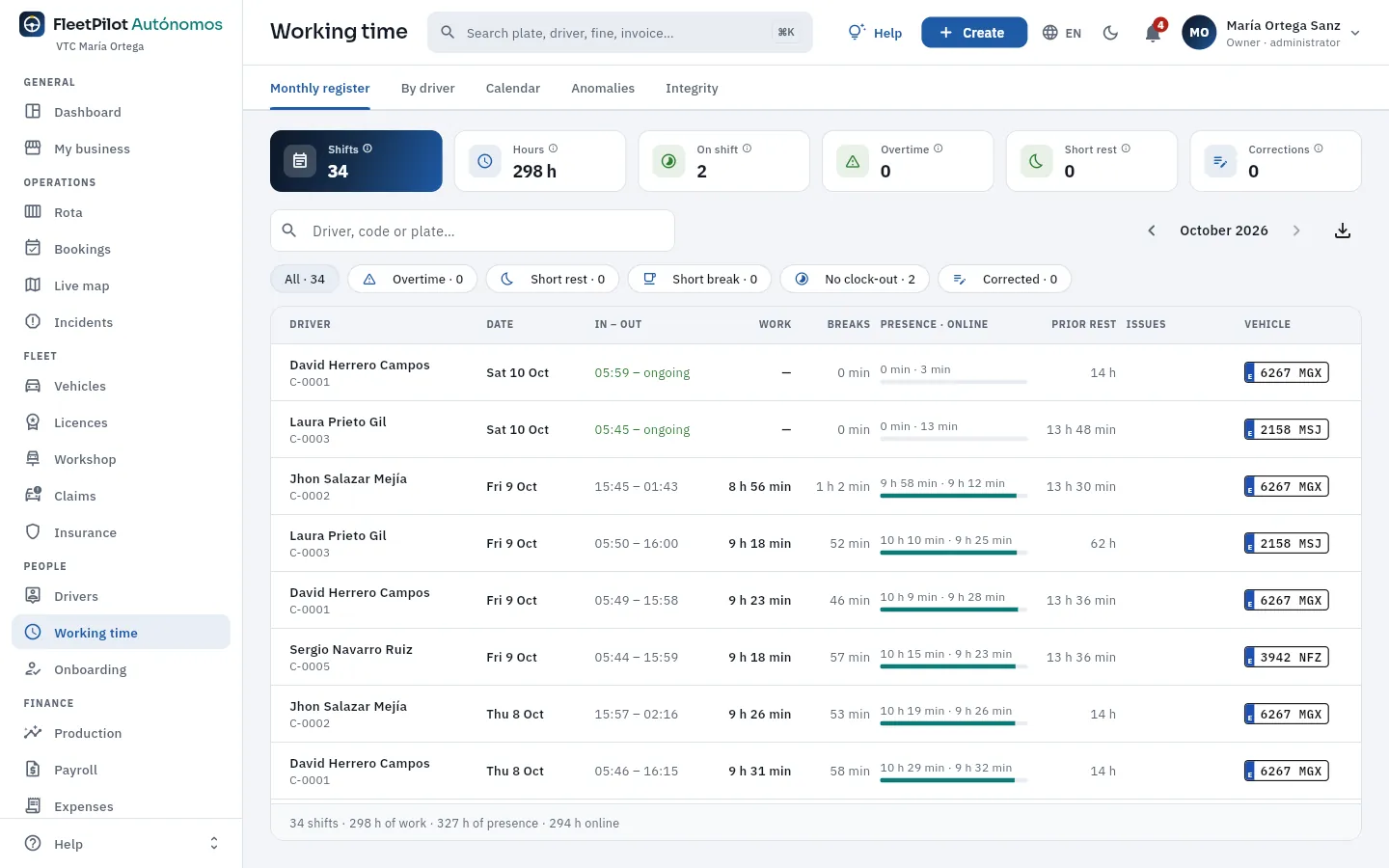 123456
- 1The tabs: monthly register, by driver, calendar, anomalies and integrity.
- 2The month's working days and hours of work, and how many are on shift now.
- 3Overtime (above the maximum working day), short rests and corrections made at the office.
- 4The month and Export the monthly register: the one you show the Labour Inspectorate.
- 5The filters: overtime, short rest, short break, no clock-out and corrected.
- 6Each working day: driver, date, start and finish, work, breaks, presence and logged in, and previous rest; then the incidents and the car.
#A driver's calendar
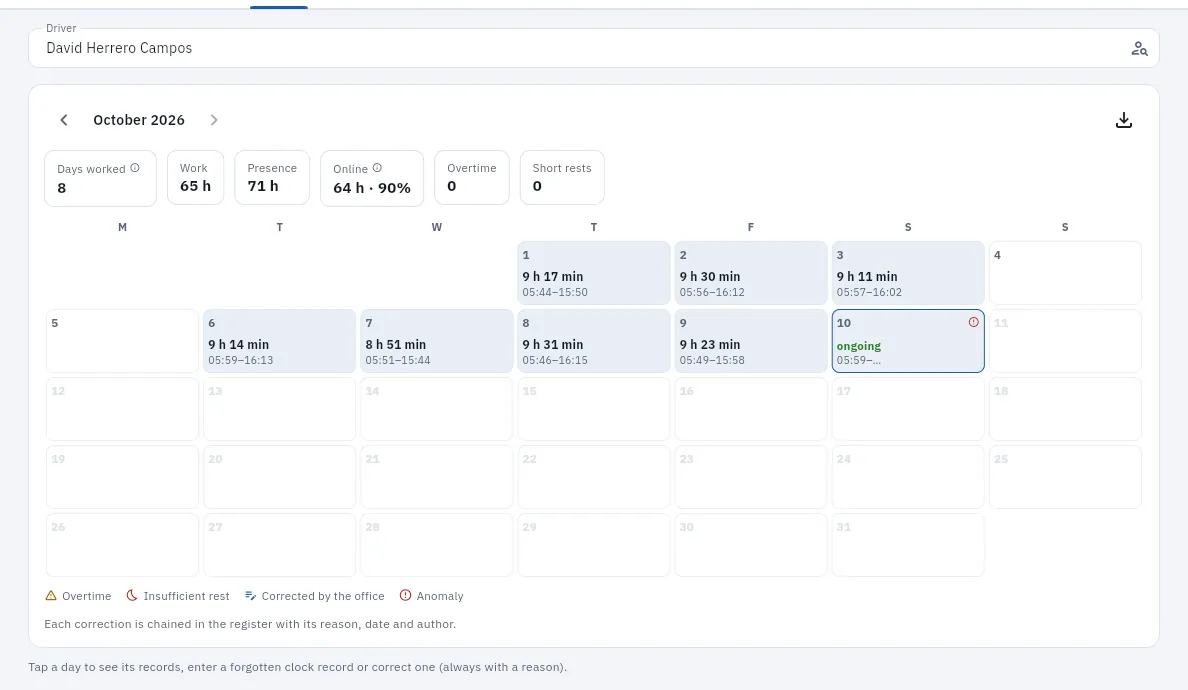 1234
1234
- 1The driver (searched by name or code).
- 2The month's summary: days worked, work, presence, online, overtime and short rests.
- 3Export their register for the month.
- 4Each day with its effective work and its start and finish (in amber, those above the maximum working day; in purple, holidays or sick leave; in red, days with trips and no clock-in). Tap a day to see it.
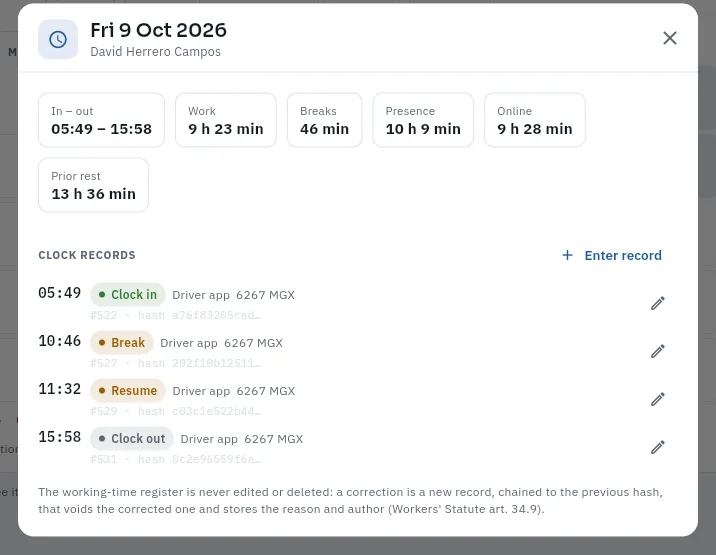 12345
12345
- 1The working day: start and finish, work, breaks, presence and logged in; and the previous rest since the last working day.
- 2Enter record: something forgotten (for example, the clock-out), always with its reason.
- 3Each clock-in: time, type, source (the driver's app), car, its number in the chain and the start of its fingerprint.
- 4Correct: creates a new clock-in that cancels this one, with its reason. The original is not deleted.
- 5The reminder: the register is not changed or deleted; a correction is a new, chained clock-in.
In Calendar, choose the driver and tap the day.
On the wrong clock-in, tap Correct (or Enter record if one is missing).
Enter the right time and the reason («forgot to clock out: time of the last trip»…) and save.
#Anomalies and integrity
The Anomalies tab gathers what needs looking at from the last 62 days: working days with no clock-out (missed for more than 14 h), days not clocked in (with trips and no working day: the most serious), overtime, short rests and weeks without the weekly rest. Tap any of them to go to the day and correct or explain it. The By driver tab gives each driver's hours for the month, with their weekly average and the time logged in against the presence.
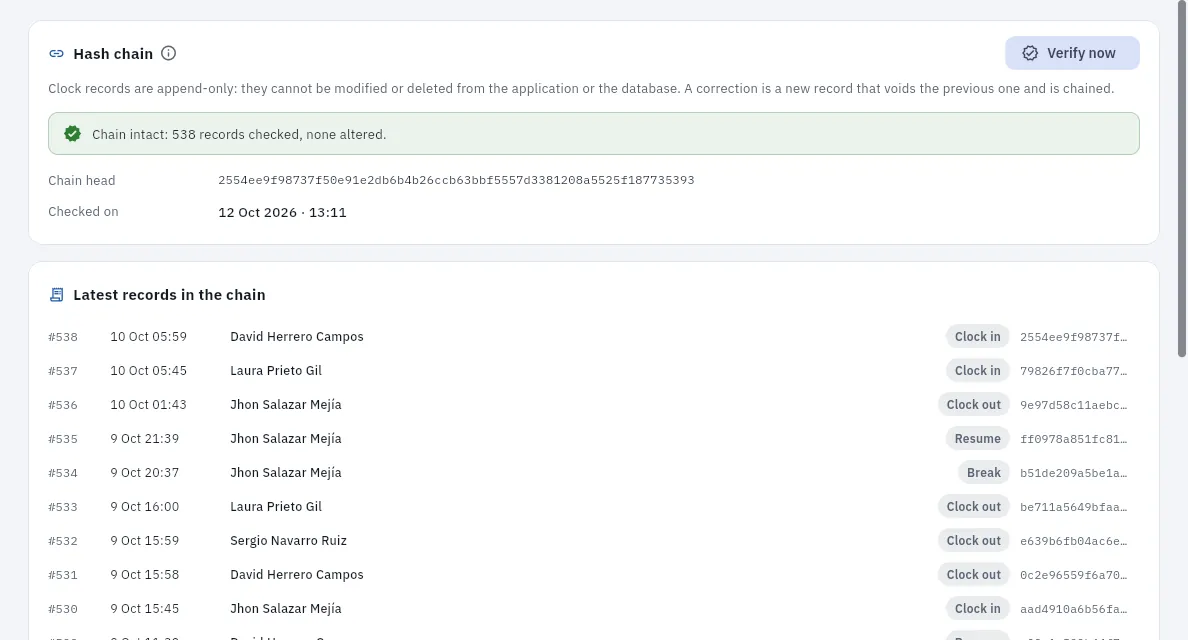 1234
1234
- 1The fingerprint chain: clock-ins are only ever added; a correction is a new clock-in that cancels the previous one.
- 2Verify now recalculates every fingerprint in order and compares them with the stored ones.
- 3The result: how many clock-ins have been checked and whether any has been altered.
- 4The latest clock-ins in the chain, with their number, date, driver, type and fingerprint.
#Tips
- Look at «No clock-out» and Anomalies every week: a missed clock-in corrected in time explains itself; a year later, it does not.
- Correct with the specific reason: «time of the last trip» or «start according to the telematics» still makes sense years later.
- Send the monthly register to your payroll agency (or let it export it): it is what an inspection would ask for.
People
Onboarding
Onboarding a new driver, from the invitation to hiring: the candidate fills in their details and uploads their documents from their phone, you validate each item against the image of its document, you admit them with the contract terms on the SEPE model, you both sign electronically and, with everything signed, you hire them.
Onboarding is the path of a new driver until they work for you. Instead of collecting photocopies and typing in their details, you send them an invitation; the candidate fills in their details and uploads their documents from their phone, you validate them one by one, admit them with the contract terms, everything is signed with an electronic signature and, finally, you hire them.
While onboarding lasts, the driver is onboarding: they appear in Drivers, but they cannot be assigned a car, put on a cover or a booking, given a card or clock in. All of that comes with hiring.
- 1InvitationYou enter their contact details and they receive a link (or you show them the QR code).
- 2First sign-inThey set their password and accept the data protection information for candidates.
- 3Their detailsThey fill in their details from their phone, even halfway.
- 4Their documentsPhoto with the camera or PDF: ID card or NIE on both sides, driving licence…
- 5ValidationYou check each item against the image of its document or ask them to correct it.
- 6AdmissionWith the contract terms on the SEPE model; or you reject them.
- 7SignatureThey sign from their phone and you, as the company, from the office.
- 8HiringOnly with everything signed: current contract and employed driver.
#The onboarding list
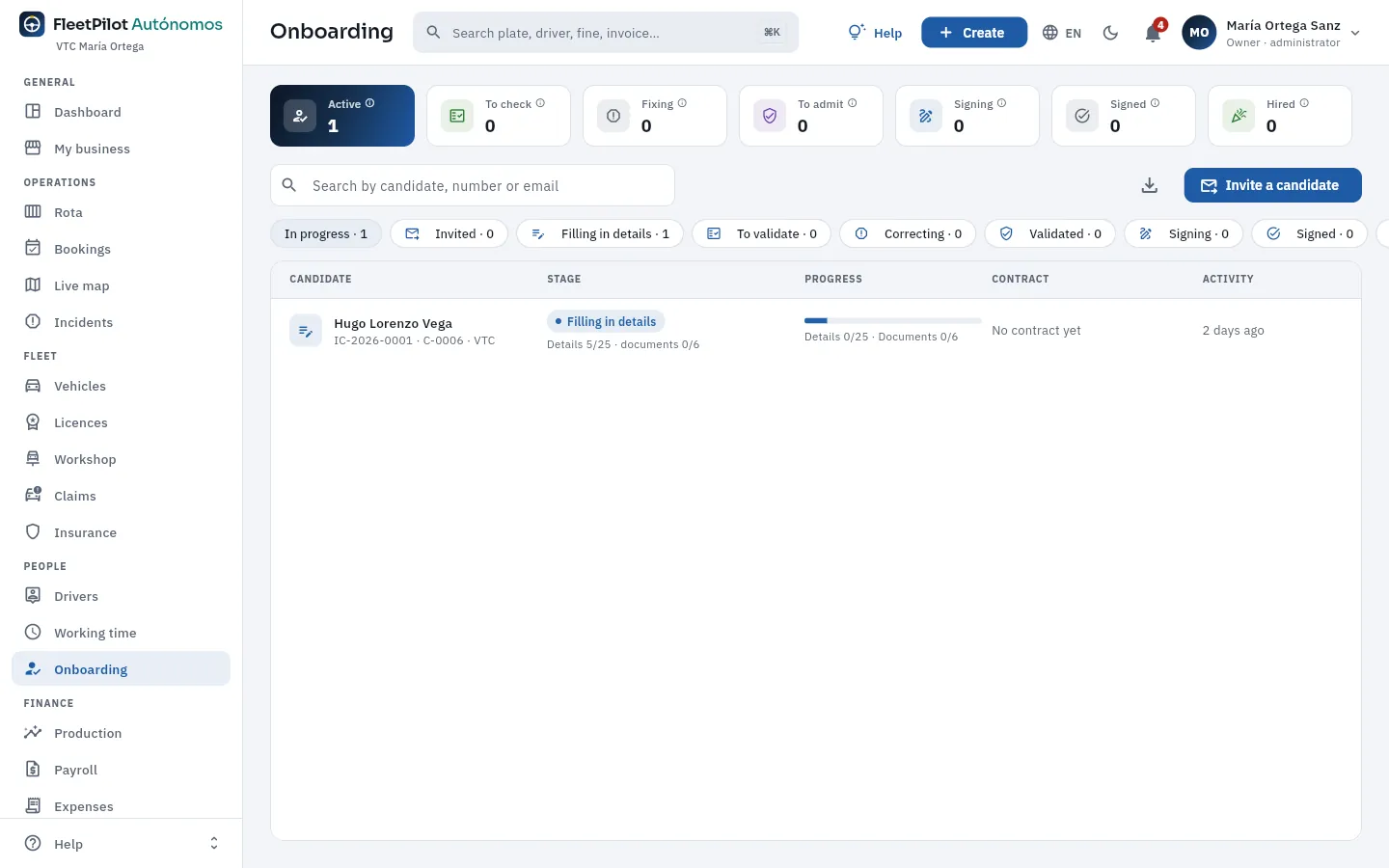 123456
- 1Active: open onboardings, from the invitation to hiring.
- 2What is waiting for someone: details to validate, candidates who have to correct something, validated details to admit, signing and signed but not yet hired.
- 3Hires in the last 30 days.
- 4The filters: in progress and each phase.
- 5The phase with how far they have got (5 of 25 items and no documents) and the progress: items and documents validated and signatures.
- 6Invite a candidate (also from Create).
#Inviting a candidate
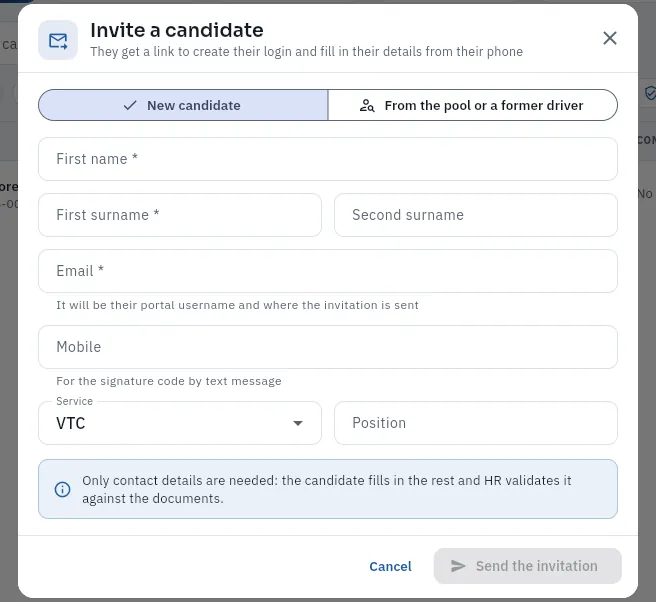 12345
12345
- 1New candidate or from the pool or a former driver (someone already in Drivers).
- 2First name and surnames, as on their document.
- 3The email (their username and where the invitation is sent) and the mobile (for the signature code by text message).
- 4The service (VTC or taxi) and the position.
- 5Send the invitation: creates their portal user and the link.
In Onboarding, tap Invite a candidate. If they are already in Drivers (in the pool or having left), choose From the pool or a former driver.
Enter their first name and surnames and their email and mobile.
Choose the service and, if you like, the position, and tap Send the invitation.
#The onboarding record
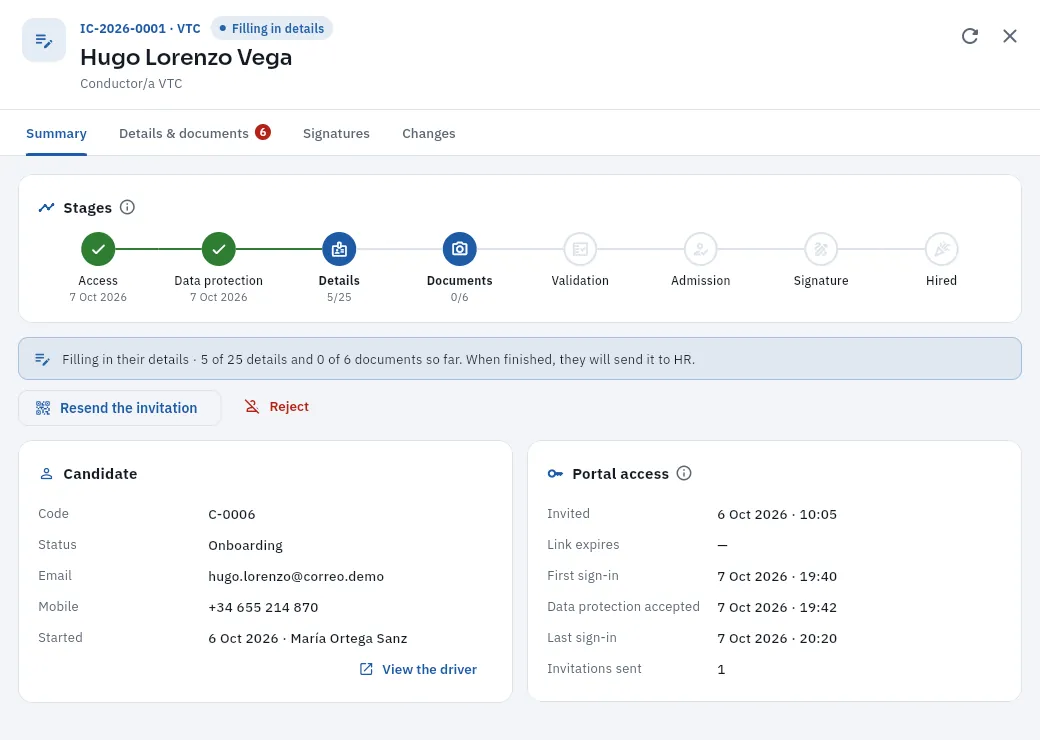 123456
- 1Number, service, phase, name and position.
- 2The tabs: Summary, Details & documents (with what is left to validate), Signatures and Changes.
- 3The phases: in green those done, with their date; in blue, the ones in progress.
- 4The next step and its button (here it is still his turn: Resend the invitation if he needs it); and Reject.
- 5The candidate: their driver code (C-0006), the «Onboarding» status, their contact details and when you started it.
- 6Their portal access: when you invited them, their first login, when they accepted the data protection notice and their last login.
Depending on the phase, the next-step button is Resend the invitation, Review the details, Admit, Sign for the company, Remind or Hire. Onboarding that has stalled for several days deserves a phone call.
#Validating the details and documents
When the candidate sends their details, the onboarding moves to To validate and you get a notification. In Details & documents each document appears with its images and, next to it, the items checked against it: the name, the number and the expiry next to the ID; the class and the dates next to the driving licence; the IBAN next to the bank account certificate… Items that do not depend on a document (the address, the contact details) go in their own blocks. Hugo has not uploaded his ID yet, but his details can already be seen:
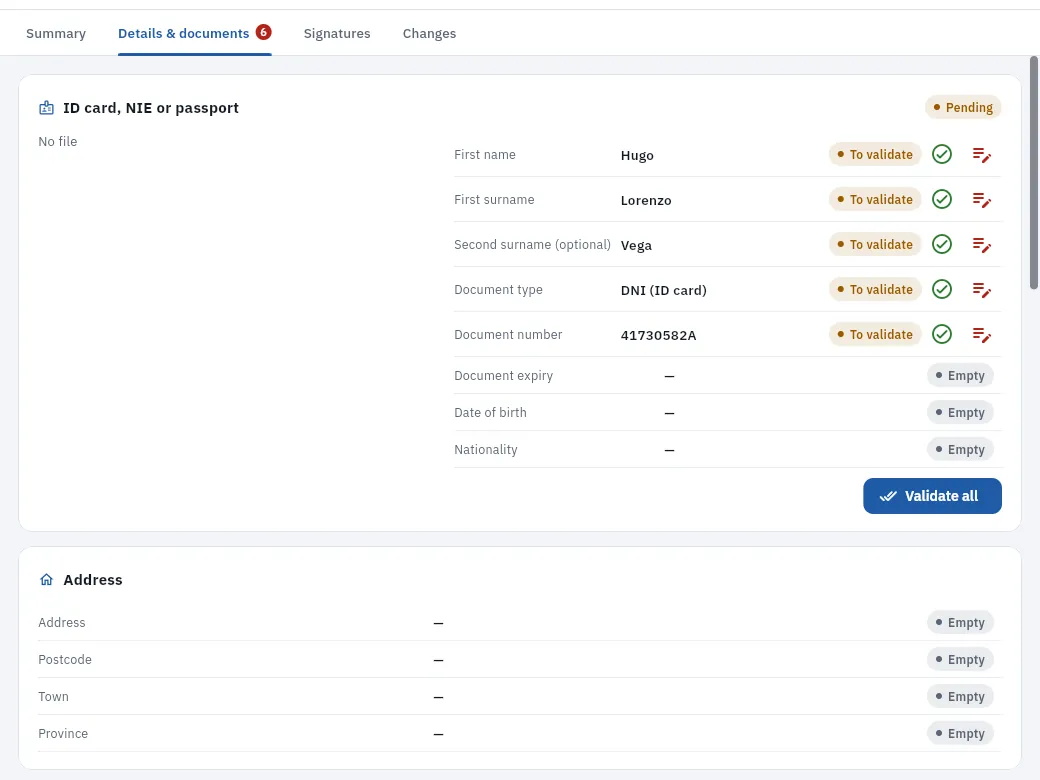 123456
- 1The document's images (front and back) will go here when he uploads them: «No file».
- 2The document's status (pending, uploaded, validated, to correct).
- 3The details declared by the candidate that are checked against this document, each with its status.
- 4Validate the item: it matches the document.
- 5Ask for a correction of the item, with the reason.
- 6Validate all: the document and all its details at once.
Open the onboarding (filter To validate) and go to Details & documents, or tap Review the details on the summary.
Compare each item with the image of its document. If it matches, tap the item's ✓ or Validate all on the document.
If an item does not match, tap Ask for a correction, write the reason and confirm. If it is the image that is no good, Ask for another document.
Carry on with the other documents and blocks until there is nothing left to validate.
#Admitting, signing and hiring
With the details validated, your decision is what is missing. Admit asks for the contract terms —the SEPE contract code (permanent 100, 200 or 300, or temporary), the start date, the job and working hours, the probation period, the collective agreement, the variable pay and the salary— and with them it generates the documents and sends them for signature: the employment contract on the official SEPE model, the information on its essential elements, the annexes (clauses, variable pay agreement, authorisation for deductions and vehicle damage policy), risk prevention, fitness to drive, the form 145 for income tax, the work instructions and the legal notices. Reject closes the onboarding with a reason.
The candidate signs from their phone, in their portal, with the active signature provider (FleetPilot Autónomos's own signature, Signaturit or DocuSign; simulated in the demo). You sign the contract, the essential information and the annexes for the company with Sign for the company. With everything signed, Hire puts the contract in force and the driver hired: you can now assign them a car on the Rota and create their My shift user. Everything stays in the Documentation tab of their driver record.
#Tips
- Invite as soon as you decide to hire: while they fill in their details, you get the car and the shift ready.
- Validate on the same day the details arrive: the candidate is waiting to sign.
- Ask for corrections with a clear reason («the photo of the back is cut off»): it reaches them word for word.
Finance
Production
Trips and earnings from Uber, Bolt, Cabify, FREENOW, the taxi dispatcher and street hails, attributed to whoever had the car at that moment (you, if you drive, or your driver): gross, VAT, commission, net, tips and cash; unassigned trips, importing the platforms' reports and their weekly payouts.
Trips come from the platforms (through their API, synced every day, or by importing their reports) with the number plate, the driver's platform account, the route and the amounts. FleetPilot Autónomos attributes each trip to whoever had the car at the moment it ended: the person on the rota's cover for that day and shift or, if there is none, the one whose assignment's shift contains that time. So, in a double-shift car, the day trips belong to the day driver and the night trips to the night driver, and each employee's payslip comes out with their own trips.
If you drive, your trips are attributed to you just like anyone else's (see If you drive yourself): they count towards your car's production and in My business, but they do not create a payslip or variable pay, because you are not an employee of your own business.
| Amount | What it is |
|---|---|
| Gross | What the passenger paid, with the transport VAT (10 %) included. |
| Commission | What the platform keeps (before VAT: it invoices you separately). |
| Net | Gross − discounts − commission: what the platform pays you. |
| Tip and toll | Kept separate; they do not count towards your drivers' variable pay. |
| Cash | What the passenger paid in hand: the platform deducts it from its payout and your driver has to hand it over to you (see Cash). If you drive, you already have it. |
- 1The trip arrivesThrough the platform's API or by importing its report.
- 2The carBy the number plate (or by the driver's account).
- 3Who was drivingCover for the day or assignment for the shift at that moment: you or your driver.
- 4UnassignedIf nothing fits, it stays with its reason to be resolved.
- 5Payslip and My businessYour employee's variable pay and your business's accounts.
#The summary
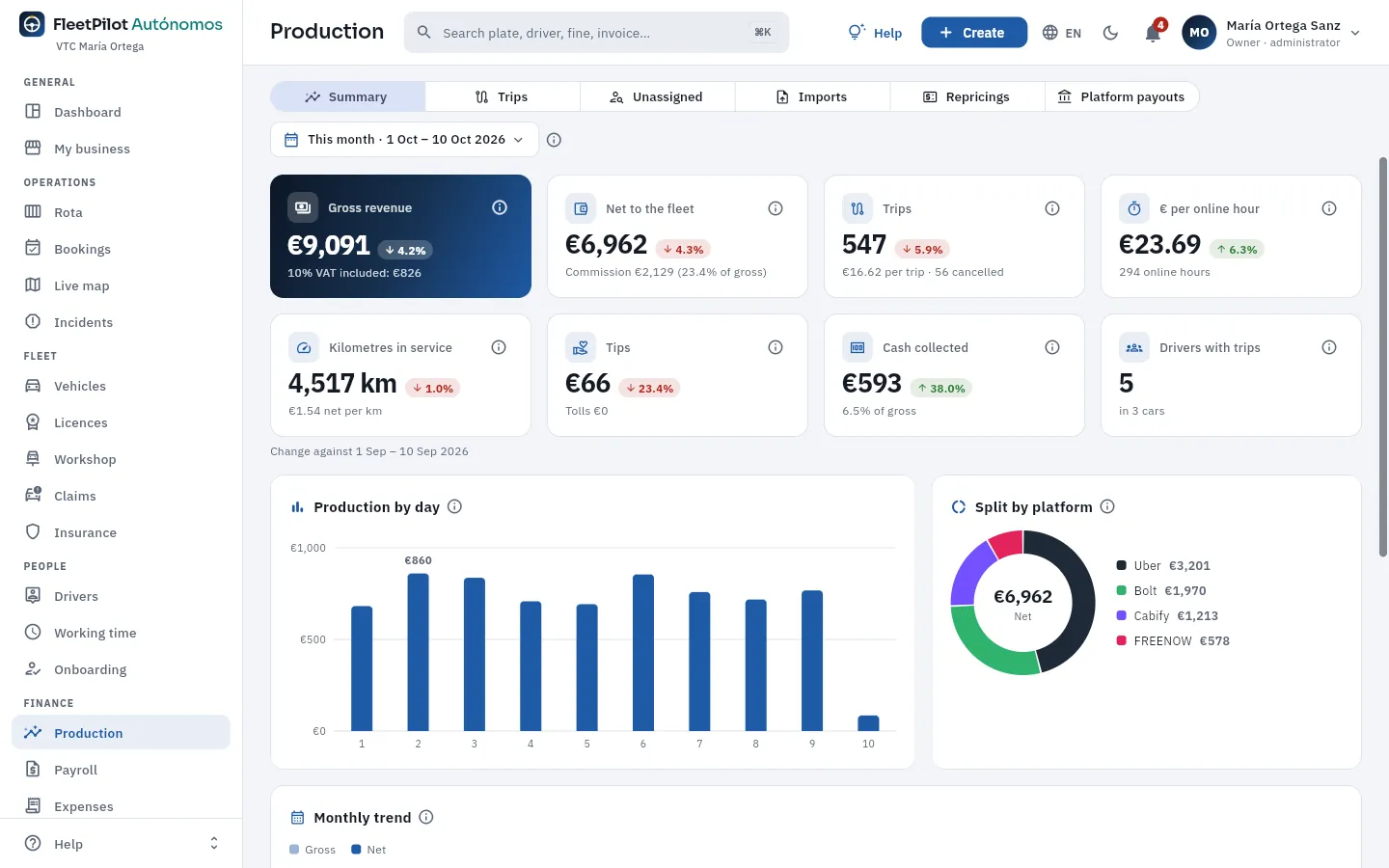 1234567
- 1The views: summary, trips, unassigned, imports, fare adjustments and platform payouts.
- 2The period: this month, another month or a date range. Changes compare with the same days of the previous period.
- 3Gross revenue, with VAT included and its amount.
- 4Net the platforms pay you and their commission (in € and as a % of gross).
- 5Trips, the average amount per trip and cancellations.
- 6€ per online hour: net divided by the hours connected to the platforms.
- 7Also: km in service (with net per km), tips and tolls, cash collected and who drove, with how many cars.
Further down, production by day, the split by platform, the trend over recent months and a breakdown by platform, driver, vehicle or day (with net per hour, rating and acceptance as reported by each platform).
#Trips and their attribution
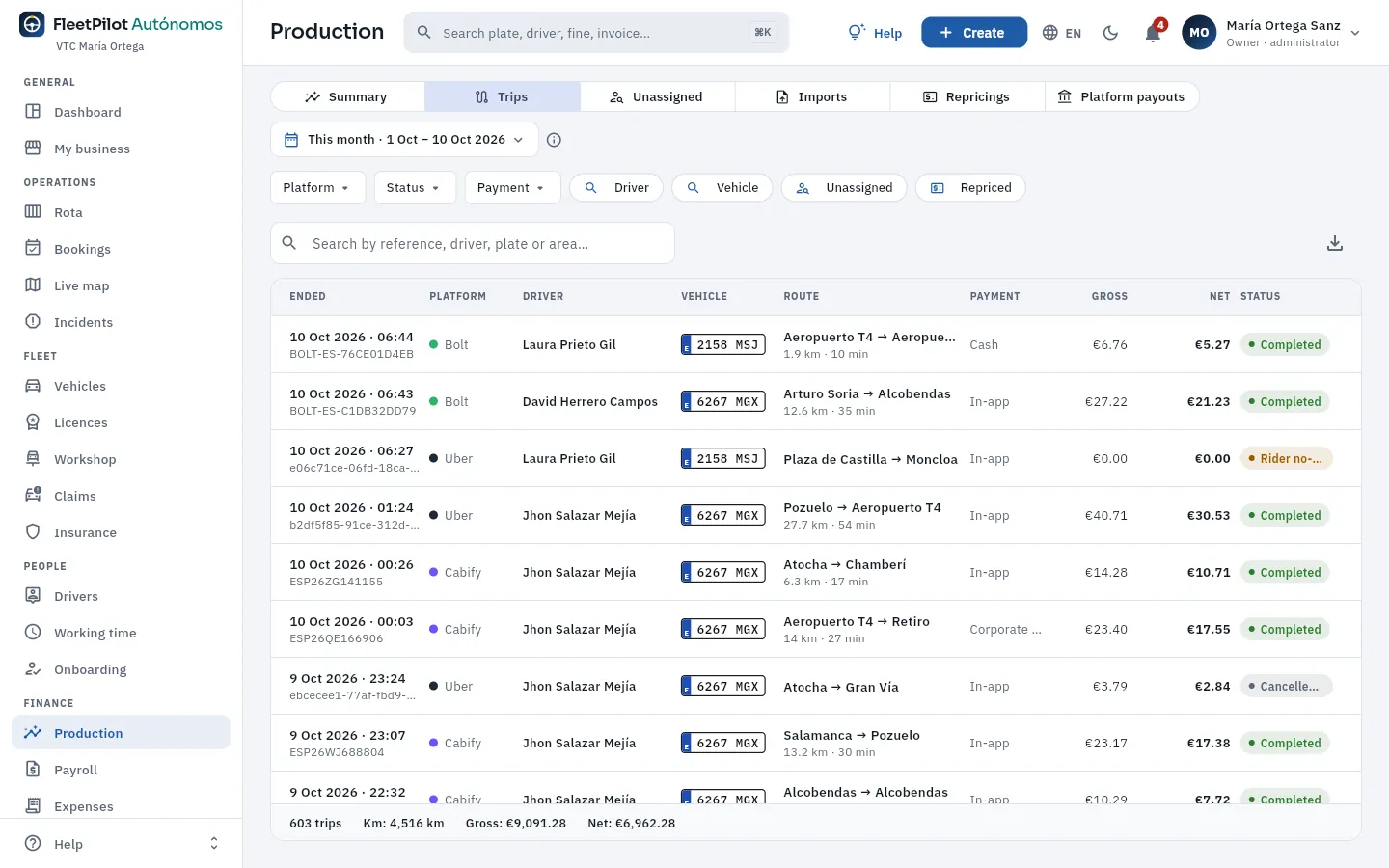 1234
1234
- 1Filters: platform, status, payment (app or cash), driver, vehicle, unassigned and adjusted fares.
- 2The platform, the driver it is attributed to and the vehicle.
- 3The payment (app or cash), gross, net and status.
- 4The totals of what is filtered: trips, km, gross and net.
Click a trip to open its record. The Attribution tab explains, step by step, why it belongs to whom it does:
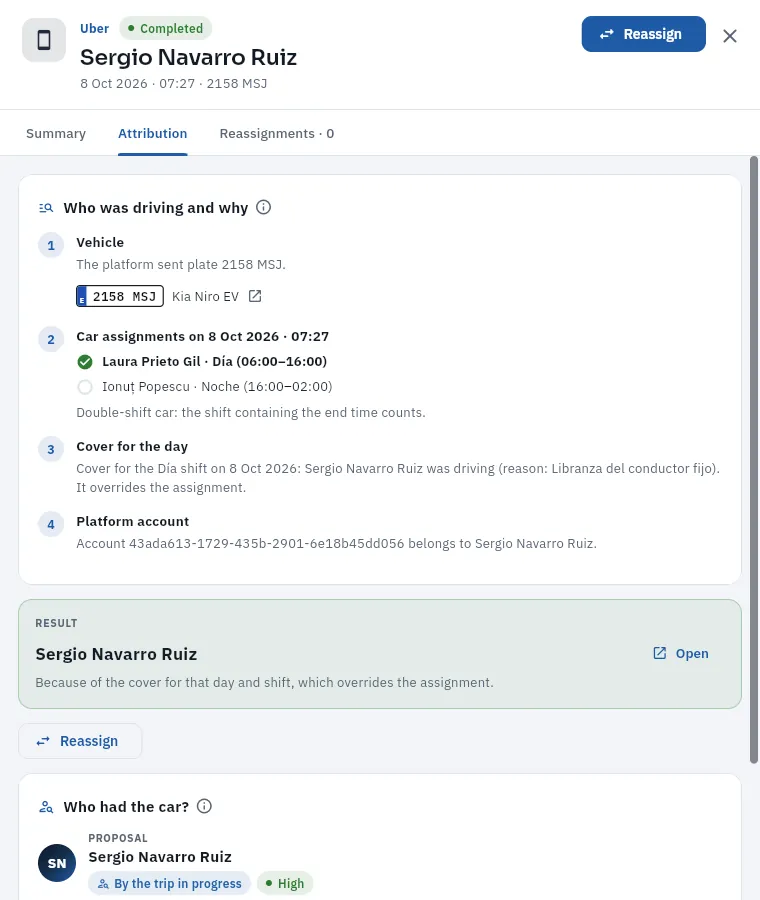 123456
- 1Platform, status, who it is attributed to, the end time and the car.
- 2Summary (amounts, route and platform data), Attribution and Reassignments.
- 3The car's assignments that day: on a double shift, the shift containing the end time counts (here, Laura Prieto's day shift).
- 4The cover for the day: Laura had the day off and Sergio Navarro worked the shift. The cover takes precedence over the assignment.
- 5The result: who it is attributed to and why. If, with today's rota, the rule gave someone else, it warns you.
- 6Reassign: choose by hand who was driving, with the reason.
If you drive, your trips are attributed to you in the same way, by your assignment or your cover in the Rota. This is one of Tomás Rey's, who drives his Toyota 7247 LTY on the day shift:
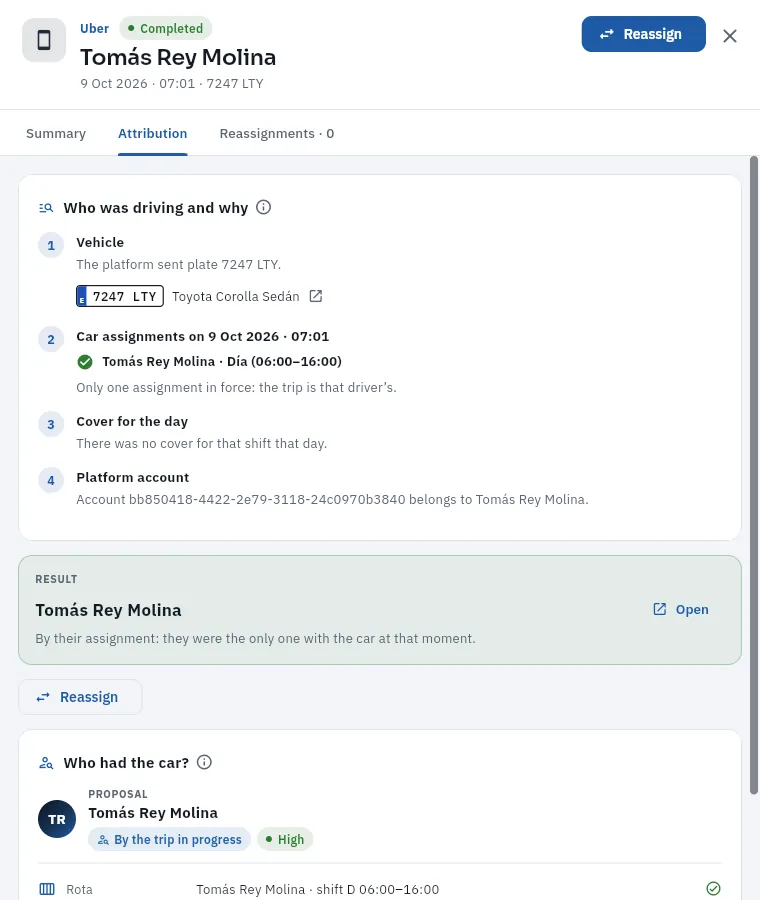 123
123
- 1The trip belongs to Tomás, the owner who drives.
- 2His day-shift assignment: he has one like any driver, without a contract.
- 3The result: it counts towards his car's production and in «My business», not in any payslip.
Open the trip (from Trips or Unassigned) and go to Attribution.
If the rota was wrong (an unrecorded handover), it is best to correct the rota and tap Re-attribute: the rule puts it right.
Otherwise, tap Reassign: choose who was really driving (empty = nobody) and write the reason («early handover», «unrecorded cover»…).
#Unassigned trips
A trip that cannot be attributed stays in the Unassigned view with its reason, and counts for nobody until you resolve it (there are none in the demo):
| Reason | What it usually is | How to resolve it |
|---|---|---|
| Unknown number plate | A car not yet created, a typo on the platform, a replacement car | Assign the trip; if the car is missing, create it and re-attribute |
| Nobody had the car | An unrecorded shift change, a platform account not registered | Correct the rota or register the driver's account on their record |
| Ambiguous assignment | Double-shift car with a gap between shifts, a handover at an odd time | Assign it to whoever was driving or record a cover for that day |
#Importing a platform report
If a platform is not connected (or to complete a period), download its trip report from its portal and import it in the Imports view with Import report:
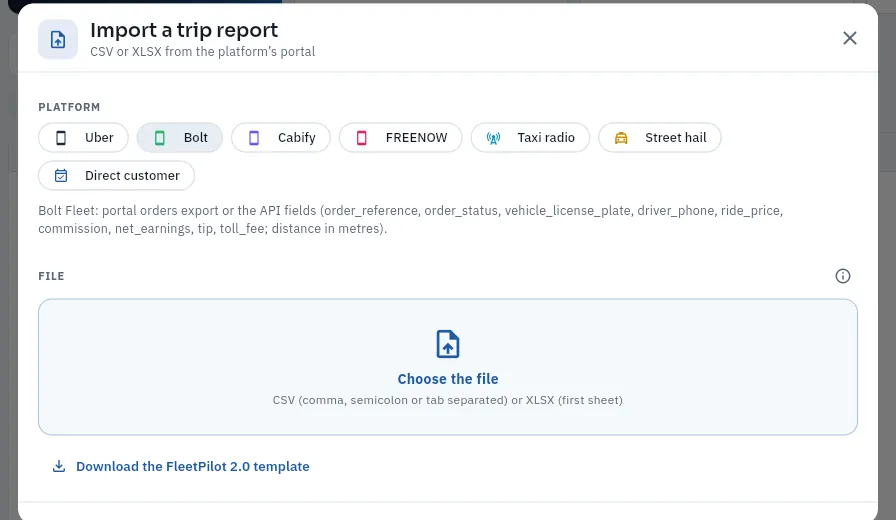 1234
1234
- 1The report's platform: Uber, Bolt, Cabify, FREENOW, the taxi dispatcher, street hails or a direct client.
- 2Which columns it expects from that platform (it recognises them by name, in Spanish or English).
- 3Choose the file: a CSV (comma, semicolon or tab separated) or an Excel file.
- 4FleetPilot's own template, for trips that do not come from any platform.
Before importing you can correct the column mapping. Importing a report again does not duplicate trips: each trip's reference is unique. Each import keeps the original file and can be reverted. Fare revisions lists the trips whose price the platform changed afterwards (Bolt reviews past prices after complaints or route checks), with the original and the new net.
#Platform payouts
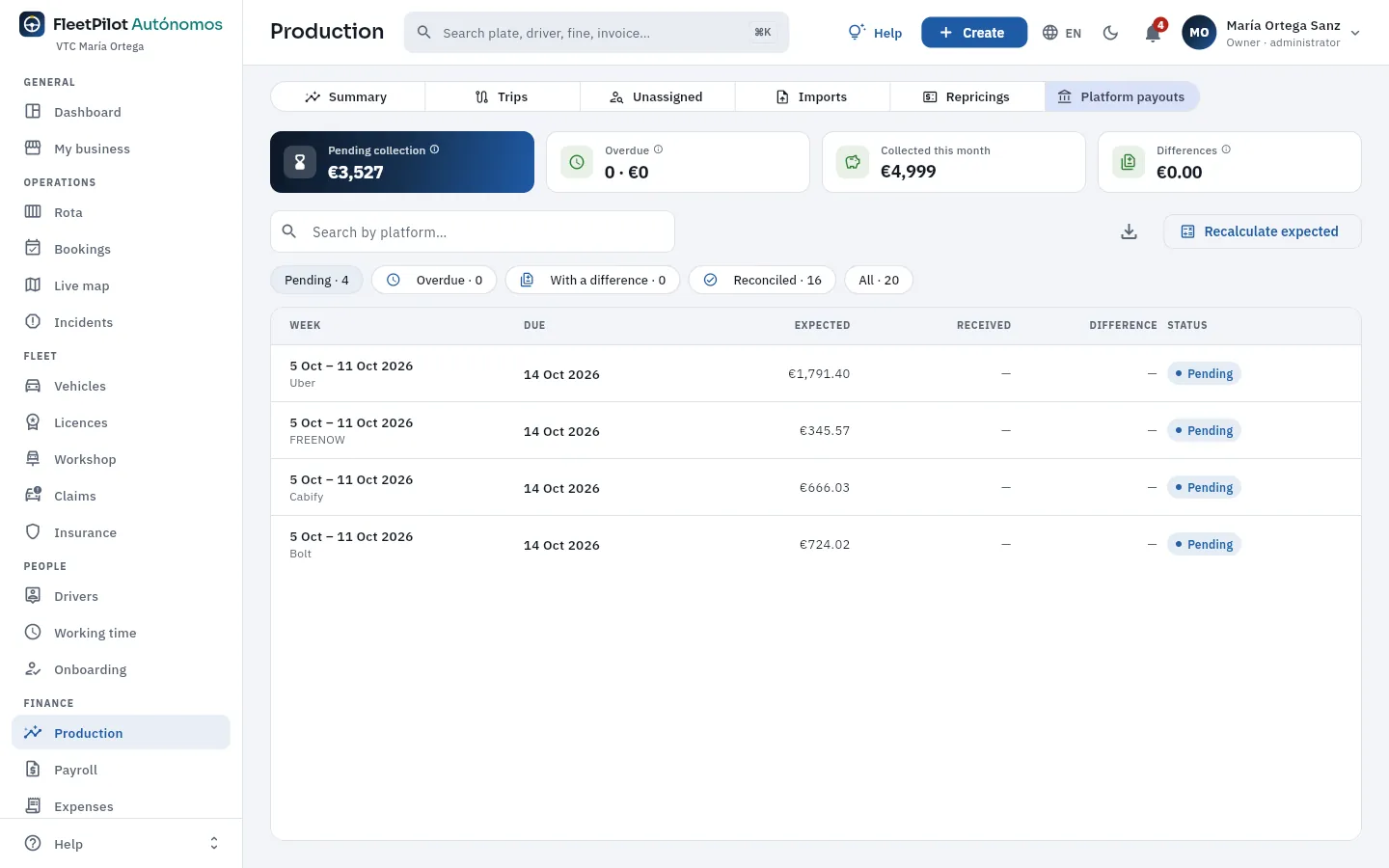 1234
1234
- 1Pending collection, overdue (the expected date has passed), collected this month and differences (collected short or over).
- 2Filters: pending, overdue, with a difference, reconciled and all.
- 3Recalculate expected with trips that arrived later.
- 4Each week and platform: expected payment date, what is expected, what was received in your bank, the difference and the status.
#Tips
- Resolve the «Unassigned» every week, before closing payroll.
- Correct the rota before the trip: with the rota right, the rule attributes every trip in that shift on its own.
- If you drive, record your shifts on the rota like anyone else's: that way your trips do not end up unassigned or with someone else.
- Claim from the platform large fare revisions and payout differences.
Finance
Payroll
The collective-agreement variable pay of each of your employed drivers, month by month: their fares, the scale percentage, the fixed pay, the fuel and kilometres allowed, deductions and the approximate net pay; generate, adjust with a reason, close the month and export for your payroll agency. If you drive, you have no payslip.
Your employed drivers are paid under their sector's collective agreement (in Madrid, the VTC one: base salary, length-of-service and quality bonuses) plus variable pay under a productivity agreement on what they bring in, which the agreement itself allows (art. 26). FleetPilot Autónomos works out that variable pay and an approximate payslip for each of them every month, with the trips attributed to them (their own, not the car's: two drivers of the same car are not counted twice). The official payslip is done by your payroll agency with what you export for it (or it exports it itself, if you have invited it: see Users).
A month's payslips are generated whenever you want and, while they are in draft, they recalculate themselves with every change in production, fuel or deductions (each driver sees theirs, simulated, in My shift). At the end of the month you close them: they no longer change and the deductions are applied.
If you drive, you have no payslip: you are not an employee of your own business, so you have no contract, variable pay or working-time record (see If you drive yourself). Your trips count in My business.
#This month's payslips
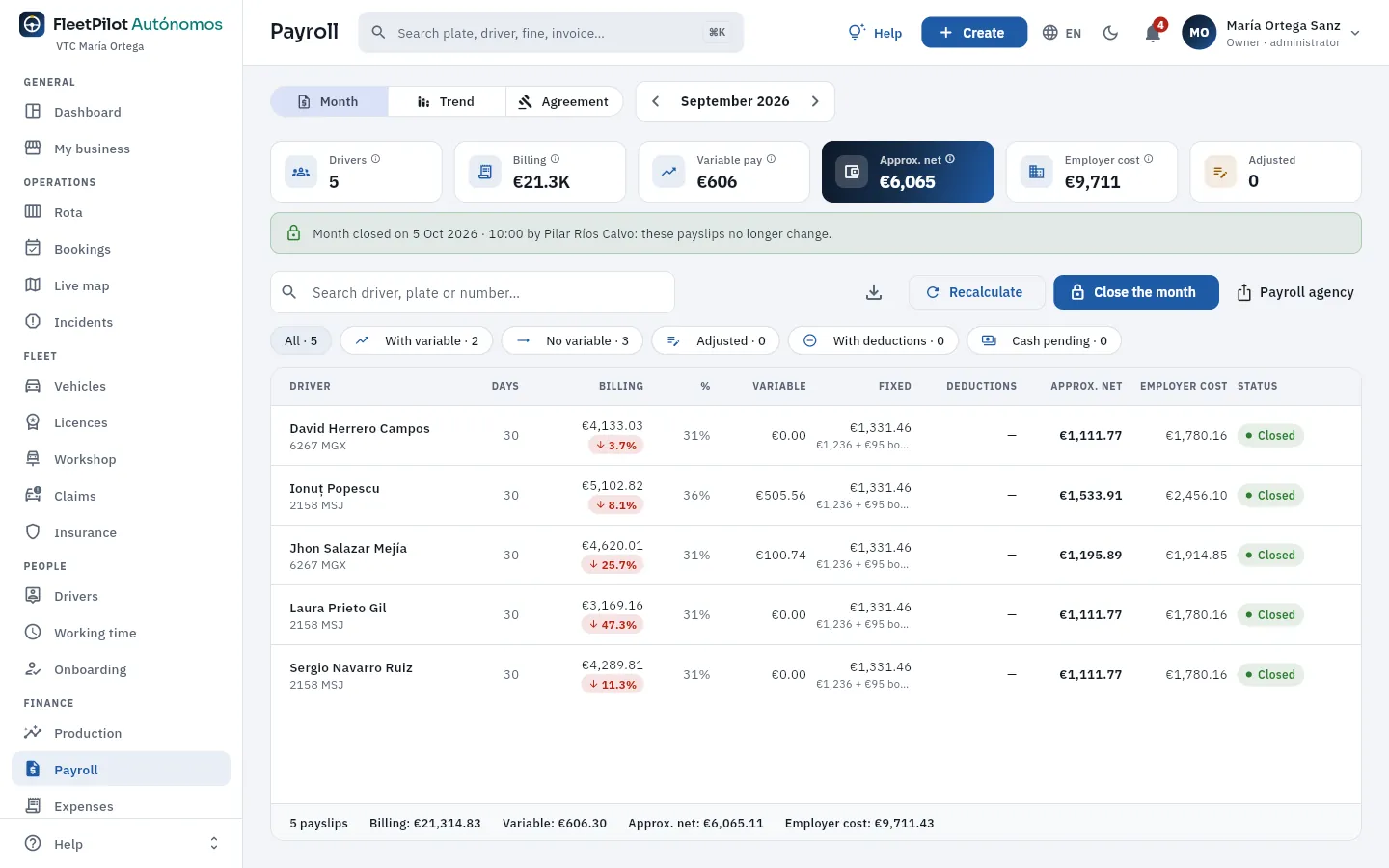 1234567
- 1Three views, Month, Trend and Collective agreement, and the month shown (the arrows go to the previous or next one).
- 2Drivers with a payslip (those who had a contract any day of the month), their turnover and the total variable pay.
- 3Approximate net pay, employer cost (what they cost you) and payslips adjusted by hand.
- 4The month's status: here, closed; the payslips no longer change.
- 5Recalculate (or Generate payroll if the month has none yet), Close the month and export for the payroll agency.
- 6Filters: with and without variable pay, adjusted, with deductions and with cash pending.
- 7By driver: days, fares (with their change), %, variable pay, fixed pay, deductions, approximate net pay, employer cost and status. Click one to see its calculation.
#A driver's payslip
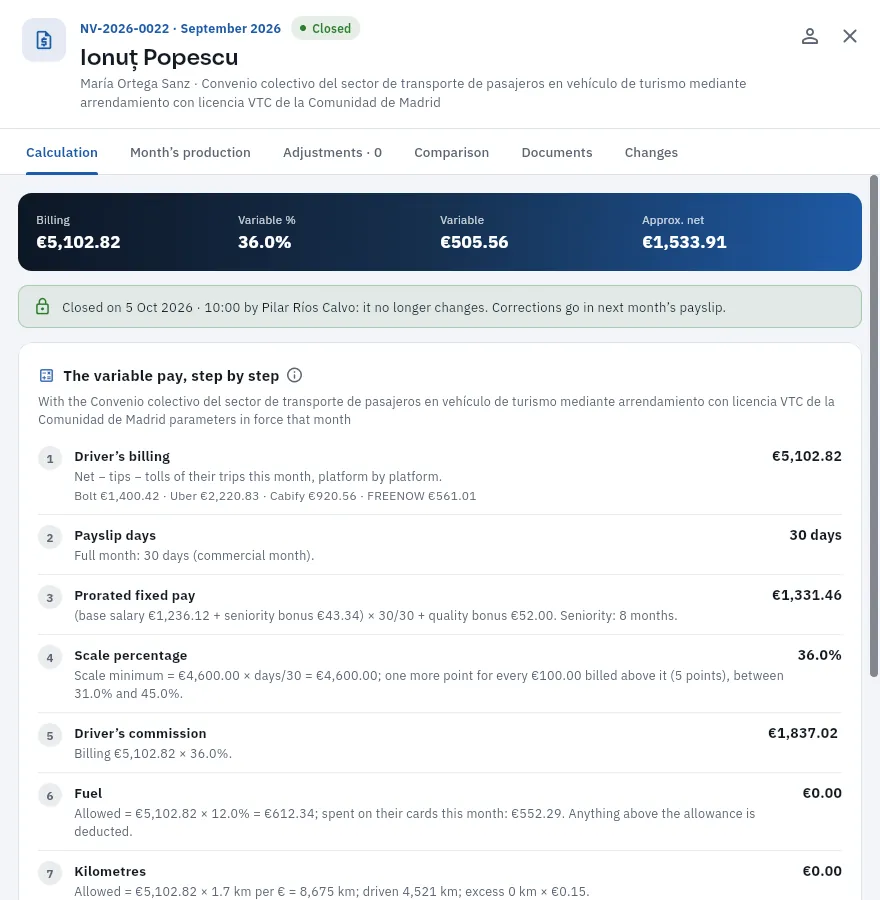 12345
12345
- 1Number, month, status, the driver, their employer (you) and the collective agreement applied.
- 2Calculation, Month's production, Adjustments, Comparison with other months, Documents and Changes.
- 3Turnover, variable %, variable pay and approximate net pay.
- 4Closed: it no longer changes. A correction goes into the following month's payslip.
- 5Step 1, the driver's fares: the net of their trips without tips or tolls, platform by platform.
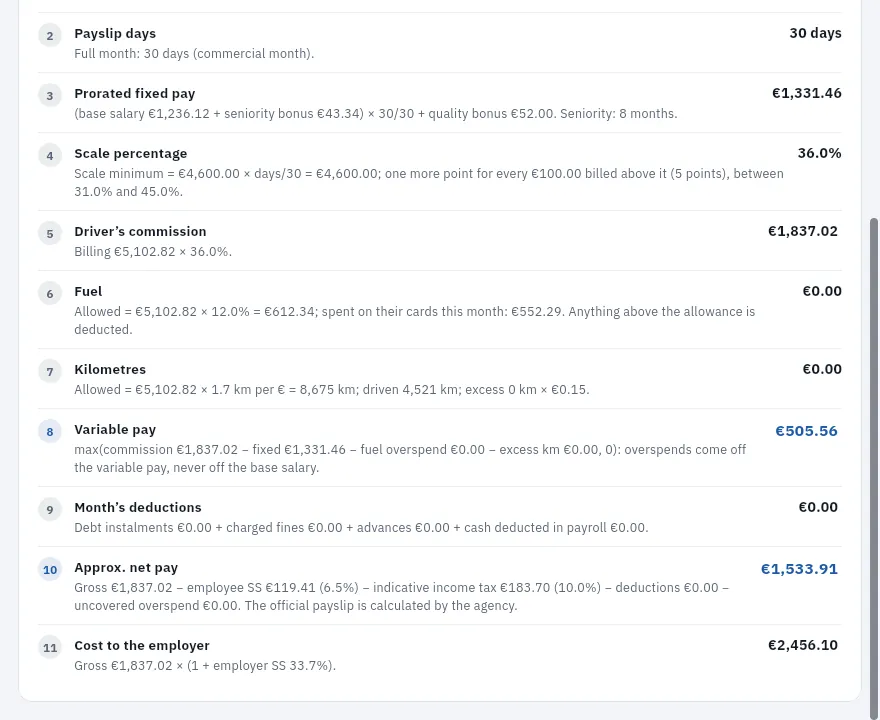 12345
12345
- 1Payslip days and pro-rated fixed pay: base salary + seniority allowance + quality allowance, pro rata for the days.
- 2Scale percentage (one more point for every €100 billed above the minimum) and the driver's commission.
- 3Fuel and kilometres allowed: anything above the allowance is deducted from the variable pay.
- 4The variable pay: max(commission − fixed, 0) − excesses.
- 5The month's deductions, approximate net pay and cost to the employer (you).
#Generate, adjust and close
 12
12
- 1The month being generated.
- 2What is calculated: one payslip for each driver with a contract in the month, with their trips, fuel, kilometres and deductions. Anything adjusted by hand is kept and closed payslips do not change.
A draft payslip can be adjusted: an incentive, an advance or a percentage set by hand, always with its reason. Each adjustment is recorded in the Adjustments tab with who and when, and the value the system calculated stays visible.
First resolve the unassigned trips in Production and review the adjustments.
Open Payroll, choose the month and tap Recalculate one last time.
Review those with deductions or cash pending.
Click Close the month and confirm (FleetPilot Autónomos warns you first if there are unassigned trips in the month).
Export for the payroll agency (Payroll agency): the file with each driver's gross pay, variable pay and deductions.
#The collective agreement
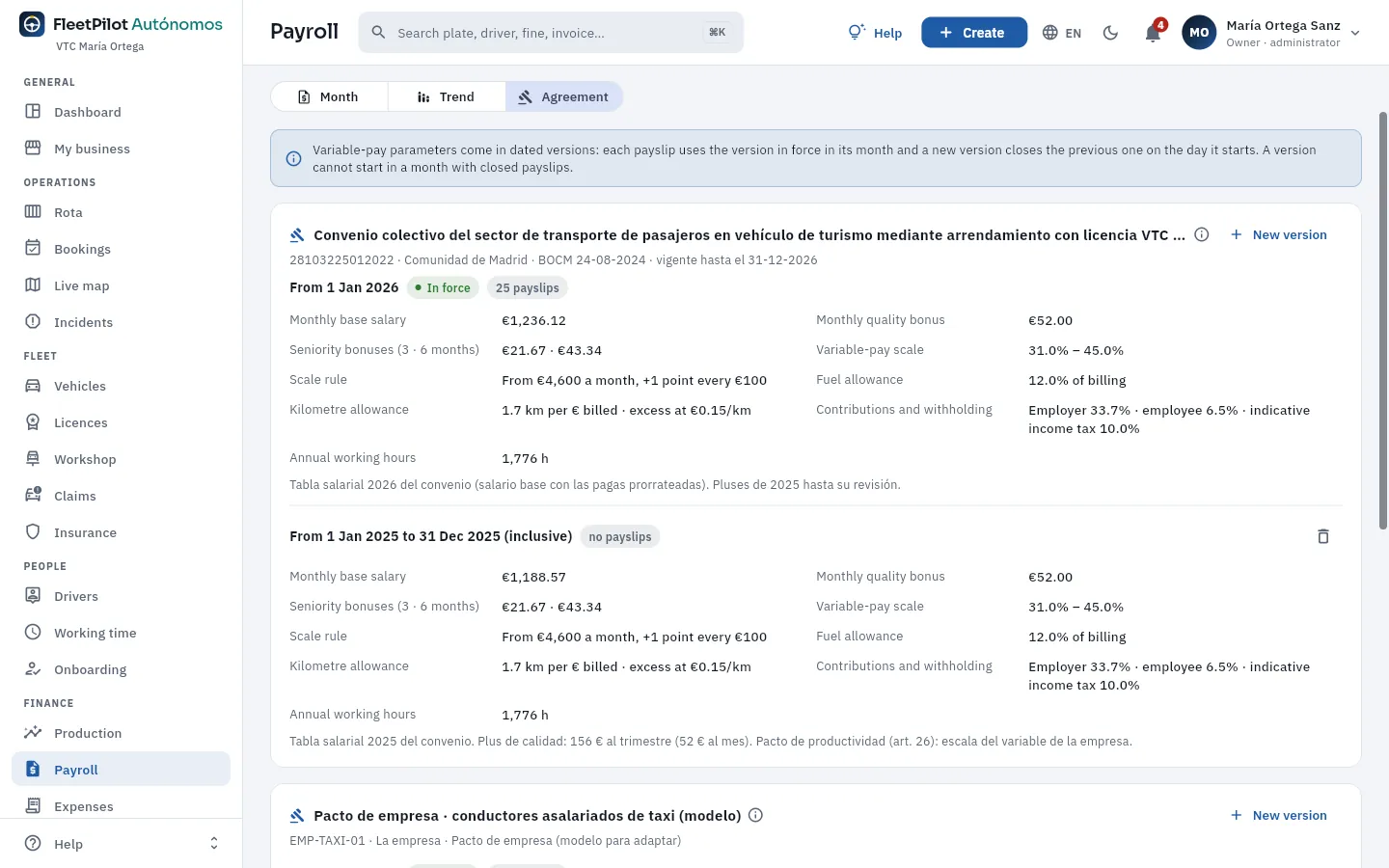 1234
1234
- 1Parameters are versioned with their validity: each payslip uses the one in force in its month. A version cannot start in a month with closed payslips.
- 2The agreement (code, region, official gazette and validity) and the 2026 version, in force, with the payslips that use it. New version replaces it from a date.
- 3The parameters: base salary, bonuses, variable pay scale, fuel and km allowed, social security and withholding, and annual hours.
- 4Below, the template company agreements (VTC outside Madrid and taxi) for those without a collective agreement.
#Tips
- Do not close with unassigned trips: those trips count for nobody.
- Check fuel and km excesses before closing: a wrongly attributed refuel lowers the variable pay.
- Change parameters with a new version, never mid-month: closed payslips keep theirs.
Finance
Expenses
The invoices and receipts of your business, your cars and your drivers: their OCR reading, what they are charged to, and approval or rejection with its reason. An approved expense counts in the accounts of your business and of each car.
Expenses gathers what you pay with an invoice or receipt that does not arrive any other way: the monthly car wash, the parking your driver pays when picking up a client at the airport, a tyre change, the leasing instalment, the payroll agency, the phone… For each expense FleetPilot Autónomos keeps:
- The document: date, invoice or receipt number, supplier and their NIF (Spanish tax ID), category and description, and the photo or PDF in the Documents tab.
- The amounts: taxable base (the amount before tax), VAT rate (value added tax; for you, input VAT), VAT amount and total.
- The allocation: what it belongs to: your business in general, a vehicle (it counts in that car's profitability) or a driver, who is recharged for it.
- Its source and status: how it arrived and where it is in the review.
Expenses come in four ways: by hand (New expense); by uploading the photo or PDF and letting OCR (optical character recognition: reading the text in an image) suggest the details; from My shift, when a driver photographs a receipt they have paid; and from the Workshop, with the invoice of a work order. Until you approve it, an expense does not count in My business.
- 1HiringBy hand, with OCR, from «My shift» or from a work order. It stays as a draft.
- 2ApprovedYou accept it: it counts in the accounts of your business and of its car.
- 3RejectedWith its reason. The driver who sent it gets a notification.
#The expense list
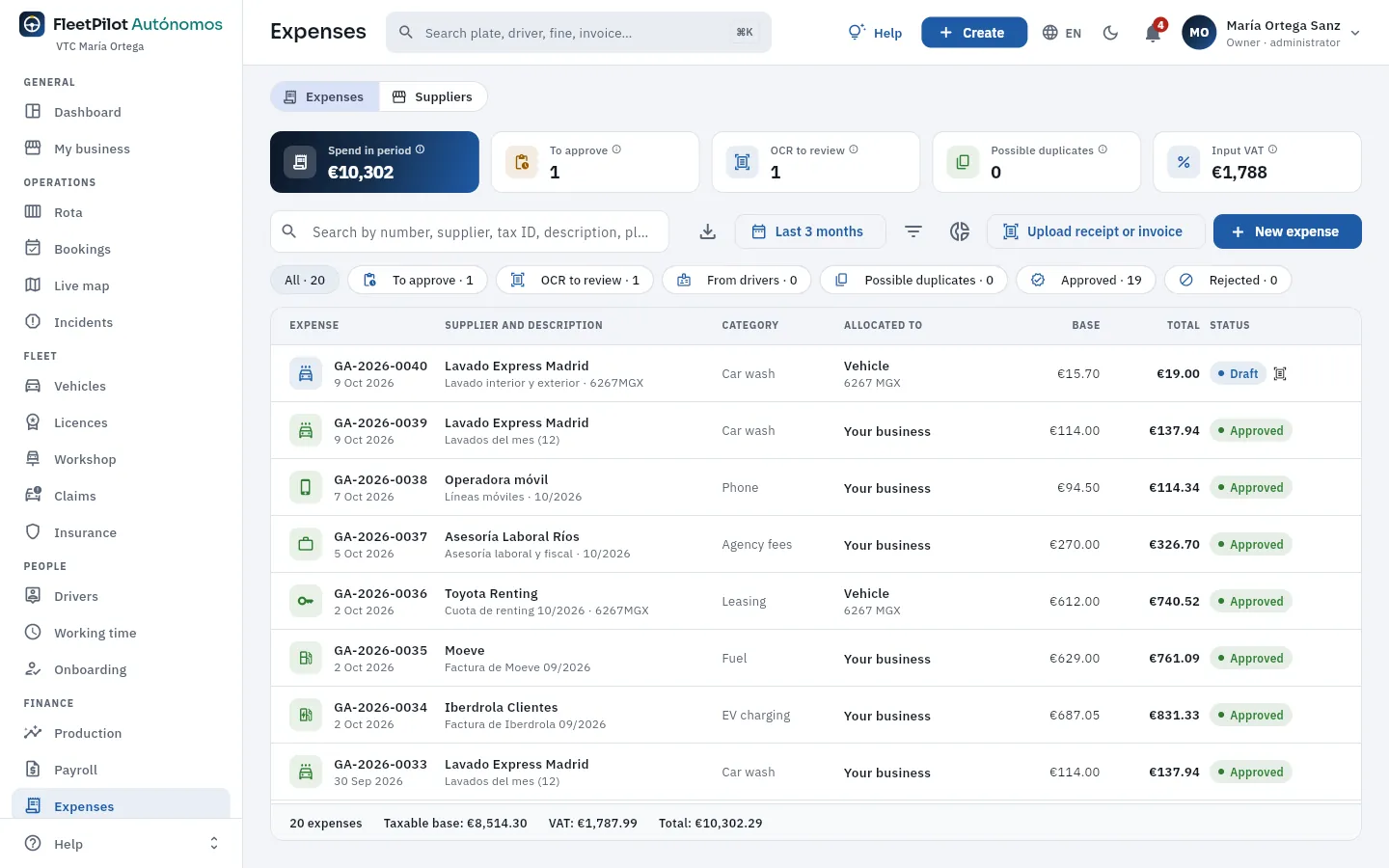 1234567
- 1Expenses in the period: the total including VAT of the expenses in the chosen period that are not rejected.
- 2To approve, OCR to review (read by OCR or sent by a driver and still in draft) and Possible duplicates. Click one to filter the list.
- 3Input VAT: the VAT amount of the period's expenses, as a reference for your quarterly return.
- 4The search box: by number (GA-…), supplier, tax ID, description, invoice number, number plate or driver.
- 5The period, the filters and the analysis; Upload receipt or invoice reads the document with OCR and New expense opens the empty form.
- 6The filters with their count: all, to approve, OCR to review, from drivers, possible duplicates, approved and rejected.
- 7Each expense: number and date, supplier and description, category, allocation (your business, or the car with its plate), base, total and status (the icon on the right: read by OCR).
#An expense's record
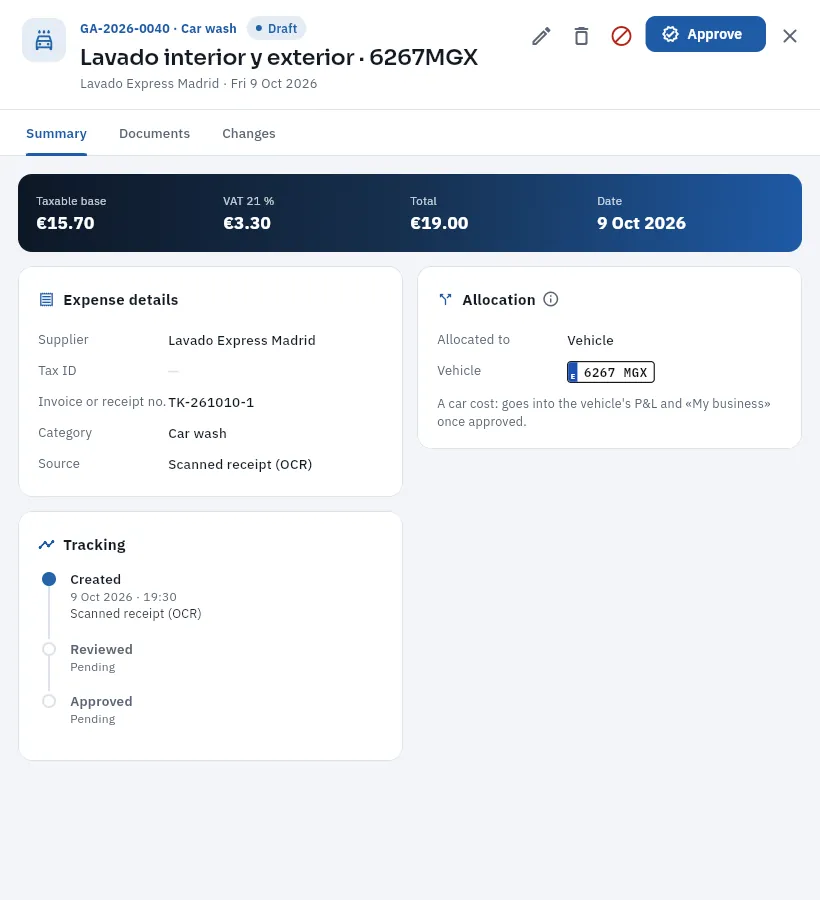 123456
- 1Number, category, status, description, supplier and date.
- 2Approve; to its left, Edit (the pencil), Delete (the bin) and Reject (the red circle, with its reason).
- 3The amounts: taxable base, VAT with its rate, total and the document date.
- 4Expense details: supplier and tax ID, invoice or receipt number, category and source (here, a scanned receipt).
- 5Allocation: to the car 6267 MGX; once approved, it counts in that car's accounts and in «My business».
- 6Tracking: the entry (when and how it came in) and the approval or rejection, with who did it. You approve directly, without the intermediate «reviewed» step.
When a driver pays for something with their own money (parking, a toll, an urgent wash), they enter it from My shift with a photo of the receipt: it reaches you in draft, charged to the car they were driving that day, with source Sent by driver and the OCR confidence for each field. When you approve or reject it, they get a notification (with the reason, if you reject it). Garage invoices arrive with source Work order, linked to their order (see Workshop).
#Uploading a receipt with OCR
Upload receipt or invoice asks for the file (a photo or a PDF), reads it and opens the Review the document reading form with what it suggests. In the demo the reading is simulated: it has the same shape as the real one (supplier, tax ID, number, date, base, VAT, total, suggested category and the confidence of each field), but it makes up the details from the file name. With the AI integration in live mode (see Integrations), the reading is done by the model.
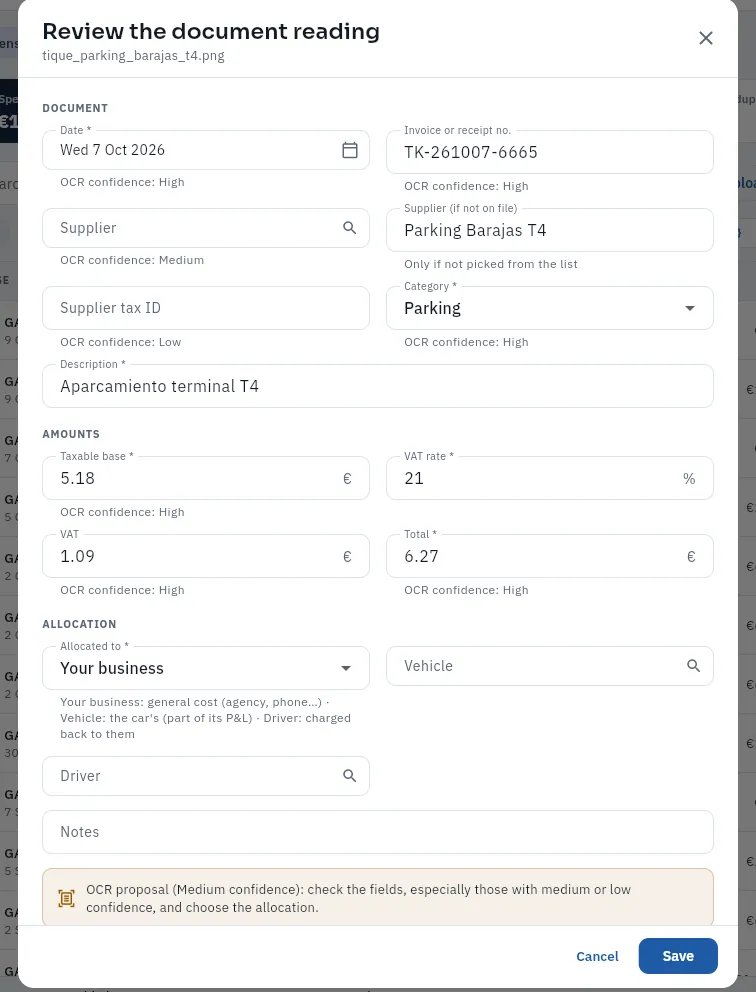 123456
- 1Under each field, the OCR's confidence in what it has read: start with those of medium or low confidence.
- 2Supplier tax ID: empty and with low confidence, because the receipt does not include it.
- 3The category it suggests (when you choose a supplier from the list, the one for its type).
- 4Amounts: changing the base or the rate recalculates the VAT and the total; if you only enter the total, it works out the base.
- 5Allocation: your business, a vehicle or a driver; if you choose vehicle or driver, you must say which.
- 6The summary of the proposal with its overall confidence. Save has not been tapped in the screenshot.
In Expenses, tap Upload receipt or invoice and choose the photo or PDF.
Review the proposal, starting with the fields with medium or low confidence: date, number, supplier, tax ID, category, description and amounts.
Choose the allocation: if it belongs to a car, Vehicle and its plate; if it is recharged to a driver, Driver; otherwise, your business.
Click Save. If there is another identical expense (same supplier and invoice number, or same total within ±3 days), it asks whether it is a duplicate.
#Approving and rejecting
Review the drafts (To approve): compare the details with the document, correct what is needed with the pencil and click Approve. If you do not accept it (a personal receipt, a duplicate), Reject asks for the reason:
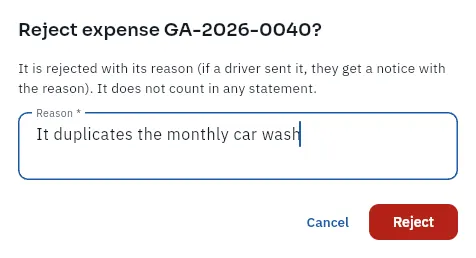 12
12
- 1Which expense is rejected and what happens: it stays rejected with its reason and counts for nothing.
- 2The reason, required; if a driver sent it, they get it in their notification.
To correct an expense already approved or rejected, open it and click the padlock, Reopen: it goes back to Draft, is corrected and approved again. The Suppliers view gathers those who invoice you (garages, car washes, petrol stations, charging operators, insurers, leasing, your payroll agency…), with what you spent with each one in the last twelve months.
#Tips
- Approve every week: anything not approved does not count in the month's accounts in My business.
- Ask your drivers for a photo of the whole receipt, with the amount and the tax ID visible: the reading comes out with more confidence.
- Charge to the car whatever belongs to a car (washes, parking, tyres, leasing): that way you know what each one earns you.
- Choose the supplier from the list instead of typing it: its tax ID and type fill in by themselves and the duplicate check works.
Finance
Fuel cards
Your fuel, EV charging, toll and cash deposit cards, with their assignment to a driver or a car and their history; each transaction attributed to whoever had the card or the car at that moment; anomalies and reconciliation with the issuer's invoice.
Each car or each driver carries cards from the issuers (Moeve, Solred, Galp, Iberdrola, Zunder, Vía T…): fuel, EV charging, toll and the cash deposit card for the bank (see Cash). A card can go with a driver (used in any car) or with a car (used by whoever drives it on each shift). Every change of assignment is kept in its history, with its start and end.
Transactions arrive from each issuer (simulated in the demo) and FleetPilot Autónomos attributes them to whoever had the card —or the car— at that moment: your driver or you, if you drive. That way fuel goes into the payslip of the driver who filled up (the fuel allowed in the variable pay: see Payroll) and into the car's costs in My business.
#The list of cards
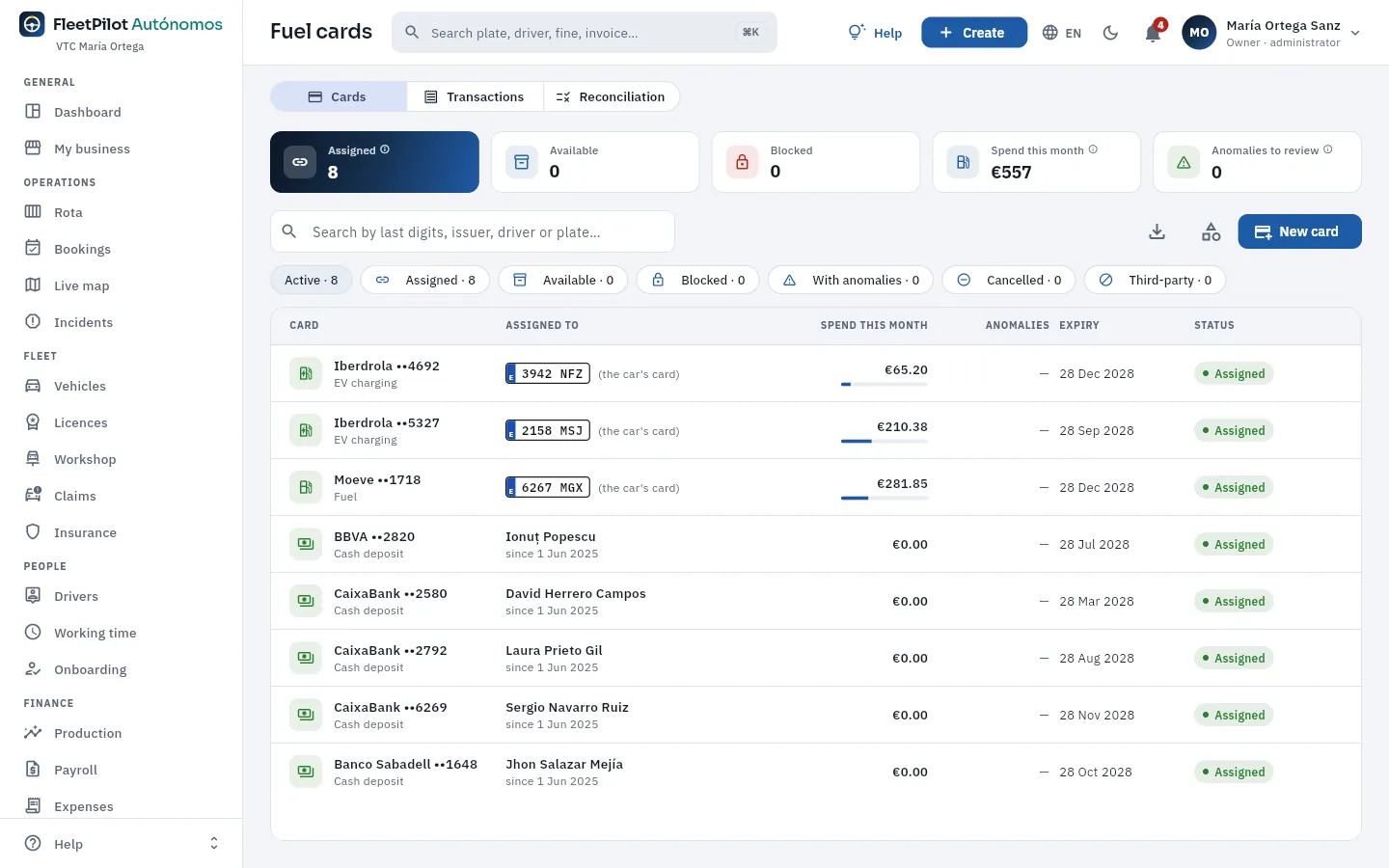 1234567
- 1Three views: Cards, Transactions and Reconciliation.
- 2Assigned, available and blocked cards, and the month's spend.
- 3Anomalies to review: transactions with something odd that you have not looked at.
- 4New card.
- 5Filters: active, assigned, available, blocked, with anomalies, cancelled and third-party (from another business, which show up in the issuer's API).
- 6Those that go with a car («the car's card»), with the month's spend against their limit.
- 7The cash deposit cards, each with its driver and since when they have had it.
#A card's record
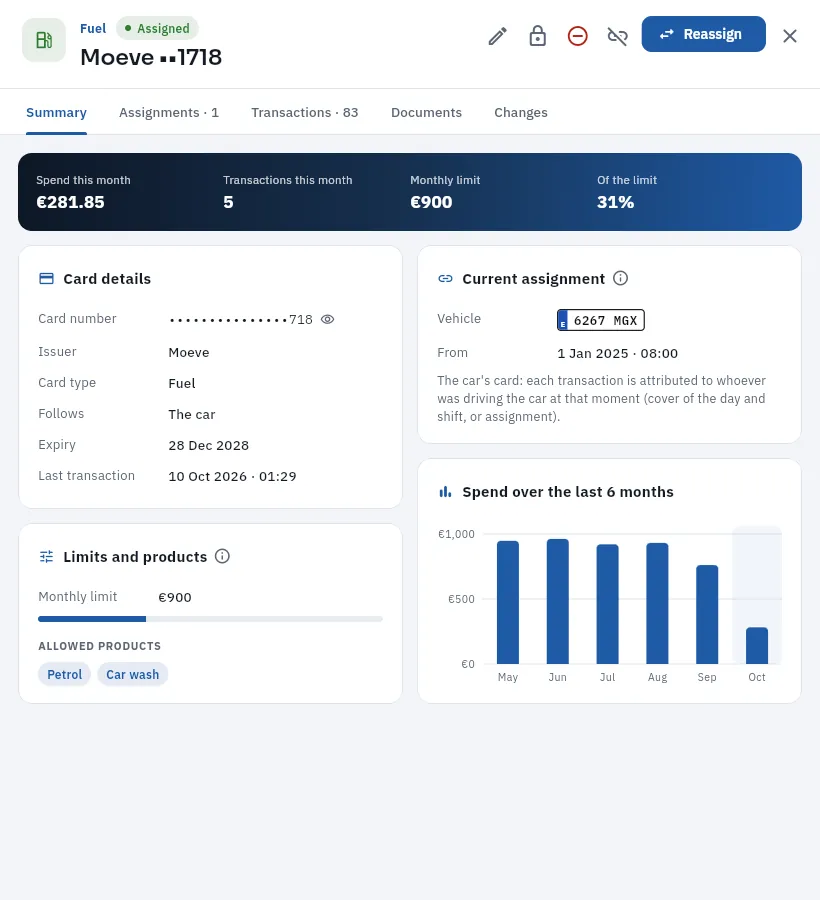 123456
- 1Type, status and issuer with the last digits.
- 2Edit, block, cancel, unassign and Reassign.
- 3Summary, the assignment history, its transactions, documents and changes.
- 4The month's spend and transactions, the monthly limit and how much has been used.
- 5Current assignment: with a car card, each transaction is attributed to whoever was driving the car at that moment.
- 6Limits and products: the monthly limit and allowed products; one outside the list is an anomaly.
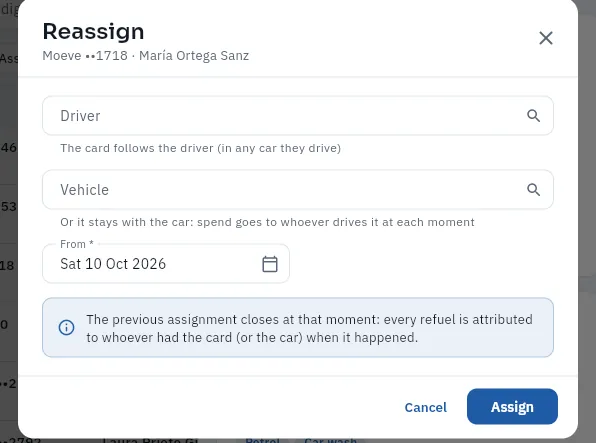 123
123
- 1With a driver: used in any car they drive (you, if you drive, or one of your employees).
- 2Or with a car: each transaction belongs to whoever is driving it at that moment.
- 3From when: the previous assignment ends at that instant.
#Transactions and anomalies
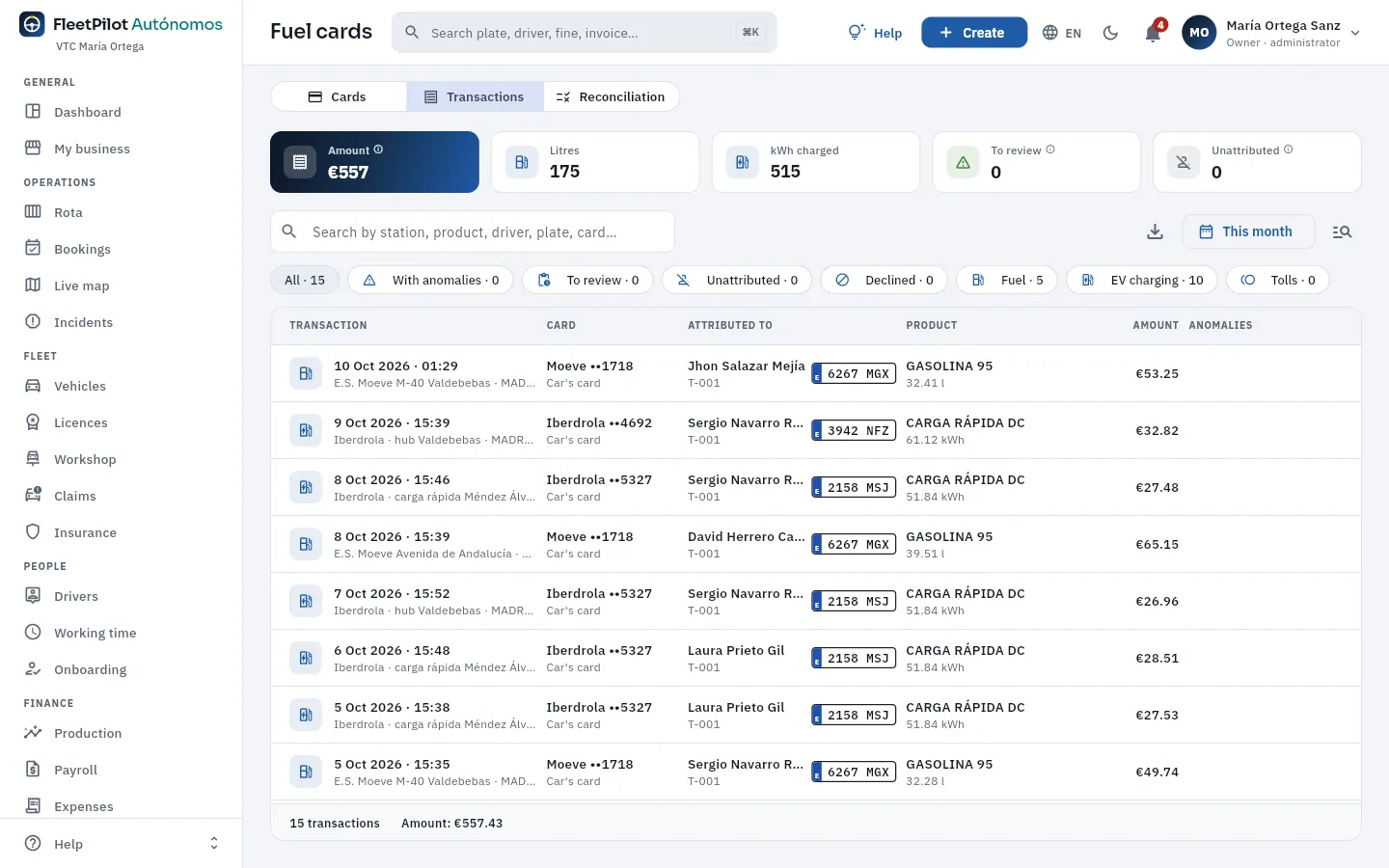 1234
1234
- 1Amount, litres, kWh charged, transactions to review and unattributed to anyone.
- 2Filters: with anomalies, to review, unattributed, rejected and by product.
- 3The card and who the transaction is attributed to, with the car: here, Jhon, who was driving the Corolla that night.
- 4The product with litres or kWh, the amount and the anomalies.
| Anomaly | What it means |
|---|---|
| More litres than the tank | The transaction exceeds the car's tank capacity (with a 5 % margin): was another car filled up? |
| Outside shift | Outside the clocked working time of whoever had the card. |
| Product not allowed | A product the card does not accept (for example, shop items). |
| Fuel for another vehicle | A fuel the car does not use, or a station more than 3 km from where the car was according to its GPS. |
Each anomaly is reviewed (justified or not) and, if needed, a discrepancy is opened. In Reconciliation, Reconcile this month compares the sum of each issuer's transactions with its invoice (an expense in Expenses) and shows the difference.
Open the card and tap Reassign.
Choose whether it goes with a driver or with a car, and from when.
#Tips
- Block the card as soon as it is lost, here and in the issuer's portal.
- Put fuel cards with the car if two drivers share it: each fill-up will go to whoever was driving.
- Reconcile every month when the issuer's invoice arrives: differences are easier to claim early.
Finance
Cash
The cash box of each of your employed drivers: the cash they have collected from passengers according to the platforms against what they have paid into your bank or handed over to you, their balance and the days without handing over; the bank statement reconciled by the last 4 digits of the deposit card. If you drive, you have no cash box: that money is already yours.
Some passengers pay in cash. Whoever was driving has that money, and the platform deducts it from what it pays you each week. Your driver has to hand it over to you: usually by paying it into your bank with their deposit card (a cash card in their name) at any cash machine; they can also give it to you in hand or have it deducted from their payslip.
FleetPilot Autónomos keeps the cash box of each employed driver: what they collected in cash in the last 90 days according to the platforms, minus what they handed over in those 90 days, is their balance. If it goes above the maximum they may keep (€100 by default, in Settings) or they go longer than allowed without handing over (3 days by default), an alert goes off. When you import the bank statement, each deposit made with a cash card is reconciled automatically with the driver who had it that day, by its last 4 digits.
If you drive, you have no cash box: the cash you collect already belongs to your business, so you do not appear in this list (see If you drive yourself).
#Your drivers' cash boxes
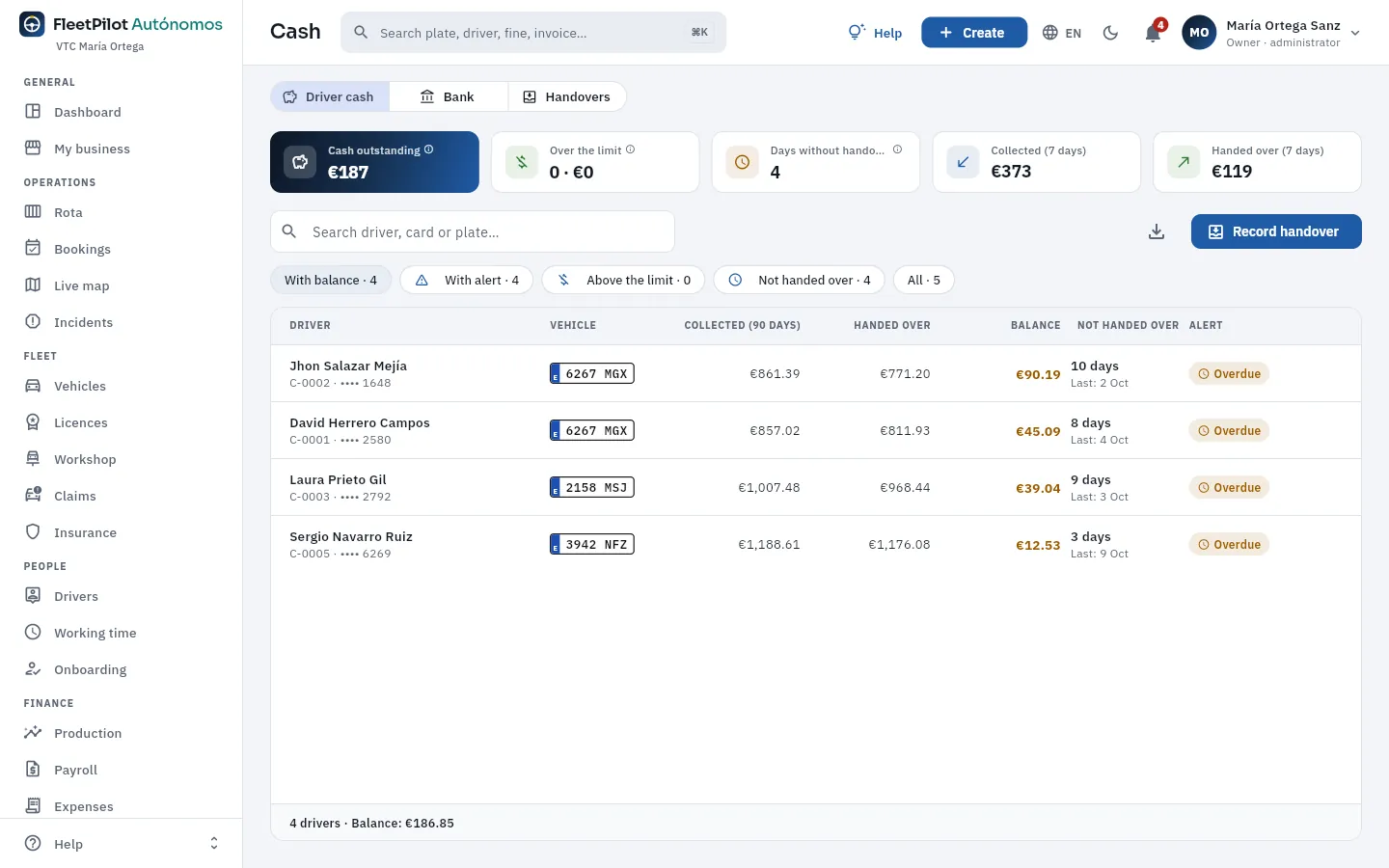 1234567
- 1Three views: Drivers' cash boxes, Bank and Hand-overs.
- 2Cash outstanding: what all your drivers have not yet handed over.
- 3Over the limit (how many and how much) and how many have gone days without handing over beyond the alert.
- 4Cash collected and handed in over the last 7 days.
- 5Record handover: cash they give you in hand.
- 6Filters: with a balance, with an alert, over the limit, not handed over and all.
- 7By driver, with their deposit card and their car: collected and handed over in 90 days, balance, days without handing over (with the last handover) and the alert.
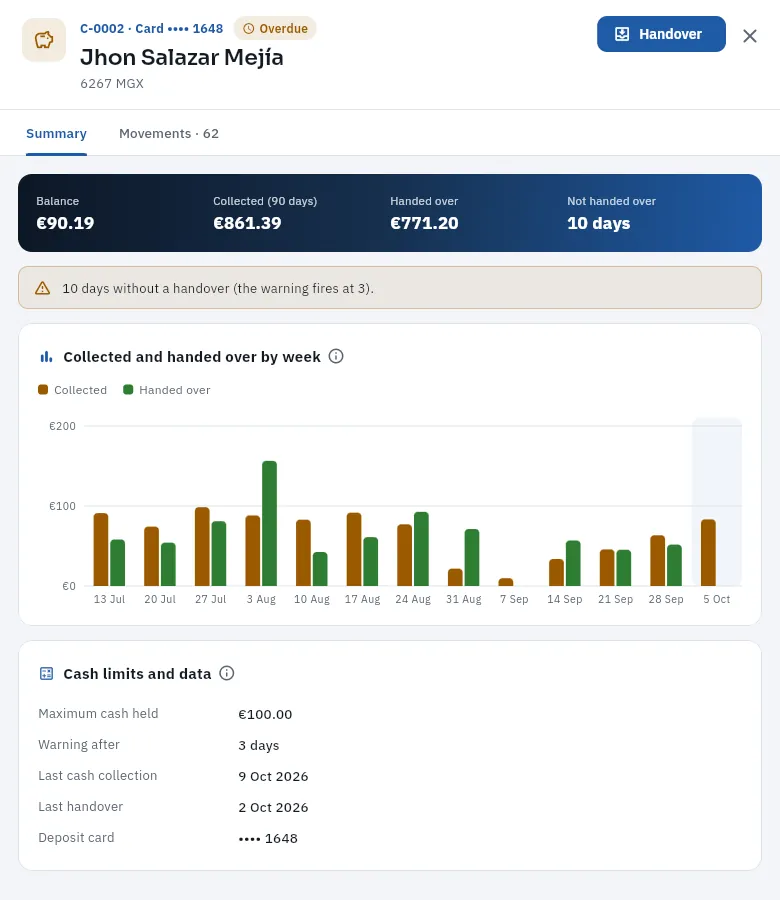 1234
1234
- 1The driver, their deposit card and the status of their cash box. Handover records a handover in hand.
- 2Balance, cash collected and handed in in 90 days and days without handing in.
- 3What was collected and handed over each week.
- 4Their limits: maximum in the box, warning after so many days, last collection, last hand-over and the deposit card.
#The bank and reconciliation
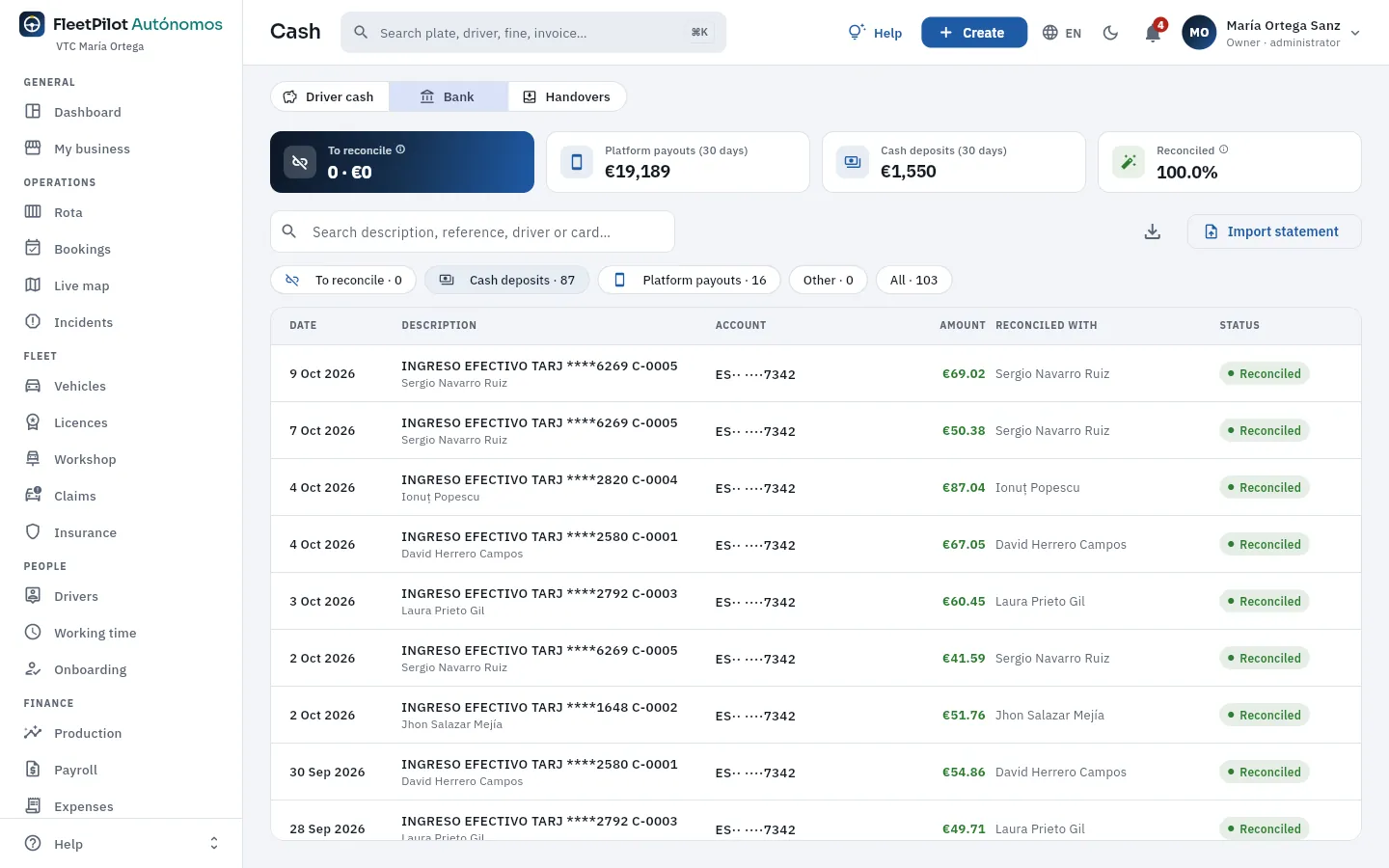 1234
1234
- 1Pending reconciliation, platform payments and cash deposits over 30 days, and the percentage reconciled.
- 2Import statement: your bank's file in Norma 43 (the standard format for Spanish bank statements).
- 3Filters: pending reconciliation, cash deposits, platform payouts, other and all.
- 4Each movement: date, description, account, amount, what it is reconciled with (the driver by their card, or the platform payout) and its status.
A reconciled cash deposit creates the driver's handover and lowers their balance; a platform payment marks its weekly payout as collected (see Production). If a deposit is not reconciled automatically, FleetPilot Autónomos suggests candidates: first whoever had the card with those 4 digits that day; then the person whose name appears in the description; and then those with a balance.
Tap Record handover and choose the driver (those with the highest balance come first).
Enter the amount and the date, and save.
 12
12
- 1A search box for drivers.
- 2Drivers with a balance, highest first, with their code and their balance.
#Tips
- Import the bank statement every week: reconciliation by card is automatic and the alerts clear themselves.
- Give them the deposit card when you hire them: without it, their deposits are not reconciled automatically.
- Start with «Over the limit»: they are the first to ask to pay in.
Finance
Invoicing
The invoices you issue to your business clients for the services you provide them and their credit notes, with transport VAT, the VeriFactu-style chained record, its submission to the AEAT (simulated), the tax QR code, payments and the sales ledger.
Platform trips are invoiced by each platform; you invoice the direct services: the bookings you do for your business clients (a hotel, an agency, a company with an account), at the end of the month or service by service. Each invoice has its series and gap-free numbering (the number is set by the database when it is issued; a draft does not use up a number):
| Series | What it invoices | VAT |
|---|---|---|
| Transport services (FS) | Each client's completed bookings | 10 % (passenger transport) |
| Credit notes (FR) | They correct or cancel an invoice already issued | That of the original |
Each issued invoice is chained to the previous one: it stores the hash (an encrypted fingerprint, SHA-256) of its data and of the previous invoice's hash, as required by the VeriFactu system of the Spanish Tax Agency (AEAT). If someone changed or deleted an invoice behind the application's back, the chain would break. The registration record is prepared to be sent to the AEAT; in the demo the submission is simulated. An issued invoice is not changed: it is corrected with a credit note.
There are no invoices in the demo: these are the empty screens and what each one would show.
#The list of invoices
 123456
- 1Three views: Invoices, Sales ledger and VeriFactu and series.
- 2Invoiced in the period (taxable base), outstanding and overdue.
- 3Drafts and the status of the VeriFactu chain: intact, with the invoices checked.
- 4The period, the chain check (the shield) and New invoice.
- 5Filters: drafts, unpaid, overdue, paid, transport services, credit notes and void.
- 6Each invoice would show its number, the client, the type, the taxable base, the total, the due date and the status (with the sent-to-AEAT mark).
#Creating and issuing an invoice
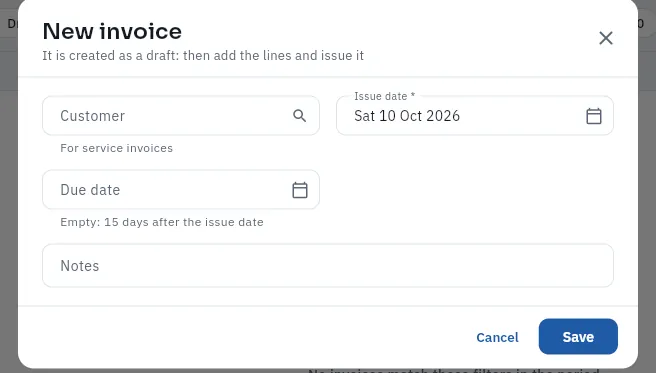 123
123
- 1The business client you invoice (from those you have in Bookings).
- 2The issue date.
- 3The due date (empty: 15 days after issue).
Click New invoice, choose the client and save: it stays in draft.
In the Lines tab, add the month's completed bookings (with the client's discount).
Check the total and issue the invoice.
To correct an issued invoice, open it and click Correct: it asks for the reason and the scope (cancel it entirely or correct part of it) and creates a credit note (series FR) with the lines in negative; when it is issued, the original is cancelled. Mark paid records the date, method and reference of the payment.
#VeriFactu and series
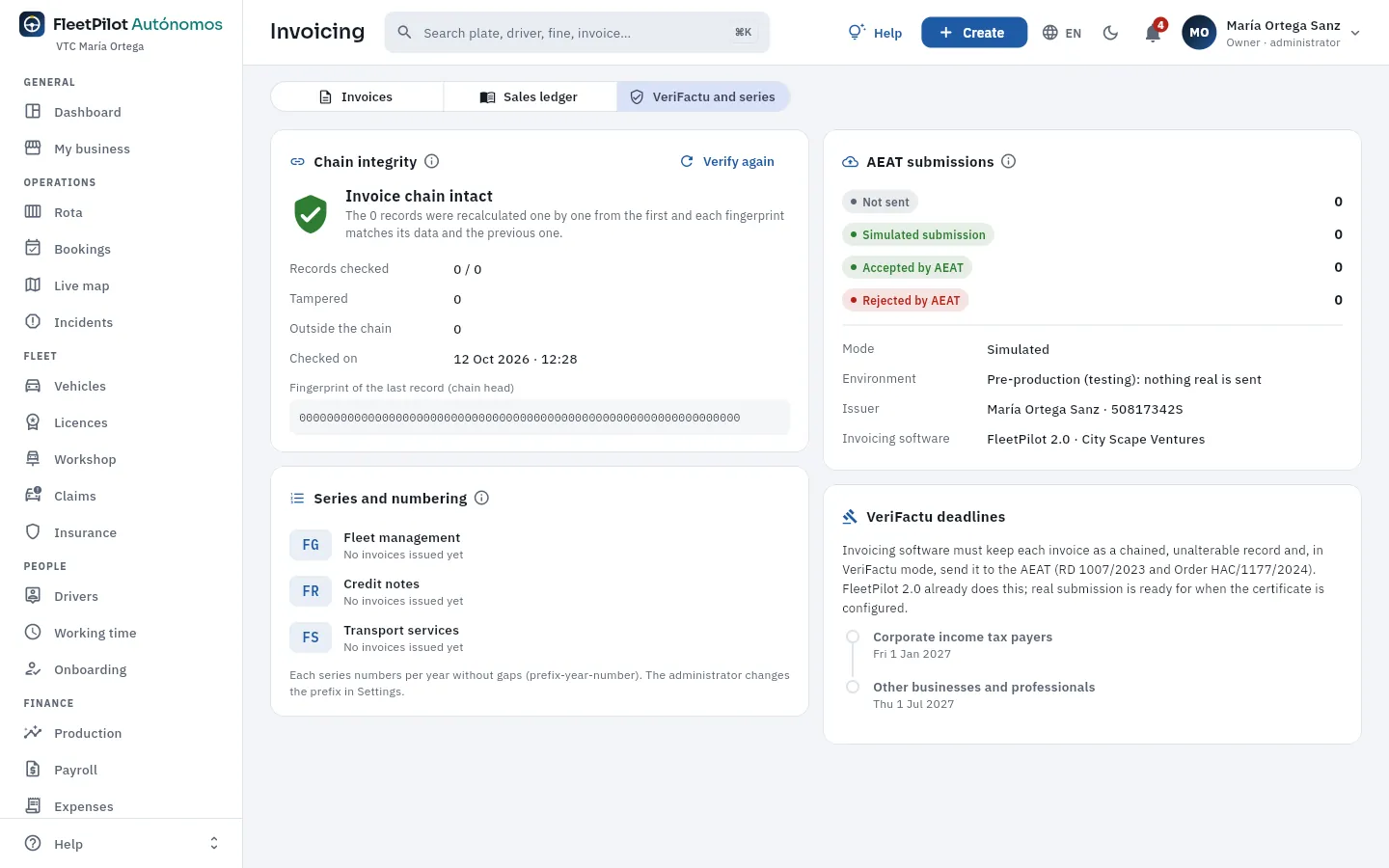 1234
1234
- 1Chain integrity: recalculates every record from the first and checks that its hash matches its data and the previous one's. Verify again checks it again.
- 2The series and their numbering: by year and gap-free (prefix-year-number).
- 3AEAT submissions by status, the mode (simulated), the test environment and who is required to issue: you, with your tax ID.
- 4VeriFactu deadlines: the dates it comes into force. As a self-employed person, the second one applies to you.
The Sales ledger gathers the year's (or quarter's) issued invoices, one row per invoice and VAT rate, with the base and the VAT amount; credit notes subtract. It is exported for your adviser and your quarterly VAT return (form 303).
#Tips
- Review the draft before issuing: afterwards, any change is a corrective invoice.
- Invoice services at the end of the month with the completed bookings: the client's discount is applied automatically.
- Check the chain now and then from VeriFactu and series: it should say «intact».
Control
Fines
Your cars' fines: who had the car (FleetPilot Autónomos proposes them with the evidence), the 20-calendar-day deadline to identify them to the authority, the 50 % early payment, the appeal and who pays: your business or your driver.
Fines come from the DGT (the Spanish traffic authority: speed cameras, phone use), from city councils (traffic lights, bus lanes, the ZBE or low-emission zone) and from the transport inspectorate. The notice always goes to the car's owner, which is you, even if you were not driving: the law requires you to say who was driving, and to do it promptly. Fines gathers each notice with its number (MU-2026-…) and answers three questions:
- Who was driving? FleetPilot Autónomos looks for whoever had the car at the exact time: the driver of the Uber, Bolt, Cabify or FREENOW trip in progress; if there was none, whoever had the car assigned on that shift; if not, the last person who had it. It proposes them with their confidence and the evidence. If you were driving, the proposed driver is you.
- Are you in time? From the notification there are 20 calendar days to identify the driver, and within the same 20 days you can pay with a 50 % discount or submit objections. FleetPilot Autónomos counts the days and warns you.
- Who pays? Your business or the employed driver who committed it; it is deducted from their payslip, in one go or in instalments with an RD (debt acknowledgement), provided they accept it.
Notifications arrive mostly through the DEV (Dirección Electrónica Vial, the DGT's electronic mailbox), on paper or through your payroll agency. Those from the DEV are read with one button; the rest are entered by hand.
- 1NotificationIt arrives through the DEV, on paper or through your payroll agency. The deadlines start running.
- 2Proposed driverTrip in progress → assignment → last assignment, with its confidence.
- 3IdentificationWithin 20 calendar days, with the letter for the authority.
- 4ChargingYour business or the driver, on their payslip or with an RD.
- 5Payment or appealWith 50 % off within 20 days, in full or appealed.
#The fine list
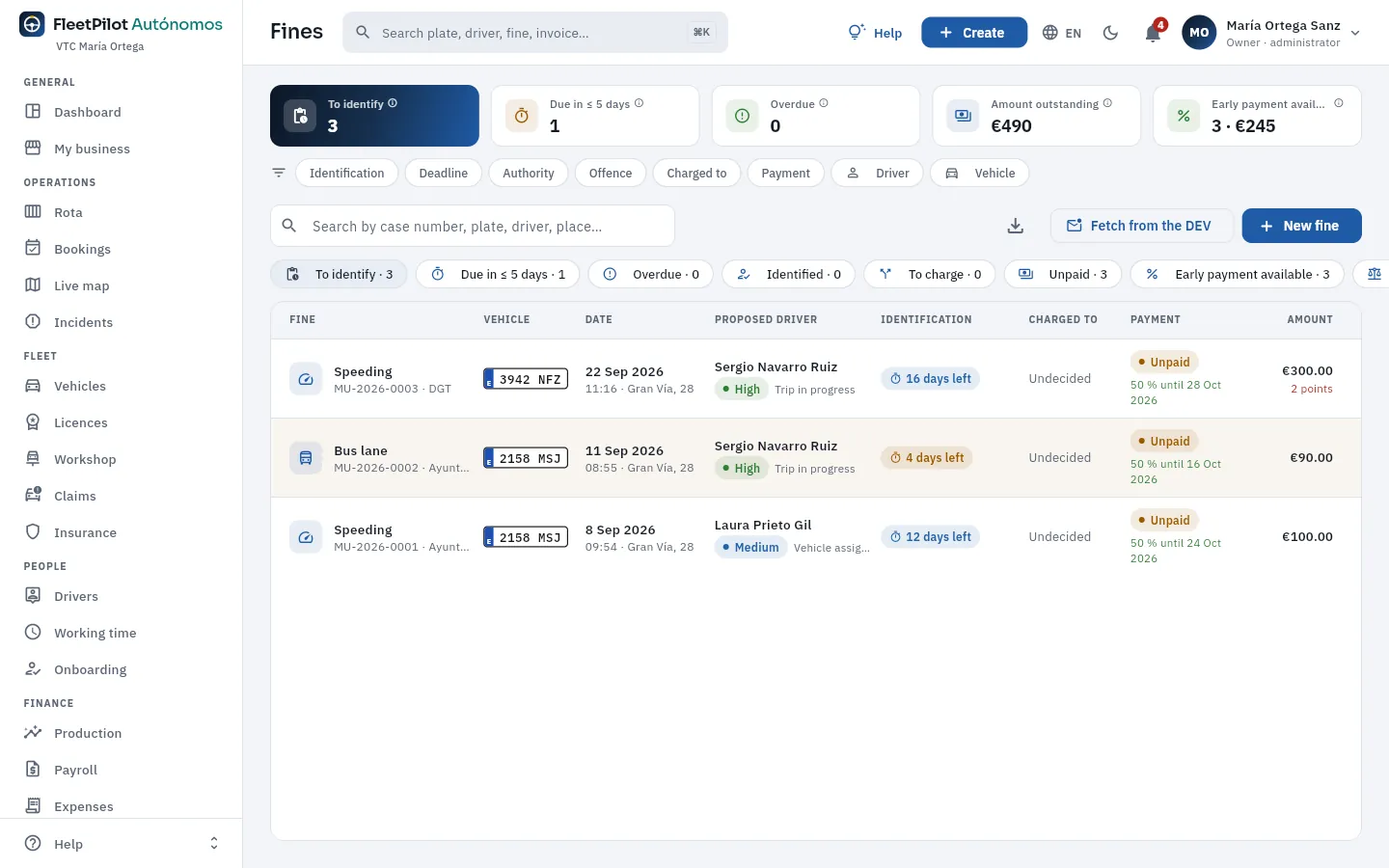 12345678
- 1To identify: fines for your cars whose driver you have not yet reported to the authority.
- 2Due in ≤ 5 days and Overdue (expired without identification or submitted late). Each figure filters the list.
- 3Amount outstanding and Early payment available: how many you can still pay with 50 % off and how much you would save.
- 4The filters (identification, deadline, authority, offence, charging, payment, driver, vehicle) and the search box: case number, plate, driver, place…
- 5Fetch from the DEV reads new notifications from the Dirección Electrónica Vial (simulated in the demo).
- 6New fine creates a notice that arrives on paper or through your payroll agency.
- 7The quick views with their count: to identify, due in ≤ 5 days, overdue, identified, to charge, unpaid, early payment available and appealed.
- 8For each fine, the proposed driver with their confidence, and the deadline to identify them («N days left»): in amber if five or fewer are left, in red if it has expired.
| Identification | What it means |
|---|---|
| N days left | Pending, within the deadline. In amber with five days or fewer. |
| Expired N days ago | Pending and past the deadline: identify it anyway as soon as possible. |
| Submitted | Identified to the authority within the deadline. |
| Overdue | Identified, but after day 20. |
| Not applicable | Nobody had to be identified (for example, a car already sold). |
| No vehicle | The plate is not one of your cars. |
#A fine's record
Each fine has four tabs: Notice, Driver, Charging and payment and Documents (the scanned notification, the proof of payment, the letter submitted…). If it is still to be identified, it opens on Driver. This is the Notice of MU-2026-0002, a bus lane offence by the Kia Niro 2158 MSJ:
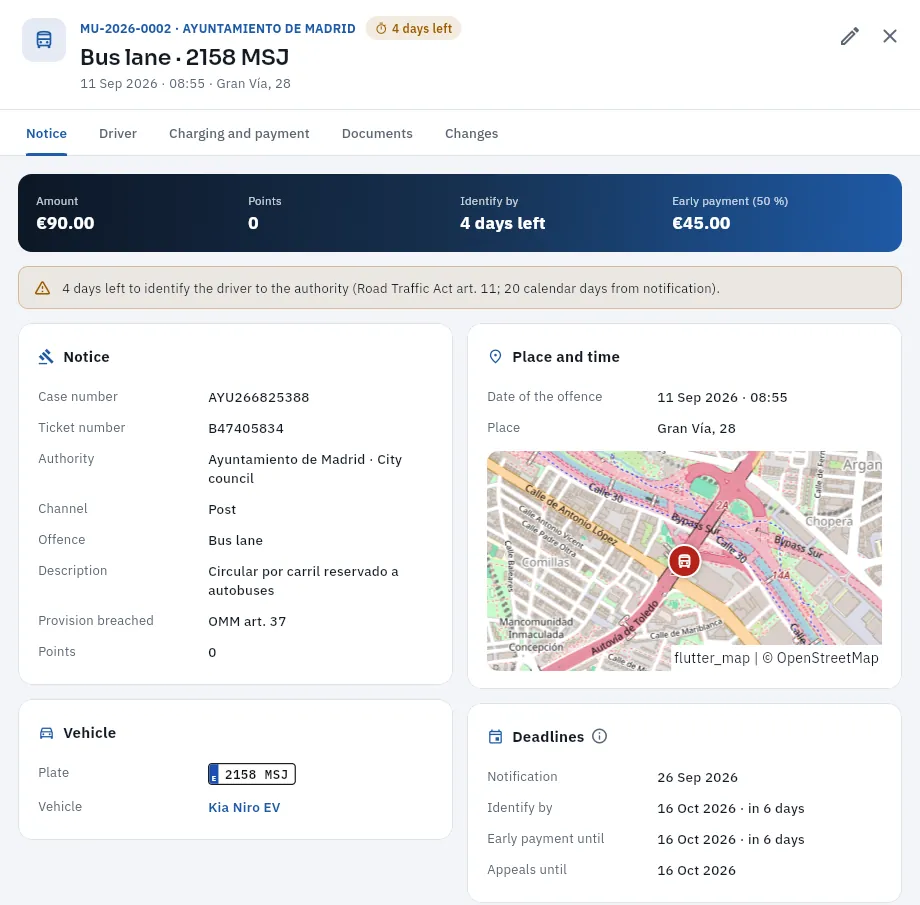 123456
- 1Number and authority, the deadline left, the offence with the plate, and the date, time and place.
- 2The key figures: amount, points, Identify by and what it would cost with early payment (50 %).
- 3Notice: case number, ticket number, authority, channel it arrived through, offence, description, provision breached and points.
- 4Place and time of the offence, with the point on the map.
- 5The vehicle, with a link to its record.
- 6Deadlines: the notification and, from it, until when you can identify, pay with the discount and appeal.
#Who was driving: the evidence
The Driver tab is the one you use to identify. At the top, the proposed driver; below, Who had the car?, with all the sources together, and the evidence level by level. This is MU-2026-0003, a DGT speed camera on Gran Vía at 11:16 on 22 September, during an Uber trip:
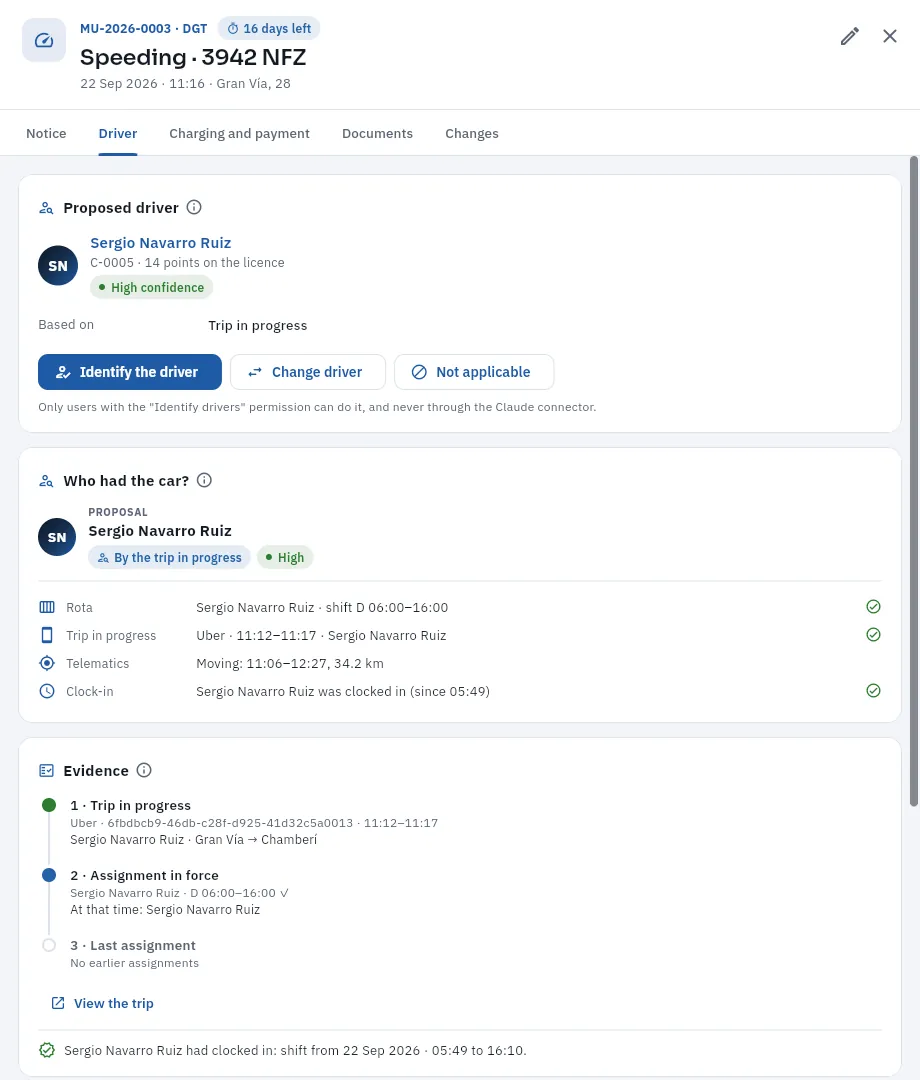 123456
- 1The proposed driver, with their code, their licence points and the confidence of the proposal.
- 2Based on: where the proposal comes from (here, the trip in progress).
- 3Identify the driver: reports them as responsible and prepares the letter for the authority.
- 4Change driver (if it was someone else, with the reason) and Not applicable (if nobody has to be identified).
- 5Who had the car?: the sources, each with what it says —the rota, the trip in progress, the telematics and the clock-in—; the green tick, that it agrees with the proposal.
- 6The cascade evidence: 1, the trip in progress (View the trip opens its record); 2, the assignment of the shift that contains the time; 3, the last assignment. Below, the proposed driver's clock-in.
| Based on | Confidence | When |
|---|---|---|
| Trip in progress | High | At the time of the offence there was a platform trip with that car: its driver. |
| Vehicle assignment | Medium | There was no trip, but the car was assigned to someone on that shift (or covered that day by a cover). |
| Last driver | Low | Nobody had it at that time: the last person it was assigned to. |
| Manual | High | You changed it by hand with Change driver, with the reason. |
If the levels do not agree (the car was assigned to one person and the trip was done by another), check before identifying: there may be a shift swap that was not entered as a cover on the Rota. The clock-in line helps: «had clocked in» supports the proposal.
#Identifying the driver
 123
123
- 1FleetPilot Autónomos asks for confirmation: identifying is a statement you make, as the owner, to the authority.
- 2Who is identified, to whom and until when there is time. On confirming, the letter is generated as a PDF and it is recorded.
- 3Identify the driver (not tapped in the screenshot).
In Fines, tap the Due in ≤ 5 days view (or To identify) and open the fine: it opens on the Driver tab.
Read the evidence: the trip in progress, the assignment of their shift and the clock-in. If needed, tap View the trip.
If it was someone else, tap Change driver, choose them and write the reason (a shift swap, a statement…).
Tap Identify the driver and confirm.
The identification letter opens as a PDF: submit it through the DEV, the DEHú or the authority's online office and keep the receipt in Documents.
The identification letter carries your details as the owner, those of the car, the notice and the driver (name, ID, driving licence number with its issue date, and address), with the declaration under article 11 of the Traffic Act and the signatures. If the driver's licence number is missing, the tab warns you: complete it on their record in Drivers before submitting.
#If you were driving
If the fine is from a day when you had the car, FleetPilot Autónomos proposes you, with the same evidence. This is how Tomás Rey sees it; he drives his Toyota Corolla 7247 LTY by day:
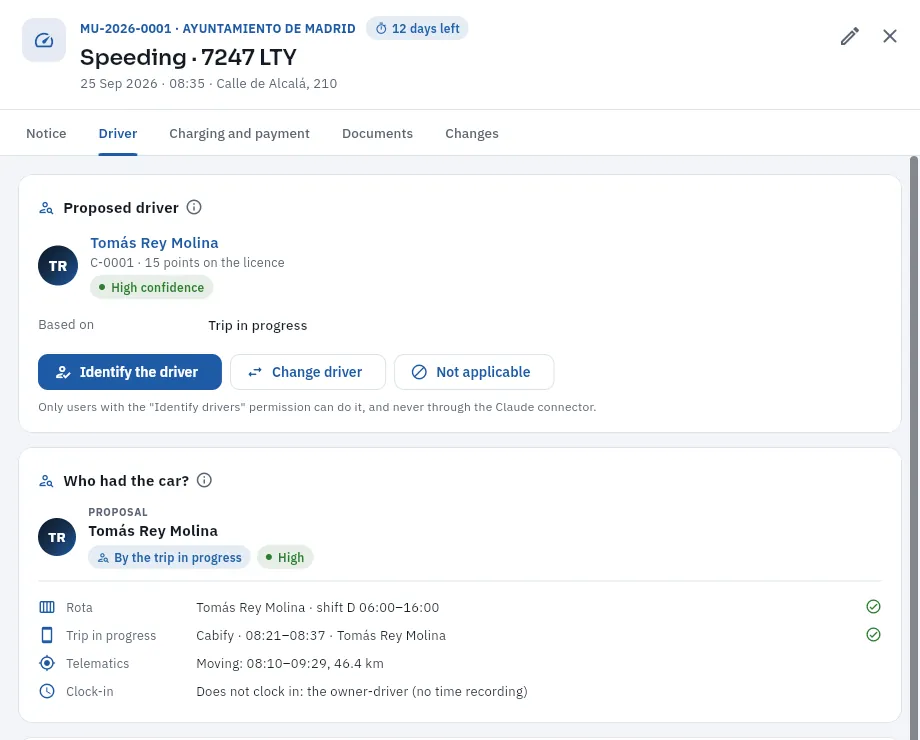 1234
1234
- 1The proposed driver is Tomás, his owner-driver record (C-0001), with the points on his licence.
- 2Based on the trip in progress: a Cabify he was doing at that time.
- 3The rota, the trip and the telematics confirm it (the clock-in does not apply: the owner does not clock in).
- 4It is identified in the same way: the letter states that the owner himself was driving. Your business pays the fine and the points are on your licence.
#Who pays: charging
Identifying says who was driving; charging decides who pays. In the Charging and payment tab, Charge lets you choose Charged to: Your business pays or Driver (only an employee, and only if the offence was theirs).
 12345
12345
- 1Charged to: Your business pays or Driver.
- 2The status: «Notified» sends a notification to the driver, who accepts it or objects from My shift.
- 3Amount passed on: what is deducted from them; by default, what was paid or the fine's amount.
- 4Open a debt acknowledgement: the driver signs it and it is deducted in instalments from the following month's payslip.
- 5Save (not tapped).
The driver gets the notification in My shift: they accept it (it becomes «Accepted») or reject it with an objection. Accepted and without an RD, the amount goes into the deductions on that month's payslip (Payroll); with an RD, in the RD's instalments, once signed. If it was paid with the early payment, the fair thing is to pass on what was paid: €150 of a €300 fine.
#Paying or appealing
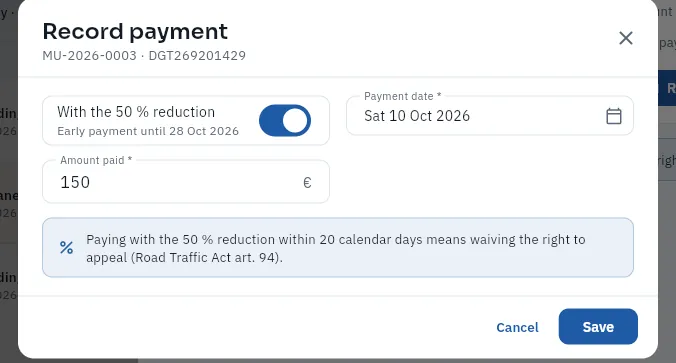 12345
12345
- 1With the 50 % reduction: ticked while the early payment lasts, with its deadline.
- 2Payment date: it cannot be in the future nor, with the reduction, after the deadline.
- 3Amount paid: half with the reduction (€150); the full amount without it.
- 4The reminder: paying with the reduction means giving up the right to object.
- 5Save (not tapped).
An unpaid fine can be paid or appealed: Record payment leaves it Paid (discounted) or Paid; Appeal asks for the objections (pre-booked service, another driver, wrong plate…) and leaves it Appealed, no longer eligible for early payment. When the decision arrives, Record appeal outcome: upheld, it is cancelled; dismissed, it goes back to pending payment for the full amount.
Fetch from the DEV brings in new notifications from your DGT mailbox with the driver already proposed (simulated in the demo; the real connection is set up in Integrations). What arrives on paper, through DEHú (Dirección Electrónica Habilitada única, the other administrations' mailbox) or through your payroll agency is entered with New fine: the authority, the case number, the notification, the car, the date and time, the offence, the provision, the amount and the points.
#Tips
- Check the Due in ≤ 5 days view every morning: it also reaches you as a notification on the bell.
- Tap Fetch from the DEV every day: a notification not opened within 10 days is deemed rejected.
- Do not identify a medium or low confidence blindly: check the assignment and the clock-in.
- Enter covers on the Rota: that way the proposal gets right whoever covered a single day.
- Pay early whatever you are not going to appeal: half the amount.
Control
Discrepancies
What does not add up when cross-checking the platforms' trips, GPS, cards, the rota, working time, insurance and the bank: km without service, odd fill-ups, trips without clocking in, cash not paid in, payouts that do not match…, with its evidence and its resolution; and each driver's risk score.
Every day the database cross-checks the data coming from different places and opens a discrepancy for whatever does not add up. Each one has its type, its severity (high, medium or low), the car and driver involved (attributed by time), the evidence as it was when detected, and its status (open, under review, confirmed, justified or dismissed).
| Type | What it cross-checks |
|---|---|
| Km without service | GPS journeys that do not match any platform trip (above all outside working time) |
| Fill-up outside shift, larger than the tank, for another vehicle, product not allowed | Card transactions against the car, the tank and working time |
| Online outside shift | Hours connected to the platforms with no clocked working time |
| Low fares | The week's fares against the driver's usual |
| Cash not paid in | Days without handing over cash and a balance above the maximum (see Cash) |
| Platform payout mismatch | What was received in the bank against the week's expected payout |
| Unknown number plate, Fare revision | Trips with a plate that is not yours; prices changed afterwards |
| Worked without clocking in, Working time exceeded, Insufficient rest | Your employees' working time against their trips |
| Service without insurance, Service with expired MOT | Trips by a car with no policy in force or with an expired MOT (ITV) |
If you drive, the working-time ones are not opened for you (you have no working-time record), nor the cash ones (you have no cash box); km without service outside working time, only if they exceed 100 km in the day. Insurance, MOT and platform payout ones apply to you like anyone else.
#The list of discrepancies
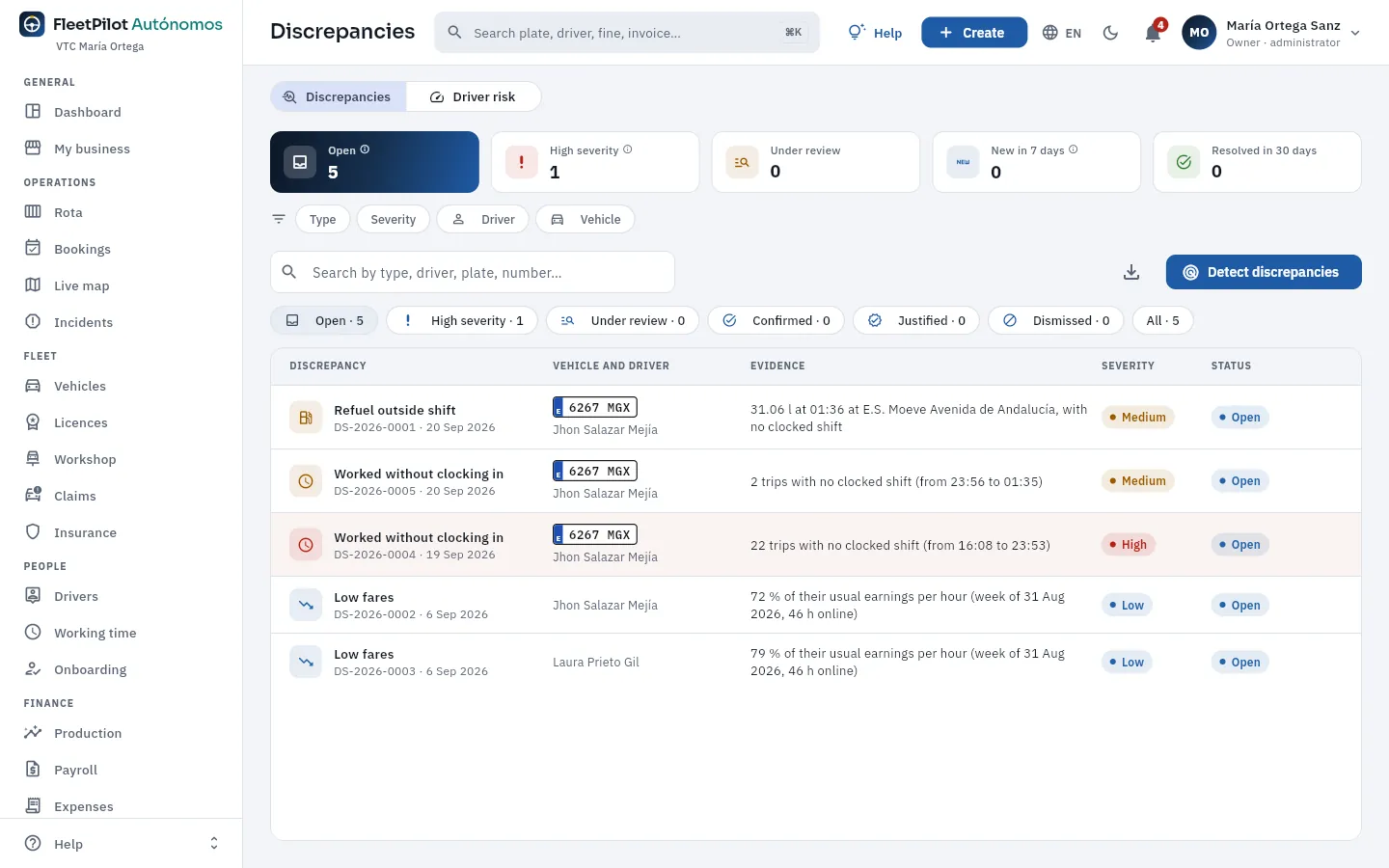 1234567
- 1Two views: Discrepancies and Driver risk.
- 2Open, high severity and under review.
- 3New in 7 days and resolved in 30 days.
- 4Filters by type, severity, driver and vehicle.
- 5Detect discrepancies: runs the detector again now (the service also runs it every day).
- 6Views by status: open, high severity, under review, confirmed, justified, dismissed and all.
- 7Each discrepancy: type, number and date, car and driver, the evidence in one sentence, the severity and the status.
#The evidence and how it is resolved
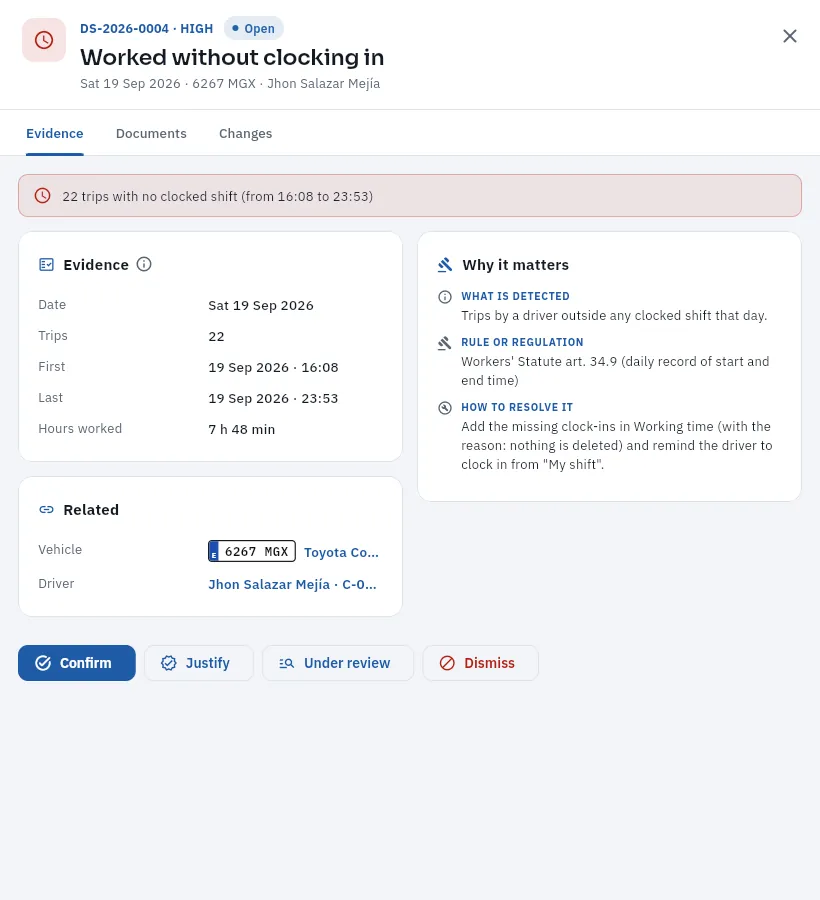 123456
- 1Number, severity, status, type, date, car and driver.
- 2The summary of what was detected.
- 3The evidence: the data as it was when detected (here, the day, the trips, the first and the last, and the hours worked).
- 4Why it matters: what is detected, the rule (here, the daily working-time record) and how it is resolved.
- 5What is related: the car and the driver (and, depending on the case, the amount or the incident).
- 6Confirm (it is real), Justify (there is an explanation), Under review or Dismiss (false positive), always with the resolution.
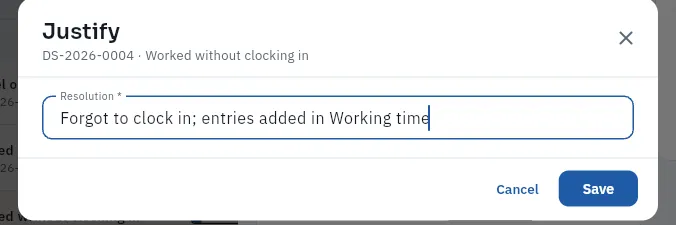 1
1
- 1The resolution: what you have checked and why it is justified. It stays on the record with who and when.
In the types with a route (km without service), the evidence includes a map with the day's GPS journeys: in red, those that do not match any trip. When confirmed, the discrepancy may end up as an incident (see Incidents), and it stays linked.
#Driver risk
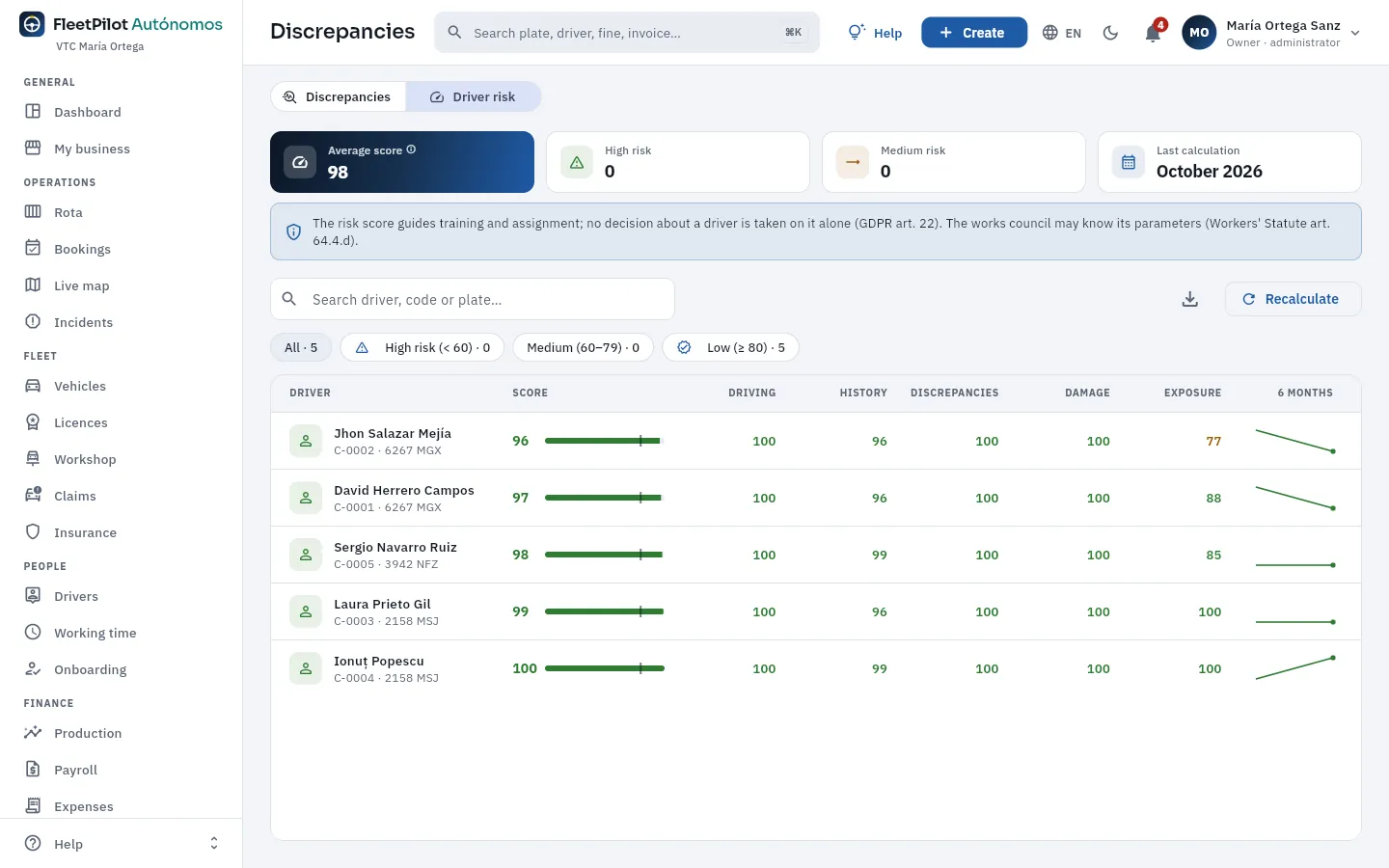 1234
1234
- 1Average score, drivers at high risk (below 60) and medium risk (60 to 79), and the last calculation.
- 2The score guides training and assignment; no decision about a driver is made on it alone (GDPR art. 22).
- 3Recalculate the month's score.
- 4The score (0 to 100: the higher, the lower the risk) and its components: driving, history, discrepancies, damage and exposure, with the 6-month trend.
#Tips
- Start with «High severity»: those are the ones that may mean misuse or a breach.
- Justify with facts: «the car was in the workshop from the 7th to the 9th, with its work order» still makes sense months later.
- Look at the risk score with the driver present: it is a training tool, not a disciplinary one.
Control
Compliance
The checklist of what regulations require of your cars, your drivers (and you, if you drive), your licences and your business, point by point and with the rule behind each one, with its score and its PDF report; and data protection: rights requests with their deadline, and retention periods.
Compliance gathers in a checklist what regulations require and FleetPilot Autónomos can check with your data, in four areas —vehicles, drivers, your licences and your business— plus data protection. Each point is up to date (green), has a warning (amber: expires soon, a detail is missing), is missing (red) or not applicable (blank), and carries its rule: what is checked, where it comes from and how to fix it.
| Area | What is checked |
|---|---|
| Vehicles | VTC vehicle requirements (ROTT, the regulation implementing the Land Transport Act), age, MOT (ITV, the Spanish roadworthiness test), compulsory insurance and passenger liability (RC) insurance, VTC licence or taxi licence, Madrid VTC sticker, taximeter verification, environmental label |
| Drivers | Driving licence and points, VTC or taxi driver permit, sex-offences certificate and, for employees, contract in force, working-time record and legal notices accepted |
| Your licences | Licences with a car attached, drivers against licences (75 % in Madrid), adapted fleet (only with 10 or more) |
| Your business | Your employees' working-time record, legal notices, VTC service notification, chained invoicing, fines identified on time |
FleetPilot Autónomos helps you comply and keeps a record: it does not replace checking each case or legal advice.
#Vehicles and drivers
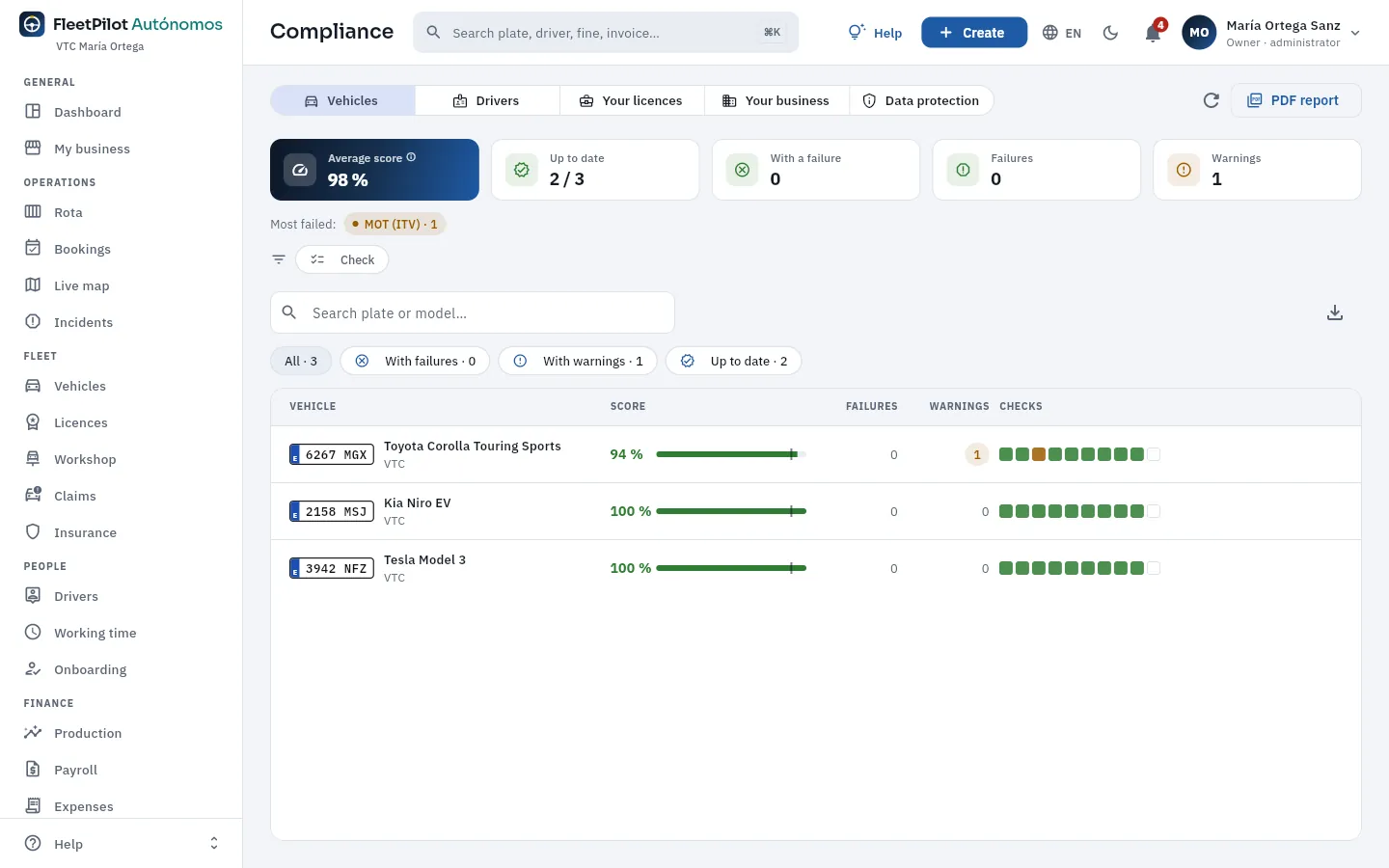 123456
- 1The areas: vehicles, drivers, your licences, your business and data protection.
- 2Check again and the PDF report (for an inspection or to renew a licence).
- 3Average score, records up to date, with a failure, failures and warnings.
- 4Most failed: the points with the most failures or warnings (tap one to filter).
- 5Filters: all, with failures, with warnings and up to date.
- 6Each car's score, its failures and warnings, and a square per check (green, amber, red or blank if not applicable). Click the row to see each point with its rule.
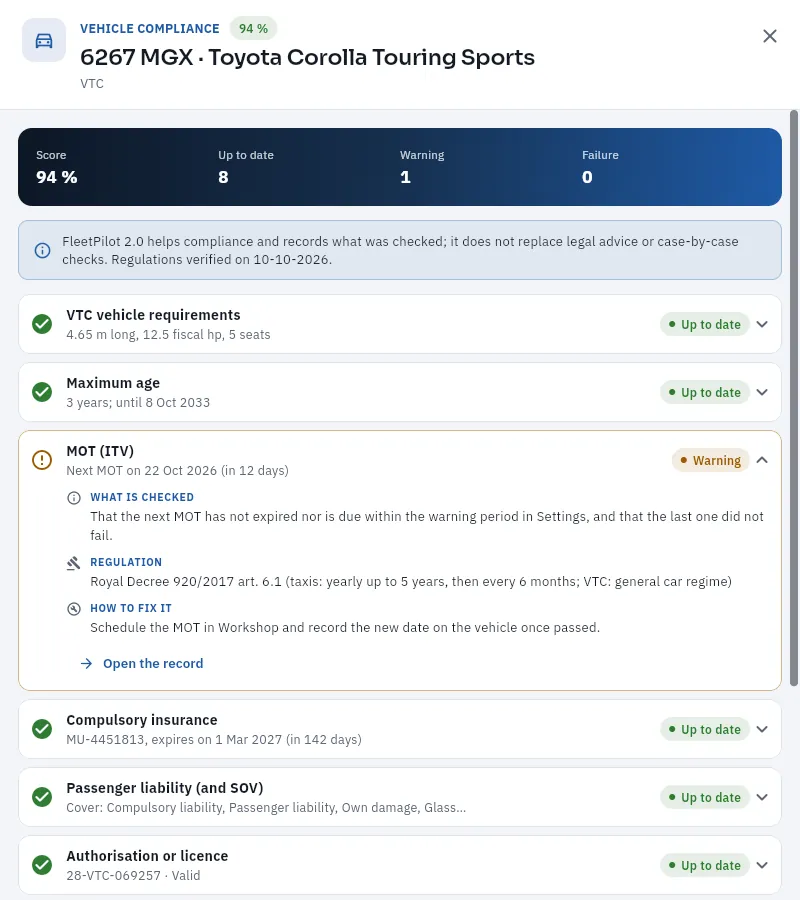 1234
1234
- 1The car's score and its points up to date, with a warning and missing.
- 2The points that are up to date (VTC vehicle requirements, maximum age…): click one to see its rule.
- 3A point with a warning, expanded: what is checked, the rule (here, the MOT regulation) and how to fix it, with a link to the record.
- 4Compulsory insurance, passenger liability and the car's licence, with their dates.
Drivers lists your employees and, if you drive, you. As you are not an employee of your own business, in your record the contract, the working-time record and the legal notices show not applicable; your permits and certificate are checked like any other driver's:
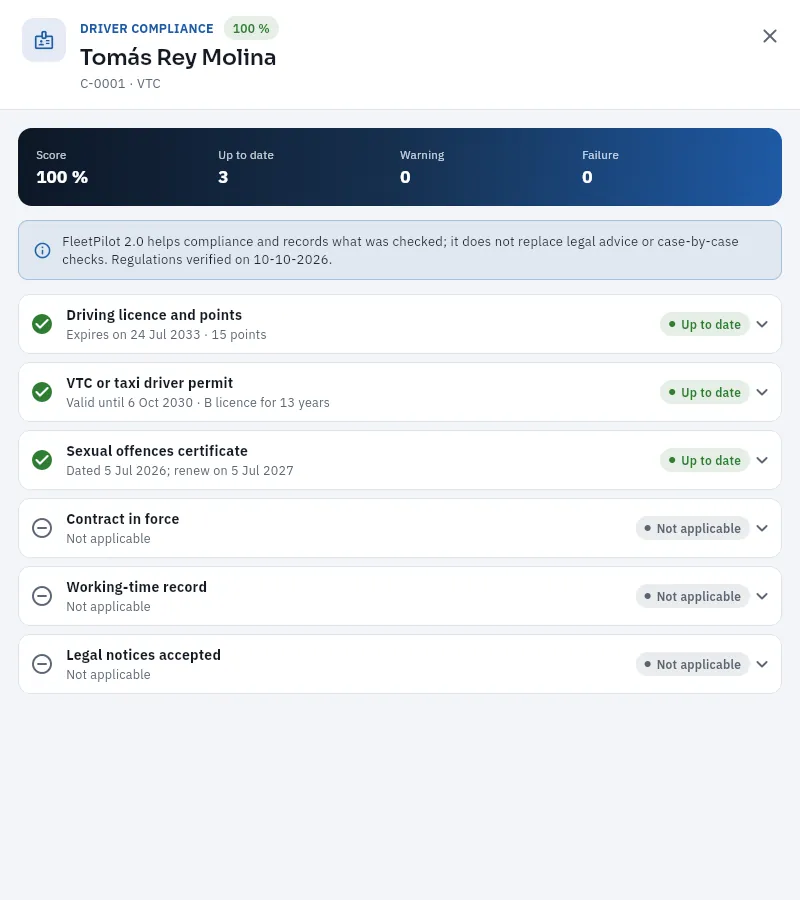 123
123
- 1Tomás, the owner who drives, with his driver code.
- 2What is required of him like any driver: driving licence and points, VTC driver permit and sex-offences certificate.
- 3Contract, working-time record and legal notices: not applicable, because he works for himself (ET art. 1). They do not count towards his score.
#Your business
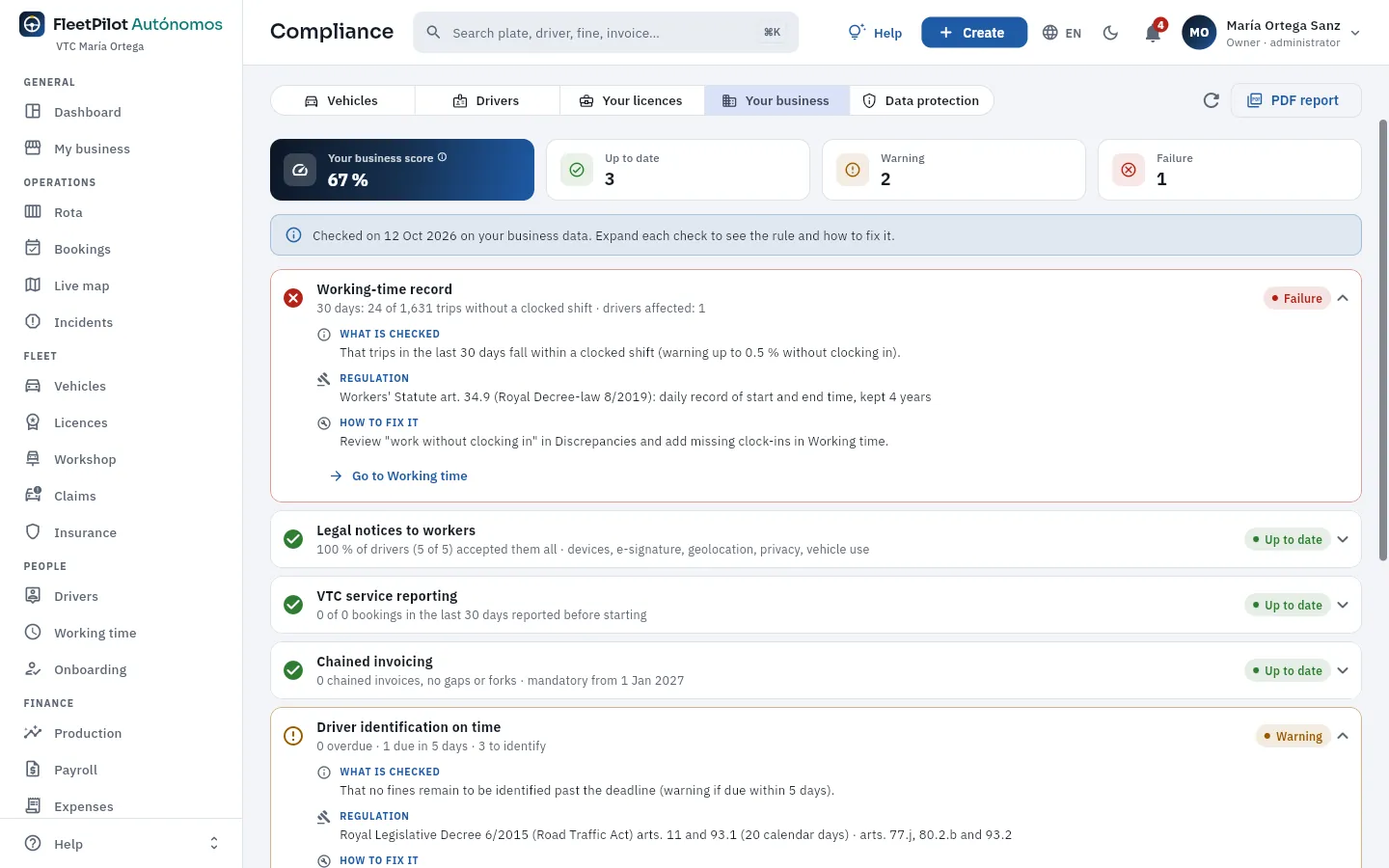 12345
12345
- 1Your business score and the points up to date, with a warning and missing.
- 2A missing point, expanded: what is checked (that your employees' trips fall within clocked working time), the rule (ET art. 34.9) and how to fix it, with a link to Working time.
- 3The legal notices to your workers: how many drivers have accepted them.
- 4VTC service notification before starting and chained invoicing (VeriFactu).
- 5Fines identified on time (20 calendar days): here, one is due soon.
Your licences shows your owner record (your business) with its VTC licences or your taxi licence: that each one has a car attached and that there are enough drivers for the licences in force.
#Data protection
The Data protection tab covers what the GDPR (General Data Protection Regulation) requires of your business as controller of your drivers' and clients' data:
- Rights requests (access, rectification, erasure, objection, restriction and portability), each with its deadline: one month from receipt, extendable by two more months if it is complex (giving notice within the first month).
- Export their data: a file with everything FleetPilot Autónomos holds about a person.
- Retention: how long each type of data is kept and whether any records are past their period.
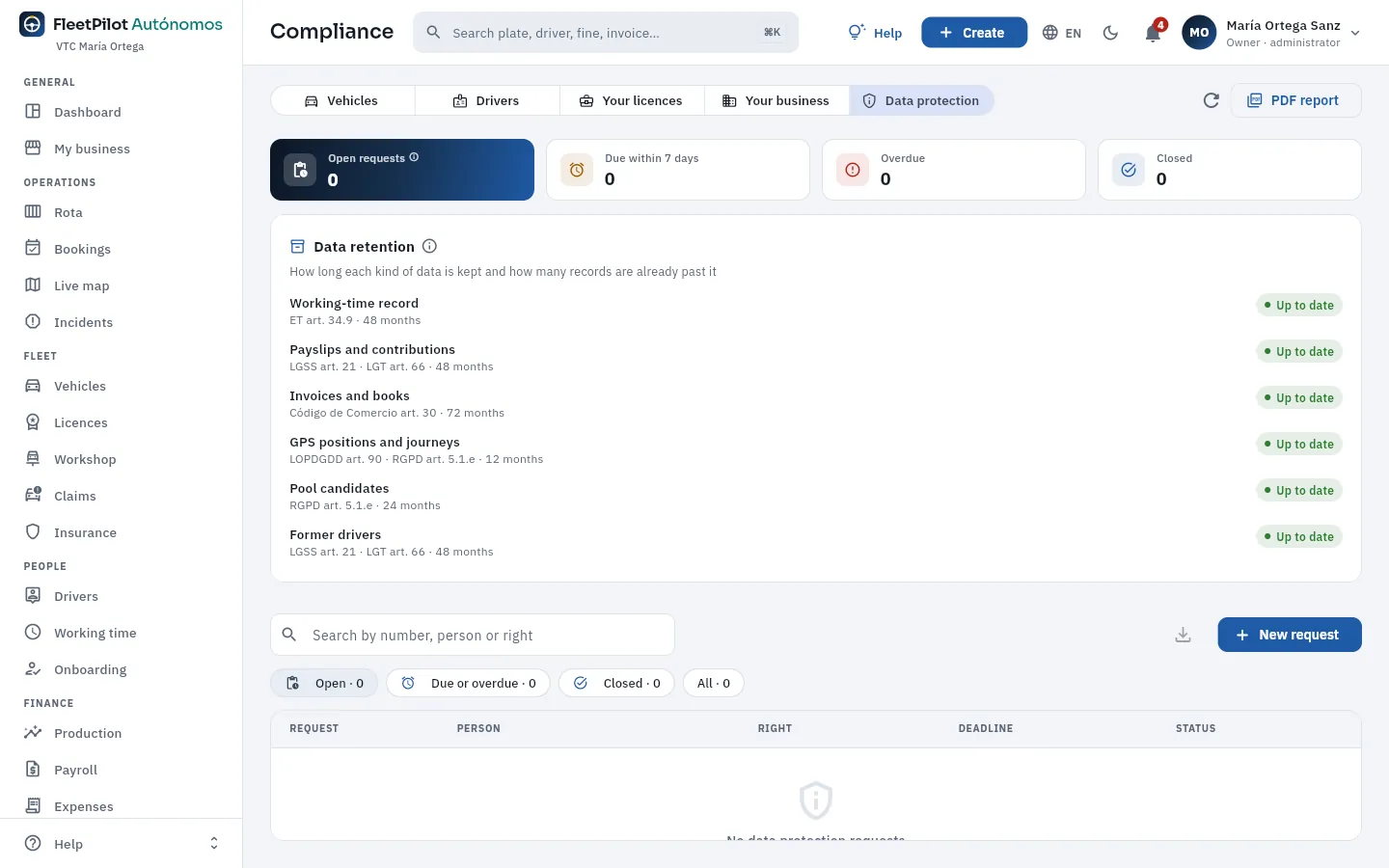 1234
1234
- 1Requests open, due within 7 days, overdue and closed.
- 2Data retention: each type with its period and its rule (working-time record and payroll, 4 years; invoices, 6; GPS positions, 12 months; candidates, 24 months).
- 3New request: who makes it, which right and when it arrived; the deadline is calculated automatically.
- 4The requests by status, each with its person, its right and its deadline.
Click New request, choose the person and the access right, and the date it arrived. Check their identity.
Open the request and export their data: a file with everything held about that person.
Send it to them and close the request with the date and what was done.
#Tips
- Run the PDF report before an inspection or before renewing a licence.
- Start with «Most failed»: there is usually one point dragging down several records.
- Log each rights request the day it arrives: the one-month deadline runs from then.
Control
Reports
Your business's reports (production by platform, driver ranking, working time vs online hours, each car's profitability, costs per kilometre, fuel, fines and accident rate) and the free analysis: a pivot table on your data, exportable.
Reports has the list of reports on the left, grouped into production and people, profitability and costs, control and analysis, and on the right the chosen report with its period (this month, last month, 12 months or a date range), its indicators, its charts and its table. They all export to CSV (for a spreadsheet) or PDF.
| Report | What it answers |
|---|---|
| Production by platform | Trips, km, online hours and earnings by platform and month |
| Driver ranking | Net per hour, trips, rating, acceptance and cancellations of each driver (you included, if you drive) |
| Working time vs online hours | Your employees' clocked hours against their hours connected to the platforms |
| Profitability by vehicle | Net earnings minus fuel, workshop, other expenses, insurance, leasing and drivers, car by car |
| Costs per kilometre | Km driven, empty km (without a passenger) and cost per km of each car |
| Fuel and energy consumption | Litres and kWh, and consumption against the car's reference figure |
| Fines | By offence, by driver and deadlines |
| Accident rate | Claims, fault, frequency and cost |
Your business's accounts month by month (earnings, costs and what you are left with) are in My business.
#A report
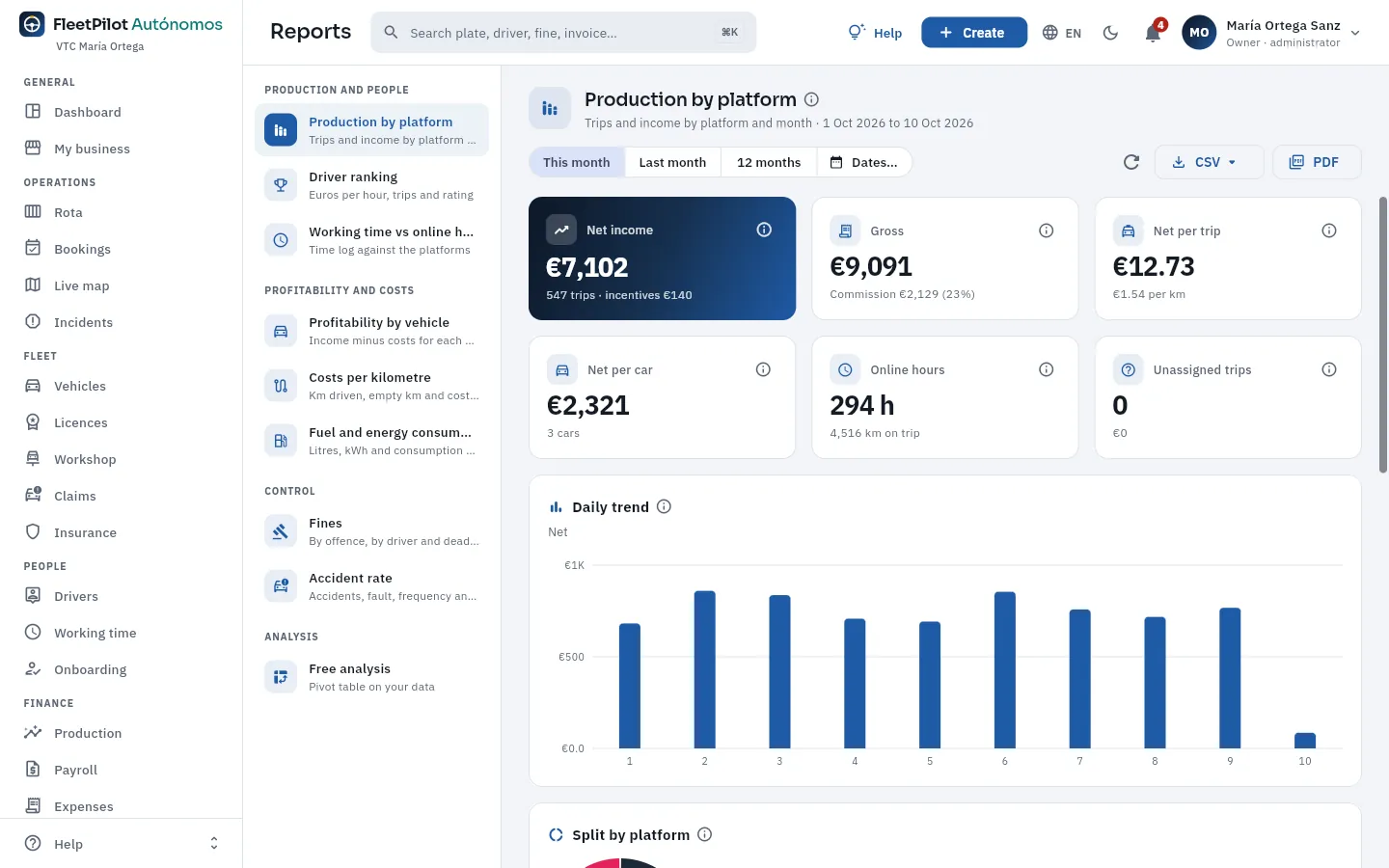 123456
- 1The list of reports, by group. The chosen one, highlighted.
- 2The report with its ⓘ and the period it covers.
- 3The period: this month, last month, 12 months or a date range.
- 4Refresh and export to CSV or PDF.
- 5The indicators: net revenue (with incentives), gross and commission, net per trip, net per car, hours online and unassigned trips.
- 6The charts (trend by day, split by platform) and, further down, the table by platform and month.
#What each car earns you
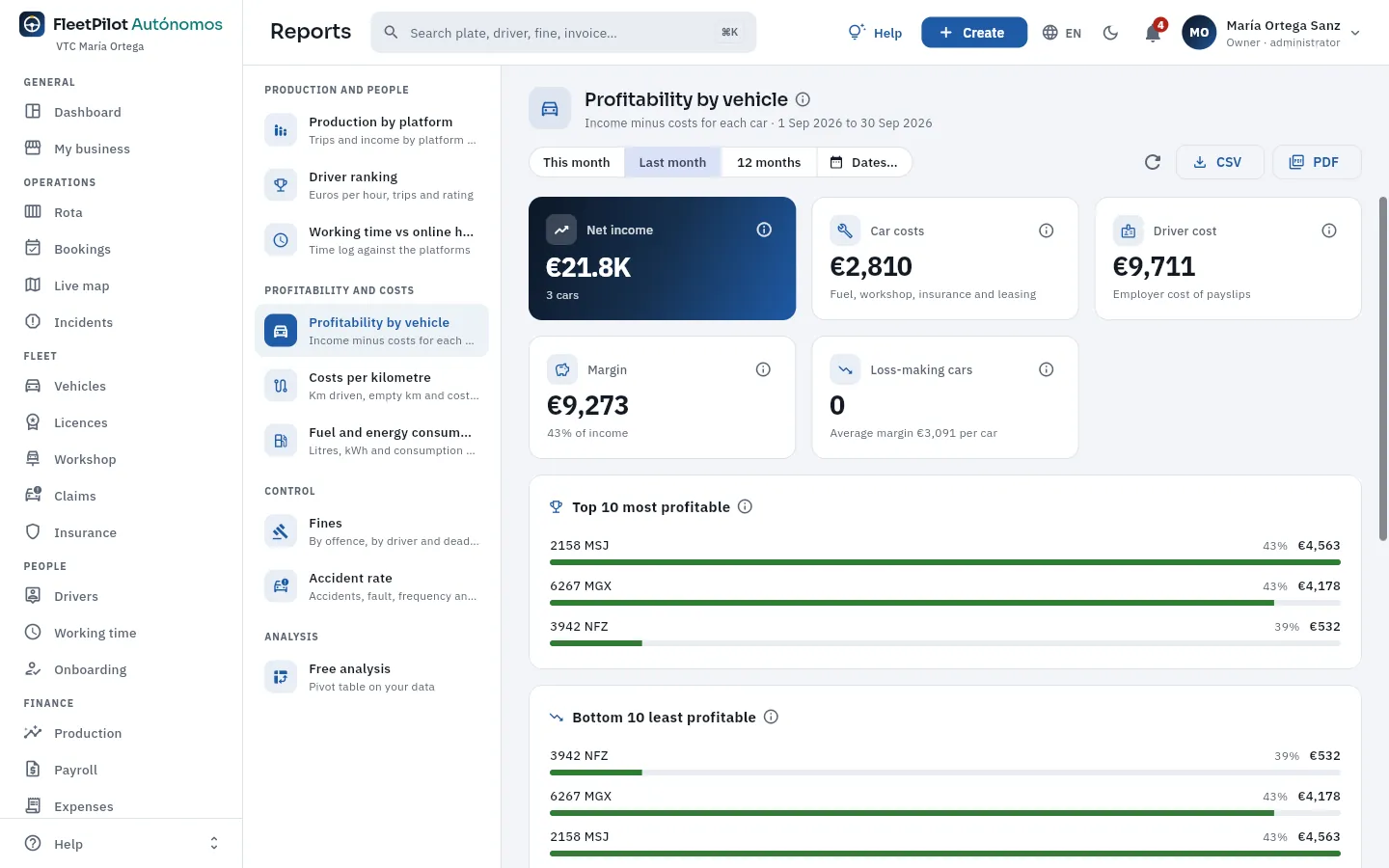 123
123
- 1Net earnings, car costs (fuel, workshop, insurance and leasing) and driver costs (the employer cost of their payslips).
- 2The margin (and its % of earnings) and the cars at a loss.
- 3The most profitable and, below, the least profitable, with their margin in € and in %.
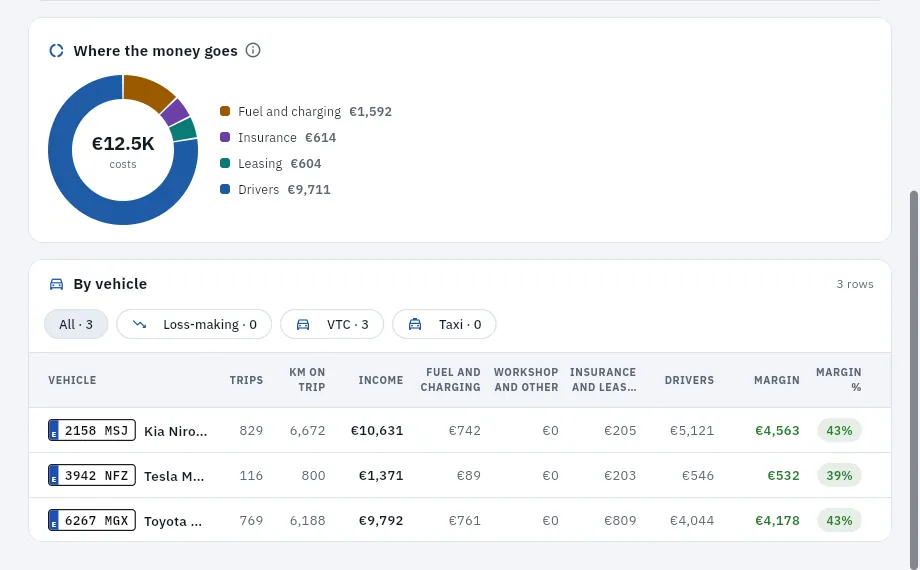 123
123
- 1Where the money goes: the period's costs by item.
- 2Filters: all, at a loss, VTC and taxi.
- 3Each car: trips, km in service, earnings, fuel and charging, workshop and other, insurance and leasing, drivers and the margin (in € and in %).
#Free analysis
The free analysis is a pivot table: you choose a data source (daily production, trips, expenses, payroll, fines…), what goes in the rows, sub-rows and columns (platform, driver, car, week, month…), which measure is added up (net, trips, hours, litres…) and the filters. The result can be exported and the layouts saved to run again.
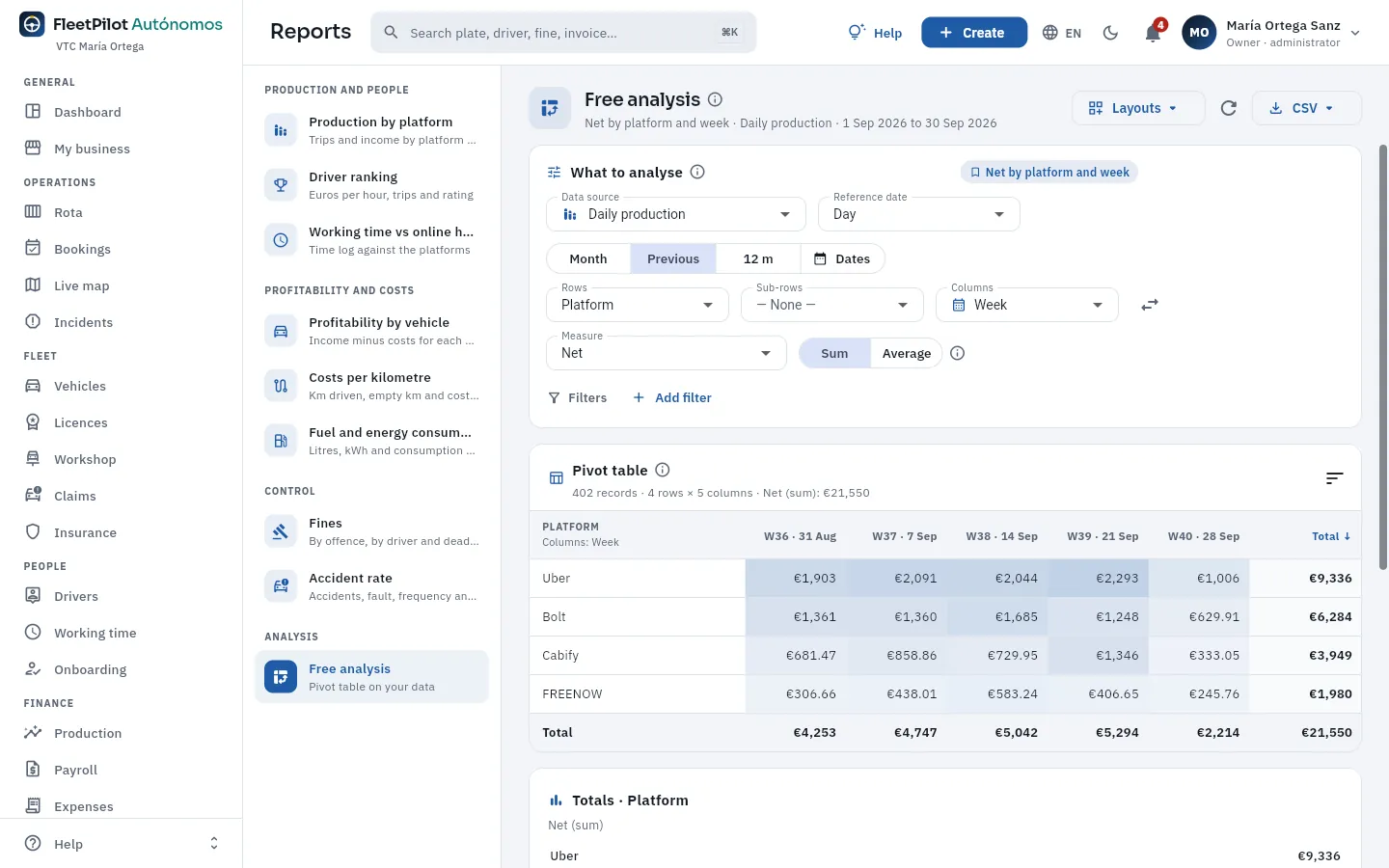 123456
- 1Saved layouts (an example: «Net by platform and week»), refresh and export.
- 2The data source and the reference date.
- 3The period.
- 4Rows, sub-rows and columns (the arrow swaps them).
- 5The measure and how it is aggregated (sum or average); below, the filters.
- 6The pivot table: each cell, in a stronger colour the larger it is; totals by row and by column.
Open Reports → Free analysis.
Data source: Daily production. Period: 12 months.
Rows: Vehicle. Columns: Month. Measure: Net (sum).
Export to CSV or save the layout for next month.
#Tips
- Compare 12 months in profitability by vehicle: one bad month for a car may just be the workshop.
- Look at empty km alongside the km without trips in Discrepancies.
- Save your free-analysis layouts: next month's is the same with another period.
Administration
Users
Who signs in to your FleetPilot Autónomos: you, the administrator; your payroll agency, if you invite it, with the «Payroll agency» profile; and your drivers in «My shift». At most two office users. Plus the Claude connector's keys and activity.
Users is yours, the administrator's: on desktop it opens from the user menu (top right, on your name) and on a phone, from the sidebar drawer. In FleetPilot Autónomos these people sign in:
| Who | Profile | What they see |
|---|---|---|
| You | Administrator (owner) | Everything, with My business and, if you drive, your My shift |
| Your payroll agency (if you invite it) | Payroll agency | Drivers (with their contracts), Working time and Payroll, with your drivers' personal and bank details: it views and exports them |
| Your employed drivers | Driver | Only their own My shift, full screen |
At most two of you use the office: you and your payroll agency. Drivers do not count and their access is created by the Onboarding invitation when you hire someone. Profiles are fixed: there are no permissions to set up.
#The users
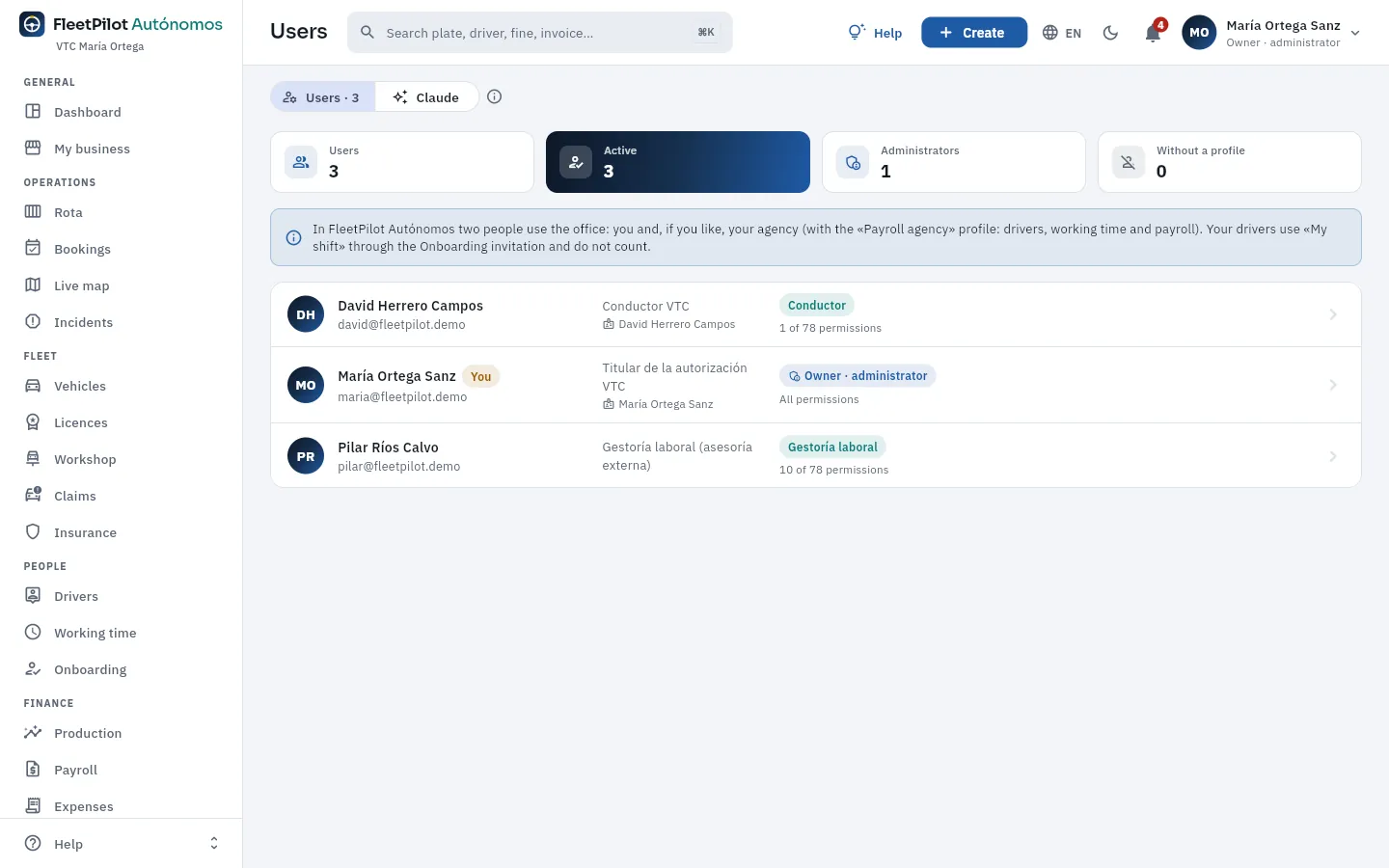 123456
- 1Two views: Users and Claude.
- 2Users, active, administrators and users without a profile (they would see nothing).
- 3Who uses the office: you and your payroll agency; your drivers, through Onboarding. María already has both office users, so the button to invite another one does not appear.
- 4A driver, with their linked record: they only sign in to My shift.
- 5You («You»), owner and administrator: all permissions.
- 6Your payroll agency, with its profile and how many permissions it gives.
Click a user to change their job title or password, or to disable them: a disabled user cannot sign in, but their name is kept on what they signed and in the change log.
#Inviting your payroll agency
If you do not yet have the second office user, the list shows Invite your agency. Tomás Rey, who runs his business on his own, has not invited his yet:
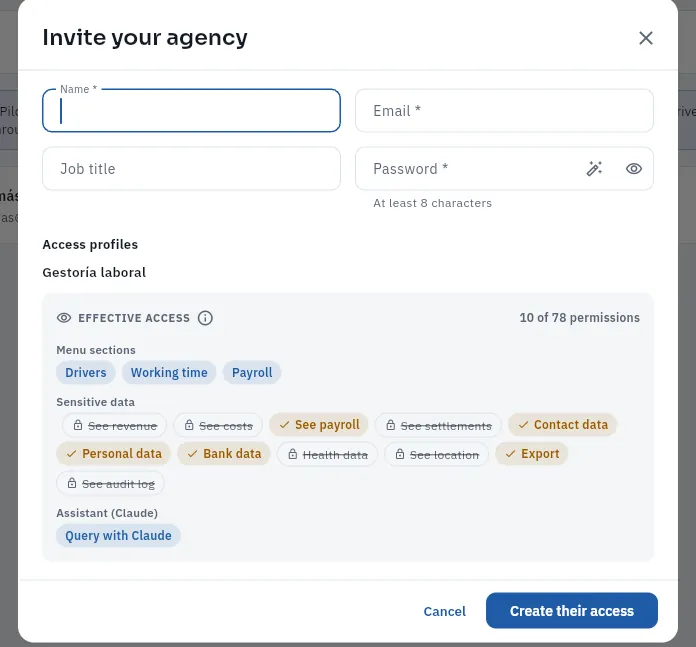 12345
12345
- 1Name, email (the sign-in one, which cannot be changed later) and job title of the person at your payroll agency.
- 2An initial password (at least 8 characters; the wand generates one): give it to them and have them change it when they sign in.
- 3The profile, already chosen: Payroll agency.
- 4Their effective access: Drivers, Working time and Payroll; they see payroll, contact, personal and bank details, and export; they do not see earnings, costs, health or location.
- 5Create their access (it has not been clicked in the screenshot).
In Users, click Invite your agency.
Enter their name, their email and an initial password (or generate one with the wand).
Click Create their access and send them the email and password.
#Claude keys
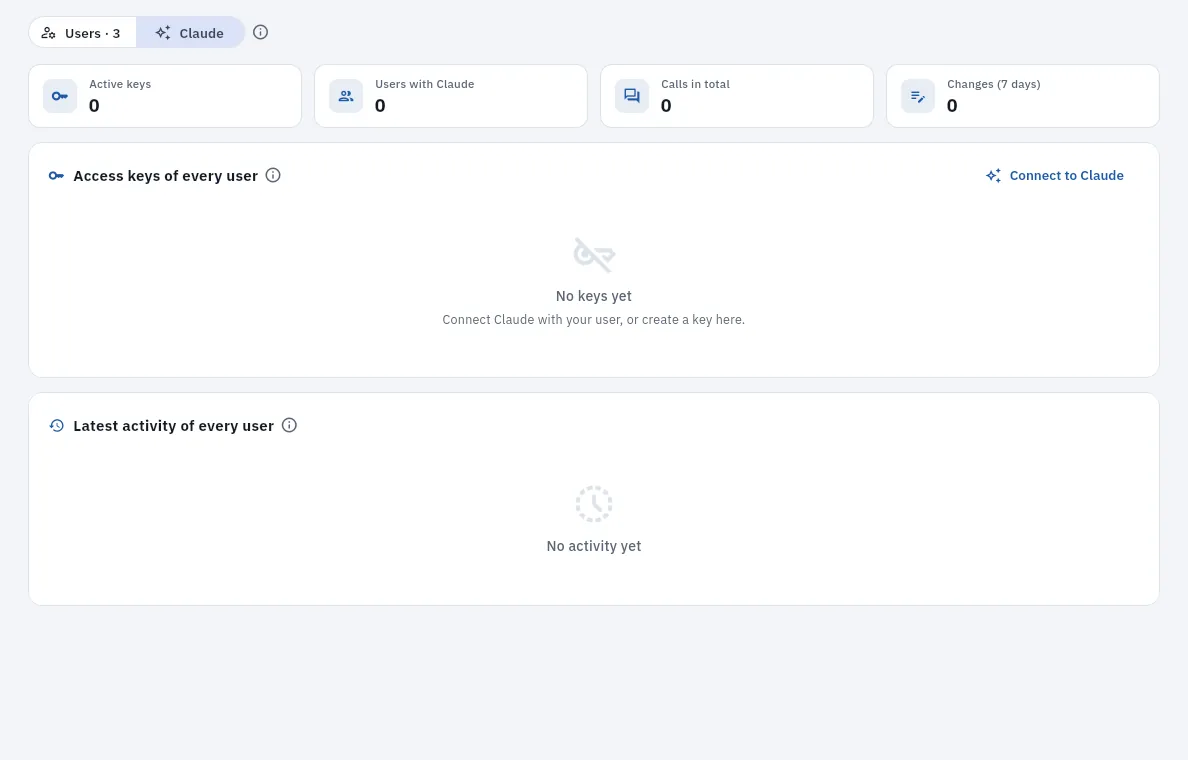 123
123
- 1Active keys, users with Claude, total calls and changes in the last 7 days.
- 2The users' access keys (yours and your payroll agency's), including revoked and expired ones; you can revoke any of them.
- 3The latest activity: each tool Claude used, by whom, when and with what result.
How each user connects and what Claude can do, in Connect to Claude.
#Tips
- Invite your payroll agency instead of sending it files: it sees payroll up to date and exports what it needs.
- Disable whoever leaves instead of deleting them: their history stays.
- Check the Claude view now and then: it is what the connector has done on each person's behalf.
Administration
Settings
Your business details, your invoice texts, deadlines and alerts (expiries, fines, cash), tax, your employees' working-time limits, public holidays, platforms, document series, legal notices to your workers and third-party integrations.
Settings keeps what is specific to your business and used by the other sections: your details (shown on your invoices and PDFs), the deadlines that trigger alerts, VAT, your employees' working-time limits, public holidays, the platforms you work with, the numbering series, the legal notices your drivers accept and third-party integrations. It opens from the user menu and has five tabs: General, Calendar, Platforms & documents, Legal notices and Integrations. Each block is changed with its Edit and every change is recorded in the audit log.
#General
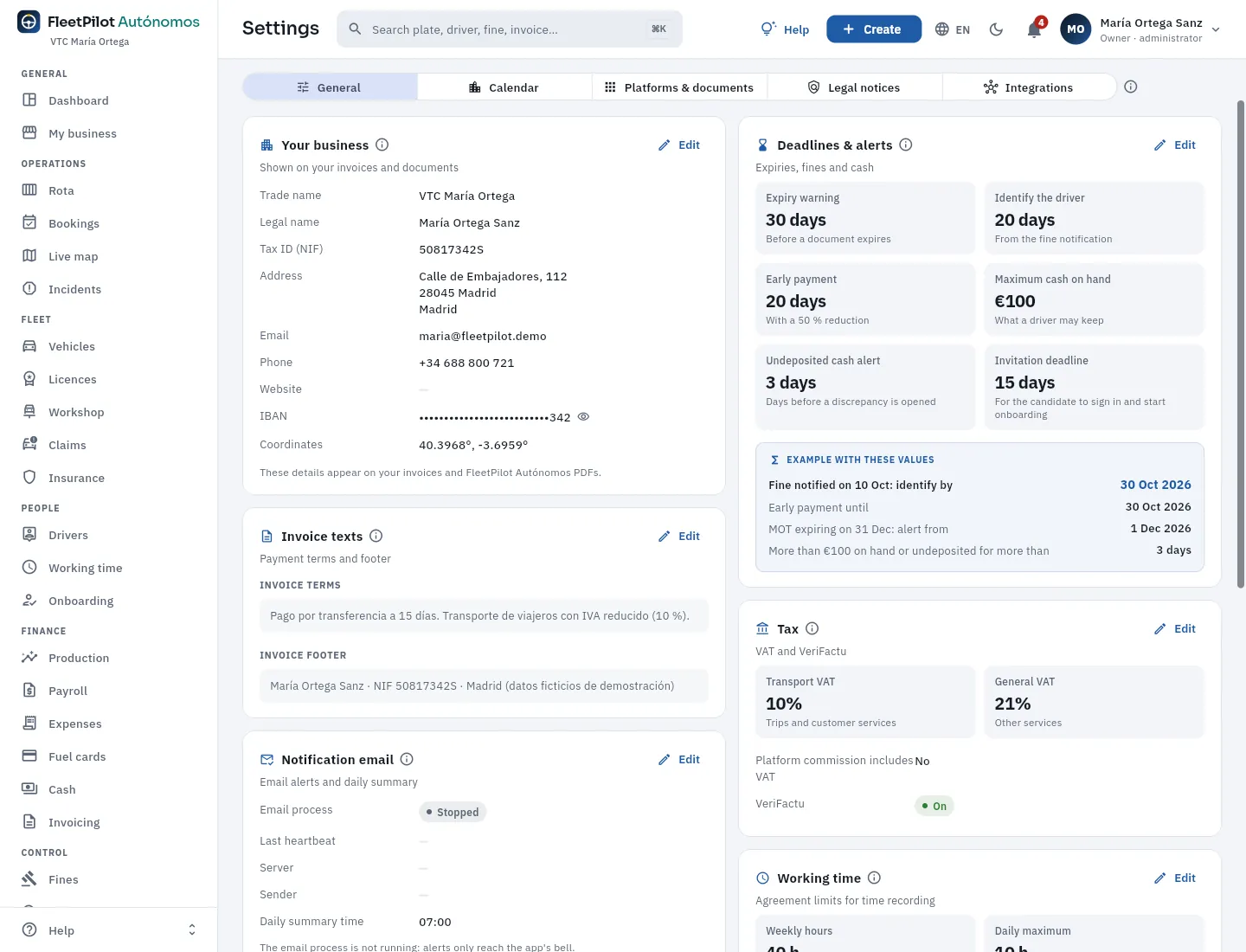 12345
12345
- 1The settings tabs.
- 2Your business: trading name, legal name, tax ID (NIF), address, contact, IBAN and coordinates. They appear on your invoices and PDFs.
- 3Invoice texts: payment terms and footer.
- 4Deadlines & alerts: expiry warning (30 days), deadline to identify the driver of a fine (20 days), early payment (20 days), maximum cash on hand (€100), undeposited cash alert (3 days) and candidate invitation deadline (15 days), with an example of the dates that would result.
- 5Tax: transport VAT (10 %) and general VAT (21 %), whether the platforms' commission carries VAT, and VeriFactu.
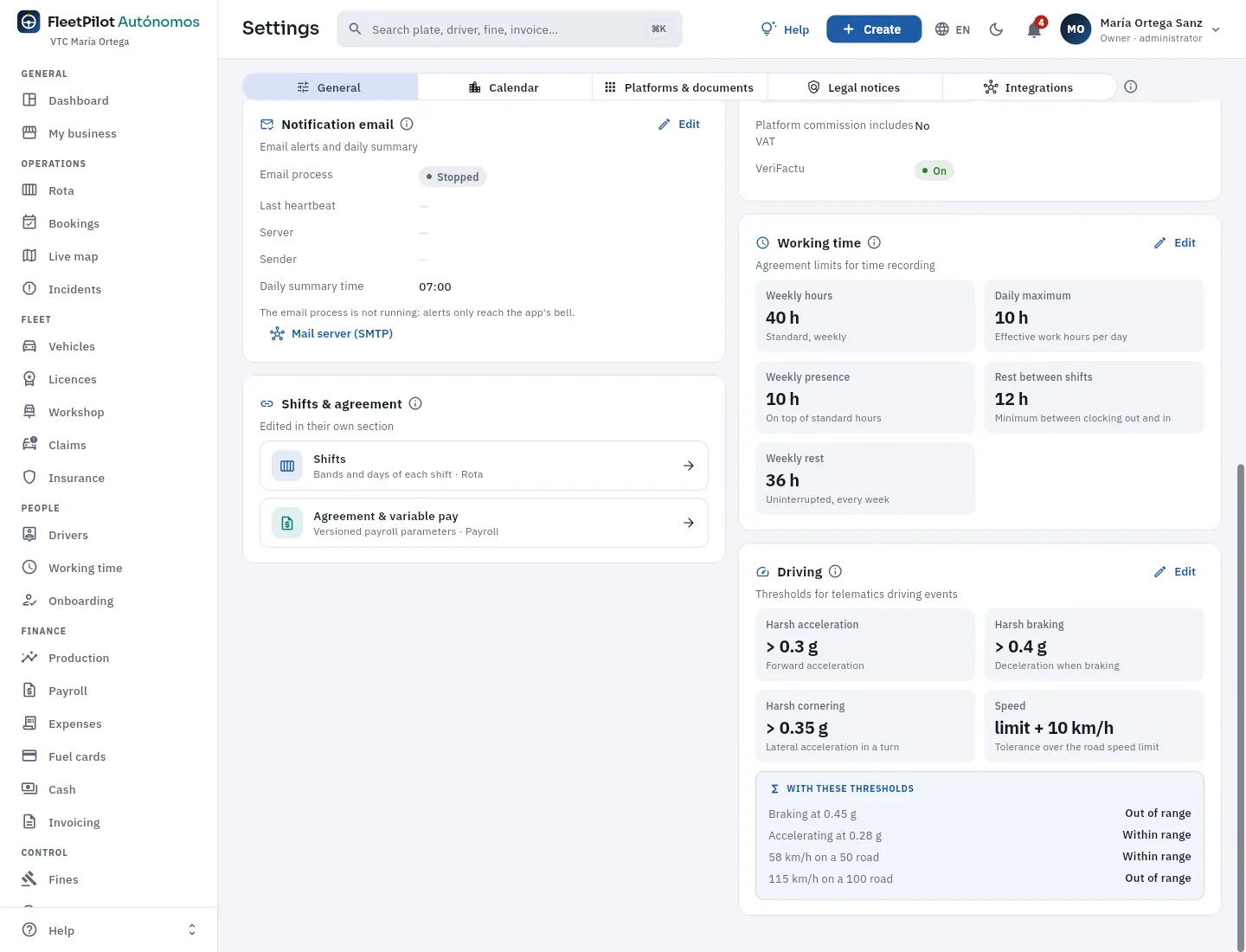 1234
1234
- 1Notification email: the process that emails alerts and the daily summary, its status, the server and the summary time (in the demo, stopped: alerts reach the app's bell).
- 2
- 3Working time: the limits with which Working time flags your employees' excesses and short rests (weekly hours, daily maximum, standby time, rest between shifts and weekly rest).
- 4Driving: the thresholds above which a telematics harsh acceleration, harsh braking, sharp turn or speeding event is out of range, with examples.
#Calendar, platforms and series
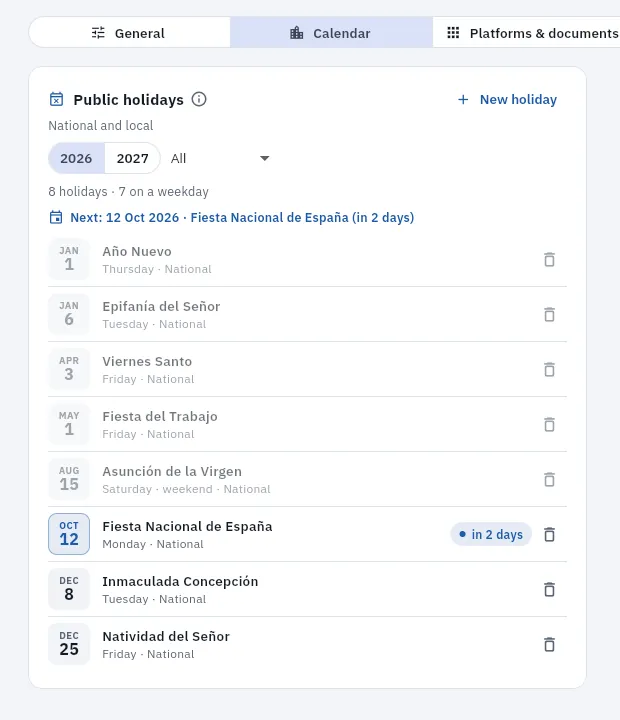 123
123
- 1Public holidays, national and for your town. New holiday adds one (for example, your local one).
- 2The year, the type, how many fall on a working day and the next one.
- 3Each holiday with its weekday: they count in the Rota and in your employees' working time.
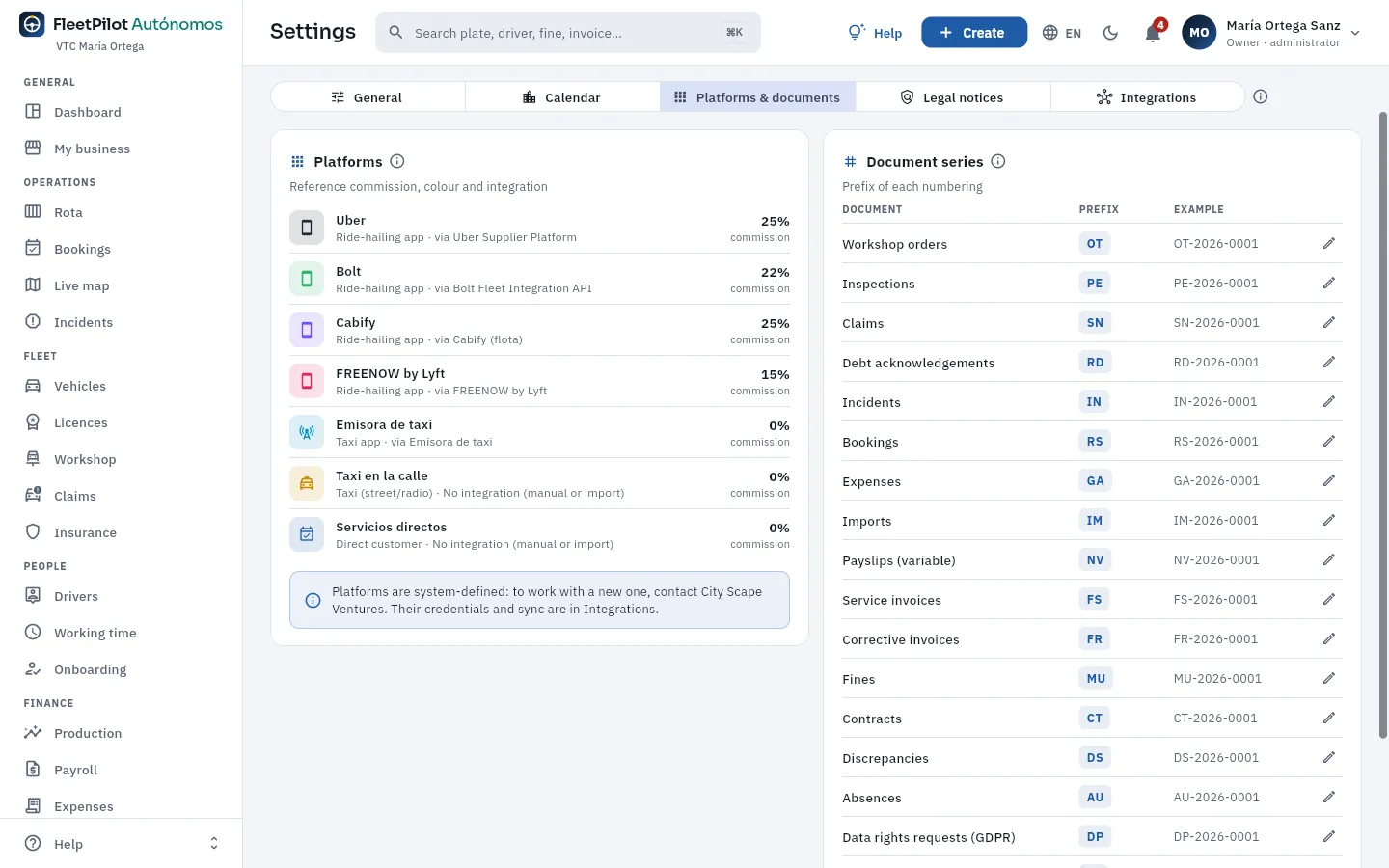 123
123
- 1The platforms: Uber, Bolt, Cabify, FREENOW by Lyft, taxi dispatch radio, street hails and direct services, with their reference commission and how their trips arrive (integration or by hand).
- 2The platforms are the system's: to work with another one, ask City Scape Ventures.
- 3Document series: the prefix of each numbering (incidents, expenses, payslips, invoices, fines, contracts…) with an example. The pencil changes the prefix.
#Legal notices
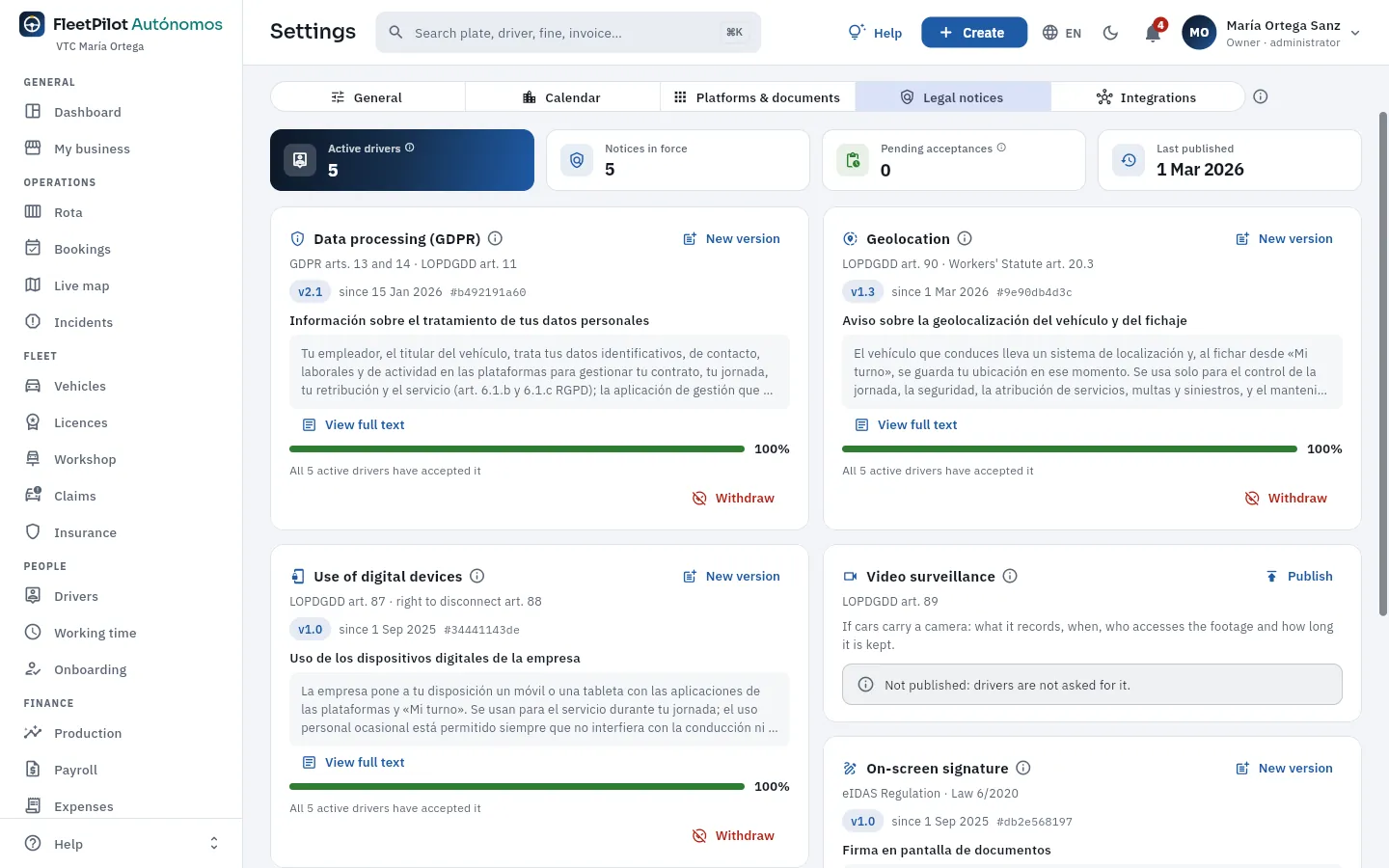 1234
1234
- 1Active drivers, notices in force, pending acceptances and the last publication.
- 2Each notice (here, data processing) with its rule, its version in force from a date and its hash, the text and how many have accepted it. New version publishes a new text: everyone has to accept it again.
- 3The geolocation one (LOPDGDD art. 90): it tells your drivers what the car's GPS and clocking in record.
- 4An unpublished one (video surveillance): only needed if your cars have a camera. Publish asks your drivers to accept it.
The legal notices (data processing, geolocation, use of digital devices, video surveillance, on-screen signature…) are read and accepted by each employed driver in My shift. Each acceptance stores the version, the moment and the hash of the text. If you drive, they do not apply to you: notices go from the employer to their workers.
#Integrations
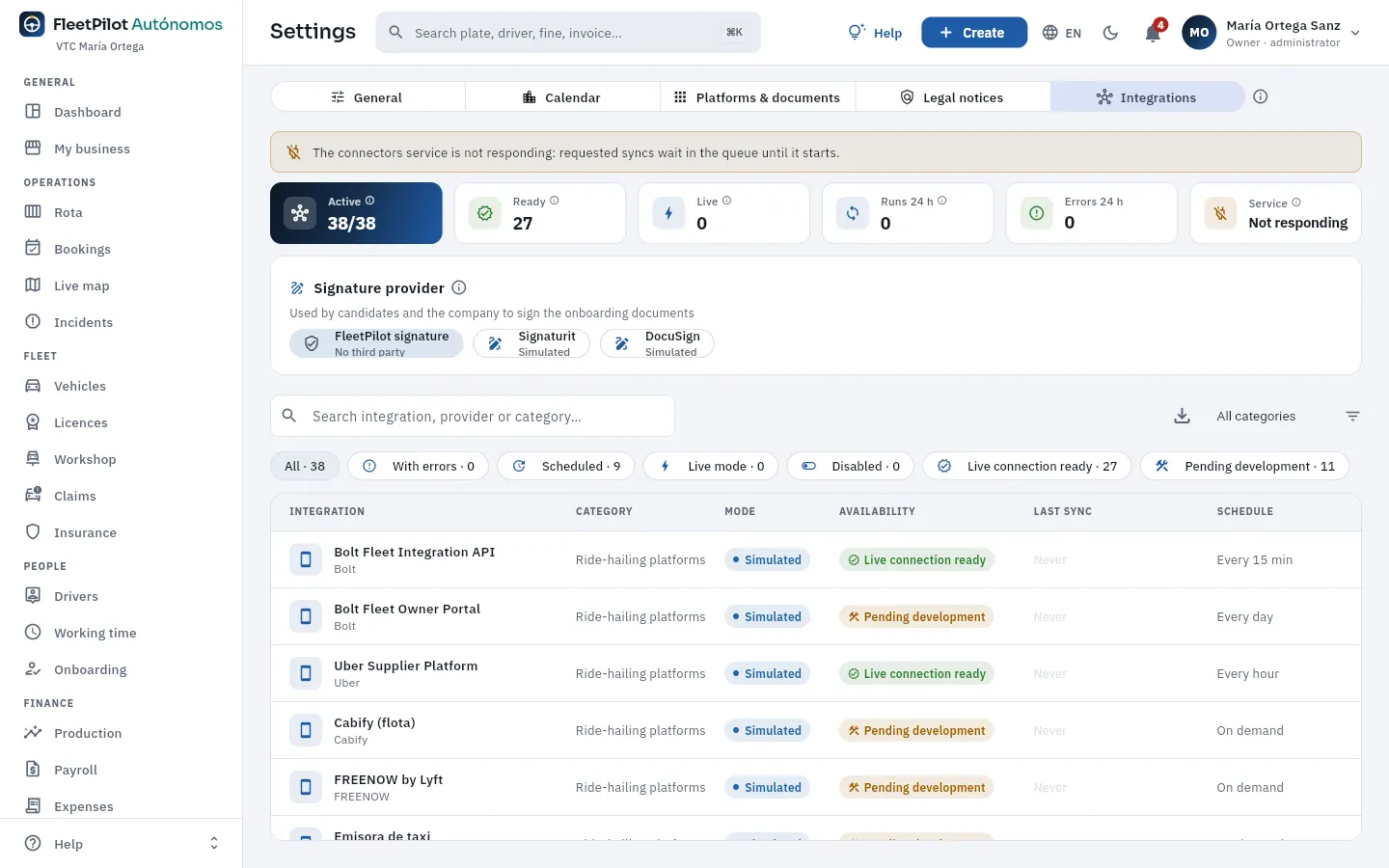 12345
12345
- 1If the connector service (the one that runs the syncs) does not respond, it says so: anything requested stays queued until it starts.
- 2Integrations active, ready for a live connection, live, runs and errors in 24 h, and the service status.
- 3The onboarding signature provider: FleetPilot's own signature, Signaturit or DocuSign.
- 4Filters: with errors, automatic, in live mode, disabled, with a live connection ready and pending development.
- 5Each integration: category, mode (simulated or live), availability (live connection ready or pending development), last sync and schedule. Click it to see its record and enter its credentials.
Each integration opens in its record: what it brings, the sample request and response in the real shape of its API, the credentials (stored encrypted, never shown), the mode (simulated or live), the schedule and its runs. In the public demo it cannot be switched to live mode. The full catalogue is in Simulated integrations.
#Tips
- Fill in your business details and invoice texts properly before issuing the first invoice: they appear on all of them.
- Adjust the expiry warning to how long a document takes to renew: 30 days is often too little for a licence renewal (visado).
- Add your local holiday in Calendar: the national ones are already there.
- Test each integration in simulated mode before entering the real credentials.
Administration
Audit log
Who created, changed or deleted each thing, when and which fields (with their value before and after), from the app or from Claude: you, your payroll agency or the connector. The trail you show an inspection.
The audit log is written by the database itself at the moment of each change, so it cannot be bypassed or modified from the app (nobody can edit it, not even you). It records each creation, change or deletion of records —vehicles, licences, policies, workshop, claims, drivers, contracts, assignments, covers, absences, working time, reassigned trips, payroll, expenses, cards, invoices, fines, discrepancies, users and settings— with each field's value before and after, who did it (you or your payroll agency), when and whether it came from Claude (see Connect to Claude).
It opens from the user menu (top right, on your name):
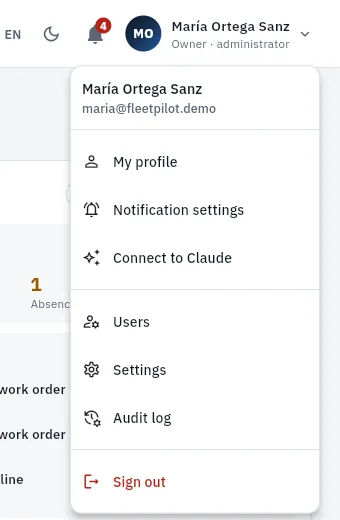 123
123
#The list of changes
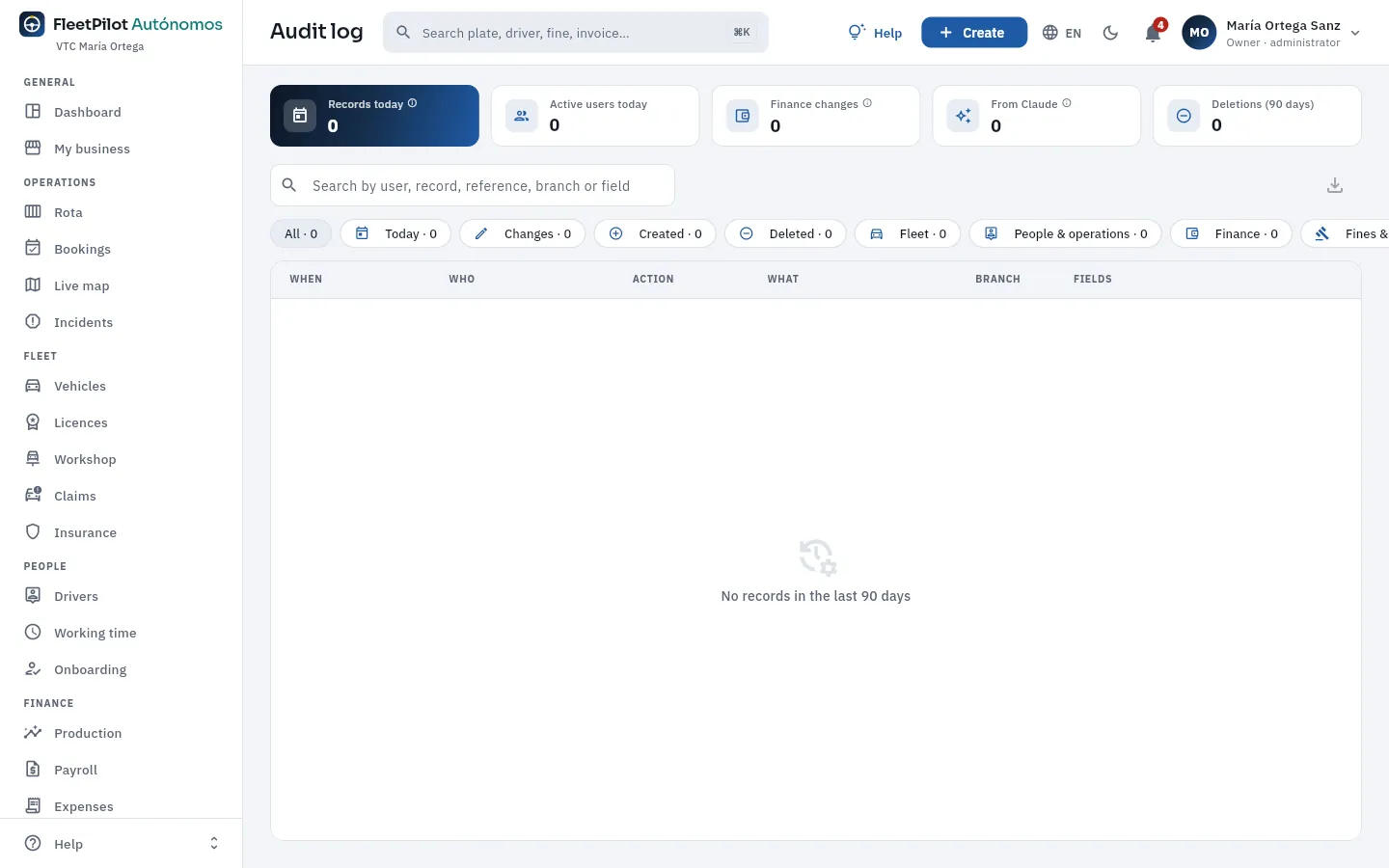 12345
12345
- 1Entries today, users active today, finance changes, changes from Claude and deletions in the last 90 days.
- 2The search box: user, record, reference or field.
- 3Filters: today, changes, creations, deletions and by area (fleet, people and operations, finance, fines and discrepancies, settings).
- 4Each change would show when, who («from Claude» if it came through the connector), the action, which record and the fields that changed. Click a row to see each field before and after.
- 5Export what is filtered.
The changes to a specific record are also in its Changes tab (on a vehicle, a driver, an expense, a payslip…). The demo data is loaded without a user, so the audit log starts empty: as soon as you change something, it shows up here.
Open the record (for example, a vehicle) and its Changes tab; or, in Audit log, search for the number plate or number.
Tap the change to see the value before and after.
If it came from Claude, the connector did it with the permissions of whoever connected it (you or your payroll agency).
#Tips
- Filter by area before searching: it is quicker than searching everything.
- Look at «From Claude» now and then: it is what the connector has changed on your behalf or your payroll agency's.
- Export the period an inspection asks for: it includes who, when and what.
Appendices
Connect to Claude
How to work with FleetPilot Autónomos from a chat with Claude (on the web, desktop, mobile or Claude Code): what it can look up and do, always as you and with your permissions, what it never does, how to connect it and how to revoke it.
Claude is Anthropic's artificial intelligence assistant. With the FleetPilot Autónomos connector, Claude can work with your business's data from a chat: «what have I got today?», «who was driving 2158 MSJ on 8 October at 7?», «how much has each driver brought in this week, by platform?», «which MOTs and insurance policies expire this month?».
The connector acts as you: with your permissions and only with your business (no other FleetPilot Autónomos account can be seen). The database applies the same rules as in the app —if your payroll agency connects Claude, Claude sees what your agency sees and changes nothing— and whatever Claude changes is recorded in the audit log with the «from Claude» mark. Claude knows your business belongs to a self-employed operator with up to 3 cars and, if you drive, that you are the owner who drives.
#Where it is
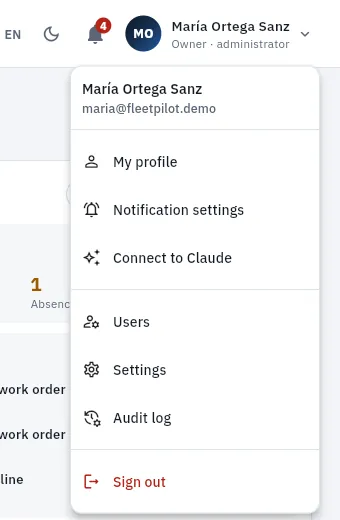 1
1
- 1Connect to Claude opens the connector page: what Claude can do for you, how to connect it, your keys and your activity.
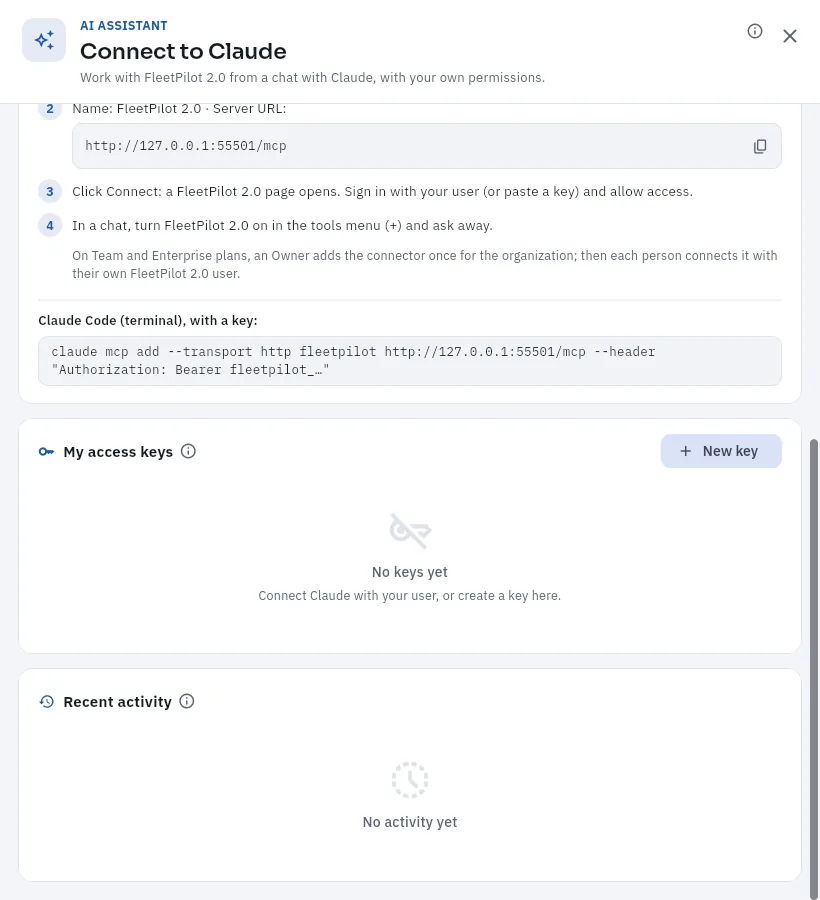 1234
1234
- 1How to connect it: in Claude, Settings → Connectors → Add custom connector, with the name and the server address; Claude opens a page to sign in with your user (or paste a key).
- 2In Claude Code (the terminal), the command to add it with a key.
- 3My access keys: New key creates one; each one is revoked with a button.
- 4Recent activity: each tool Claude has used on your behalf, when and with what result.
Higher up, the same page says what Claude can do for you (look things up, make changes, which sensitive data it sees) with sample questions. You see your payroll agency's keys and activity in Users → Claude.
#How to connect it
In Claude (web, desktop or mobile): Settings → Connectors → Add custom connector.
Give it a name (for example, FleetPilot) and the server address shown on the connector page (it ends in
/mcp).Tap Connect: a FleetPilot page opens; sign in with your username and password (or paste a
fleetpilot_…key) and allow access.In a chat, turn on the connector in the tools menu and ask.
#What it can do
The connector offers Claude tools, and only those your profile can use:
| To… | Tools |
|---|---|
| Know who you are and what you see | quien_soy (your business, whether you drive, the edition's limits) |
| Search and look up | buscar, ficha, consultar, esquema, panel, resumen_del_dia, avisos, informes |
| Create, change and delete | crear, modificar, eliminar (only what the app lets you delete) |
| Attribution | quien_conducia: who had the car at a given moment and why (you, if you drive, or your driver) |
| Operations | cuadrante, asignar, ausencia, reserva, incidencia, vehiculo |
| Finance | produccion, nomina_prevista, gasto |
| Control | caducidades, cumplimiento, discrepancias, multas, verificar_facturas, verificar_jornada |
| Integrations | integraciones: see their status and request a sync or a test |
Business errors («the car already has a driver on that shift», «MOT expired», «you already have 3 cars», «the owner who drives does not clock in»…) reach Claude explained, just as in the app. Before changing anything you have not explicitly asked for (and always before deleting, assigning a car, approving an expense or paying a fine), it asks you.
#What it never does
#Tips
- Ask as you would ask someone you trust: Claude searches by number plate, code, number or name, with or without accents.
- Ask it to show you before changing: «propose the assignment and do not make it until I say so».
- Revoke the key of a computer you no longer use.
Appendices
Simulated integrations
FleetPilot Autónomos's connections with your platforms, your cars' telematics, your cards, the DGT (Spanish traffic authority), the VTC service register, the AEAT (Spanish Tax Agency), your bank and other services: what each one brings, whether it is ready to connect for real or pending development, and how to switch it to live.
FleetPilot Autónomos connects with many third-party services. In the demo, every integration works in simulated mode: a service of its own (the connector service) generates responses in the exact shape of each provider's real API, with the demo's made-up data, and passes them through the same ingestion the live mode would use. So what you see in Production, Fuel cards, Fines or the Live map is what you would see with real data. Each integration has its place in Settings → Integrations to enter your business's real credentials.
| Availability | What it means |
|---|---|
| Live connection ready | There is public documentation (or the shape is known from real use) and the adapter is written to it; it still needs validating with your credentials. |
| Pending development | There is no public documentation (partners only or no API): it is simulated, its file can be imported (CSV or Excel) and the real adapter will be built with the provider. |
#An integration's record
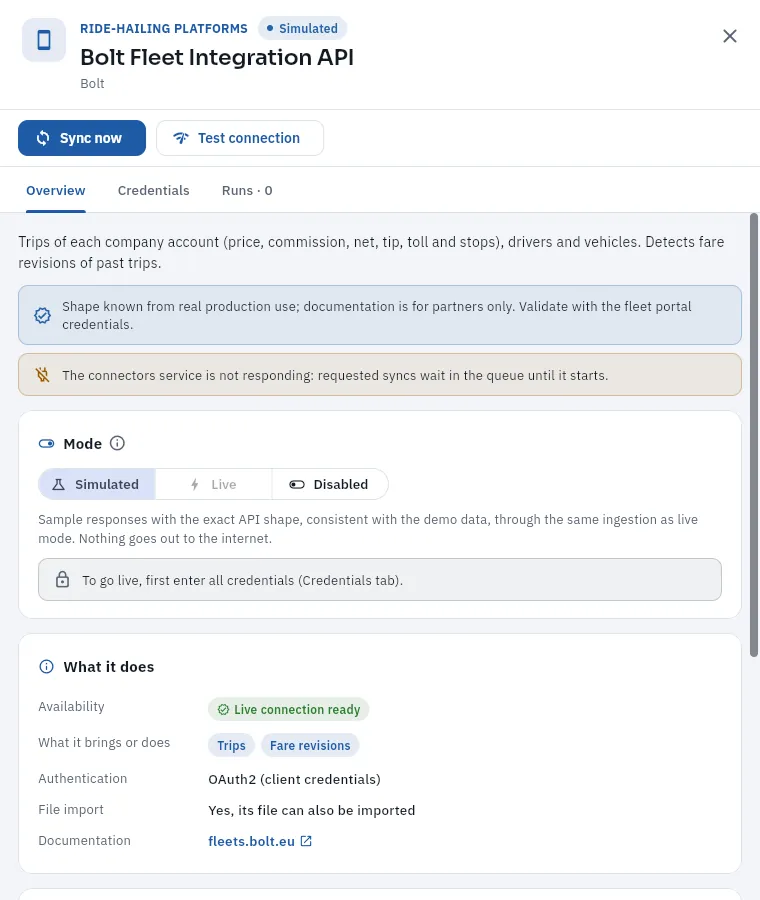 123456
- 1Category, name, mode (simulated) and provider.
- 2Sync now and Test connection.
- 3Overview, Credentials (stored encrypted) and Runs with their result, request and response.
- 4What it brings and its real availability (here, shape known from real use: validate with your Bolt account's credentials).
- 5The mode: simulated (sample responses in the exact shape of the API), live or disabled. To go live, credentials first; in the public demo it is not possible.
- 6What it does: availability, what it brings, authentication, file import and the provider's documentation; further down, the schedule and the last sync.
#The catalogue
Ride-hailing platforms
| Integration | What it brings | Availability | Where it shows |
|---|---|---|---|
| Bolt Fleet Integration API | Trips (price, commission, net, tip, toll), drivers, vehicles; fare revisions | Ready | Production |
| Bolt Fleet Owner Portal | Online hours, acceptance, rating | Pending | Production, Working time |
| Uber Supplier Platform | Drivers, vehicles, metrics, payouts, reports | Ready | Production |
| Cabify (fleet), FREENOW by Lyft, taxi dispatchers | Services and settlements | Pending (import of their files) | Production |
Telematics and connected vehicles
| Integration | What it brings | Availability | Where it shows |
|---|---|---|---|
| Wialon (Gurtam), MyGeotab, Samsara, Webfleet | Positions, journeys with km, odometer, driving events | Ready | Live map, Discrepancies, Vehicles |
| Tesla Fleet API, Smartcar | Car data, battery, charging, odometer | Ready | Vehicles, Fuel cards |
Fuel, charging and tolls
| Integration | What it brings | Availability | Where it shows |
|---|---|---|---|
| Moeve, Shell B2B | Fill-ups and transactions with price | Ready | Fuel cards |
| Solred, Galp, Via-T, charging operators | Movements, tolls, charging sessions | Pending (import) | Fuel cards |
| Ministry fuel prices | Price by station (reference for anomalies) | Ready (public) | Fuel cards |
Fines and public bodies
| Integration | What it does | Availability | Where it shows |
|---|---|---|---|
| GestionMultas · Multayuda | Fines, procedures and their PDFs | Ready | Fines |
| DGT · DEV / DEHú | Fine notifications (DEV: the electronic road address) | Pending (registration and certificate) | Fines |
| DGT · usual driver | Registering a car's usual driver | Ready | Fines, Drivers |
| VTC service notification register | Registration, start, change and cancellation of each service | Ready (public WSDL; prior registration) | Bookings |
| AEAT · VeriFactu | Chained invoice records and their lookup | Ready | Invoicing |
Banking, payroll agency and others
| Integration | What it does | Availability | Where it shows |
|---|---|---|---|
| Tink, GoCardless (open banking) | Your account's movements | Ready | Cash, Production |
| Holded | Invoices, expenses and contacts | Ready | Invoicing, Expenses |
| A3, Sage | Export for your payroll agency | Pending (files) | Payroll |
| Factorial, Sesame | Employees and clock-ins | Ready | Working time |
| Signaturit, DocuSign eSignature | E-signature for a driver's onboarding (contract, annexes and notices) | Ready | Onboarding, My shift |
| WhatsApp Cloud API, Twilio, email (SMTP) | Alerts to your drivers and the daily summary | Ready | Alerts |
| Claude (Anthropic) with vision | Reading receipts and invoices, damage in assessment photos | Ready | Expenses, Workshop |
| Timestamping | Timestamp of working-time exports and of the invoice register | Ready | Working time, Invoicing |
Get your account's credentials from the provider (and, for public body services, your electronic certificate .p12 or .pfx with its password).
In Settings → Integrations, open the integration and go to Credentials: fill them in and save.
Tap Test connection. If it responds correctly, change the mode to Live.
Check the first run and its result; adjust the schedule if needed.
Appendices
Regulations
The rules FleetPilot Autónomos applies or reminds a self-employed VTC or taxi operator of —your licence, service notification, Madrid and Catalonia, MOT, fines, labels, you as the owner who drives, your employees' working time and collective agreement, insurance, VAT and VeriFactu, data protection, hiring—, with their article and the chapter where they appear.
These are the regulations FleetPilot Autónomos applies (it does not let you do something) or reminds you of (it warns you) as a self-employed operator with up to three VTC cars (private hire vehicles with a driver, the Spanish ride-hailing licence) or taxis, checked against the official texts (BOE, BOCM, DOGC, the websites of the Ministry of Transport, the DGT and the Madrid Region, EUR-Lex and the AEPD) on 10 October 2026. FleetPilot Autónomos helps you comply and keeps a record: it does not replace legal advice, your payroll agency or checking each case.
The two basic transport laws are the LOTT (Law 16/1987 on Land Transport) and its regulation, the ROTT (RD 1211/1990).
#You: self-employed, owner and, sometimes, driver
| Rule | Regulation | In FleetPilot Autónomos |
|---|---|---|
| The Workers' Statute (and with it the contract, the payslip and the working-time record) applies to those who work for someone else, within another person's organisation; «any work carried out within a different relationship» is excluded. If you drive your own cars you work for yourself: no contract, payslip or working-time record, and no employment documents | ET (RDLeg 2/2015) arts. 1.1 and 1.3.g | If you drive yourself, Payroll, Working time, Compliance («not applicable») |
| You are a self-employed worker whether or not you employ others: at the same time, the employer of your employed drivers | Law 20/2007 (Self-Employed Workers' Statute) art. 1.1 | Drivers, Onboarding |
| Madrid (VTC): drivers numbering at least 75 % of the licences in force, on the staff and registered with Social Security, meeting the driver conditions (VTC driver permit…). The decree does not say expressly whether the owner who drives (registered as self-employed) counts: FleetPilot Autónomos counts you and still requires the driver conditions of you | Decree 5/2024 arts. 2.1.d and 3.1 (PARTIAL) | Compliance → Your licences |
| Taxi in Madrid: at least as many drivers as active licences, counting the owner and their family members; registrations and terminations within 1 month | Decree 74/2005 art. 32 | Compliance |
| Only a natural person can be an owner who drives in FleetPilot Autónomos (the case of a company partner who drives is pending verification) | — | If you drive yourself |
#Your VTC licence or taxi licence
| Rule | Regulation | In FleetPilot Autónomos |
|---|---|---|
| VTC vehicle of up to 9 seats including the driver, engine of at least 12 CVF (fiscal horsepower) and 4.60 m (except electric, hydrogen, biofuels, natural gas, LPG or other alternative energy) | ROTT art. 181.2 | Vehicles: vehicle requirements |
| Maximum age of 10 years from first registration | ROTT art. 181.2 · Decree 74/2005 art. 20 (taxi in Madrid) | Vehicles |
| Each VTC licence must always have a vehicle attached (owned, leased or long-term rental); without one, 2 months to remedy it | LOTT art. 99.4 · Order FOM/36/2008 | Licences |
| Two-yearly renewal (visado); if a requirement is missing, 10 days to prove it | ROTT art. 42 · Order FOM/36/2008 art. 16 | Licences |
| VTC services must start in the licence's region (except pre-booked pickups at ports and airports); starting outside is a very serious offence (€1,001–2,000) | LOTT arts. 91, 140.39.1 and 143.1.g | Bookings |
| Only with a pre-booked service; driving around looking for customers is forbidden | ROTT art. 182.1 | Bookings, Discrepancies (km without service) |
| Taxi in Madrid: at most 15 licences per owner; municipal driver permit; annual taximeter verification (and after a fare change) | Decree 74/2005 arts. 10, 27 and 30-31 · Order ICT/155/2020 | Licences, Vehicles, Drivers |
#VTC service notification
| Rule | Regulation | In FleetPilot Autónomos |
|---|---|---|
| Before starting each service, notify it electronically (lessor and tax ID, intermediary, place and time of the contract and of the start, end and number plate), with no passenger data | RD 785/2021 arts. 1 and 2 | Bookings |
| Starting a service without notifying it: very serious offence (€1,001–2,000) | LOTT art. 140.39.2 | Bookings |
#Community of Madrid and Catalonia
| Rule | Regulation | In FleetPilot Autónomos |
|---|---|---|
| Passenger liability insurance; two-yearly renewal (visado); the adapted fleet (1 in 10) is only required with 10 or more licences: with three cars it does not apply to you | Decree 5/2024 arts. 2 and 4.5 | Compliance |
| ECO or ZERO environmental label; label C is valid until 31-12-2027 for cars already attached | Decree 5/2024 art. 4.4 and 3rd transitional provision · Decree 59/2026 | Vehicles |
| Route sheet if a service cannot be notified, kept for 1 year | Decree 5/2024 art. 8 | Bookings |
| New VTC stickers with a serial number; the old ones are valid until 3-11-2026 | Decree 59/2026 | Licences |
| VTC driver permit (5 years), mandatory from ≈ 2-10-2026: for you too if you drive | Order of 28-3-2025 · Decree 5/2024 art. 3 | Drivers, Compliance |
| Catalonia: vehicle of 4.90 m with label 0 or ECO, €50 M liability insurance, minimum 15 minutes pre-booking | DL 9/2022 arts. 4 and 7 | Vehicles, Bookings |
#MOT, labels and insurance
| Rule | Regulation | In FleetPilot Autónomos |
|---|---|---|
| MOT (ITV, the Spanish roadworthiness test) for taxis: yearly up to 5 years old and every six months from 5 | RD 920/2017 art. 6.1 | Vehicles |
| MOT for VTC cars: the general table for passenger cars (exempt up to 4 years, every two years from 4 to 10, yearly from 10); FleetPilot Autónomos uses the date on the MOT card and only suggests the frequency | RD 920/2017 art. 6.1 (to be confirmed with the DGT) | Vehicles, Workshop |
| Labels: ZERO (electric, plug-in hybrids with 40 km or more), ECO (hybrids, gas, LPG), C (petrol Euro 4–6 and diesel Euro 6) and B | General Vehicle Regulation, annex II E | Vehicles |
| Compulsory insurance: €70 M for personal injury and €15 M for property damage | RDLeg 8/2004 arts. 2 and 4.2 | Insurance |
| The SOV (compulsory passenger insurance) is not required for vehicles with fewer than 9 seats: passenger liability covers your passengers | RD 1575/1989 art. 11 · ROTT art. 182.6 | Insurance |
#Fines: identifying the driver
| Rule | Regulation | In FleetPilot Autónomos |
|---|---|---|
| As owner, you must identify the driver responsible (with their licence); if you have registered a usual driver, the obligation passes to them. If you were driving, you identify yourself | Traffic Act (RDLeg 6/2015) art. 11 | Fines |
| Deadline of 20 calendar days from notification | art. 93.1 | Fines, Compliance |
| Failing to identify: very serious, double or triple the fine, with no reduction | arts. 77.j, 80.2.b and 93.2 | Fines |
| Early payment at 50 % within 20 calendar days | arts. 94 and 95.1 | Fines |
| DEV (electronic road address): a notification not opened in 10 days is deemed rejected | art. 90 | Fines, Integrations |
#Your employed drivers
| Rule | Regulation | In FleetPilot Autónomos |
|---|---|---|
| Daily working-time record for each employee with start and end times, kept for 4 years; 12 h between shifts | ET art. 34.9 and 34.3 | Working time, My shift |
| Effective working time and standby time, maximum total day of 12 h, rest between shifts, breaks | RD 1561/1995 arts. 8, 9, 10 and 10 bis | Working time |
| Madrid VTC collective agreement: 1,776 h a year, base salary €1,236.12 (2026), bonuses; productivity agreements (art. 26) | Agreement 28103225012022 (BOCM 24-8-2024) | Payroll |
| 2026 minimum wage (SMI): €1,221 a month | RD 126/2026 | Payroll |
| Official SEPE contract models (permanent 100/200/300; temporary 402/502 and 410/510), probation period, written information on the essential terms at the start | ET arts. 8.5, 14.1 and 15 · RD 723/2026 | Onboarding |
| Notifying the contract to the employment office (Contrat@) within 10 working days: it reminds you; you or your payroll agency do it | RD 1424/2002 art. 1 | Onboarding |
| No fines deducted from wages: payslip deductions are only debts acknowledged in writing, charged fines and advances, within the legal limits | ET art. 58.3 · LEC art. 607 | Payroll, Fines |
| Risk prevention: information, training and voluntary health surveillance | Law 31/1995 arts. 18, 19 and 22 | Onboarding |
| Residence and work permit (TIE) for those who are not from the European Economic Area or Switzerland; sex-offences certificate (only its date) | LO 4/2000 art. 36 · LO 1/1996 art. 13.5 | Onboarding, Drivers |
| Advanced electronic signature with evidence (code, hash, moment, browser) | Regulation (EU) 910/2014 (eIDAS) arts. 25 and 26 | Onboarding |
#VAT and invoicing
| Rule | Regulation | In FleetPilot Autónomos |
|---|---|---|
| VAT on passenger transport: 10 % | Law 37/1992 art. 91.Uno.2.1º | Invoicing, Production |
| VeriFactu (invoicing software systems): mandatory from 1-1-2027 for Corporate Income Tax payers and from 1-7-2027 for you, as a self-employed person (unless you use the SII) | RD 1007/2023 4th final provision (RDL 15/2025) · Order HAC/1177/2024 | Invoicing |
| Retention: invoices and books, 6 years; tax obligations, 4 | Commercial Code art. 30 · LGT art. 66 | Expenses, Invoicing |
#Data protection
| Rule | Regulation | In FleetPilot Autónomos |
|---|---|---|
| Geolocation of your workers: only for monitoring work, informing them beforehand; not outside working time | LOPDGDD art. 90 · AEPD guide | Live map, Settings → Legal notices |
| Video surveillance: prior information; images deleted within 1 month | LOPDGDD arts. 89 and 22.3 | Settings → Legal notices |
| No decision about a person solely on an automated score; workers' representatives may know the parameters of the algorithms | GDPR art. 22 · ET art. 64.4.d | Discrepancies → Risk |
| Health data (personal injury, sick leave) and criminal data (sex-offences certificate, only its date), with special care | GDPR arts. 9 and 10 | Claims, Drivers |
| People's rights: reply within one month, extendable by two more | GDPR arts. 12.3 and 15 to 22 | Compliance → Data protection |
| Retention: working time 4 years; employment documents 4; invoices 6; geolocation, only as long as needed | GDPR art. 5.1.e · ET 34.9 · LGSS 21 · CCom 30 | Compliance |
Platforms: Lyft completed its purchase of FREENOW on 31-7-2025: the brand is FREENOW by Lyft.
Appendices
Glossary
The abbreviations and terms of the trade and of FleetPilot Autónomos, with a short definition and the chapter where they appear.
#Acronyms
| Abbreviation | What it is | Where it appears |
|---|---|---|
| AEAT | Spanish Tax Agency (Agencia Estatal de Administración Tributaria) | Invoicing |
| AEPD | Spanish Data Protection Agency | Compliance |
| CSV | Secure verification code the AEAT returns when it accepts a record (and, in exports, a comma-separated values file for a spreadsheet) | Invoicing, Reports |
| CVF | Fiscal horsepower: the engine's tax-rated power (a VTC needs at least 12) | Vehicles |
| DAA | Joint accident report (the «parte amistoso») | Claims |
| DEV | Electronic road address: the DGT mailbox where fine notifications arrive | Fines |
| DGT | Spanish traffic authority (Dirección General de Tráfico) | Fines, Vehicles |
| DNI / NIE | Spanish national identity document / foreigner identity number | Drivers, Create your account and sign in |
| ET | Workers' Statute (Estatuto de los Trabajadores): it governs your employees' contract, payslip and working time, not your work as a self-employed person (art. 1) | Working time, If you drive yourself |
| GLP | LPG, liquefied petroleum gas | Vehicles |
| IRPF | Spanish personal income tax: the withholding on the payslip | Payroll |
| ITV | Spanish roadworthiness test, the equivalent of the MOT | Vehicles, Workshop |
| IVA | VAT (10 % on passenger transport; 21 % in general) | Invoicing, Production, Expenses |
| LOPDGDD | Spanish Data Protection and Digital Rights Act | Compliance, Live map |
| LOTT | Spanish Land Transport Act | Licences, Regulations |
| NAF | The worker's Social Security number | Drivers |
| NIF | Spanish tax ID (yours, your suppliers' and your clients') | Settings, Expenses |
| OCR | Optical character recognition: reading the text in the photo of a receipt or an invoice | Expenses |
| PMR | Person with reduced mobility: a PMR-adapted vehicle can carry a wheelchair | Vehicles, Compliance |
| RC | Civil liability: compulsory liability (damage to third parties) and passenger liability (damage to passengers) | Insurance |
| RD | In FleetPilot Autónomos, debt acknowledgement: the document in which a driver acknowledges a debt (damage, a fine) that is deducted in instalments; in regulations, royal decree | Claims, Fines |
| RGPD | GDPR, the General Data Protection Regulation (EU 2016/679) | Compliance |
| ROTT | Regulation implementing the Land Transport Act | Vehicles, Licences |
| SEPE | Spanish Public Employment Service: it publishes the official contract models and receives their notification (Contrat@) | Onboarding, Drivers |
| SHA-256 | The algorithm used to compute the hash of a clock-in, an invoice or a signed document | Working time, Invoicing |
| SMI | Spanish minimum wage | Payroll |
| SOV | Compulsory passenger insurance (only for 9 seats or more) | Insurance |
| TIE | Foreigner identity card: proves the residence and work permit of someone from outside the European Economic Area | Onboarding |
| VTC | Private hire vehicle with a driver (vehículo de turismo con conductor): the car with a driver booked in advance through a platform or directly | The whole manual |
| ZBE | Low-emission zone | Live map, Regulations |
#Terms
| Term | What it is | Where it appears |
|---|---|---|
| Attachment | The car registered on a VTC licence or a taxi licence | Licences |
| Employee | A driver who works for you under contract: they have a payslip, a working-time record, a cash box and use «My shift» | Drivers |
| Assignment | A regular driver of a car on a shift, from a date, with their day off (you too, if you drive) | Rota |
| Attribution | The rule by which each trip, fill-up, journey or fine is attributed to whoever had the car at that moment (the cover for the day, otherwise the shift's assignment) | Production |
| Self-employed | Someone who works for themselves, whether or not they employ others (Law 20/2007): you, with your business of one to three cars | Welcome, Regulations |
| Hash chain | Each clock-in or invoice stores the hash of its data and that of the previous one: if someone changed one, the chain would break | Working time, Invoicing |
| Cash box | What an employed driver has collected in cash and not yet handed over to you | Cash |
| Cover | Who covers a shift on a given day (a relief driver, a regular driver on their day off, or you); it takes precedence over the assignment | Rota |
| Commission | What the platform keeps from each trip | Production |
| Reconciliation | Matching a bank movement with what it should be (a cash deposit, a platform payout) or a card issuer's invoice with its transactions | Cash, Fuel cards |
| Usual driver | The driver you register with the DGT for a car: the obligation to identify the driver of a fine passes to them | Fines, Drivers |
| Collective agreement | Your employed drivers' collective agreement (in Madrid, the Madrid Region VTC one); for those without one, a company agreement | Payroll |
| Relief driver | A driver without a regular car who covers days off and absences | Rota |
| Create your account | Signing up your business to FleetPilot Autónomos in three steps, from the sign-in screen | Create your account and sign in |
| Discrepancy | Something that does not add up when cross-checking the data (trips without clocking in, odd fill-ups, platform payouts that do not match…) | Discrepancies |
| VTC sticker | The plate that identifies a VTC in Madrid (the old one or the new 2026 one, with a serial number) | Licences |
| Driving event | A harsh acceleration, harsh braking, sharp turn or speeding recorded by telematics; it is out of range if it exceeds the threshold in Settings | Live map |
| Advanced electronic signature | One that uniquely identifies the signer, is under their control and detects any later change to the document (one-time code, hash of the text, moment) | Onboarding, My shift |
| Excess | The part of the damage you pay in a claim | Insurance, Claims |
| g | Acceleration compared with gravity (normal braking is around 0.2–0.3 g): it measures harsh acceleration, braking and cornering | Live map |
| Payroll agency | Your employment adviser (gestoría): it does the official payslips and, if you invite it, signs in to the app with the «Payroll agency» profile (drivers, working time and payroll) | Users, Payroll |
| Route sheet | In Madrid, the document that replaces notifying a VTC service when it cannot be done; it is kept for a year | Bookings |
| Hash | An encrypted fingerprint (SHA-256) of a text or a record: it changes completely if a single letter changes | Working time, Invoicing |
| Onboarding | A candidate's path to joining as an employee: invitation, details and documents from their phone, validation, admission, contract signature and registration | Onboarding |
| Day off | A regular driver's weekly rest day | Rota |
| Edition limits | What FleetPilot Autónomos allows: 3 cars that are not deregistered, 1 owner (you) and 2 office users (you and your payroll agency); those in «My shift» do not count | Welcome, Users |
| Loss of use | What a car stops earning while off the road after a claim | Claims |
| Margin | What a car or a month leaves you: net earnings minus its costs | My business, Reports |
| Month by month | The «My business» tab with each month's accounts: earnings, costs and what you are left with | My business |
| My business | Your owner's view: what your business earns, costs and leaves you, each car and each month | My business |
| My shift | The portal for your employed drivers (and yours, if you drive): their day, their car, their production and, for employees, clocking in, signing and their payslip | My shift, If you drive yourself |
| Net | What the platform pays after its commission (without tips) | Production |
| Approximate payslip | The payslip FleetPilot Autónomos works out for an employee; the official one is done by your payroll agency | Payroll |
| Work order | A job at an outside garage (maintenance, breakdown, MOT), with its cost | Workshop |
| Productivity agreement | The agreement that sets the driver's variable pay on their fares (collective agreement, art. 26) | Payroll |
| Inspection | The check of the car with guided photos at handover, return or after damage | Workshop |
| VTC driver permit | The Madrid Region's authorisation to drive a VTC (5 years): you need it too if you drive | Drivers |
| Municipal permit | The city council's authorisation to drive a taxi | Drivers |
| Early payment | Paying a fine within 20 calendar days with a 50 % reduction | Fines |
| Recovery | What the insurer recovers from the other party in a claim where they were at fault | Claims |
| Profitability | What each car leaves you: net earnings minus fuel, workshop, expenses, insurance, leasing and drivers | Reports, Vehicles |
| Fare revision | A price change to a past trip, made by the platform afterwards | Production |
| Unassigned | A trip that could not be attributed to anyone (unknown number plate, nobody had the car…) | Production |
| Taximeter | The device that works out the fare in a taxi; it is verified every year | Vehicles |
| Owner | Whoever holds the cars and the VTC or taxi licence and hires the drivers: in FleetPilot Autónomos, you | My business, Licences |
| Owner who drives | You, when you drive your own cars: you are assigned cars and attributed trips, fill-ups and fines, but with no contract, payslip, working time or cash box | If you drive yourself |
| Shift | The time band in which a car works: D (day), N (night), C (full) and, for taxis, TD and TN | Rota |
| Variable pay | The part of an employee's payslip that depends on their fares | Payroll, My shift |
| VeriFactu | The AEAT's invoicing system with chained records (for the self-employed, mandatory from 1-7-2027) | Invoicing |
| Renewal (visado) | The two-yearly review of a VTC licence | Licences |
#Platforms
| Platform | What it is |
|---|---|
| Uber, Bolt, Cabify | Ride-hailing apps your cars work with |
| FREENOW by Lyft | Taxi and VTC app (Lyft bought FREENOW in 2025) |
| Taxi radio | The radio or app of a taxi association |
| Street hail | Fares the taxi picks up at a rank or flagged down in the street |
| Direct services | Bookings from your business clients (Bookings) |